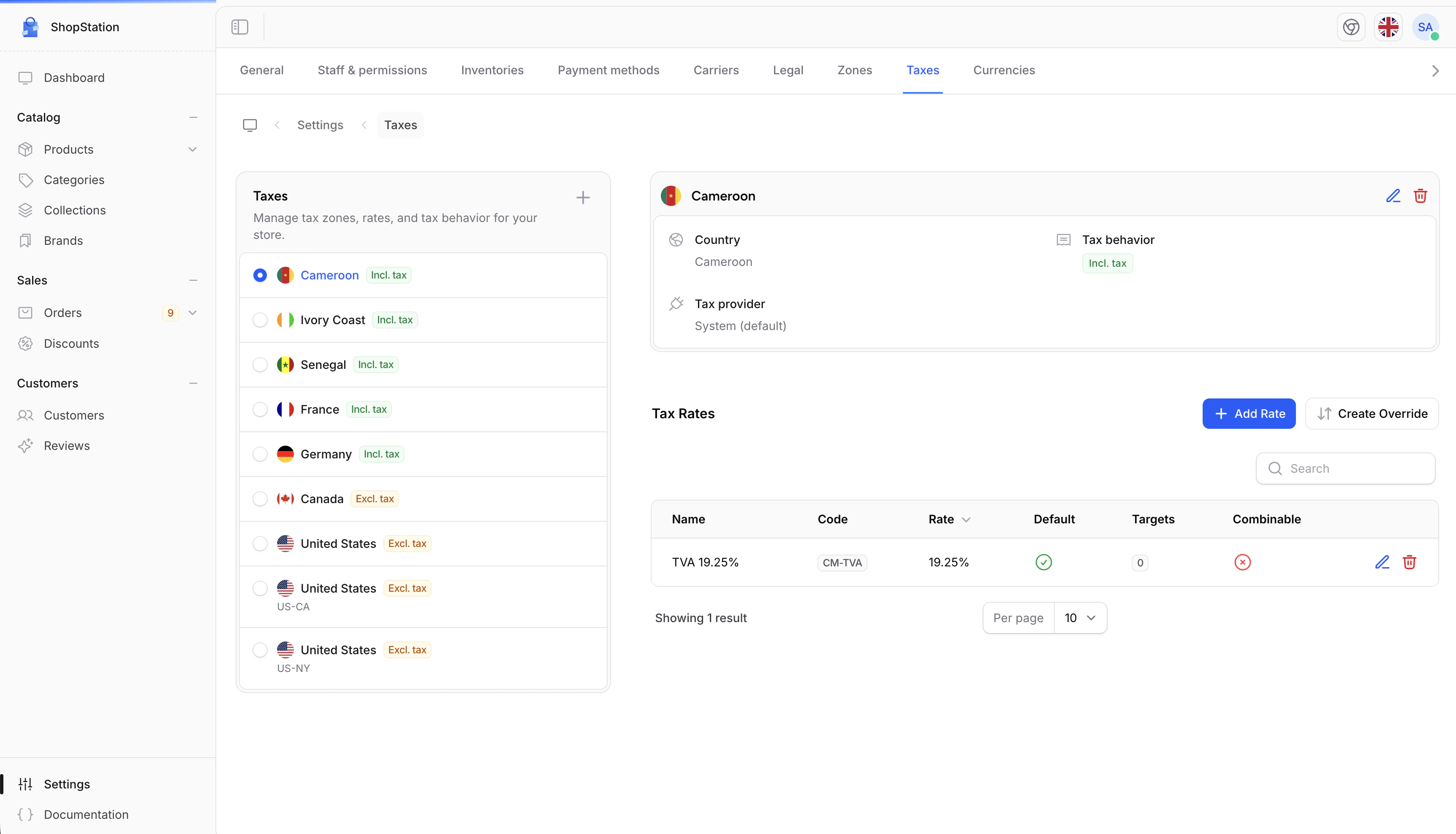
Taxes are calculated automatically at checkout based on where the customer’s order is being shipped. You define tax zones (geographic regions), set percentage rates for each zone, and Shopper handles the calculation for every order. Shopper supports both tax-inclusive pricing (VAT, common in Europe where tax is included in the displayed price) and tax-exclusive pricing (sales tax, common in the US where tax is added at checkout).

Accessing Tax Settings

  1. Click on Settings in the sidebar
  2. Select Taxes from the settings menu
Tax settings page

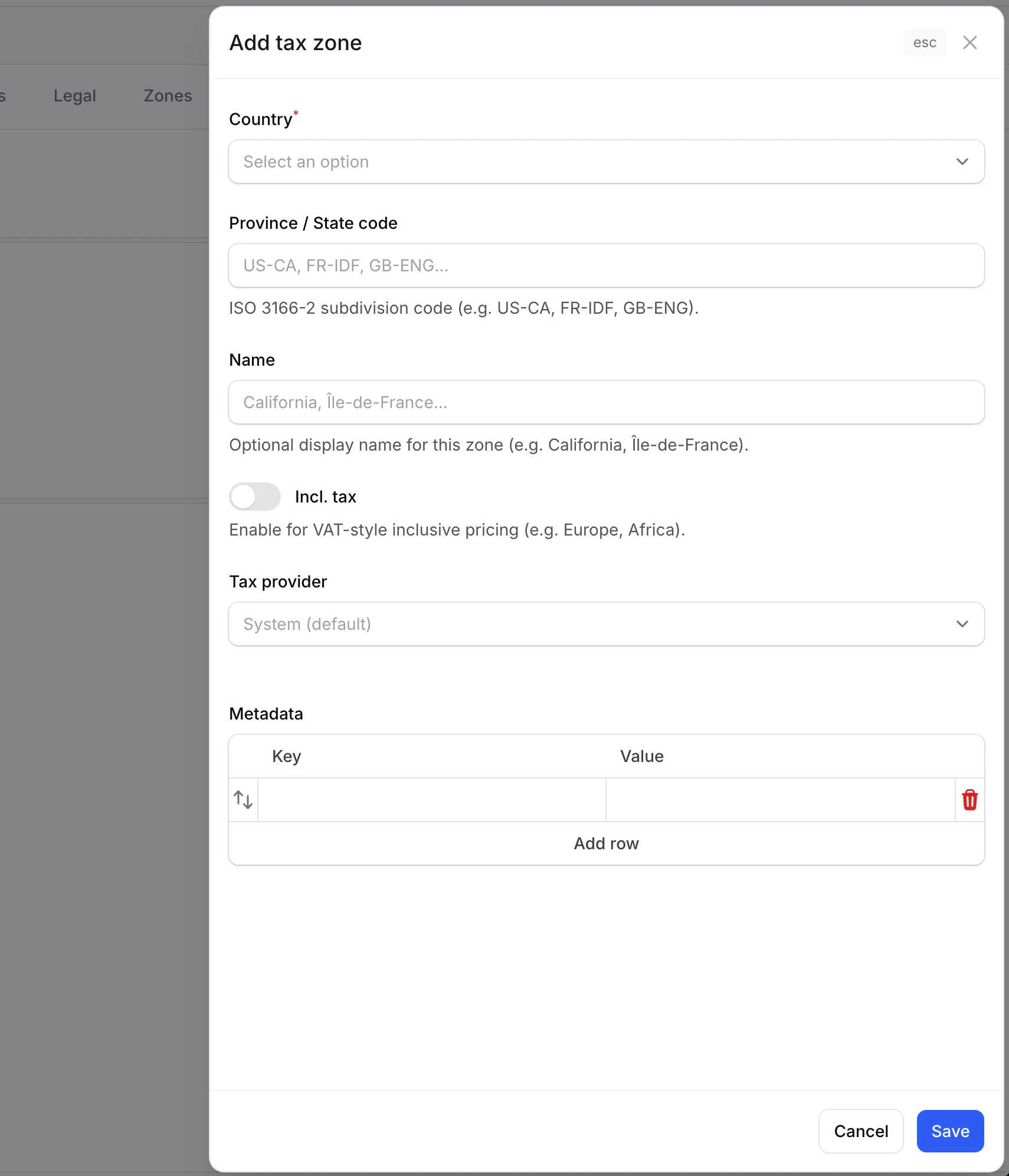
Creating a Tax Zone

A tax zone maps to a country (and optionally a province/state). To create one:
  1. Click the Add tax zone button
  2. Select the country
  3. Optionally enter a province/state code (e.g., “CA” for California)
  4. Choose whether prices include tax (tax-inclusive) or tax is added at checkout (tax-exclusive)
  5. Click Save
Create tax zone form

Tax Zone Fields

FieldRequiredDescription
CountryYesThe country this tax zone applies to
Province/StateNoA specific province or state code (e.g., “CA”, “NY”). Leave empty for country-wide rules
NameNoA label to identify this zone (e.g., “Standard VAT”, “California Sales Tax”)
Tax InclusiveYesIf ON, prices already include tax (VAT). If OFF, tax is added at checkout (sales tax)

Tax-Inclusive vs Tax-Exclusive

SettingHow it worksCommon in
Tax Inclusive (ON)A product listed at 100 EUR already includes tax. The tax amount is extracted from the price.Europe (VAT), Australia (GST)
Tax Exclusive (OFF)A product listed at 100hastaxaddedontopatcheckout(e.g.,100 has tax added on top at checkout (e.g., 100 + 10tax=10 tax = 110).United States, Canada

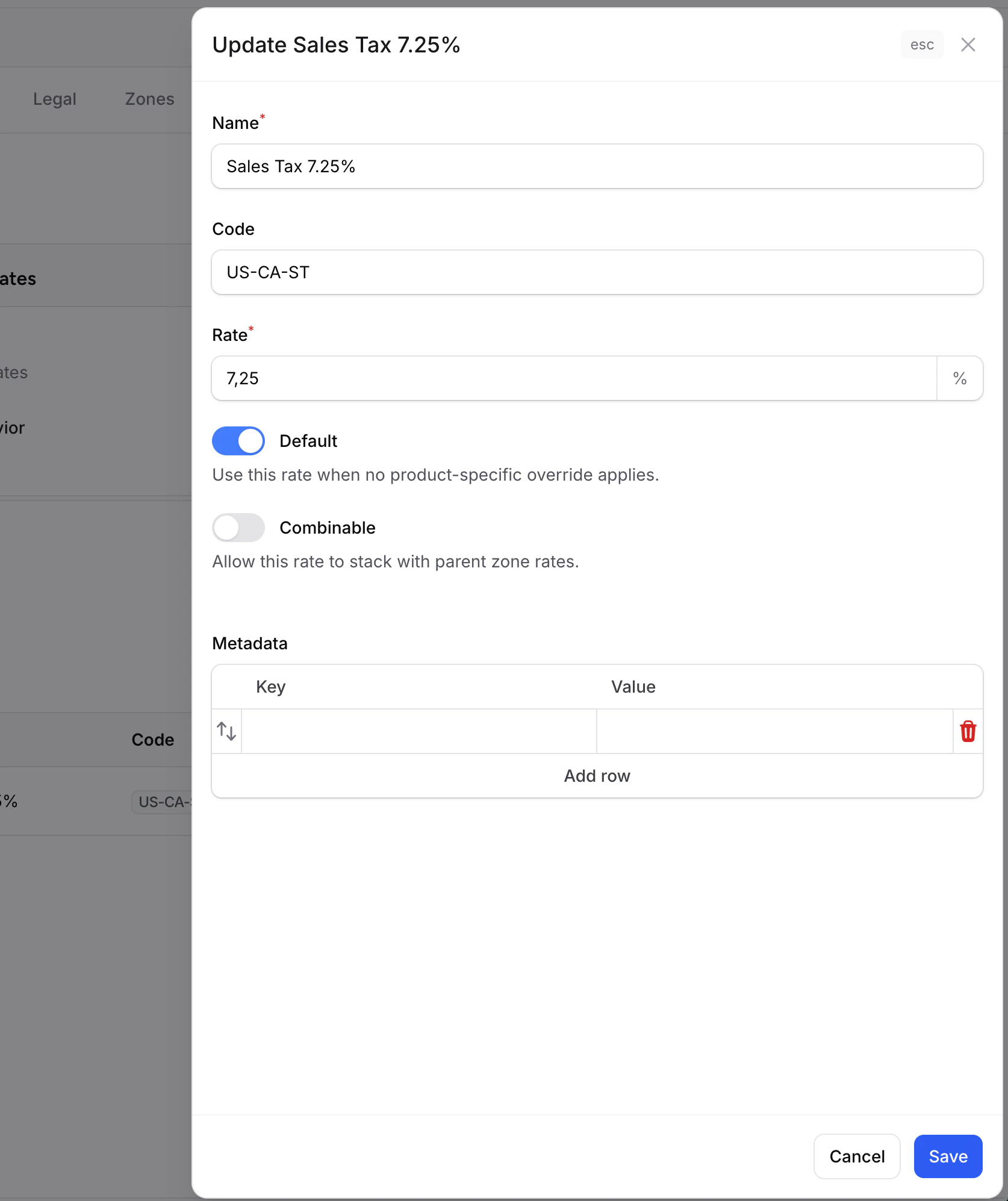
Adding Tax Rates

Each tax zone needs at least one tax rate. The default rate applies to all products in the zone unless a more specific override exists. To add a rate:
  1. Select a tax zone from the list
  2. Click Add rate
  3. Enter the rate name, code, and percentage
  4. Toggle Default if this is the zone’s primary rate
  5. Click Save
Add tax rate form

Tax Rate Fields

FieldRequiredDescription
NameYesRate name shown on invoices (e.g., “TVA 20%”, “State Sales Tax”)
CodeNoMachine-readable identifier (e.g., “FR_VAT_STANDARD”)
RateYesThe percentage (e.g., 20 for 20%)
DefaultYesIf ON, this rate applies to all products that don’t match a specific override
CombinableNoWhether this rate stacks with rates from a parent zone

Multiple Rates per Zone

Some countries have different tax rates for different types of products. For example, France has:
RatePercentageApplies to
Standard VAT20%Most products
Reduced VAT5.5%Food, books
Zero VAT0%Certain essential goods
Create each rate in the same zone. The default rate applies to all products. Use rate overrides to assign non-default rates to specific products or categories.

Rate Overrides

Overrides let you apply a non-default tax rate to specific products, product types, or categories. For example, you can set food products to use the 5.5% reduced rate instead of the default 20%.
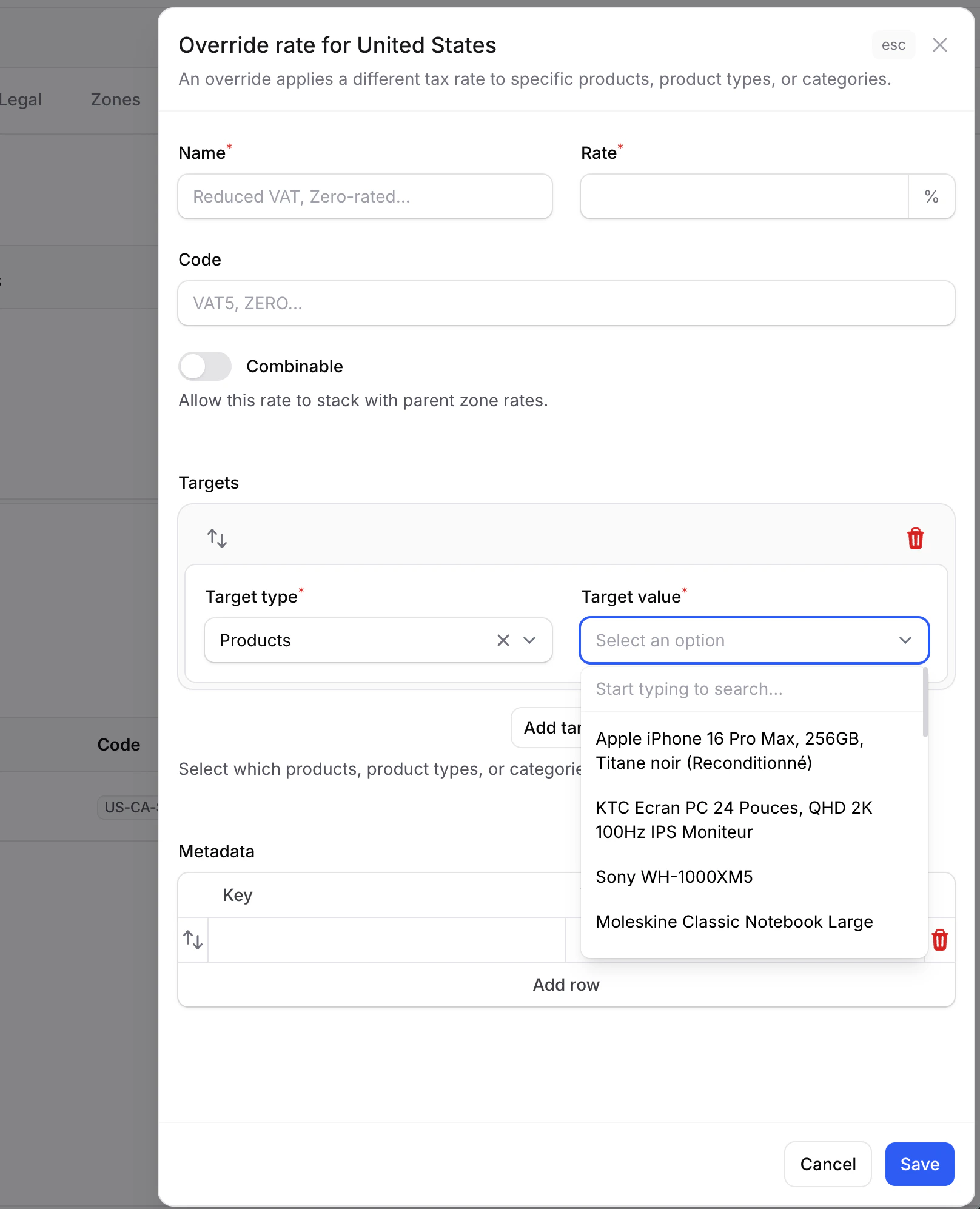
Tax rate override form

Override Types

TypeWhat it targetsExample
Product TypeAll products of a type (standard, virtual, external)Virtual products with digital tax rate
ProductA specific productA book with zero-rated VAT
CategoryAll products in a categoryFood category with reduced rate

Best Practices

Start with Defaults

Set up one default rate per zone. Add overrides only when needed for specific product categories.

Know Your Rules

Tax rules vary by country. Consult your accountant or tax advisor for the correct rates.

Test Both Modes

Test checkout with both tax-inclusive (VAT) and tax-exclusive (sales tax) zones to verify prices display correctly.

Use Codes

Give each rate a clear code (e.g., “FR_VAT_20”) for easy identification in reports and invoices.
For developer details on tax calculation, custom tax providers, and the tax pipeline, see the Taxes documentation.