
Overview
The Staff management section allows you to:- Add new administrators
- Manage existing staff accounts
- Assign roles and permissions
- Enable/disable accounts
Accessing Staff Settings
- Click on Settings in the sidebar
- Select Staff from the settings menu
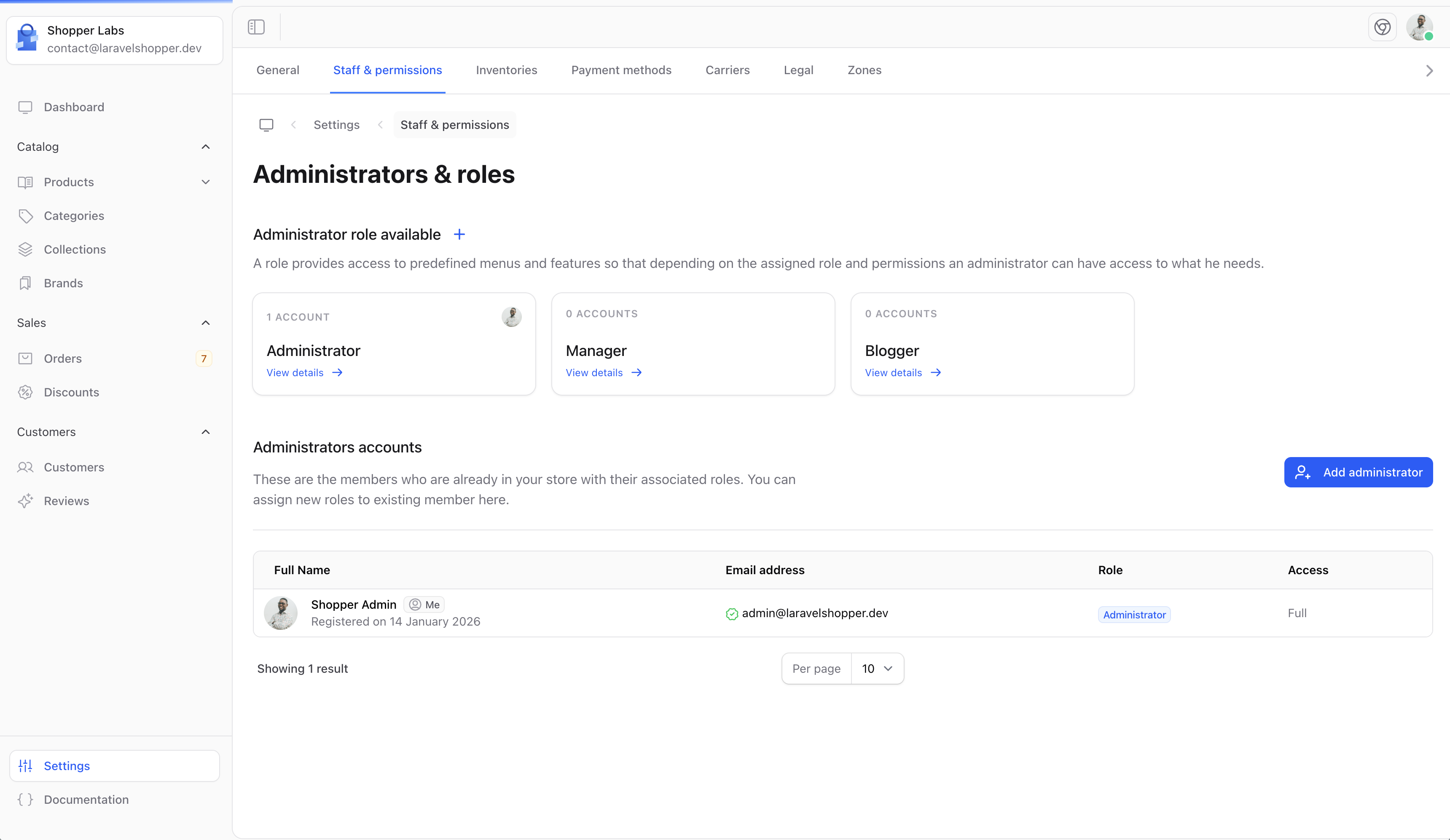
Staff List
Adding a New Admin
To add a new staff member:- Click the Add admin button
- Fill in the administrator details
- Assign a role
- Click Save
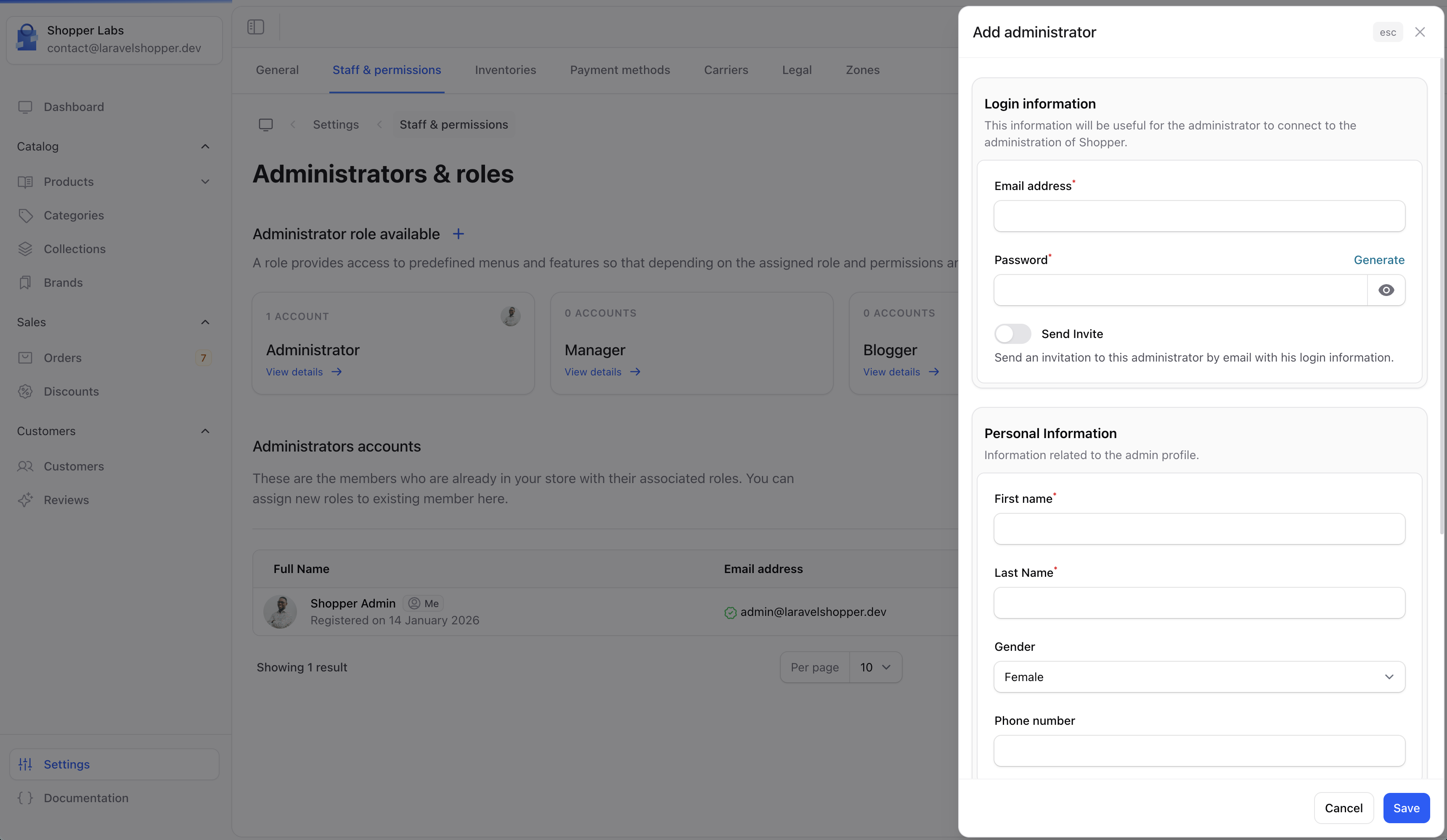
Add Administrator
Admin Fields
Only administrators can assign the Administrator role to a new team member. For other staff members, this role does not appear in the role choices.
Staff Roles
Each staff member is assigned a role that determines what they can access:Managing Existing Staff
Edit Staff Member
- Click on a staff member’s name
- Update their information
- Click Save
Disable Staff Member
Instead of deleting, you can disable a staff account:- They won’t be able to log in
- Their activity history is preserved
- Can be re-enabled later
Delete Staff Member
Permanently remove a staff account:- Use with caution - this cannot be undone
- Consider disabling instead for record-keeping
Your Profile
Each staff member can manage their own profile: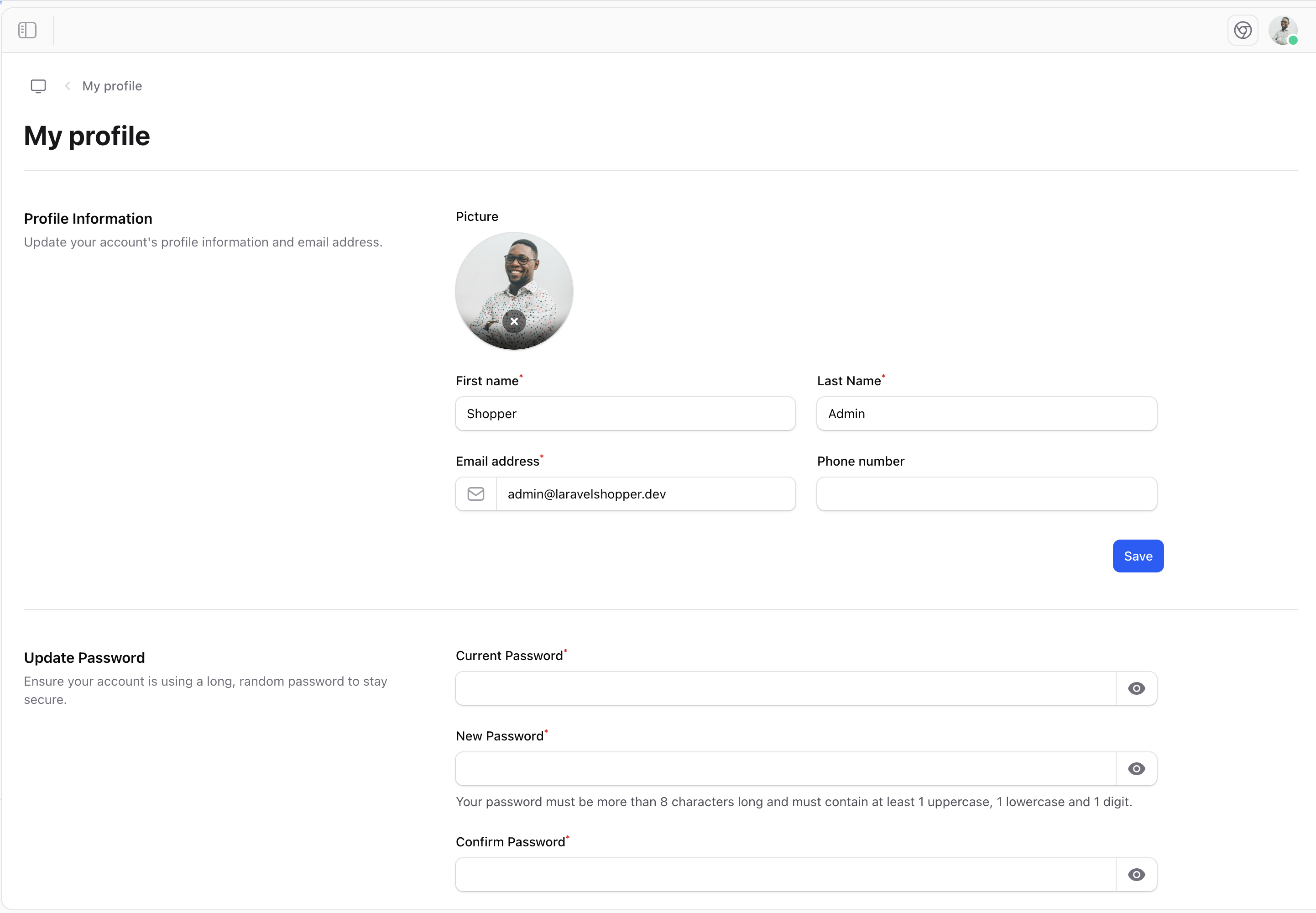
User Profile
- Update personal information
- Change your password
- Enable two-factor authentication
- Set notification preferences
Best Practices
Unique Accounts
Give each person their own account - never share credentials.
Strong Passwords
Require strong passwords for all admin accounts.
Enable 2FA
Encourage or require two-factor authentication.
Regular Audits
Periodically review who has access to your admin.
Security Recommendations
- Remove inactive accounts - Disable accounts for staff who leave
- Use role-based access - Don’t give everyone admin access
- Enable two-factor - Add an extra layer of security
- Monitor activity - Keep track of who does what
- Regular password changes - Encourage periodic password updates