
Overview
Categories create a hierarchical structure for your products. You can create:- Parent categories - Top-level categories (e.g., “Clothing”, “Electronics”)
- Subcategories - Nested categories (e.g., “Men’s Shirts” under “Clothing”)
Accessing Categories
Click on Categories in the sidebar to access the category management page.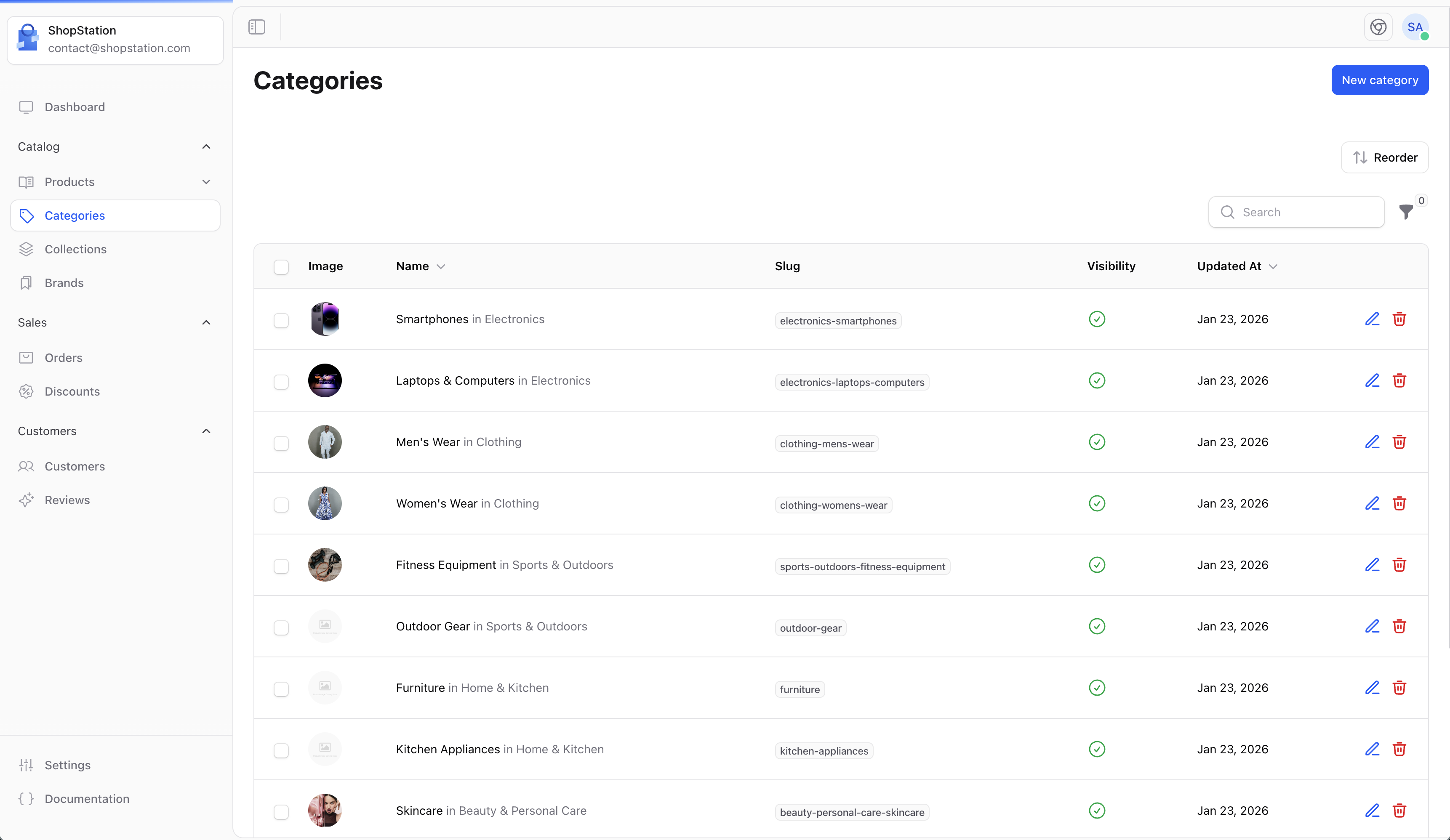
Creating a Category
To add a new category:- Click the Create button on the Categories page
- Fill in the category details
- Click Save to create the category
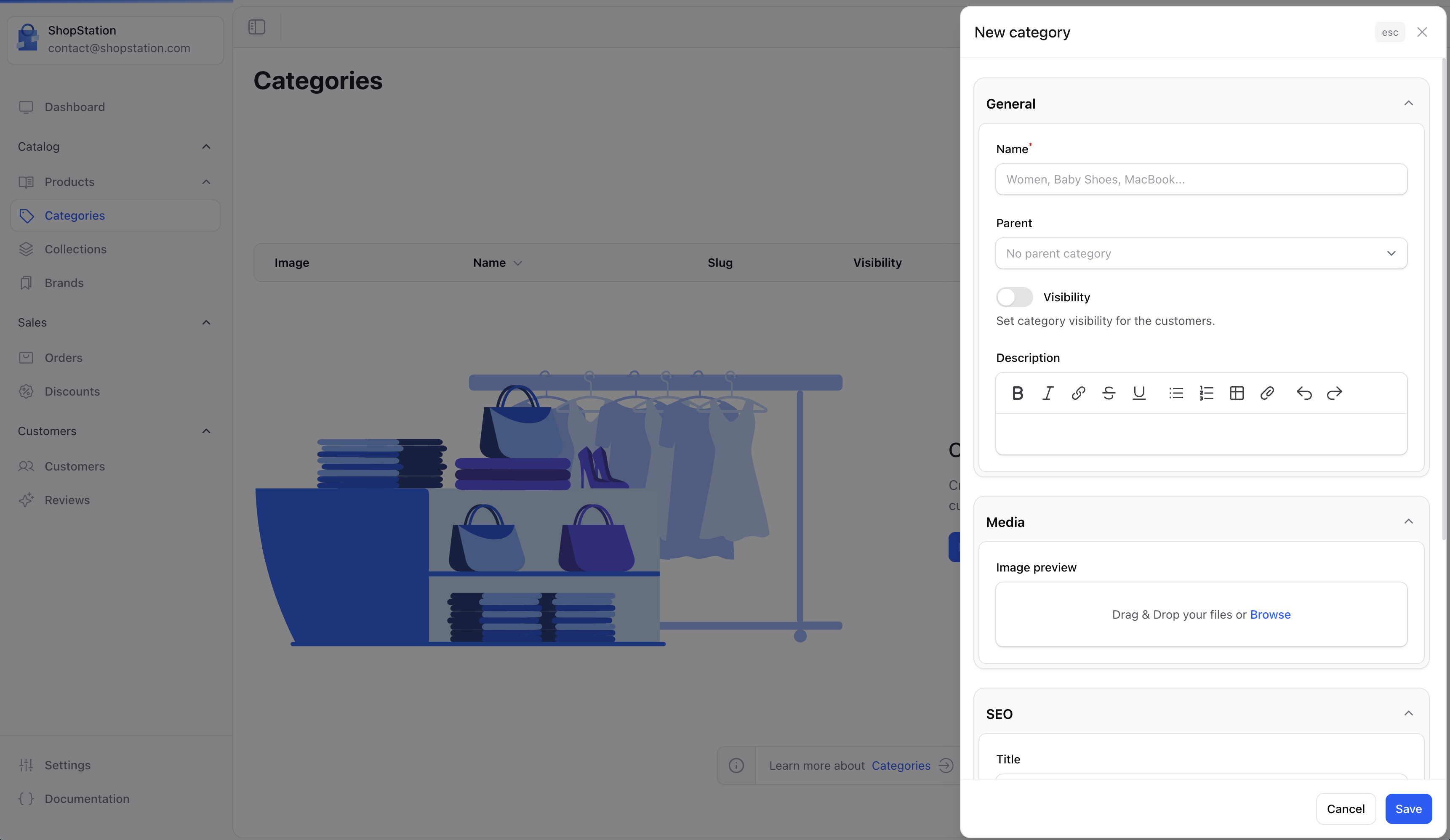
Category Fields
SEO Settings
Improve your category pages visibility in search engines:Category Hierarchy
Categories can be nested to create a logical structure:- Create a new category
- Select the parent category from the dropdown
- Save the category
Managing Category Order
Categories can be reordered to control how they appear in navigation:- Use drag-and-drop to reorder categories
- Position determines the display order on your storefront
Category States
- Enabled - Visible to customers and appears in navigation
- Disabled - Hidden from customers but products remain categorized
Best Practices
Keep it Simple
Don’t create too many levels. 2-3 levels deep is usually sufficient.
Use Clear Names
Category names should be descriptive and match what customers search for.
Add Images
Visual categories help customers navigate faster.
Plan Ahead
Think about your full product range before creating the category structure.