
What is Two-Factor Authentication?
2FA requires two forms of verification:- Something you know - Your password
- Something you have - A code from your phone
Enabling Two-Factor Authentication
Step 1: Access Security Settings
- Click on your profile avatar in the sidebar
- Go to your account settings
- Find the Two-Factor Authentication section
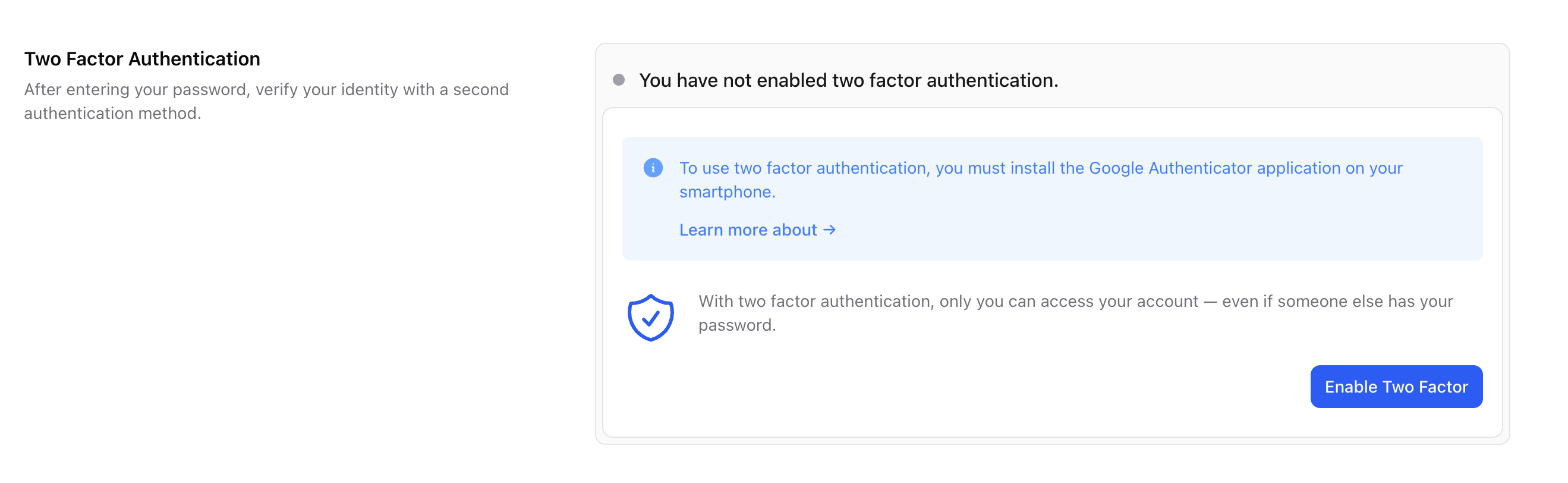
Step 2: Start Setup
Click Enable to begin the setup process.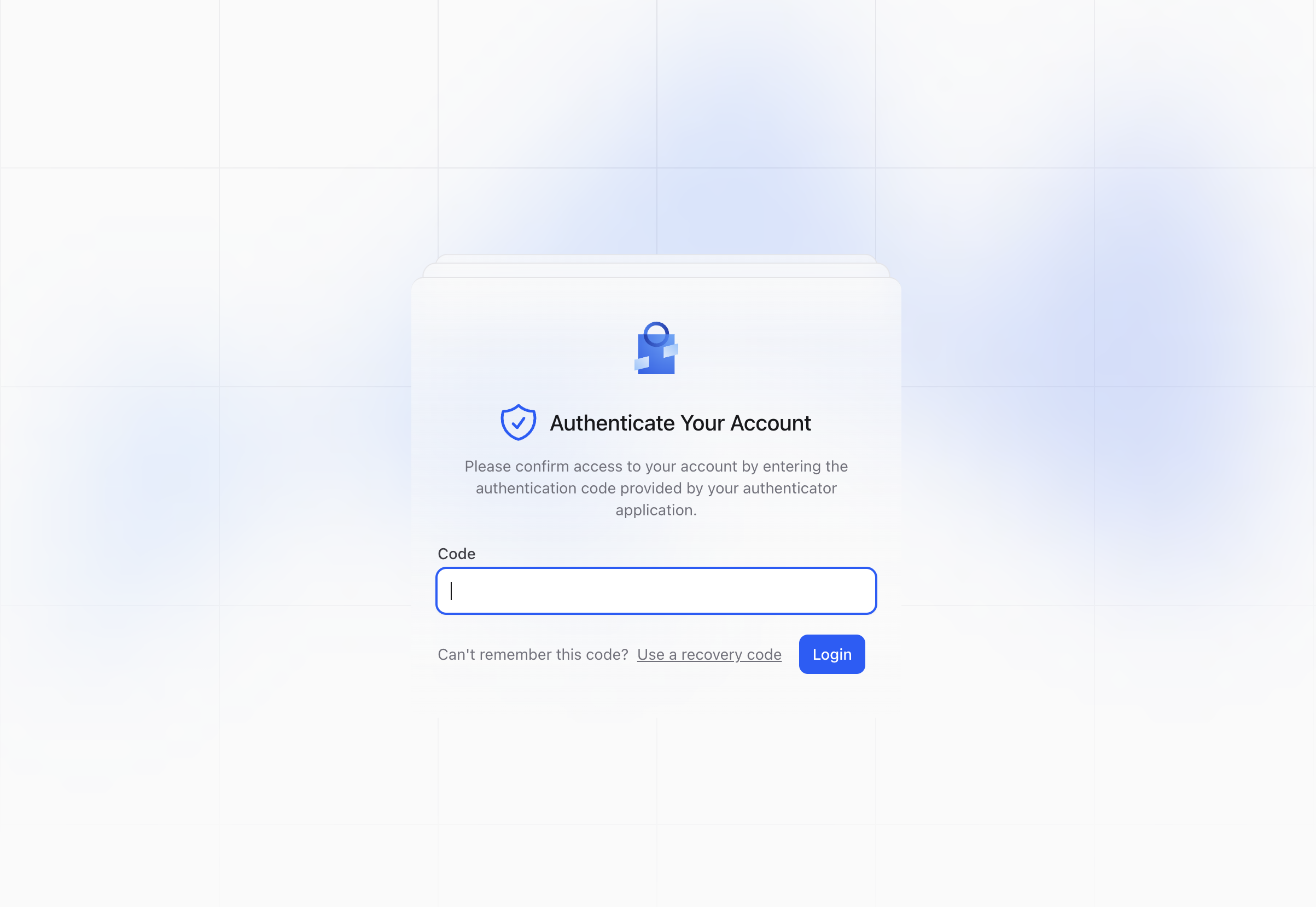
Step 3: Scan QR Code
-
Install an authenticator app on your phone:
- Google Authenticator
- Authy
- Microsoft Authenticator
- 1Password
- Open the app and scan the QR code displayed on screen
- The app will generate a 6-digit code
Step 4: Verify Setup
Enter the code from your authenticator app to verify: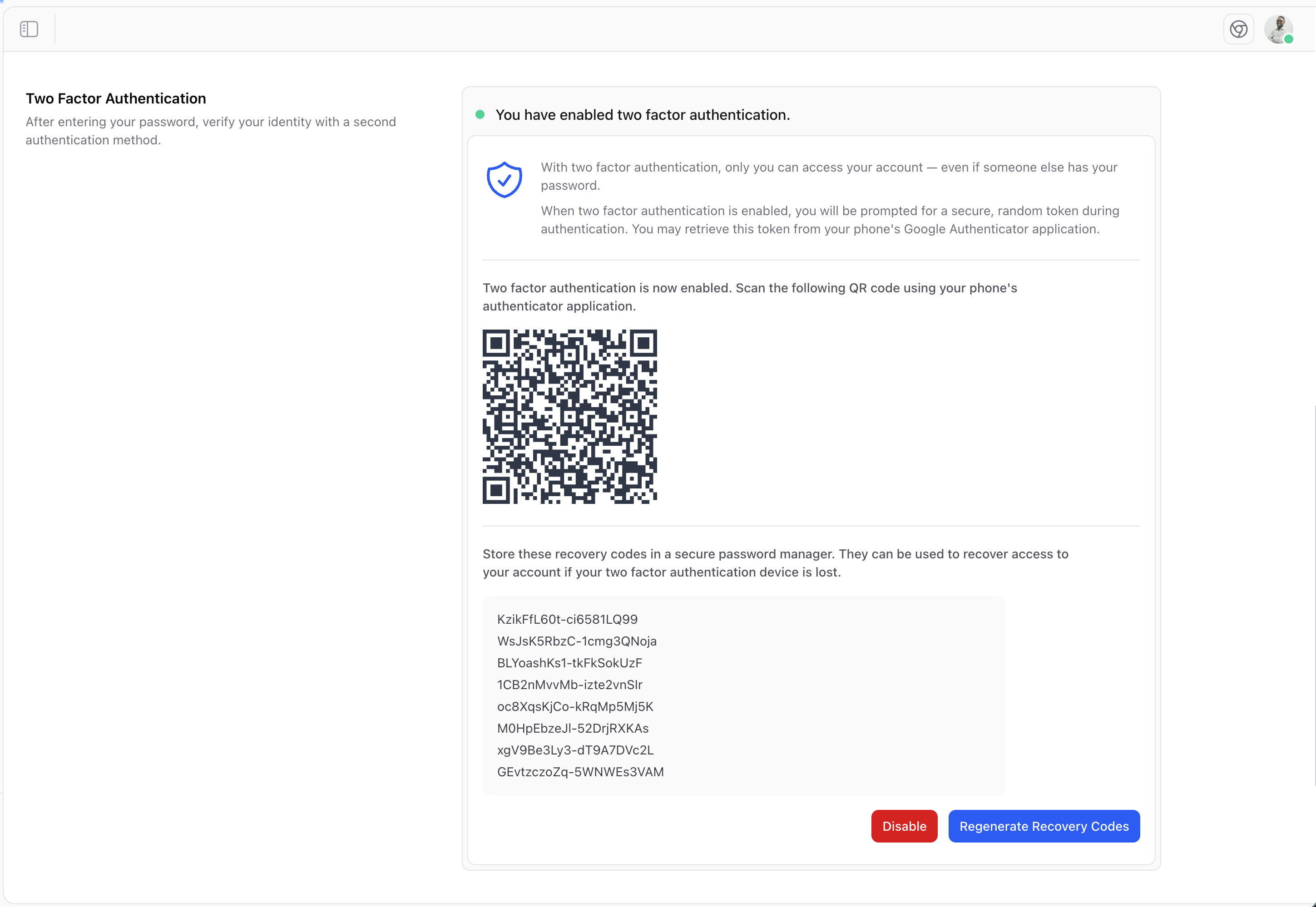
Step 5: Save Recovery Codes
After enabling 2FA, you’ll receive recovery codes. Save these securely! Recovery codes are one-time use codes that can help you regain access if you lose your phone.Logging In with 2FA
After enabling two-factor authentication:- Enter your email and password as usual
- You’ll be prompted for a verification code
- Open your authenticator app
- Enter the 6-digit code
- You’re logged in!
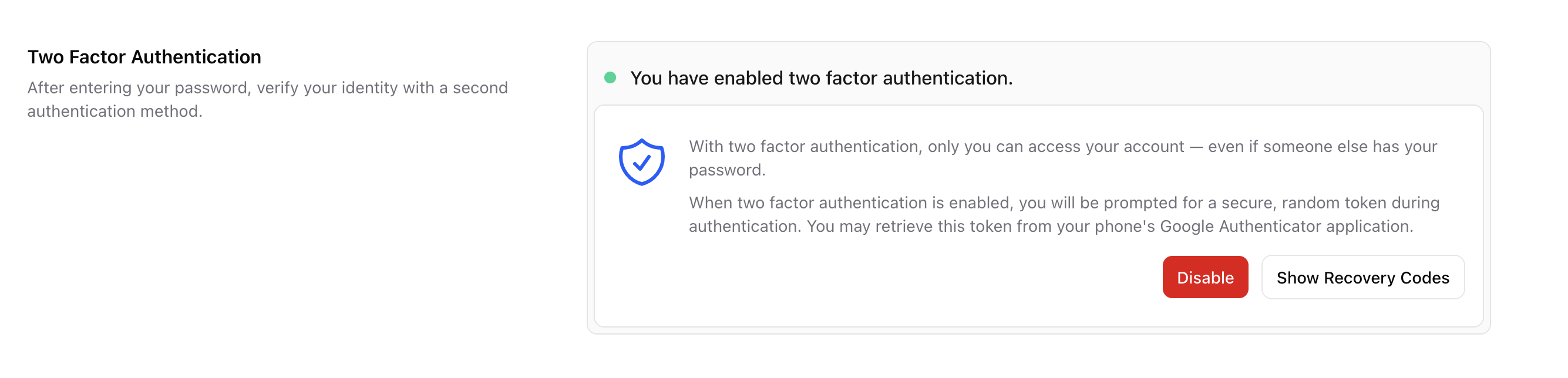
Disabling Two-Factor Authentication
If you need to disable 2FA:- Go to your account settings
- Find the Two-Factor Authentication section
- Click Disable
- Confirm your decision
Recovery Options
Lost Your Phone?
If you’ve lost access to your authenticator:- Use a recovery code - Enter one of your saved recovery codes
- Contact an administrator - They may be able to reset your 2FA
- Use backup device - If you set up 2FA on multiple devices
Recovery Codes
Each recovery code can only be used once. After using a code:- That code is no longer valid
- Generate new codes if you’re running low
- Keep at least 2-3 codes available at all times
Best Practices
Enable for All Admins
Require 2FA for all staff with admin access.
Secure Recovery Codes
Store recovery codes separately from your password.
Use a Trusted App
Choose a reputable authenticator app.
Backup Device
Set up 2FA on a backup device if possible.
Recommended Authenticator Apps
Troubleshooting
Code Not Working?
- Check the time - Your phone’s time must be accurate
- Try the next code - Codes refresh every 30 seconds
- Use a recovery code - If you can’t generate valid codes
Locked Out?
- Try using a recovery code
- Contact another administrator
- As a last resort, contact technical support