
- Manual carriers where you set flat-rate prices for each delivery option
- API-connected carriers that fetch real-time shipping rates from the carrier’s system (UPS, FedEx, USPS)
Accessing Carriers
- Click on Settings in the sidebar
- Select Carriers from the settings menu
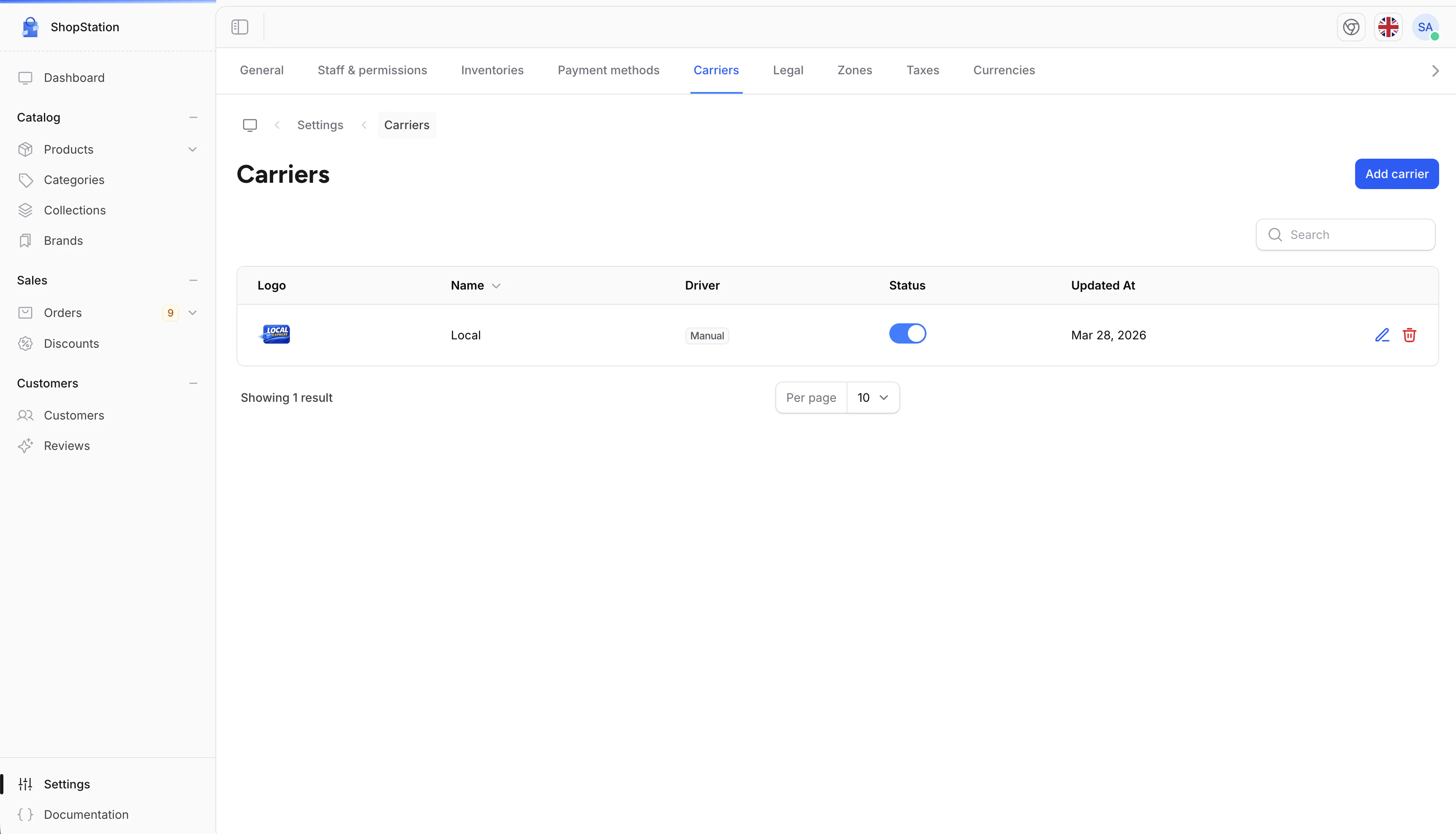
Adding a Carrier
To add a new shipping carrier:- Click the Add carrier button
- Fill in the carrier details
- Click Save
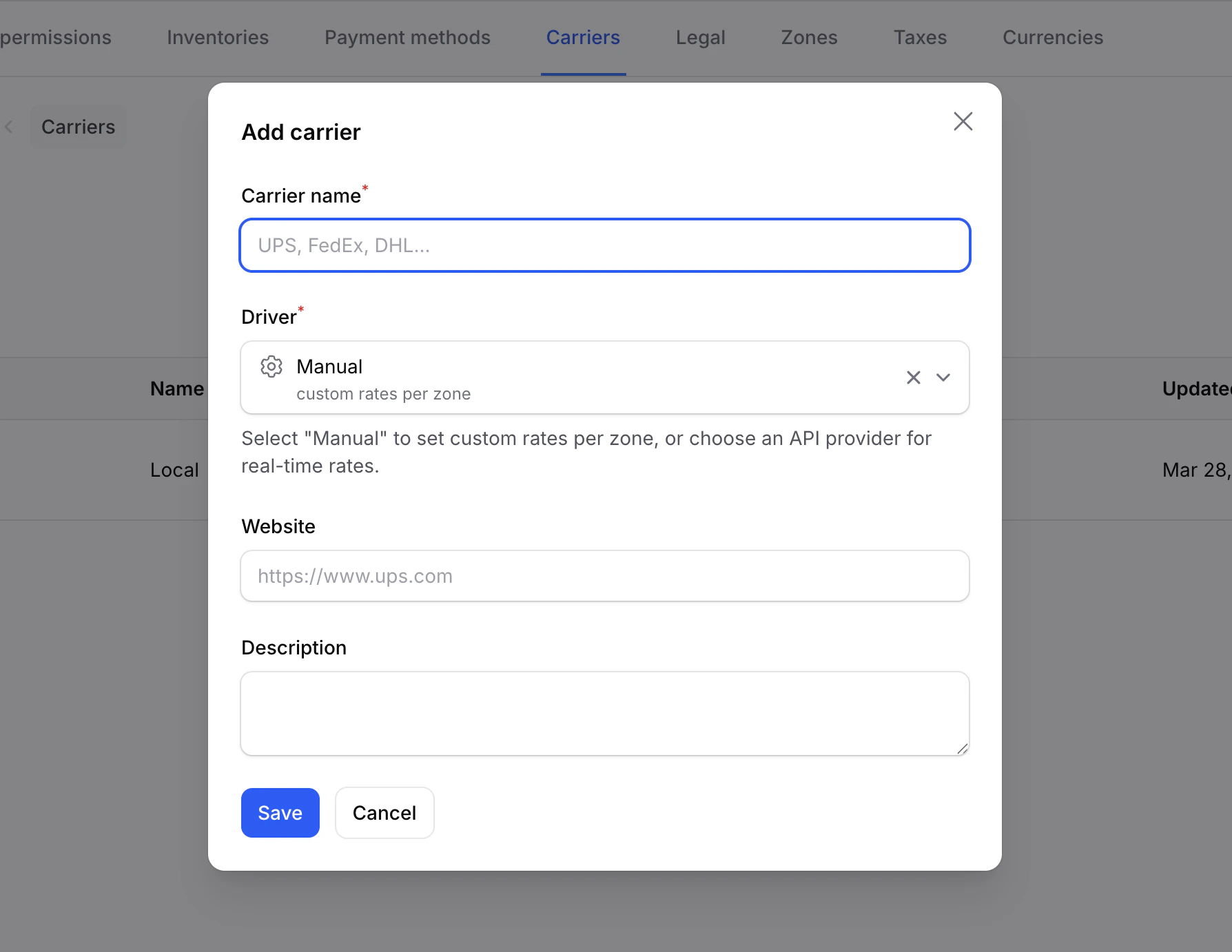
Carrier Fields
Choosing a Driver
The driver determines how shipping rates are calculated: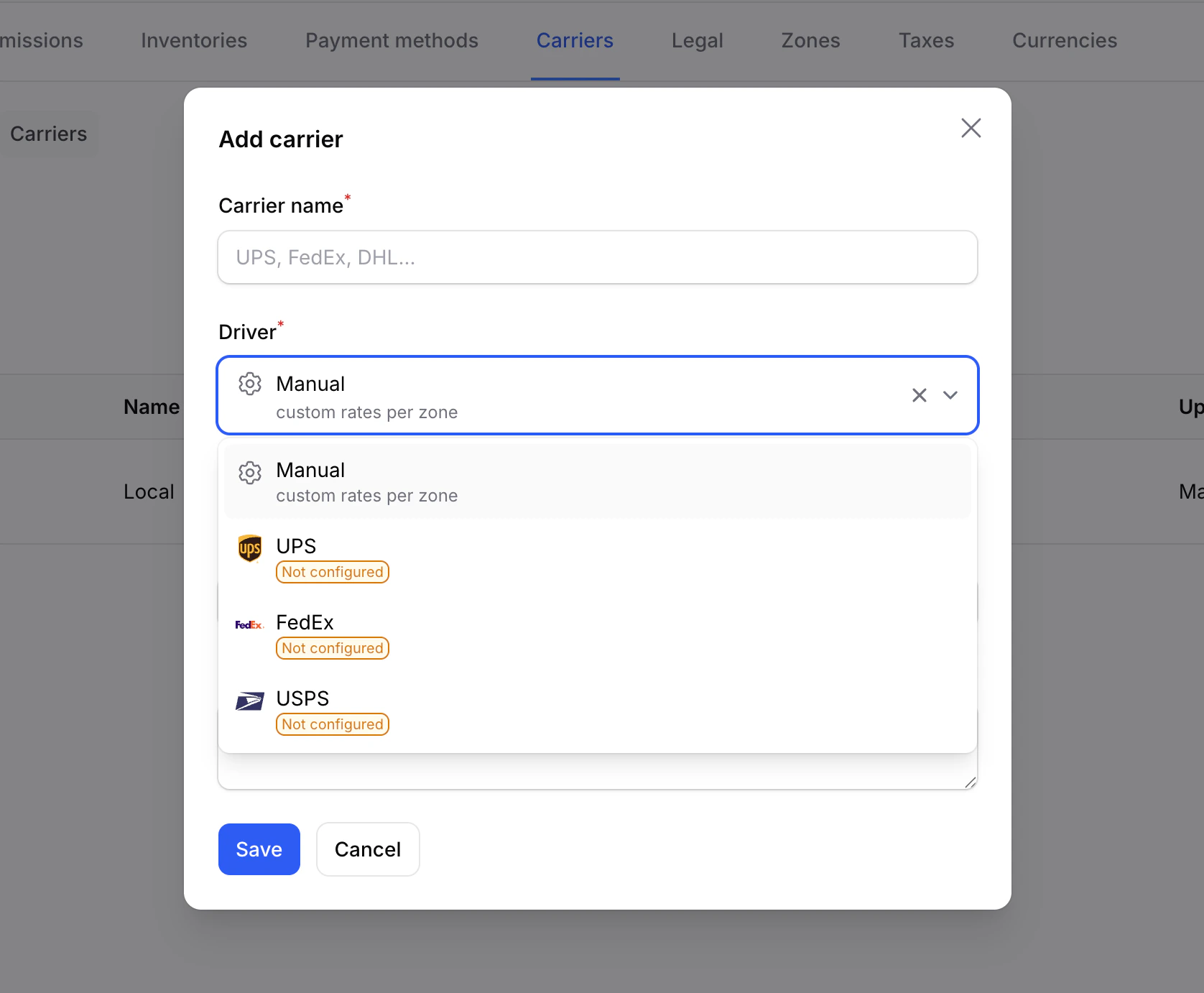
API-connected drivers (UPS, FedEx, USPS) require API credentials to be configured by your developer. If a driver shows a “Not Configured” badge in the dropdown, the credentials have not been set up yet. See the Carriers developer documentation for setup instructions.
Managing Carriers
Editing a Carrier
To update a carrier’s information:- Click the Edit icon next to the carrier you want to modify
- Update the fields you want to change
- Click Save
Enabling or Disabling a Carrier
You can quickly enable or disable a carrier without editing it by toggling the Status switch directly in the carriers list. Disabled carriers are not shown as shipping options during checkout.Deleting a Carrier
To remove a carrier:- Click the Delete icon next to the carrier
- Confirm the deletion
Setting Up Delivery Options
After creating a carrier, you need to add delivery options with pricing. Delivery options are configured per zone, so the same carrier can have different options and prices for different regions. To add a delivery option:- Go to Settings > Zones
- Select the zone where you want to add shipping options
- In the Shipping Options section, click Add shipping option
- Select the carrier and fill in the delivery details
- Click Save
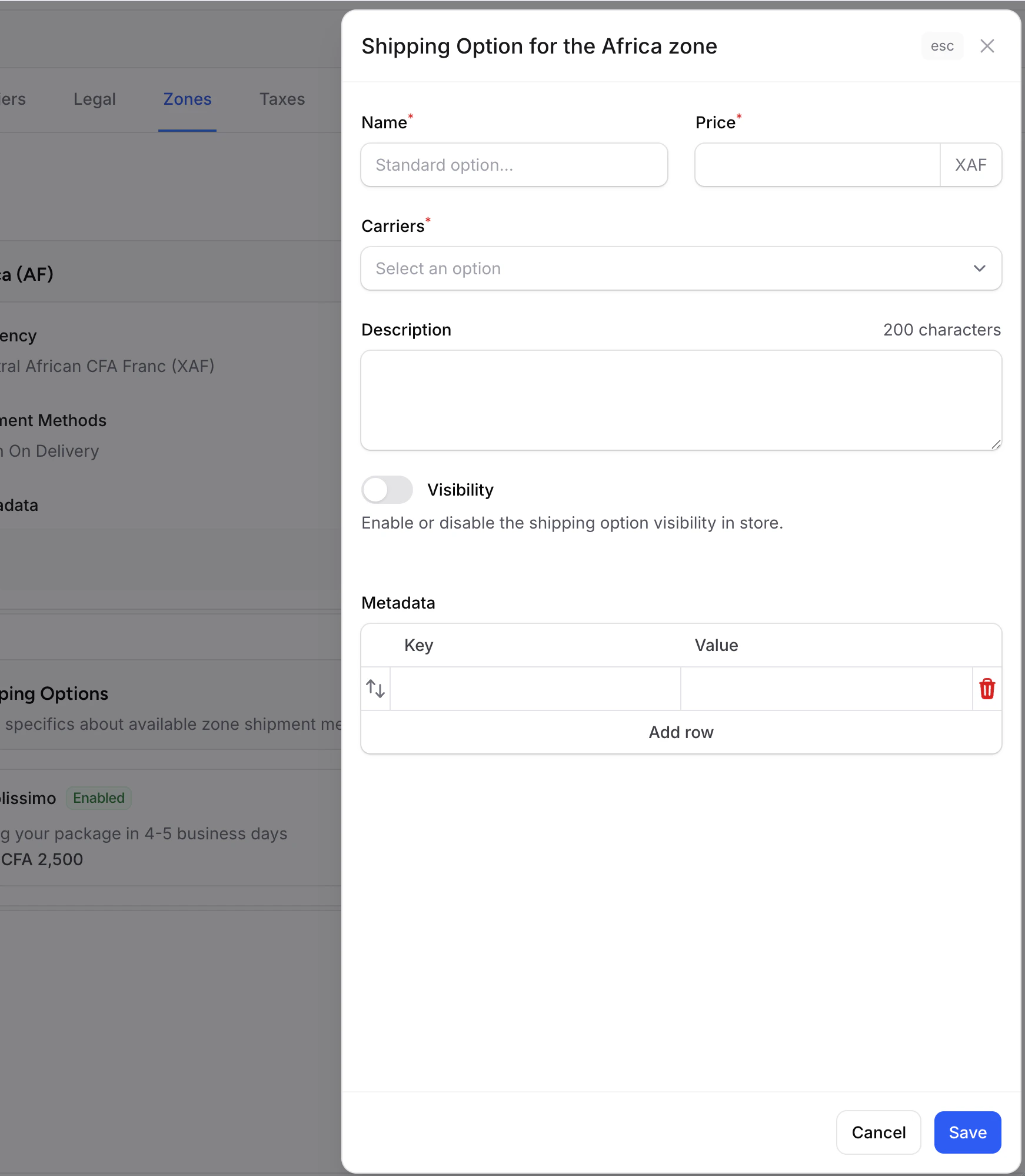
Delivery Option Fields
Viewing Delivery Options
All delivery options for a zone are displayed in the zone’s detail page under the Shipping Options section. Each option shows the carrier name, option name, price, and status.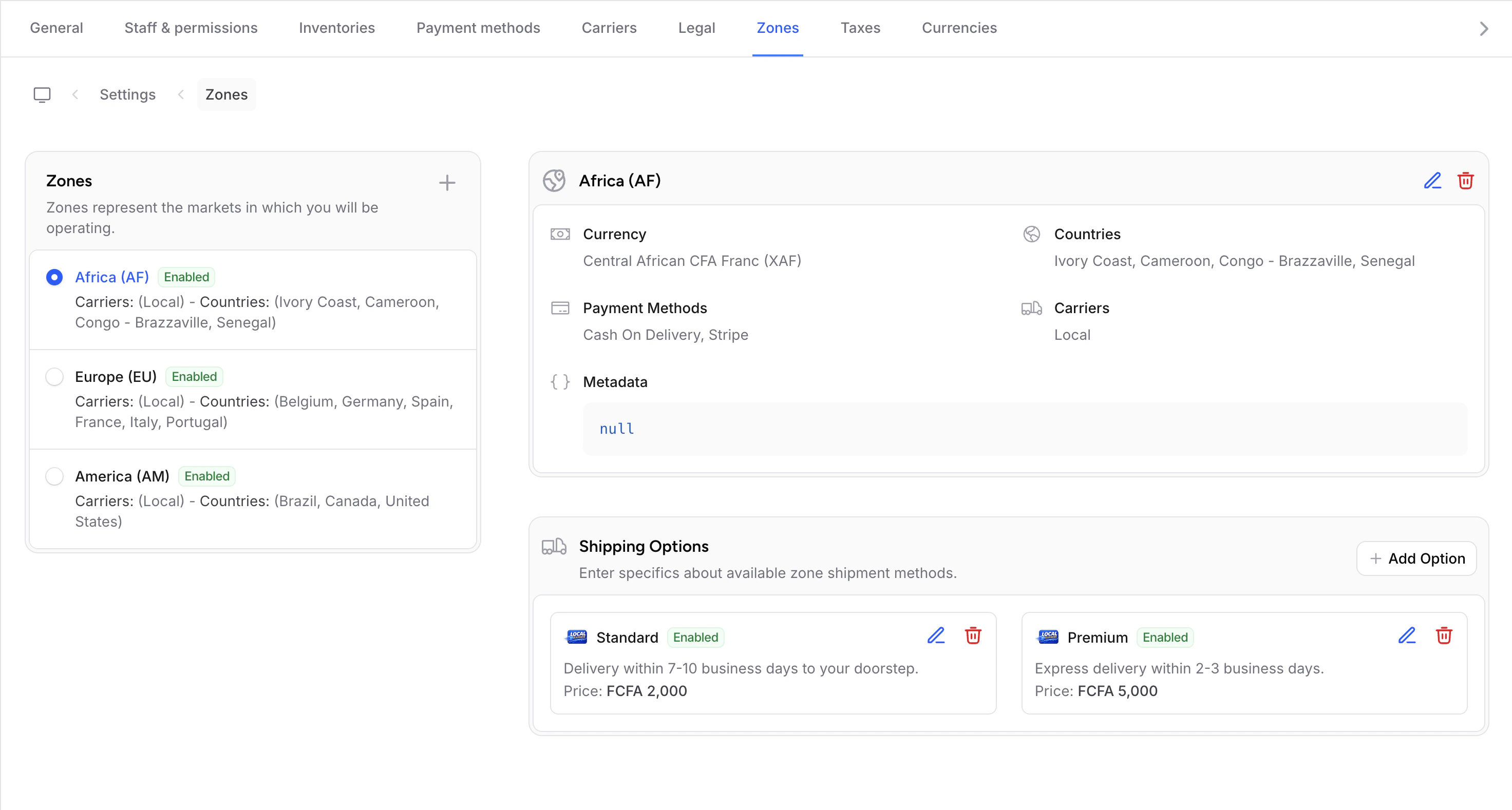
Editing or Removing Delivery Options
To edit a delivery option, click the Edit icon next to it. To remove it, click the Delete icon and confirm.Common Setups
Here are typical carrier configurations for different store types:Local Business
National Store
International Store
Free Shipping
To offer free shipping:- Create a carrier named “Free Shipping”
- Add a delivery option with a price of 0
- In the description, specify any conditions (e.g., “Free on orders over $50”)
Best Practices
Name Clearly
Use descriptive names that include delivery time: “Standard (3-5 days)” is better than just “Standard”.
Price by Zone
Set different prices for different zones. Domestic shipping is usually cheaper than international.
Offer Choices
Give customers at least 2 shipping options: a budget option and a faster option.
Test at Checkout
After setting up carriers, place a test order to verify shipping options appear correctly.