Tags are flat, flexible labels you attach to products for cross-cutting organization. Unlike categories (which are hierarchical) or collections (which can be rule-based), tags are simple keywords that help you group products across your catalog. Common uses for tags include seasonal labels (“Summer 2026”), marketing campaigns (“Flash Sale”), product attributes (“Eco-Friendly”), or storefront filters (“New Arrival”, “Best Seller”).

Accessing Tags

  1. Click on Products in the sidebar
  2. Select Tags from the submenu
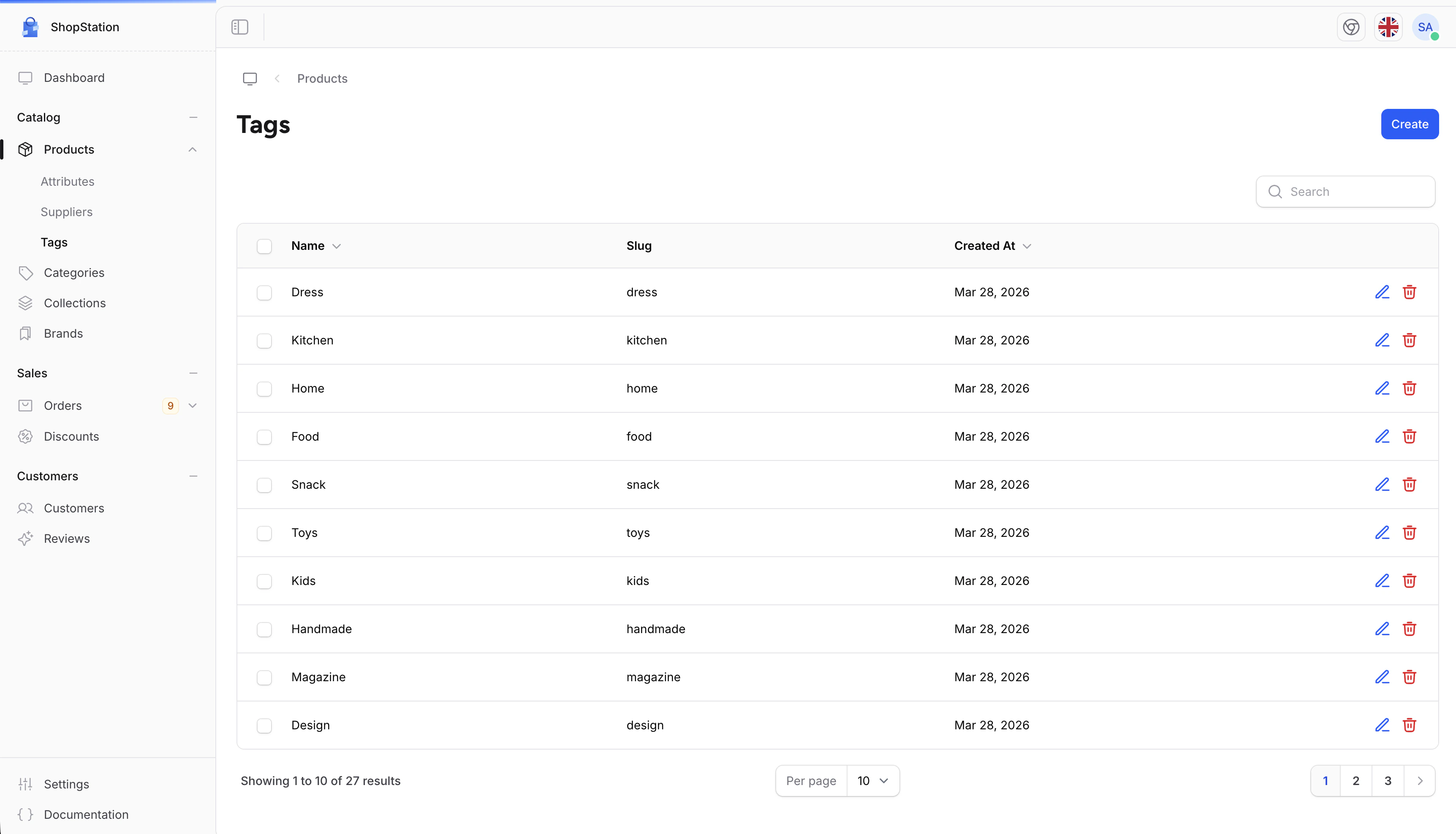
Tags list page
The tags list shows all your tags with their name, slug, and creation date. You can search, edit, and delete tags from this page.

Creating a Tag

To create a new tag:
  1. Click the Create tag button
  2. Enter the tag name
  3. Click Save
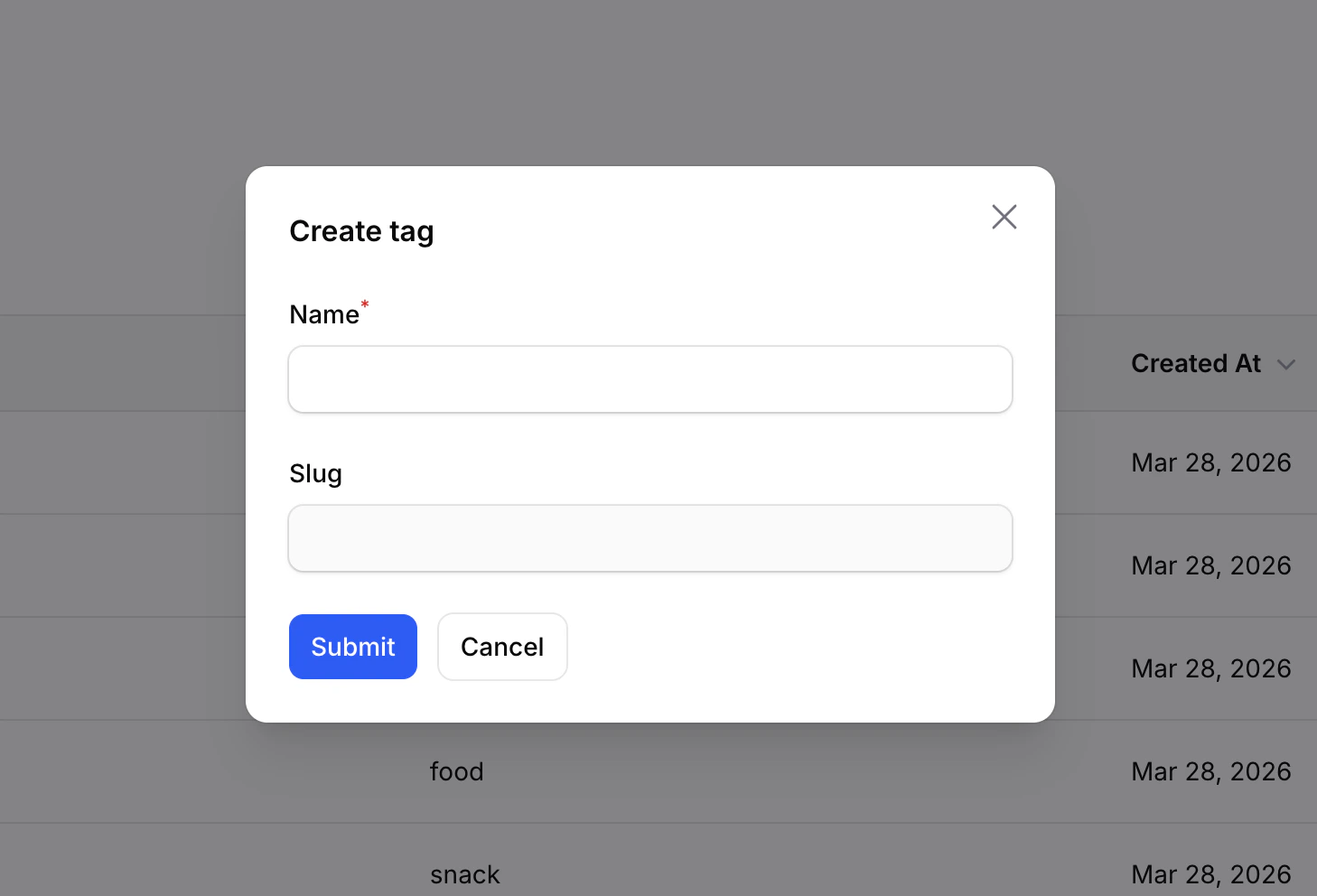
Create tag form
FieldRequiredDescription
NameYesThe tag label (e.g., “Summer 2026”, “New Arrival”)
SlugAutoGenerated automatically from the name. Used in URLs on your storefront.
The slug is generated automatically from the tag name and cannot be edited manually. If two tags have the same name, the slug is made unique by appending a number (e.g., “summer-2026-1”).

Editing a Tag

To update an existing tag:
  1. Click the Edit icon next to the tag
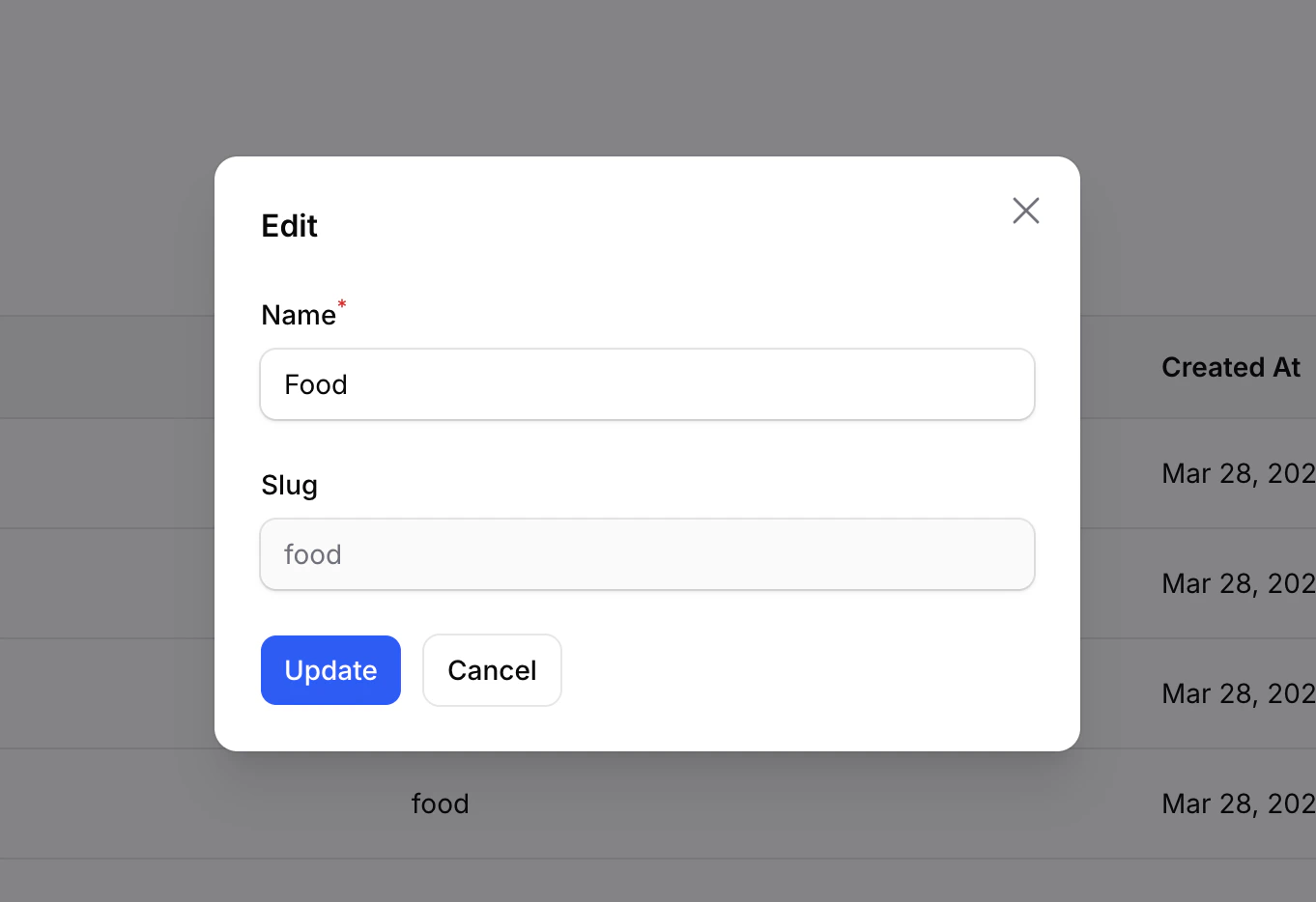
  2. Modify the name
  3. Click Save
Edit tag form

Deleting Tags

To remove a tag:
  1. Click the Delete icon next to the tag
  2. Confirm the deletion
You can also select multiple tags and use the bulk delete action to remove several at once.
Deleting a tag removes it from all products that use it. The products themselves are not affected.

Assigning Tags to Products

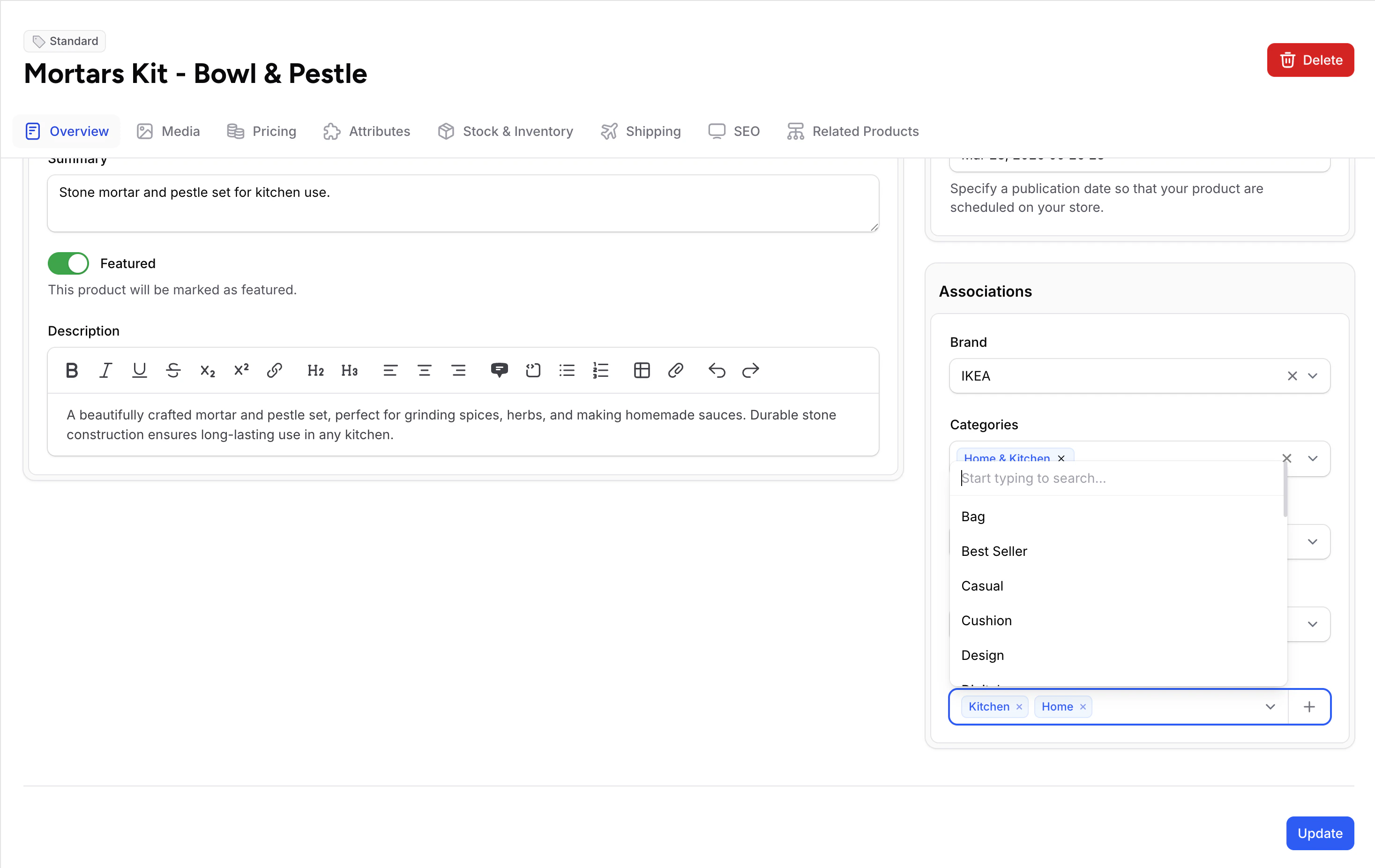
Tags are assigned to products from the product edit form, not from the tags page. When editing a product:
  1. Go to the product’s edit page
  2. Find the Tags field
  3. Select existing tags or create a new one inline
  4. Click Save
Tags field on product edit form
You can create new tags directly from the product edit form without going to the Tags page. Just type a new tag name and select Create from the dropdown.

Tags vs Categories vs Collections

FeatureTagsCategoriesCollections
StructureFlat labelsHierarchical treeFlat groups
AssignmentManual per productManual per productManual or automatic (rule-based)
Best forCross-cutting labels, campaignsProduct taxonomy, navigationMarketing groups, curated lists
Example”Eco-Friendly”, “Flash Sale”Electronics > Computers > Laptops”Summer Essentials”, “Best Sellers”

Common Tag Strategies

StrategyTagsUse Case
Seasonal”Spring 2026”, “Summer 2026”Rotate seasonal products on your storefront
Marketing”Flash Sale”, “Clearance”Highlight promotional products
Product traits”Organic”, “Handmade”, “Vegan”Help customers filter by values
Internal”Low Margin”, “Restock Soon”Track products without showing on storefront
Tags are visible on your storefront if your developer builds filtering based on them. If a tag is for internal use only, you can use it without displaying it to customers.
For developer details on tags, see the Product Tags documentation.