
The supplier feature must be enabled by your developer before it appears in the admin panel. If you don’t see “Suppliers” in the sidebar, ask your developer to enable it in the configuration.
Accessing Suppliers
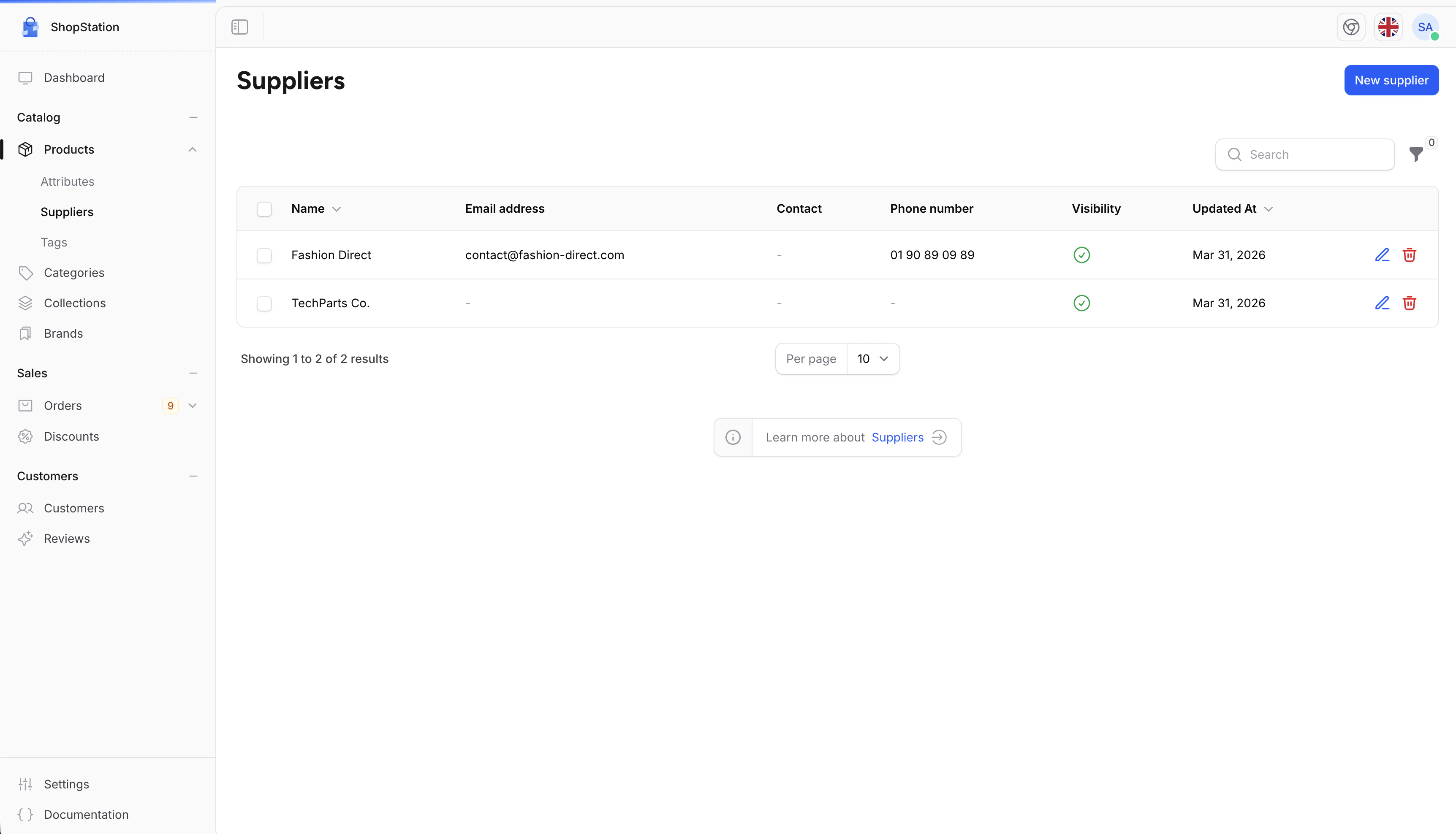
When the feature is enabled, suppliers appear under the Products section:- Click on Products in the sidebar
- Select Suppliers from the submenu
Adding a Supplier
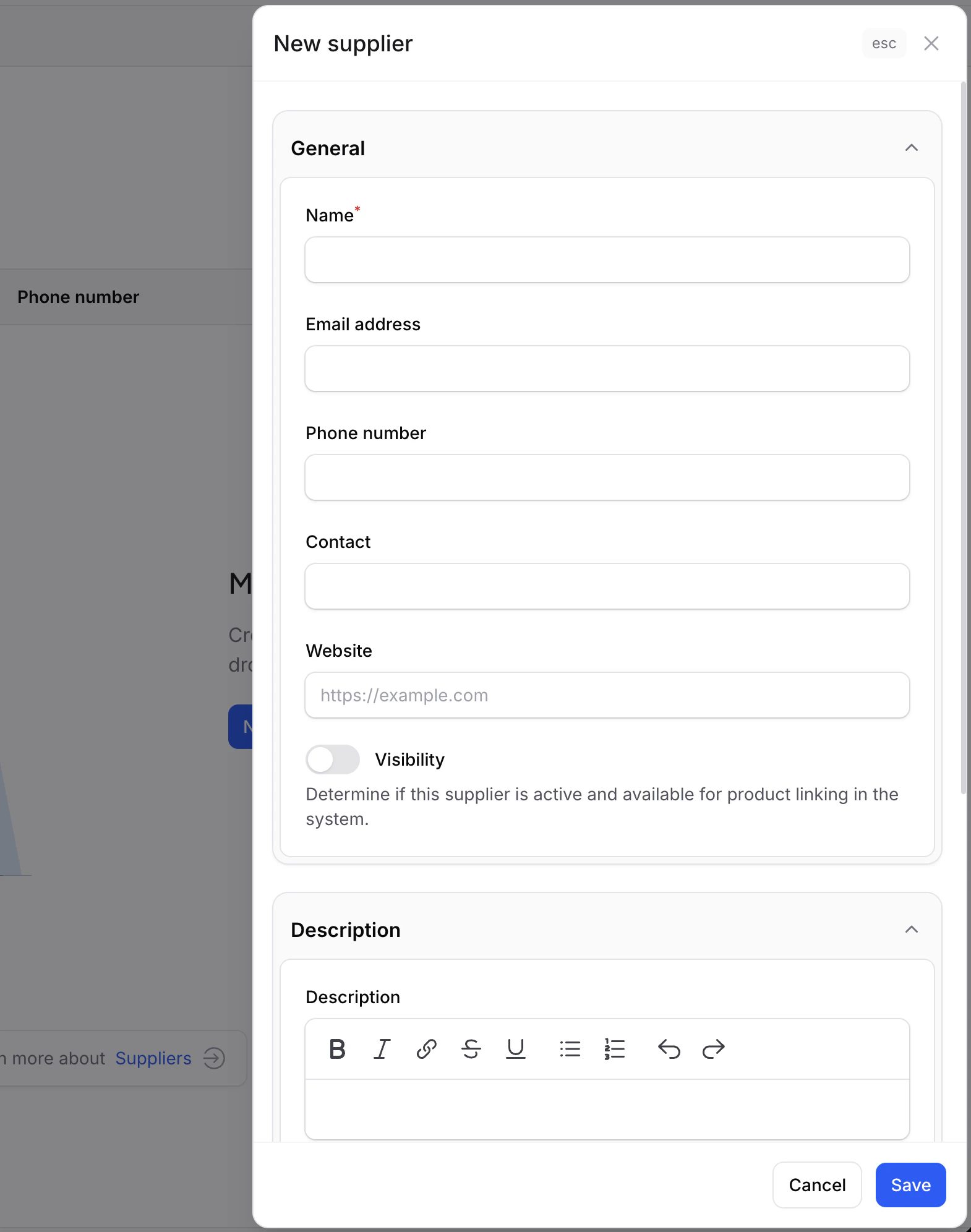
To add a new supplier:- Click the Add supplier button
- Fill in the supplier details
- Click Save
Supplier Fields
Editing a Supplier
To update a supplier’s information:- Click the Edit icon next to the supplier
- Modify the fields you want to change
- Click Save
Enabling or Disabling a Supplier
Toggle the Status switch in the list to quickly enable or disable a supplier. Disabled suppliers are still linked to their products but are marked as inactive.Linking Products to Suppliers
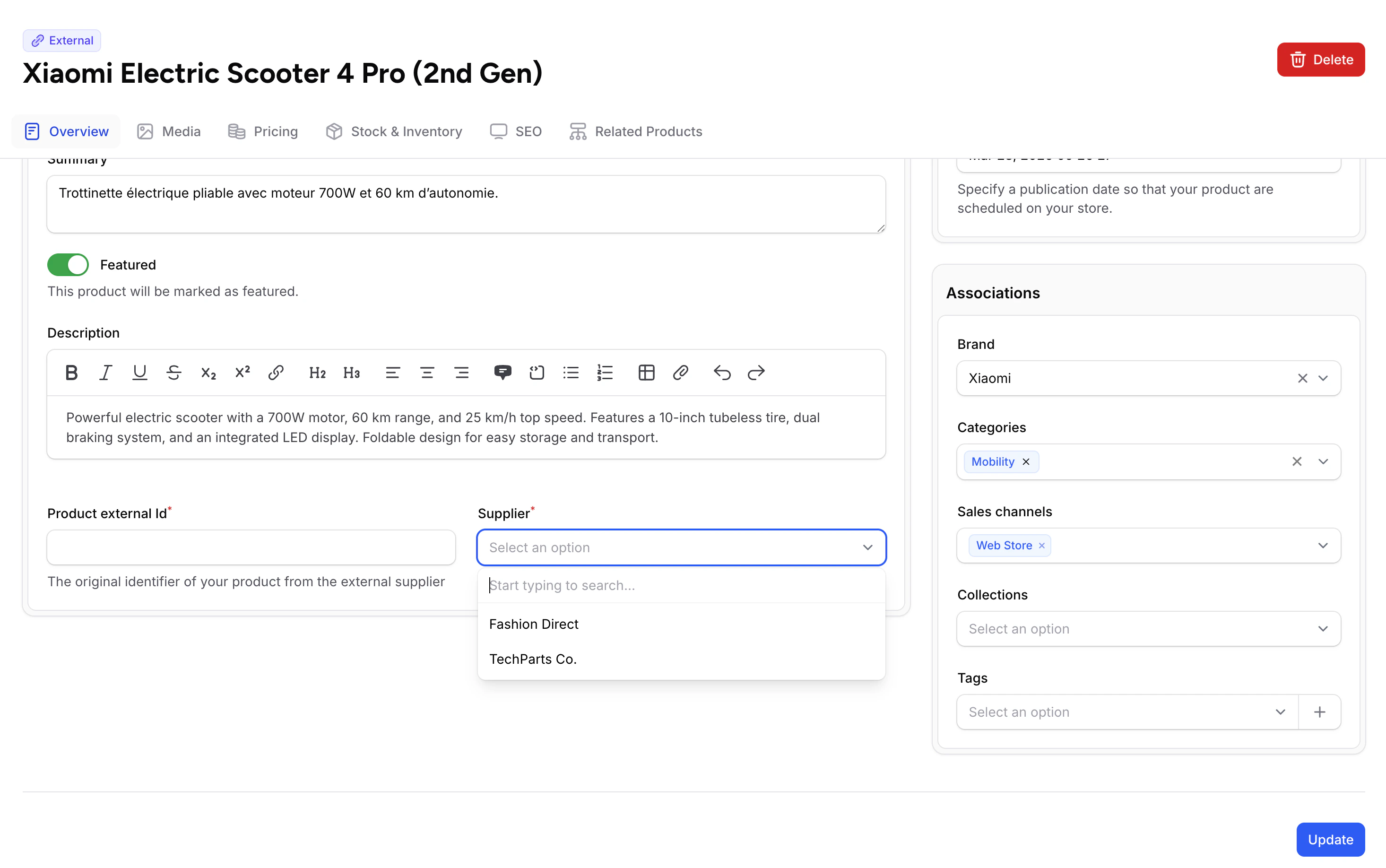
Products are linked to suppliers from the product edit form. When creating or editing an External product:- Go to the product’s edit page
- Find the Supplier dropdown
- Select the supplier
- Click Save
How Dropshipping Works
When a customer orders a product linked to a supplier, the order flow is:- Customer places order on your store
- You receive the order in the admin panel
- You forward the order to the supplier (via email, their portal, or API)
- Supplier ships directly to the customer
- You add tracking info from the supplier to the order
- Customer receives the product
Supplier Information to Collect
When onboarding a new supplier, gather this information:Best Practices
Verify First
Order samples from a supplier before listing their products. Test quality, packaging, and delivery time.
Track Margins
Use the cost price field on products to track your profit margin on supplier products.
Communicate Clearly
Set clear expectations with suppliers about order format, shipping requirements, and branding.
Keep Notes Updated
Use the Notes field to track payment terms, minimum orders, and special instructions.