
Accessing Payment Methods
- Click on Settings in the sidebar
- Select Payment Methods from the settings menu
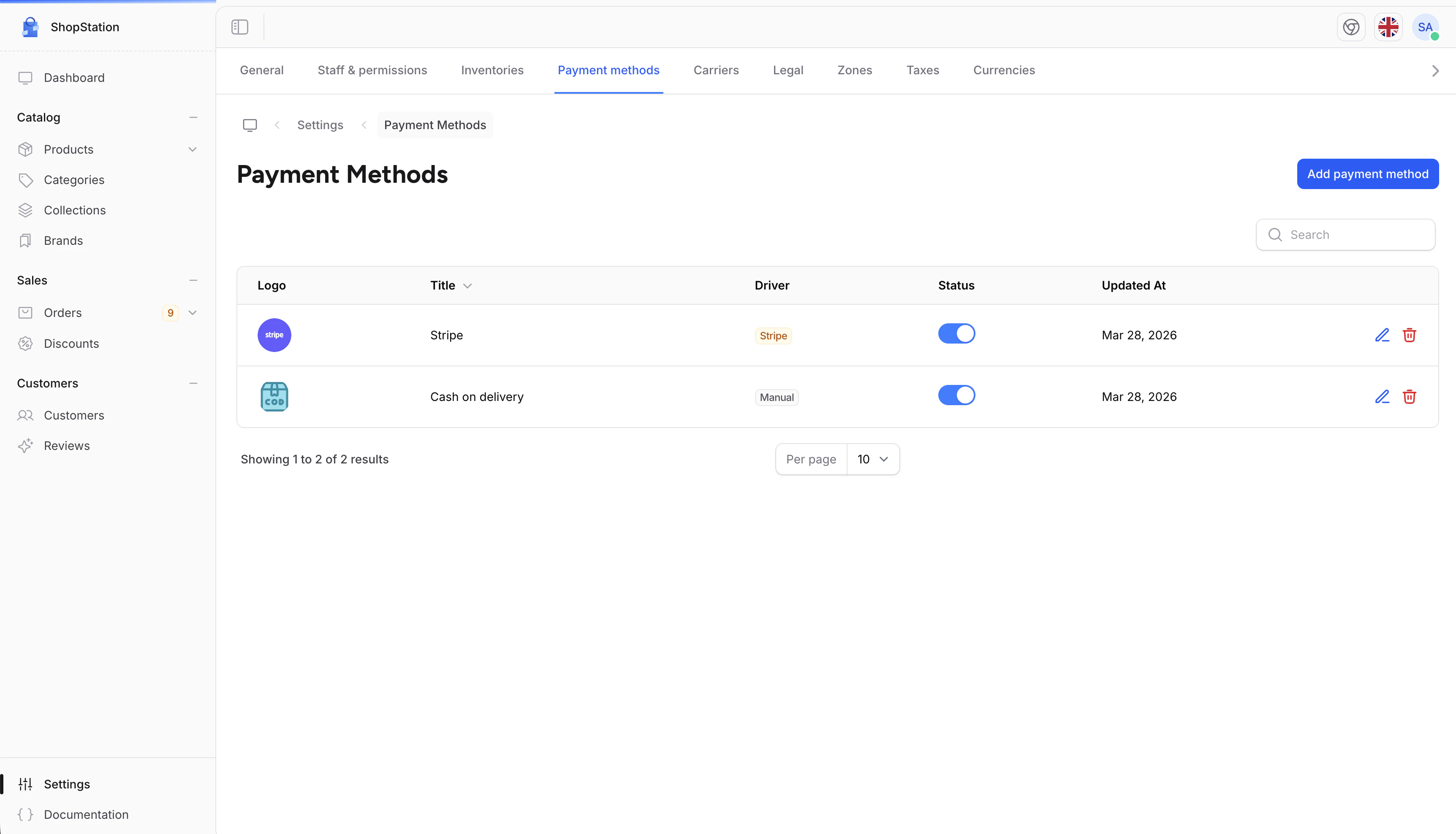
Adding a Payment Method
To add a new payment method:- Click the Create button
- Fill in the payment method details
- Click Save
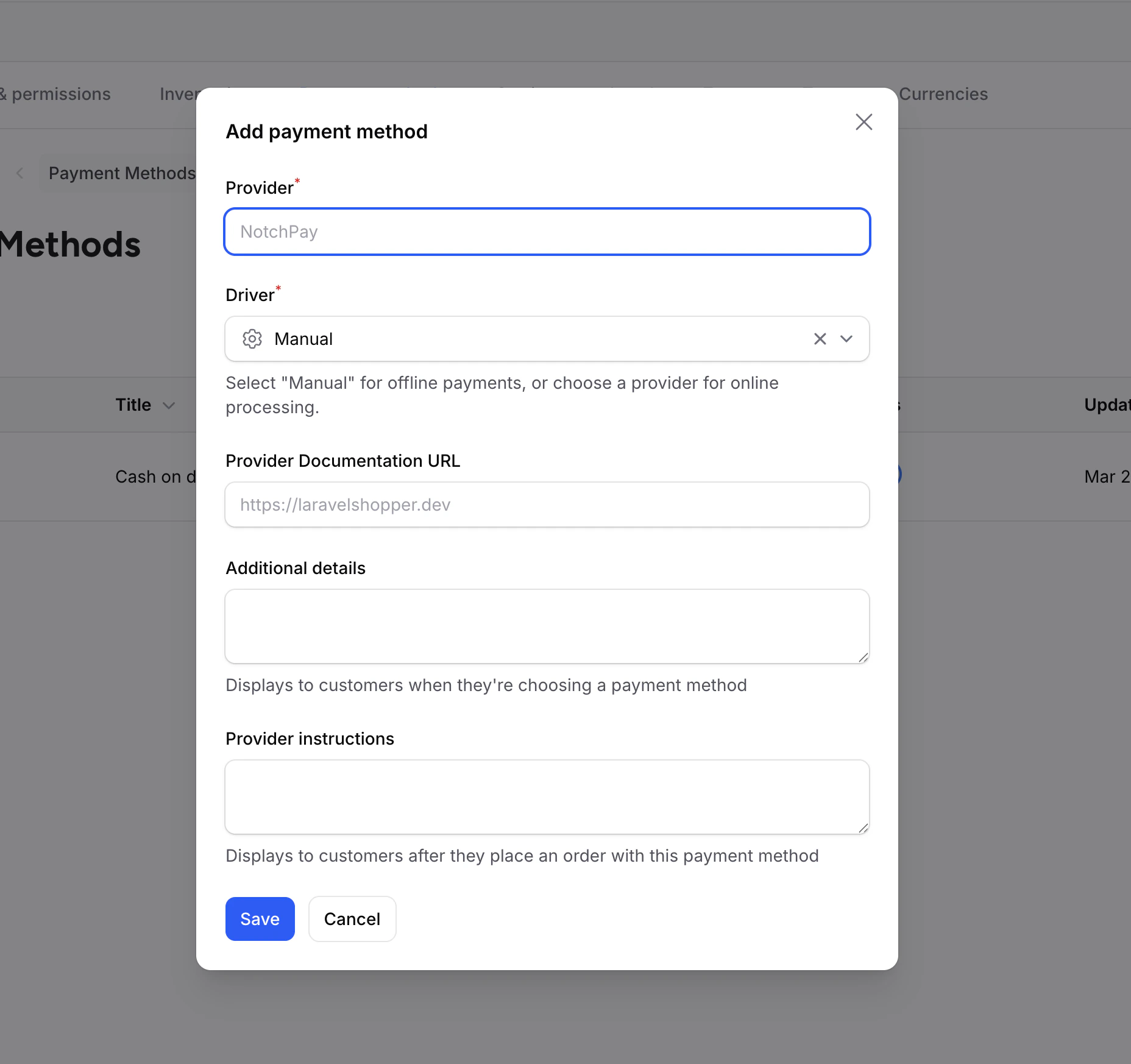
Payment Method Fields
Understanding Drivers
The driver connects a payment method to a payment provider: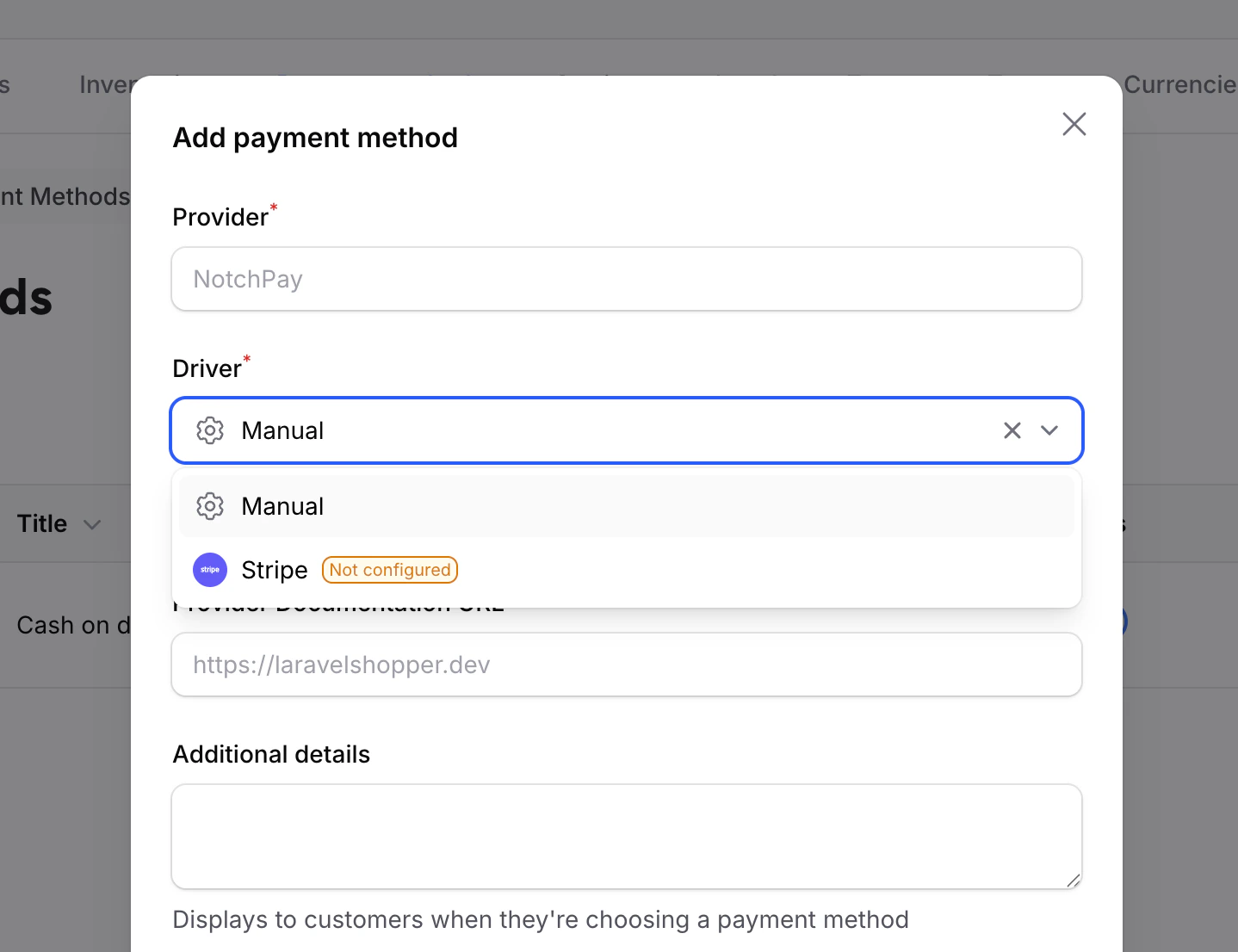
Drivers like Stripe require API credentials configured by your developer. If a driver shows “Not Configured” in the dropdown, the API keys have not been set up yet. See the Payments developer documentation for setup instructions.
Assigning to Zones
Payment methods are assigned to zones when creating or editing a zone. A payment method only appears at checkout if it belongs to the customer’s zone. To make a payment method available in a zone:- Go to Settings > Zones
- Edit the zone
- Select the payment method in the Payment methods field
- Click Save
Managing Payment Methods
Editing a Payment Method
Click the Edit icon next to a method, update the fields, and click Save.Enabling or Disabling
Toggle the Status switch in the list to quickly enable or disable a payment method. Disabled methods are not shown at checkout.Deleting a Payment Method
Click the Delete icon and confirm. Active orders that used this method are not affected.Common Setups
Best Practices
Offer Multiple Options
Customers are more likely to complete checkout when they see a payment method they trust.
Zone-Specific Methods
Some methods work only in certain regions. Assign them to the right zones.
Clear Instructions
For manual methods like bank transfers, provide clear payment instructions so customers know what to do after ordering.
Test Payments
Use your payment provider’s test/sandbox mode to verify the checkout flow before going live.