
Order List
Click Orders in the sidebar to see all your orders. The list shows each order’s number, date, total amount, and three status badges that tell you where the order stands at a glance.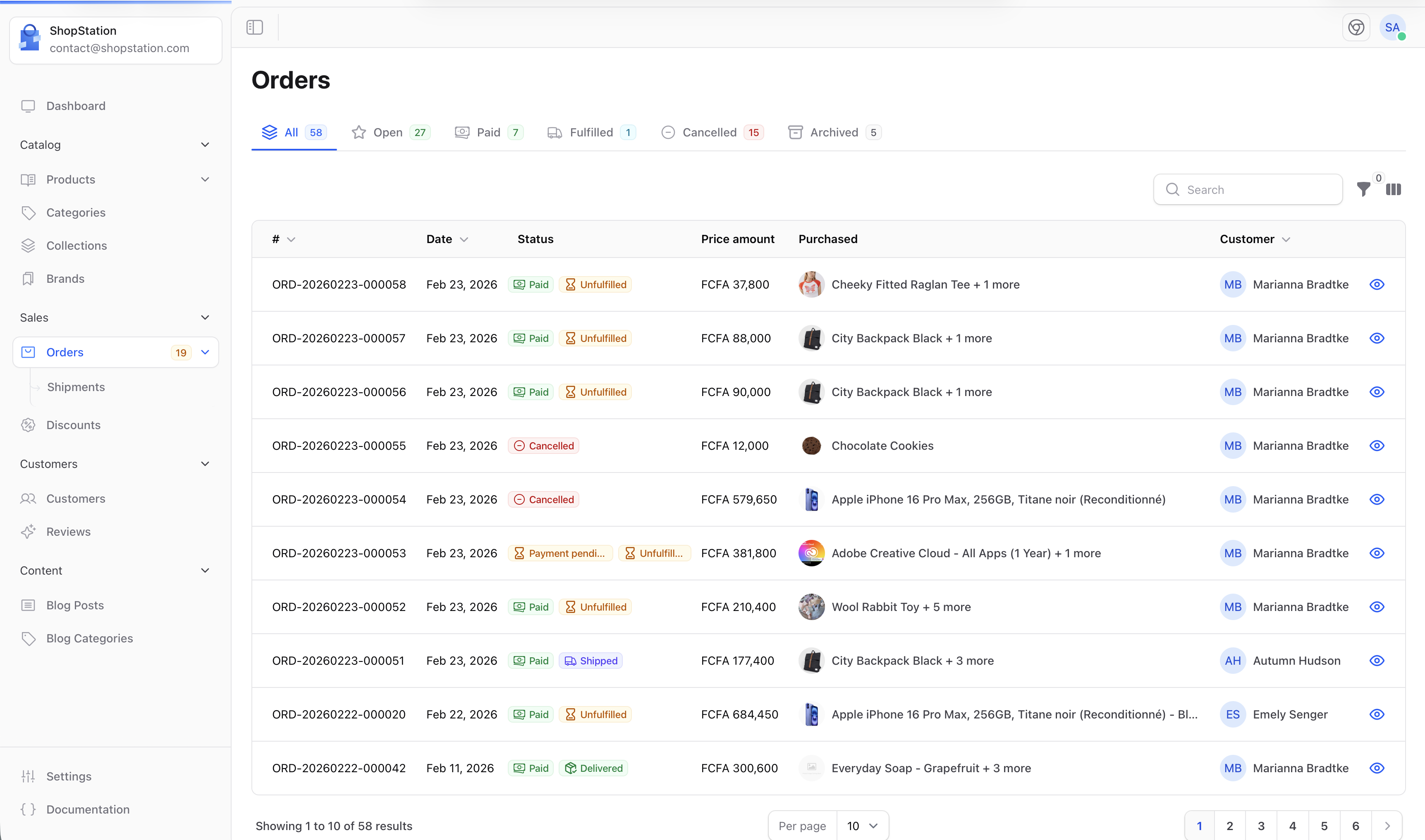
Tabs
The tabs at the top filter orders by their current state:Filters
Click the filter icon to narrow down your list. You can filter by order number, customer, order status, payment status, shipping status, date range, zone, channel, or currency.Order Detail
Click on any order to open its detail page. The page is split into two areas: the main content on the left and customer information on the right.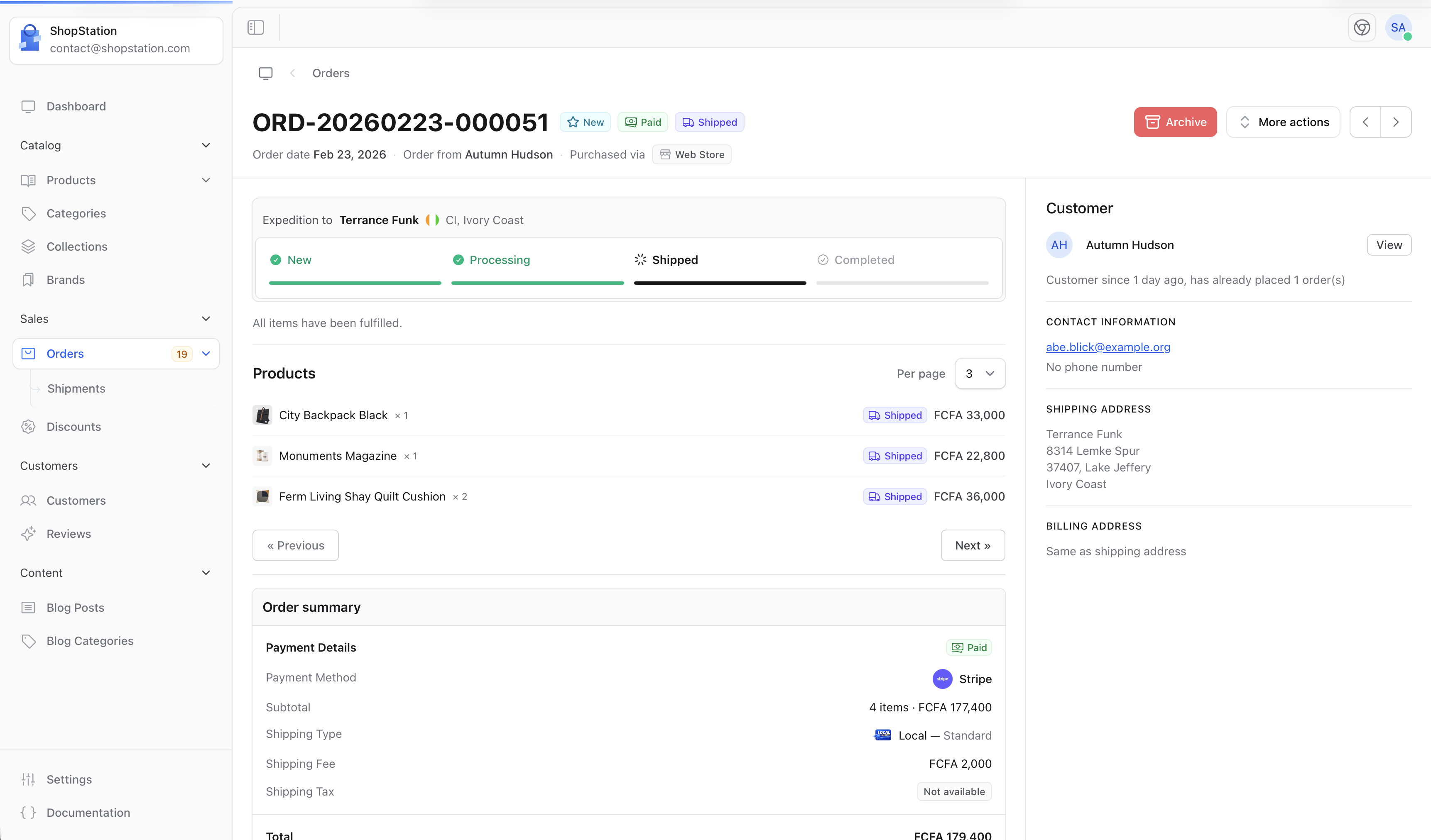
Header
The header stays visible as you scroll. It shows:- The order number
- Three status badges for order status, payment status, and shipping status
- Action buttons for processing the order (see Actions below)
- Previous / Next arrows to navigate between orders
- The order date, customer name (linked to their profile), and sales channel
Main Content
The left side of the page contains three sections: Fulfillment. A visual progress bar showing where the order is in the fulfillment process (New → Processing → Shipped → Completed). If there are items that haven’t been assigned to a shipment yet, a Create Shipping Label button appears here. Products. The list of items in the order with their thumbnail, name, quantity, fulfillment status badge, and price. Summary. Payment status, payment method, subtotal, shipping carrier and fee, and the order total.Sidebar
The right side shows:- Customer profile. Name, avatar, and a link to their full profile. Below that, how long they’ve been a customer and how many orders they’ve placed.
- Contact information. Email and phone number.
- Shipping address. The delivery address for this order.
- Billing address. Displayed separately, or “Same address” if it matches the shipping address.
- Private notes. A text field where you can leave internal comments. Only your team can see these.
Order Status
Every order has three independent statuses that track different aspects of the order.Order Status
The overall state of the order.Payment Status
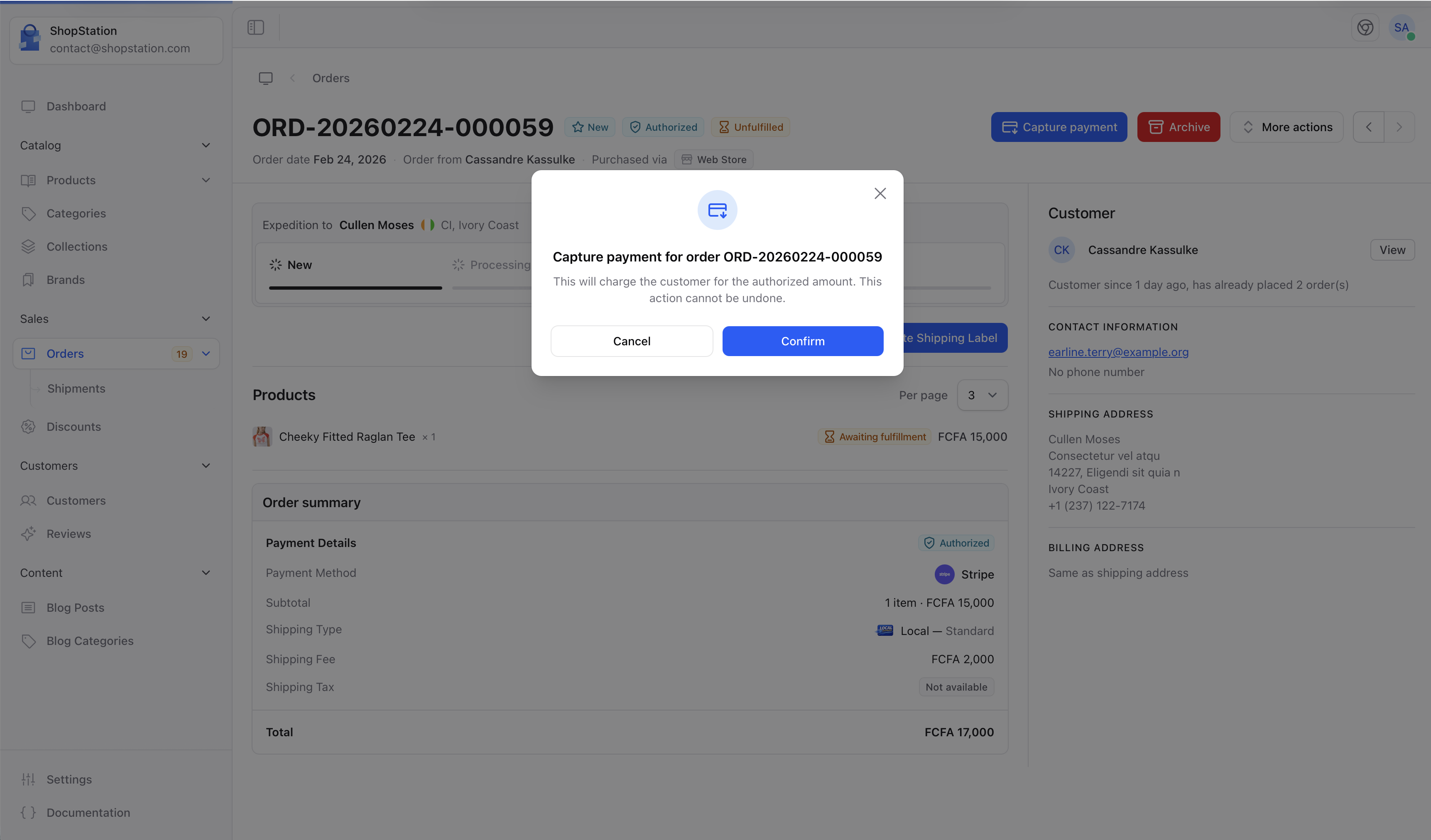
Tracks whether you’ve received the money.Authorized means the payment provider confirmed the customer has funds, but you haven’t captured (collected) them yet. This is common for physical goods where you want to verify stock before charging.
Shipping Status
Tracks where the physical goods are.Actions
The actions available depend on the current state of the order. They appear in the header, some as standalone buttons, others in the More actions dropdown.Capture Payment
Archive
Appears when the order is not completed and not paid. Moves the order to the Archived tab.More Actions
The dropdown contains context-sensitive actions:Fulfillment
Fulfillment is the process of getting the ordered items to the customer. Shopper tracks this at two levels: the order level (shipping status) and the item level (fulfillment status per product).Creating a Shipment
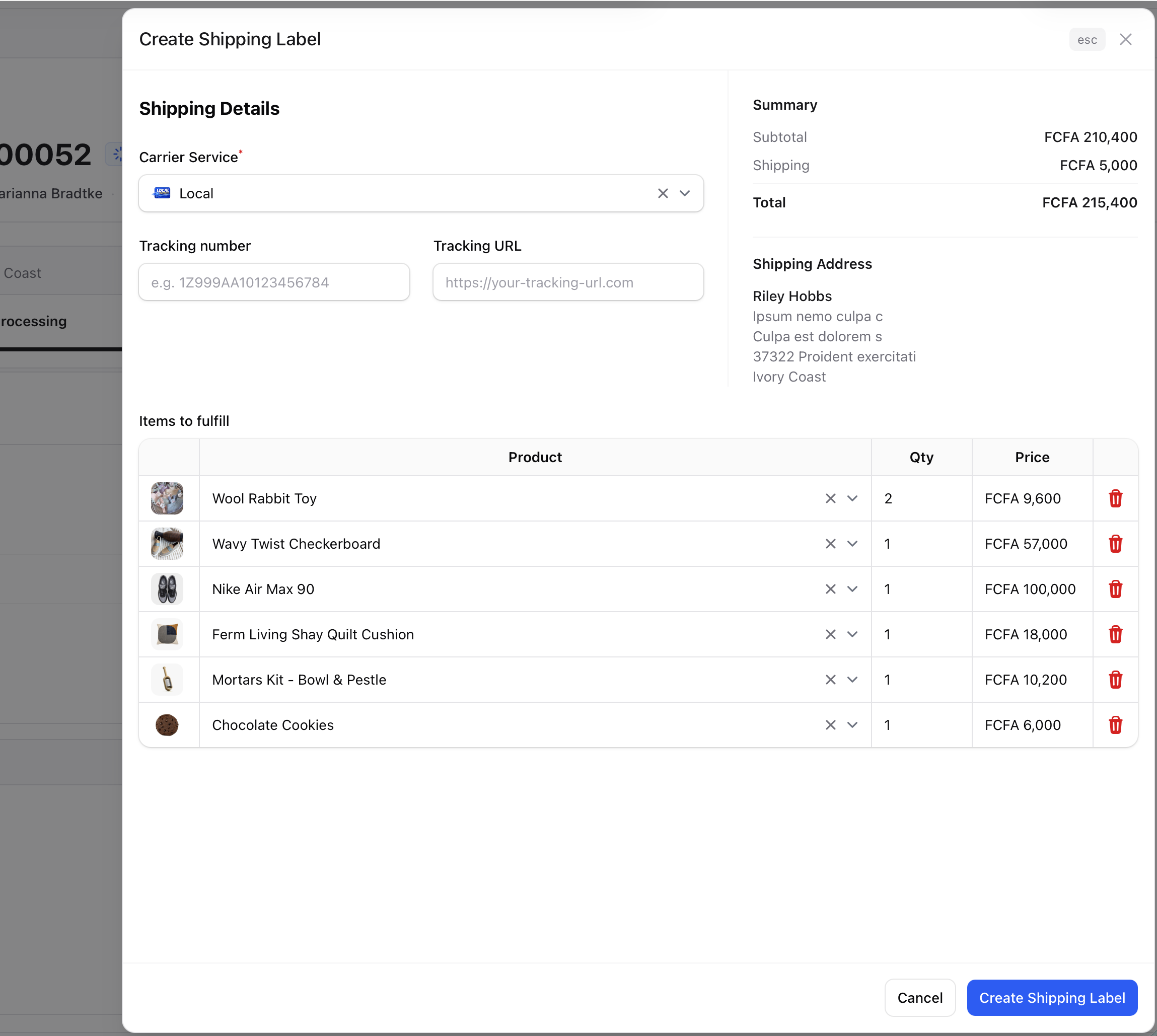
When an order has items that haven’t been shipped yet, the Create Shipping Label button appears in the fulfillment section.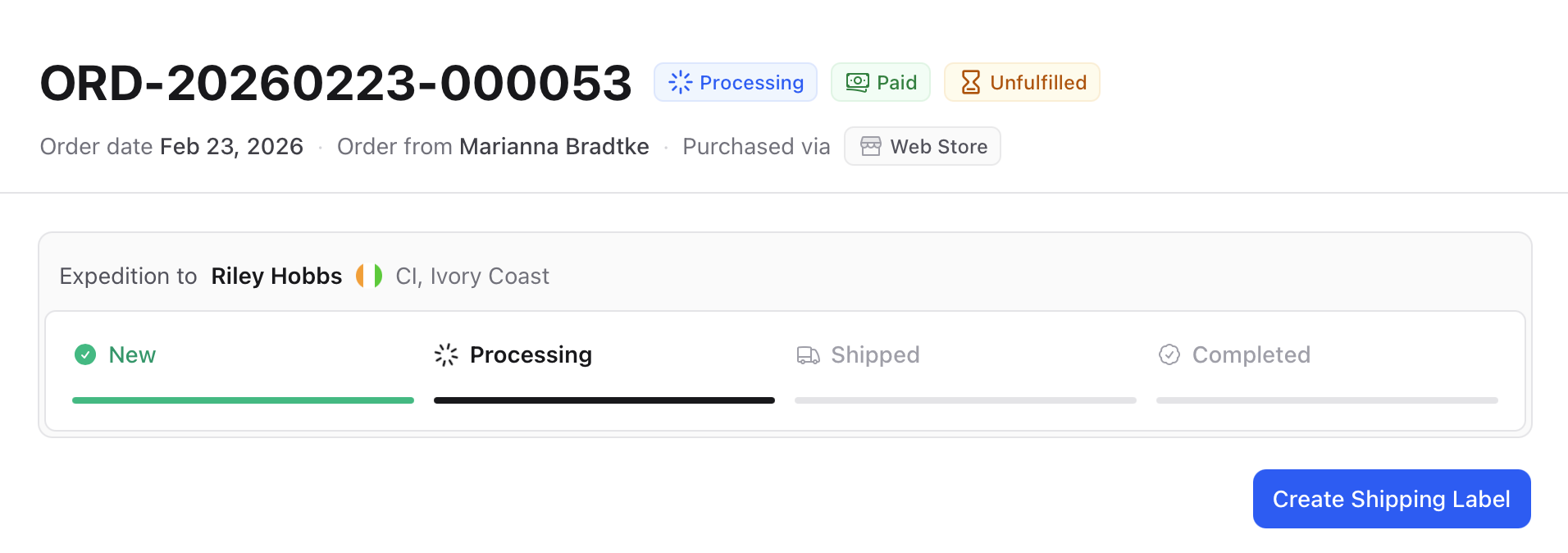
- Select a carrier. Choose from your configured shipping carriers
- Add tracking info (optional). Enter a tracking number and tracking URL
- Select items. Pick which items to include in this shipment
Partial Shipments
You don’t have to ship everything at once. If an order has 5 items and only 3 are ready, create a shipment with those 3 items. The remaining 2 stay as unfulfilled and you can create a second shipment later. The shipping status updates automatically:- First shipment created → Partially shipped
- All items shipped → Shipped
- First package delivered → Partially delivered
- All packages delivered → Delivered
Shipments
The Shipments page gives you a dedicated view of all shipments across your orders. Access it from the sidebar under Orders.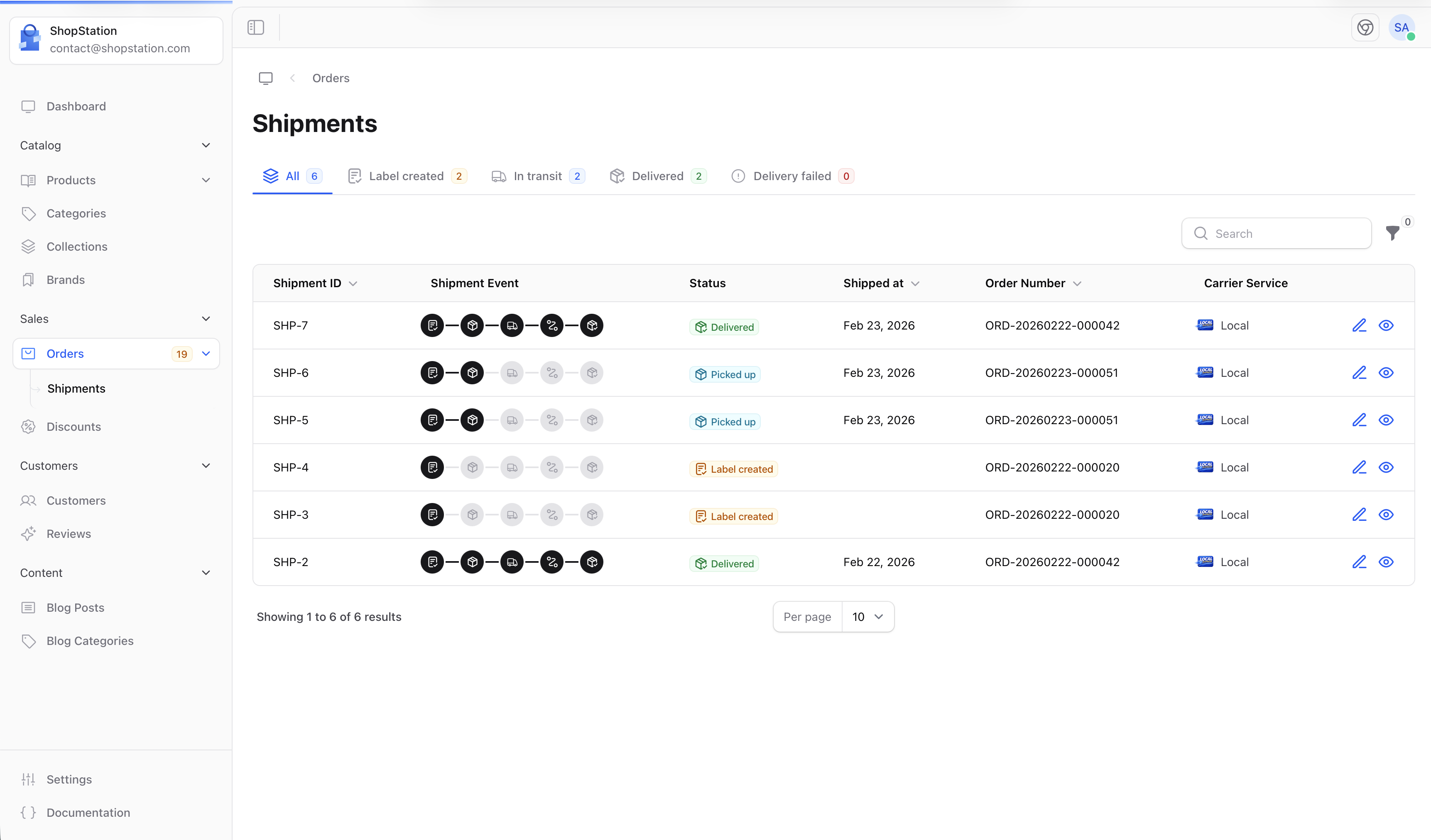
Tabs
Shipment Detail
Click the eye icon on any shipment to open its detail panel. This panel shows: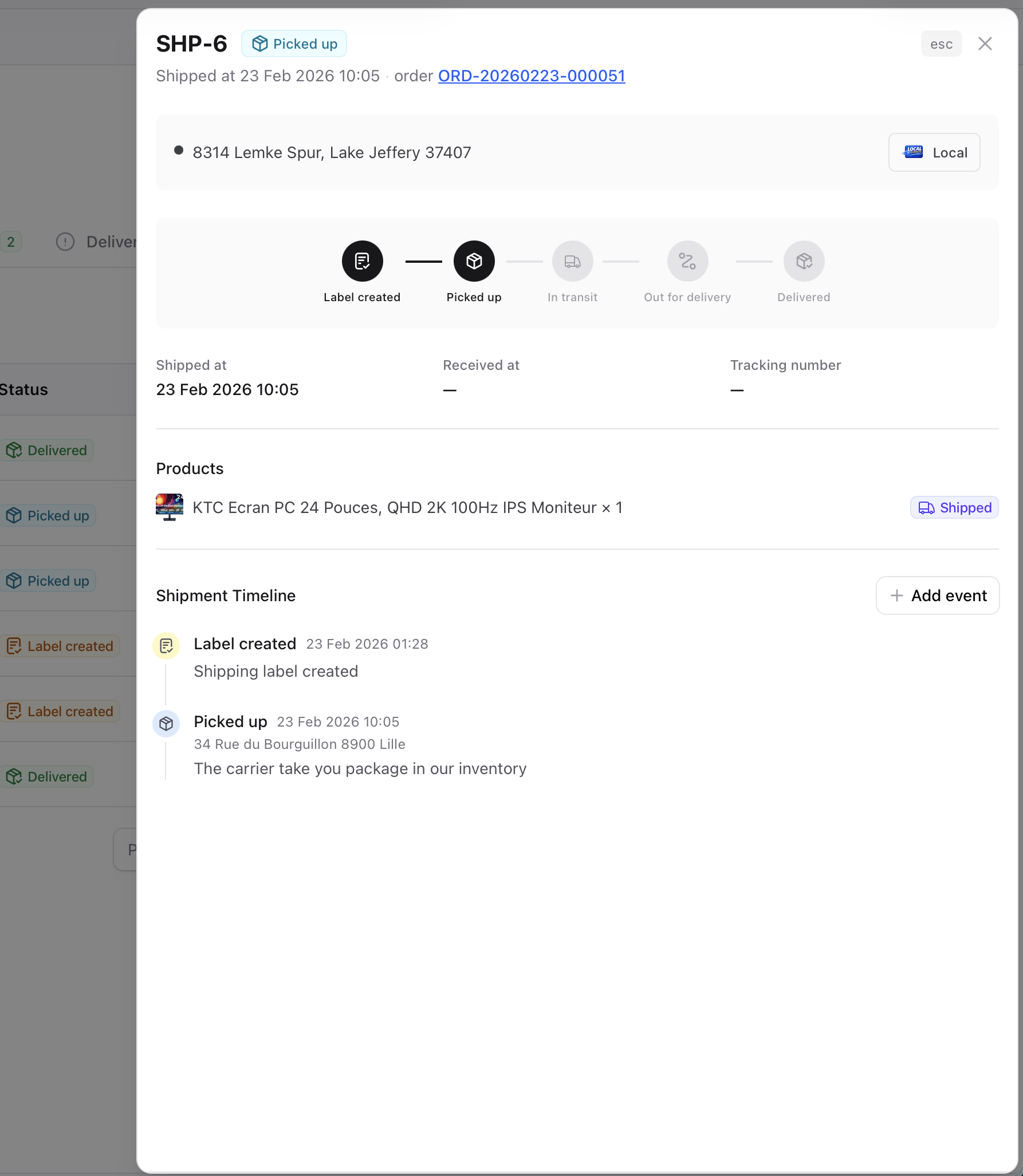
1
Label created
Shipping label generated, waiting for carrier pickup.
2
Picked up
Carrier has collected the package.
3
In transit
Package is on its way to the destination.
4
Out for delivery
Package is with the local delivery driver.
5
Delivered
Package has been delivered to the customer.
Adding Tracking Events
Click Add event in the shipment detail panel to log a new tracking update. Select the status, set the date, and optionally add a location and description. This is useful when you receive updates from your carrier and want to keep the timeline accurate.Marking as Delivered
When a shipment arrives, click Mark as delivered. This updates the shipment status and all its items to Delivered. If this was the last pending shipment on the order, the order automatically moves to Completed.Typical Order Flow
Here’s how a standard order moves through the system:1
Order placed
A customer completes checkout. The order appears as New with payment Pending and shipping Unfulfilled.
2
Payment received
Depending on your payment method, the payment status changes to Paid (automatic capture) or Authorized (manual capture). If authorized, you capture it when ready.
3
Start processing
Click Start processing to indicate you’re preparing the order. Items move to Preparing status.
4
Create shipment
Click Create Shipping Label, select a carrier, add tracking info, and pick the items to ship. The shipping status updates to Shipped (or Partially shipped if not all items are included).
5
Track delivery
Add tracking events as the carrier provides updates. The shipment timeline shows the package’s journey.
6
Delivery confirmed
Mark the shipment as delivered. The order status automatically changes to Completed.
Abandoned Carts
Sometimes customers add items to their cart but leave without completing checkout. Shopper tracks these as abandoned carts, giving you visibility into potential lost sales. A cart is considered abandoned when it has items but no activity for a configurable period (default: 60 minutes).Viewing Abandoned Carts
To see abandoned carts:- Go to Orders in the sidebar
- Click the Abandoned Carts tab

Cart Details
Click on any abandoned cart to view its contents. The detail panel shows the items the customer had in their cart and their contact information (if they were logged in).
What You Can Learn
Abandoned carts help you understand:- Which products are being abandoned to identify pricing or UX issues
- At what stage customers leave to improve your checkout flow
- Whether logged-in customers abandon more than guests to target recovery efforts