
When to Use Variant Products
Use the Variant product type when:- A product comes in multiple sizes (S, M, L, XL, XXL)
- A product is available in different colors (Red, Blue, Black)
- A product has different materials (Cotton, Polyester, Silk)
- A product has capacity options (64GB, 128GB, 256GB)
- Any combination of the above (Size + Color, Color + Material, etc.)
How Variants Work
Variants are built from attributes, structured properties you define for your products. Here’s the flow:- Create a Variant product
- Attach attributes to the product (e.g., Size, Color)
- Each attribute has values (Size: S, M, L / Color: Red, Blue)
- Generate variants from all combinations
- Configure each variant (price, stock, image)
Example: T-Shirt with Size and Color
Attributes:- Size: S, M, L, XL
- Color: Red, Blue, Black
Setting Up Variant Attributes
Before generating variants, you need to attach attributes to your product.Prerequisites
Make sure you have created the necessary attributes in the Attributes section. Variant-compatible attributes typically use these field types:- Select. A dropdown list of values (most common for variants)
- Color picker. Visual color selection
- Checkbox. Multiple selectable values
Adding Attributes to Your Product
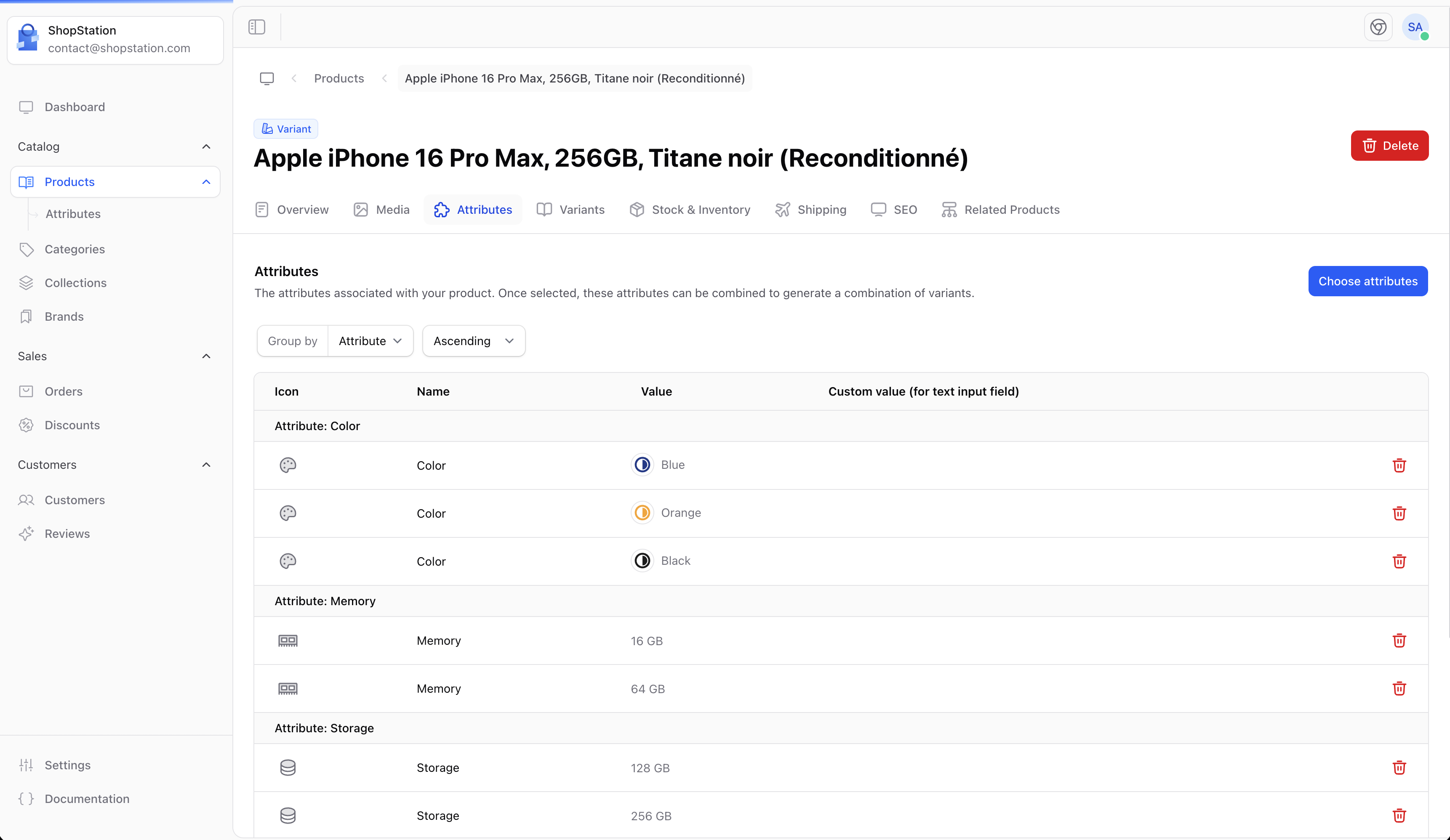
- Navigate to your variant product’s Attributes tab
- Click Add attribute
- Select the attributes you want to use for variants (e.g., Size, Color)
- The attribute values become the options for variant generation
Generating Variants
Once attributes are attached, you can generate all variant combinations automatically.Automatic Generation
- Go to the Variants tab on your product
- Click Generate variants
- Shopper calculates all possible combinations from your attribute values
- Review the generated list. Each combination is shown with a default SKU
- You can edit the SKU and set an initial price before confirming
- Click Save to create all variants at once
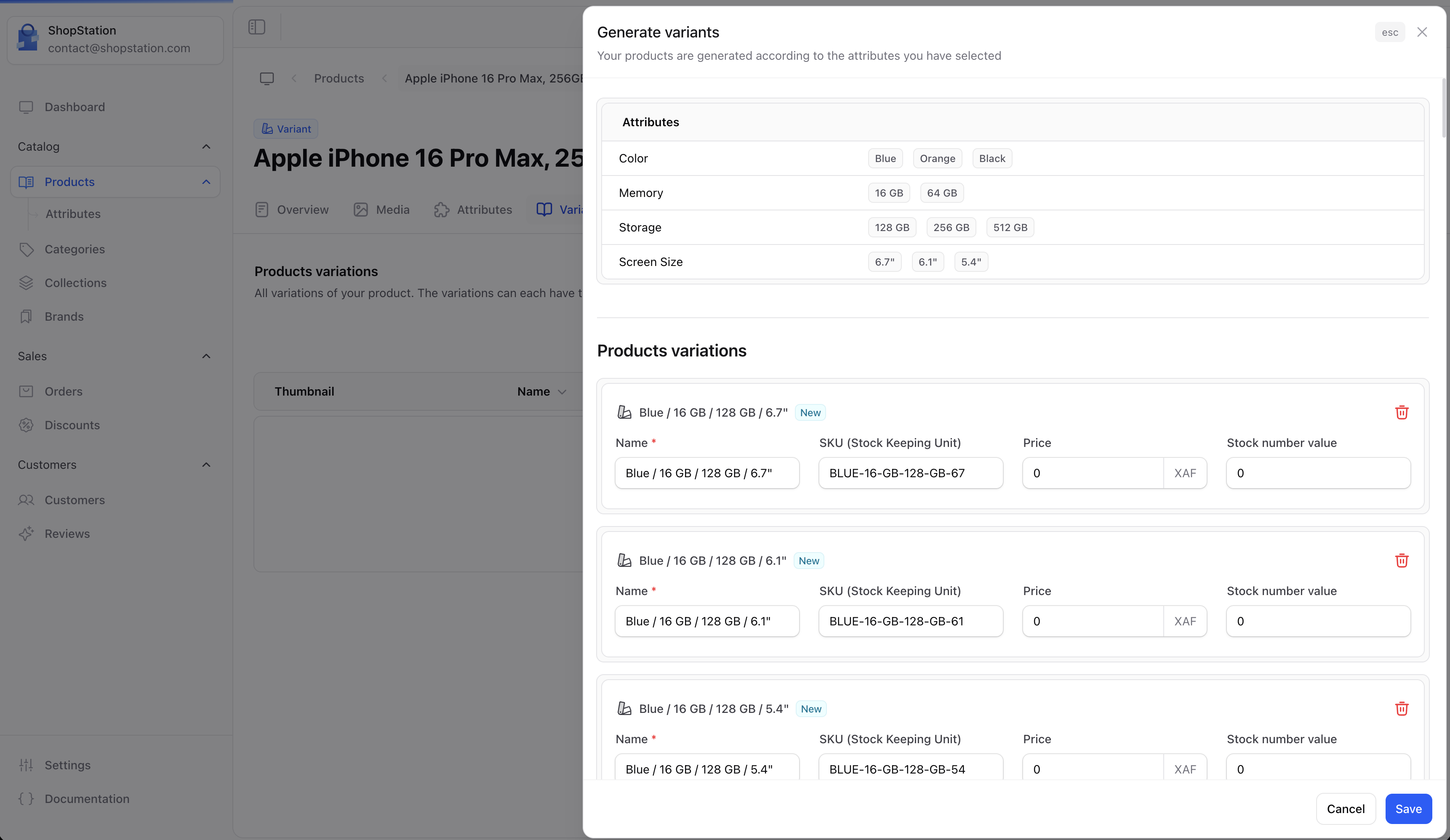
The number of variants equals the product of all attribute value counts. For example: 4 sizes x 3 colors = 12 variants. Keep this manageable, too many combinations can be hard to maintain.
Adding Individual Variants
You can also add variants one at a time:- Go to the Variants tab
- Click Add variant
- Fill in the variant details step by step
- Variant name
- SKU (must be unique)
- Select attribute values for this variant
- Variant-specific thumbnail
- Additional images for this variant
- Price per currency
- Compare at price
- Cost per item
- Barcode
- Initial quantity
Managing Variants
After generation, you can manage each variant individually.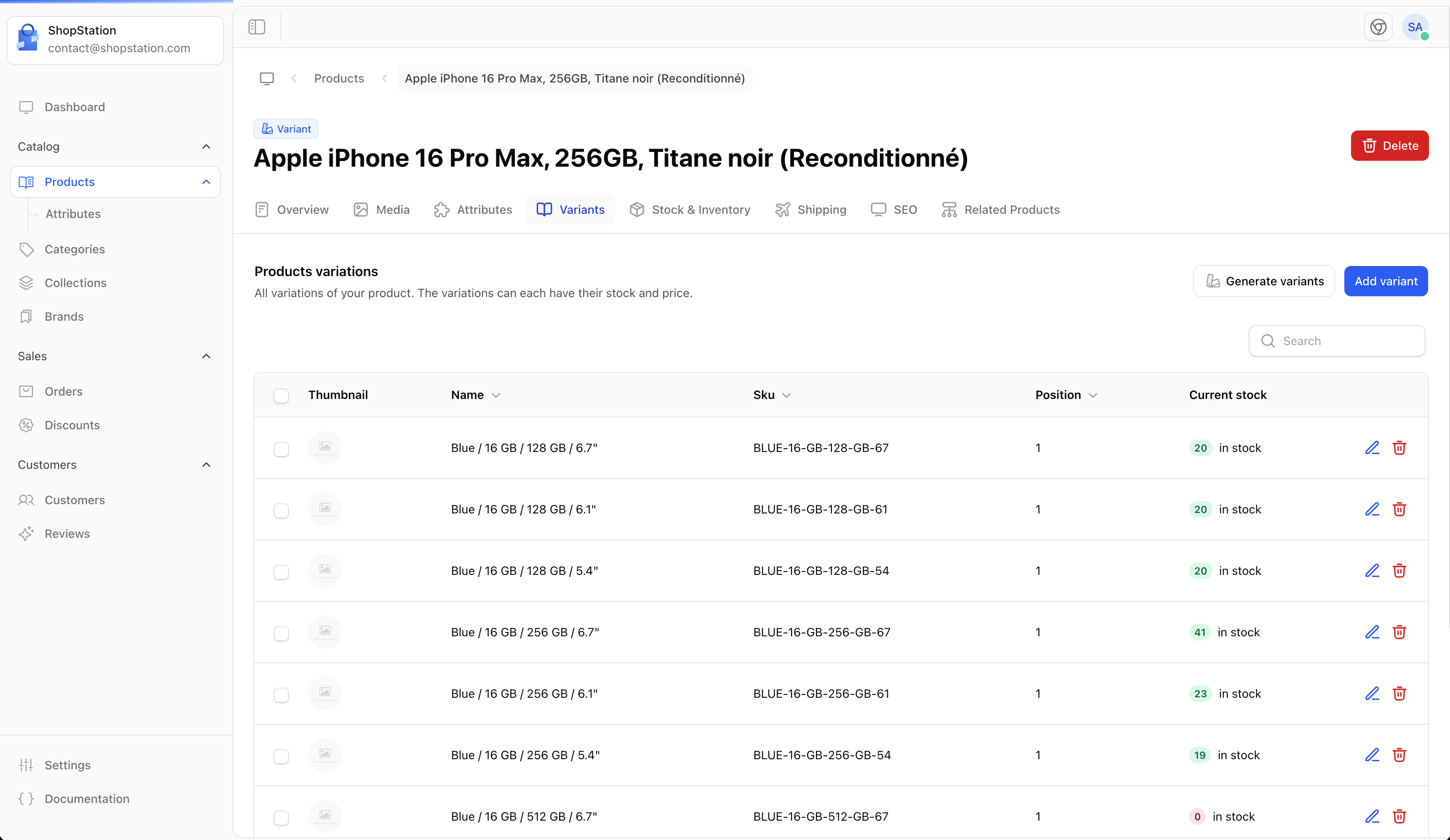
Variant Properties
Each variant can have its own:Editing a Variant
Click on any variant in the list to open its detail panel where you can update: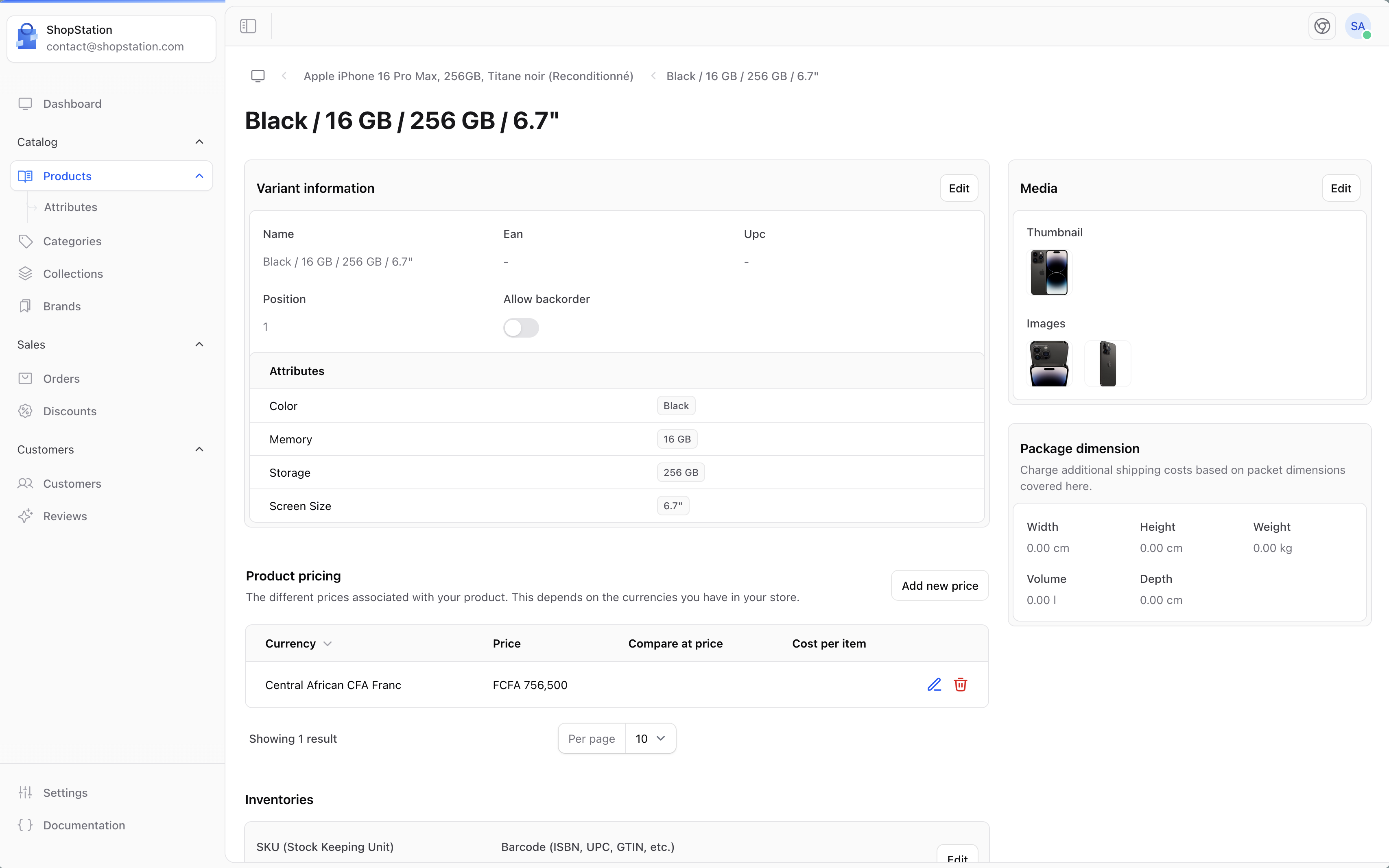
- All pricing fields (per currency if multi-currency is enabled)
- Stock levels and barcode
- Weight and package dimensions
- Variant-specific images
Deleting Variants
If you discontinue a specific option (e.g., removing the “XS” size):- Find the variant in the list
- Click the delete action
- Confirm the deletion
Variant Pricing Strategies
Same Price for All
All variants at the same price point:- Basic t-shirt: All sizes and colors at $29.99
Price by Size
Larger sizes cost more due to material usage:- S/M: $29.99
- L/XL: $34.99
- XXL: $39.99
Price by Option
Premium options at a higher price:- Standard colors (Black, White, Gray): $49.99
- Limited edition colors (Gold, Rose): $59.99
Per-Variant Pricing
Each combination has its own price:- Useful for products where cost varies significantly by option
Shipping for Variant Products
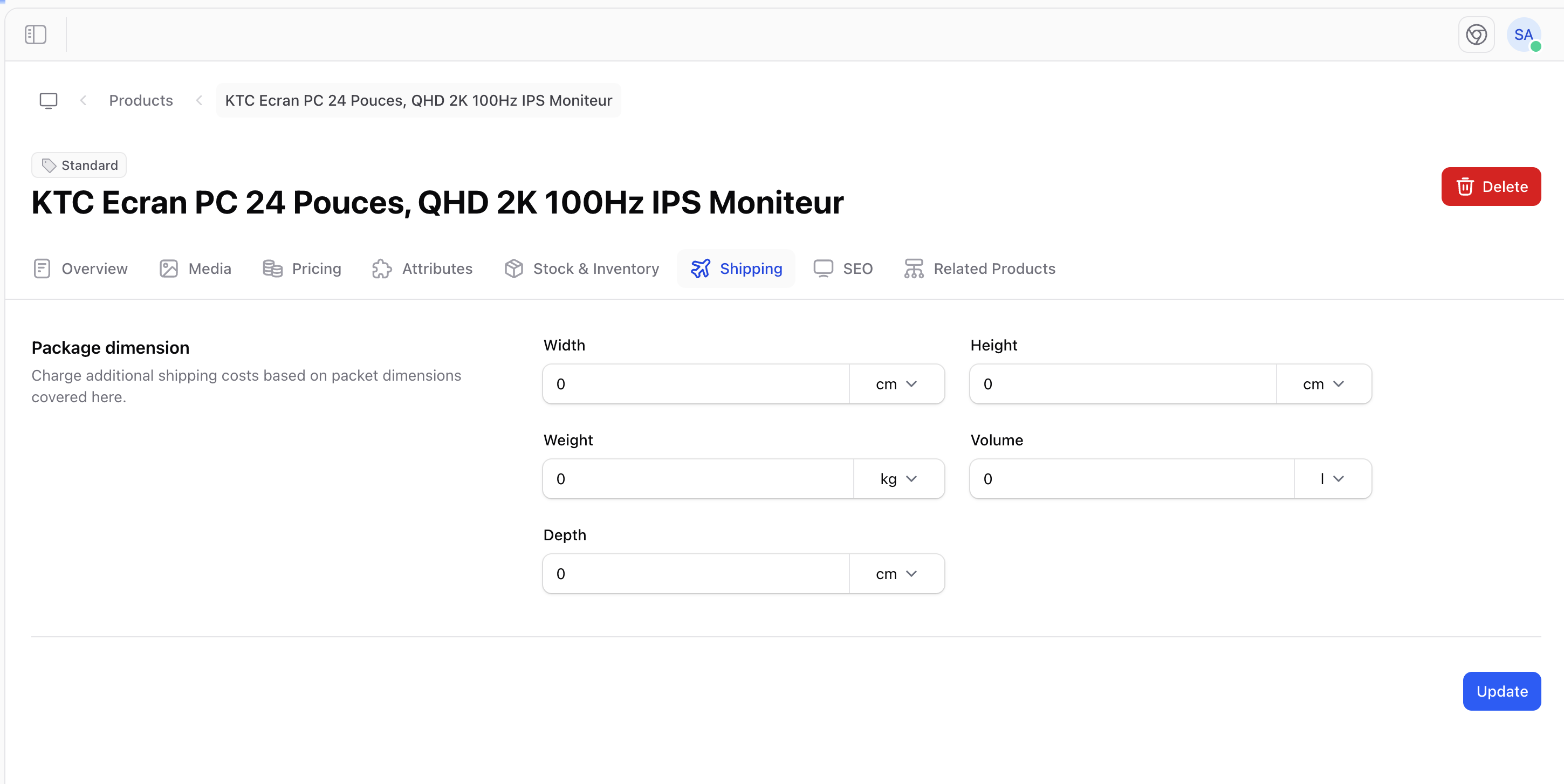
Variant products support shipping configuration at both levels:- Parent product: Default shipping dimensions shared by all variants
- Individual variants: Override dimensions when a variant differs (e.g., XL is heavier)
Inventory Per Variant
Stock is tracked individually for each variant:- Each variant has its own quantity and safety stock level
- The parent product shows total stock across all variants
- When a variant reaches safety stock level, you’re alerted for that specific combination
- Out-of-stock variants can be hidden or shown as unavailable while others remain purchasable
Storefront Display
On your storefront, variant products display option selectors that let customers choose their preferred combination:
- The price updates if variants have different prices
- The image can change to show the selected variant (e.g., different color)
- Availability is shown for the selected combination
- The Add to cart button adapts based on stock
Example: Creating a Variant Product
Let’s create a “Classic Cotton Hoodie” with Size and Color options:- Type: Select “Variant Product”
- General info: Name “Classic Cotton Hoodie”, describe the material and fit
- Associations: Brand “UrbanWear”, categories “Clothing > Hoodies”, collection “Fall Collection”
- Media: Upload lifestyle photos showing different colors
- Stock: SKU for parent product
HOOD-CLASSIC(variants will have their own SKUs)
- Attributes: Attach “Size” (S, M, L, XL) and “Color” (Navy, Gray, Black)
- Generate variants: Creates 12 combinations automatically
- Pricing: S/M at $59.99, L/XL at $64.99
- Stock: Set quantities per variant based on your inventory
- Images: Upload color-specific photos for each color variant
- Shipping: Weight 0.5 kg for S/M, 0.6 kg for L/XL
Best Practices
Limit Combinations
Keep variant count manageable. 3 sizes x 3 colors (9 variants) is easier to manage than 6 sizes x 8 colors (48 variants).
Unique SKUs
Use a consistent SKU pattern: PRODUCT-SIZE-COLOR (e.g., HOOD-M-NAV).
Color-Specific Images
Upload variant-specific images for color options so customers see exactly what they’ll receive.
Stock Alerts
Set safety stock on popular variants to avoid stockouts on your best sellers.
Limitations
- A product can use up to 3 variant attributes (e.g., Size + Color + Material)
- The total number of variants is the product of all attribute values
- Consider splitting into separate products if you exceed 50+ variants
- Product type cannot be changed after creation, so plan ahead