
When to Use Standard Products
Use the Standard product type when:- You sell a physical item that needs to be shipped
- The product does not have variations (no size/color options)
- You manage inventory for this product
- The product has weight and dimensions for shipping calculations
If your physical product comes in multiple options (different sizes, colors, materials), use the Variant Product type instead.
What Makes Standard Products Unique
After creating a Standard product through the creation wizard, you have access to these additional features:Configuring Shipping
The shipping section lets you define the physical characteristics of your product for accurate shipping rate calculations.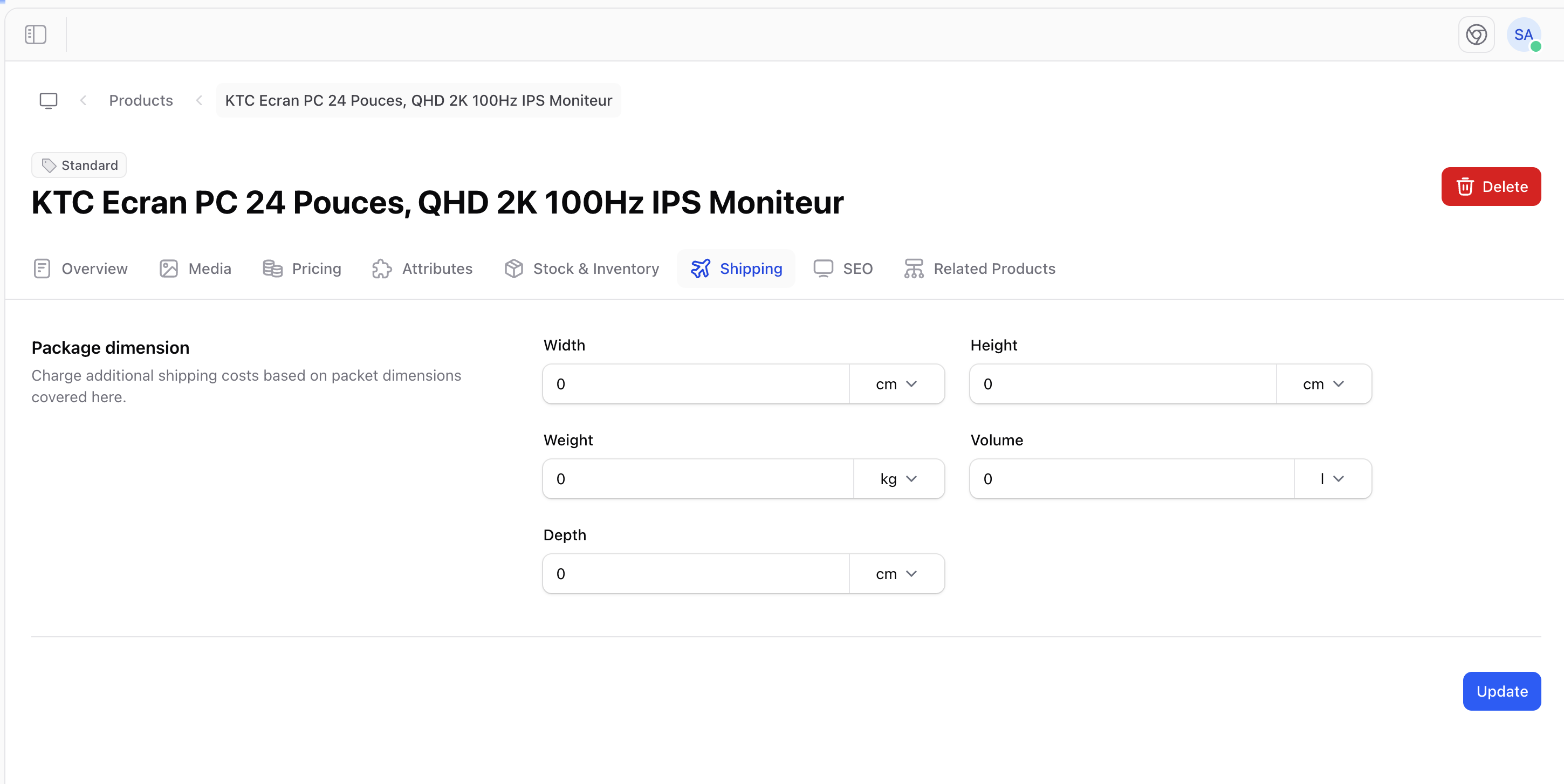
Managing Attributes
Attributes let you add structured information about your product’s characteristics. This is useful for displaying product specs on your storefront or enabling filtering in your catalog.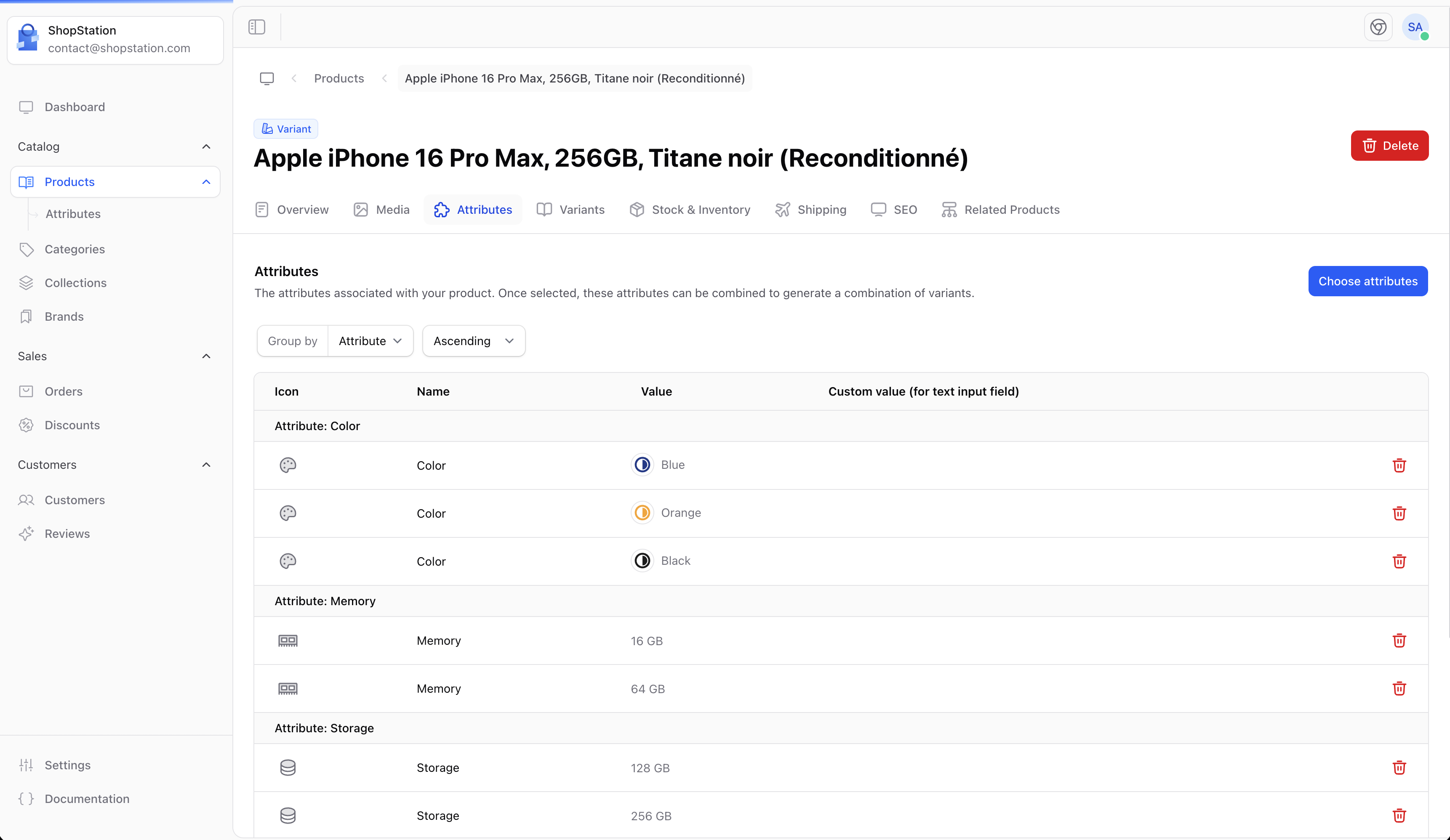
- Material. Cotton, polyester, leather, wood, metal
- Color. When it’s a single-color product without variants
- Care instructions. Machine washable, hand wash only
- Country of origin. Where the product is manufactured
- Warranty. Duration and coverage details
- Navigate to your product’s Attributes tab
- Click Add attribute
- Select an attribute from your attribute library
- Fill in the value for this product
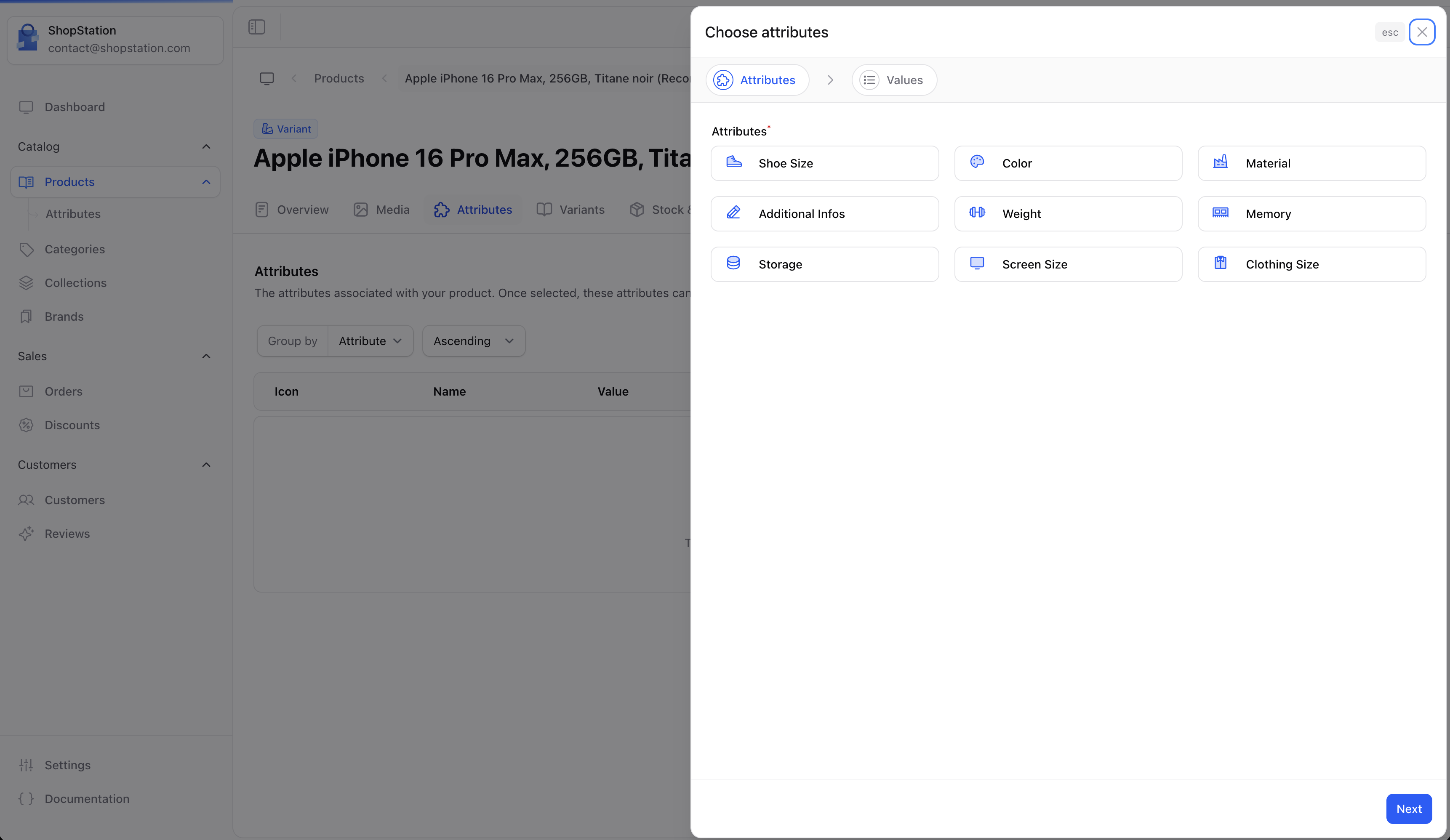
Attributes must be created first in the Attributes section before they can be assigned to products.
Inventory Management
The inventory section shows your current stock levels and provides a complete history of stock movements.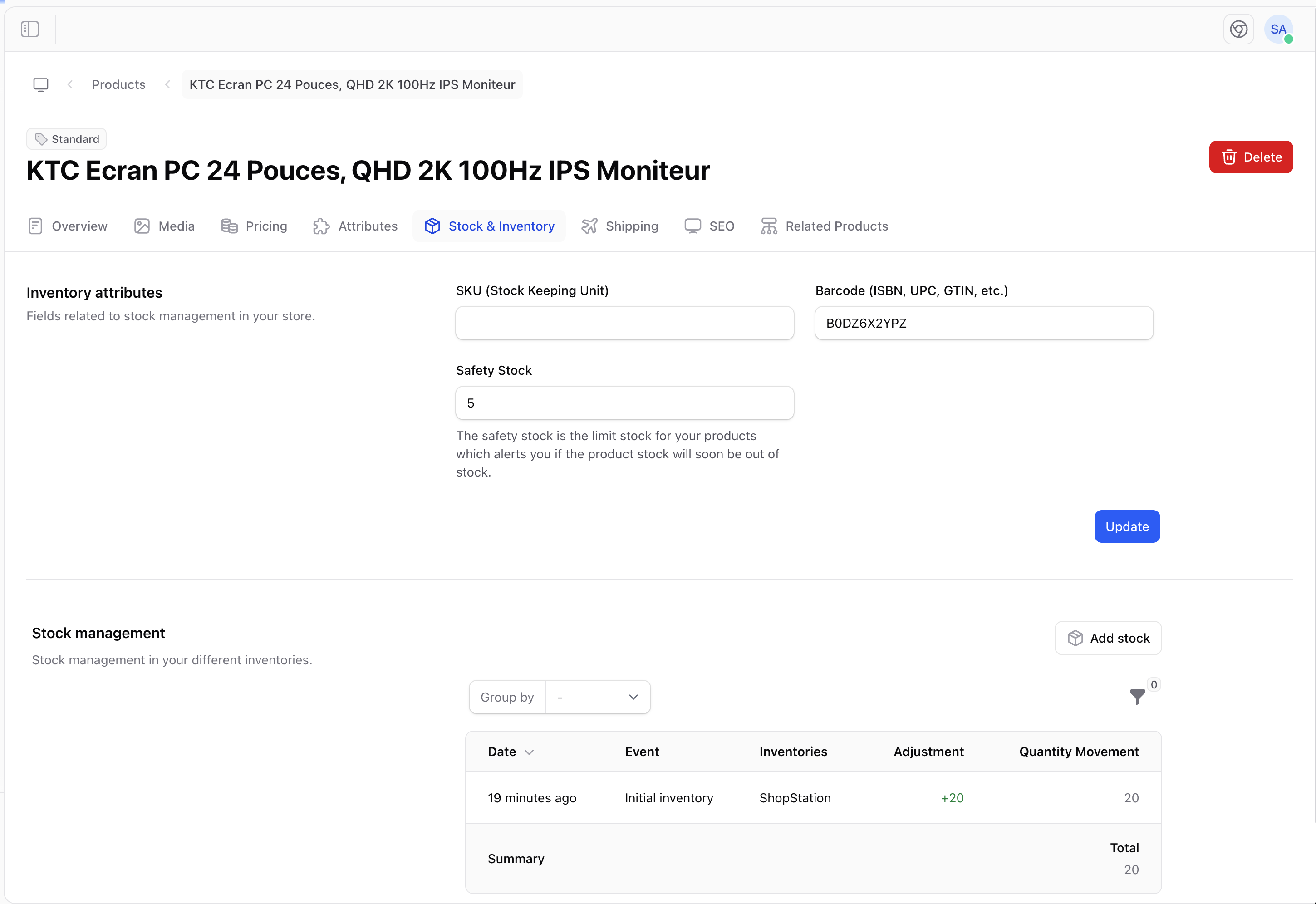
Stock Information
Adding Inventory
You can manually adjust stock levels by adding or removing inventory: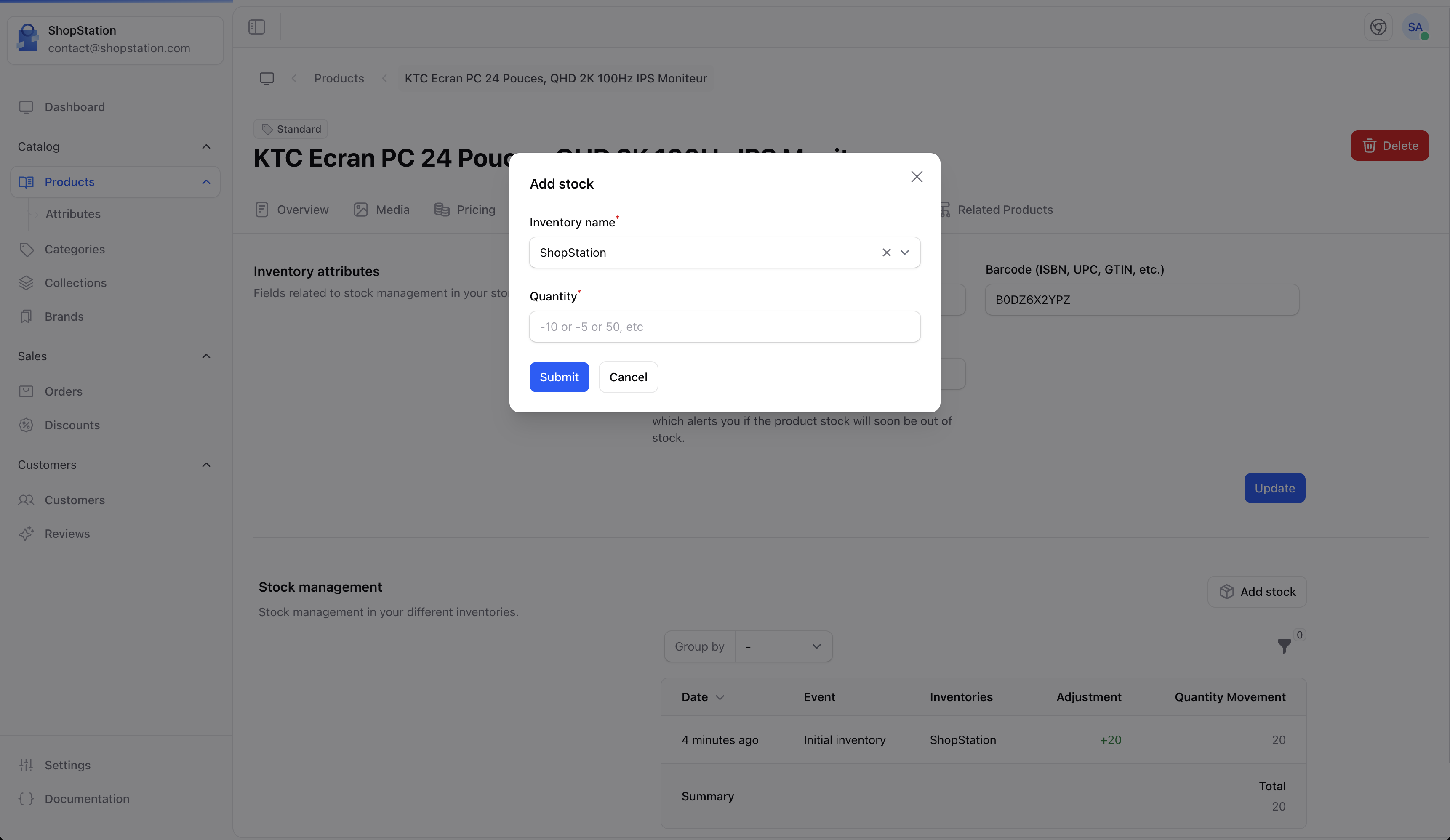
- Click Add stock in the inventory section
- Select the inventory location
- Enter the quantity to add (positive) or remove (negative)
- The stock history will record this adjustment with a timestamp
Stock History
Every stock movement is recorded with:- The date and time of the change
- The quantity adjusted (added or removed)
- The user who made the change
- The reference (manual adjustment, order, etc.)
Pricing
Configure how much your product costs. See Managing Products for detailed pricing configuration.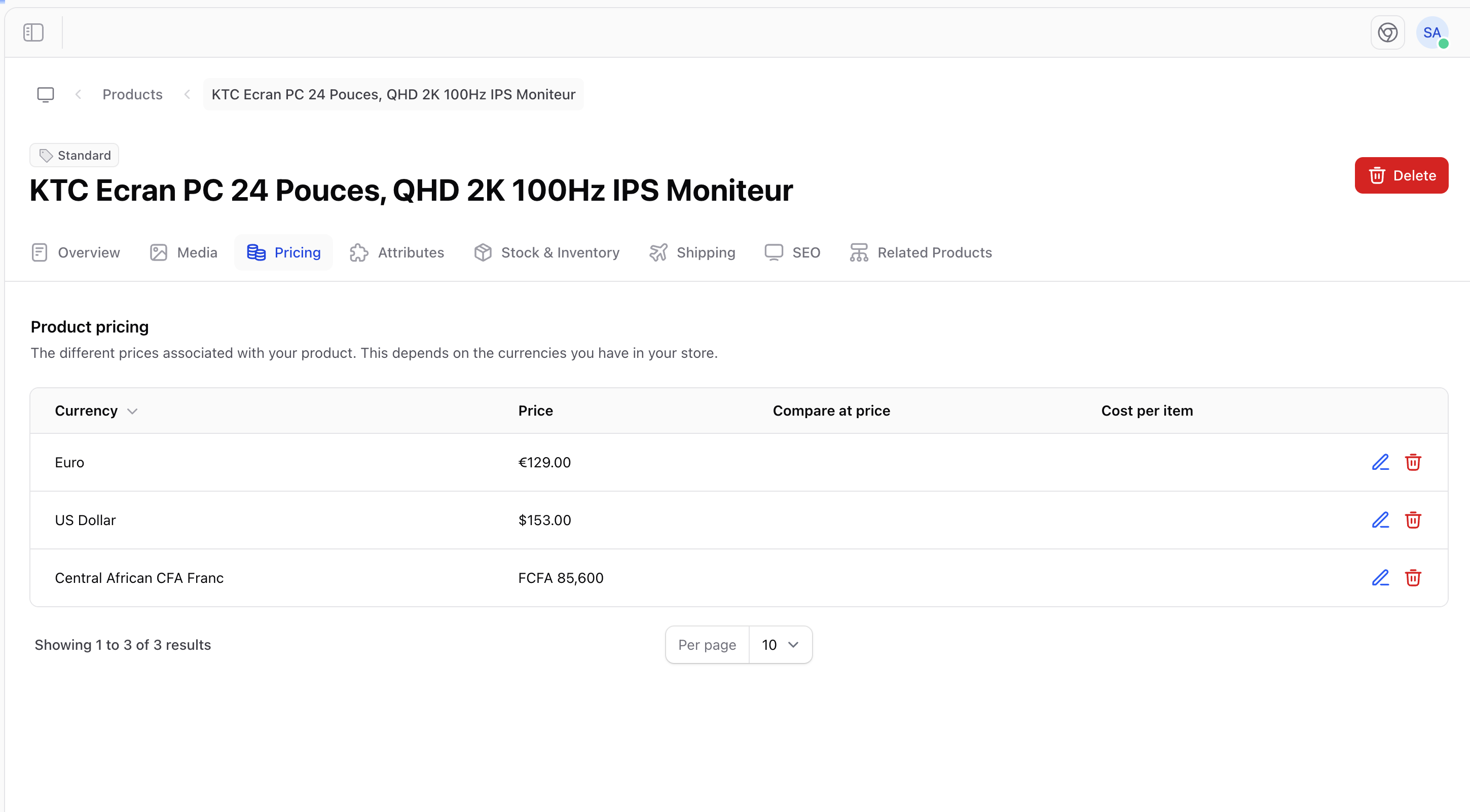
Example: Creating a Standard Product
Let’s walk through creating a “Leather Messenger Bag”:- Type: Select “Standard Product”
- General info: Name it “Leather Messenger Bag”, add a description highlighting the craftsmanship and features
- Associations: Assign to brand “Heritage Craft”, category “Bags > Messenger Bags”, collection “New Arrivals”
- Media: Upload photos from multiple angles (front, back, inside, strap detail)
- Stock: SKU
BAG-LEATH-001, initial quantity 50, safety stock 10
- Shipping: Weight 1.2 kg, dimensions 40x30x10 cm
- Attributes: Material “Full grain leather”, Color “Brown”, Origin “Italy”
- Pricing: $189.00, compare at $229.00, cost $85.00
- SEO: Title “Leather Messenger Bag - Heritage Craft”, description with keywords
Best Practices
Accurate Dimensions
Always measure packed products for accurate shipping calculations.
Safety Stock
Set safety stock levels to avoid selling items you can’t fulfill.
Detailed Attributes
Add relevant attributes to help customers make informed decisions.
Multiple Images
Show your product from every angle. Customers can’t touch it online.