
Product Edit Page
Click on any product from the products list to open its edit page. The page is organized into tabs based on your product type: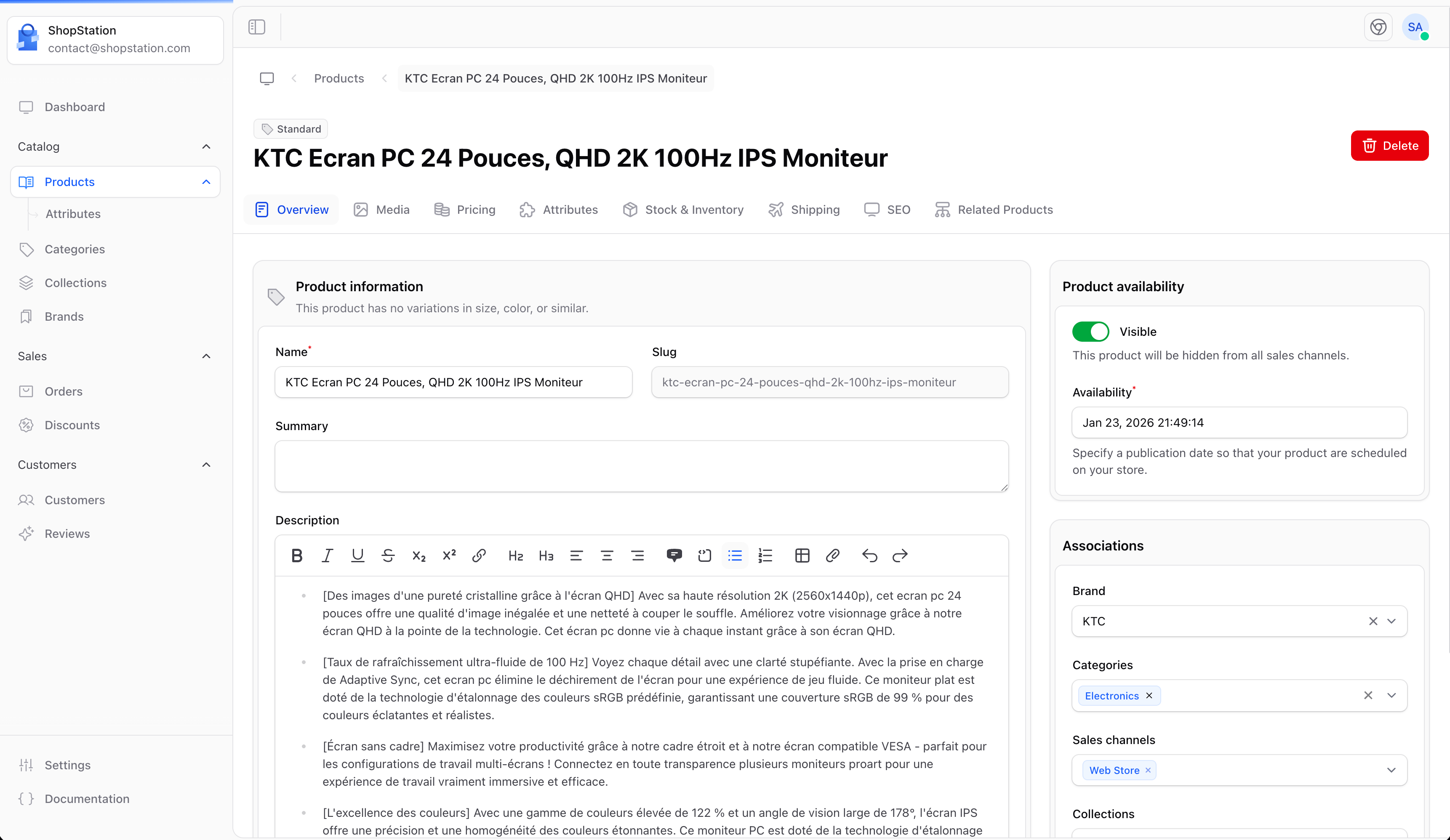
Pricing
The pricing section lets you configure your product’s price, comparison price, and cost. If your store supports multiple currencies, you can set prices in each currency.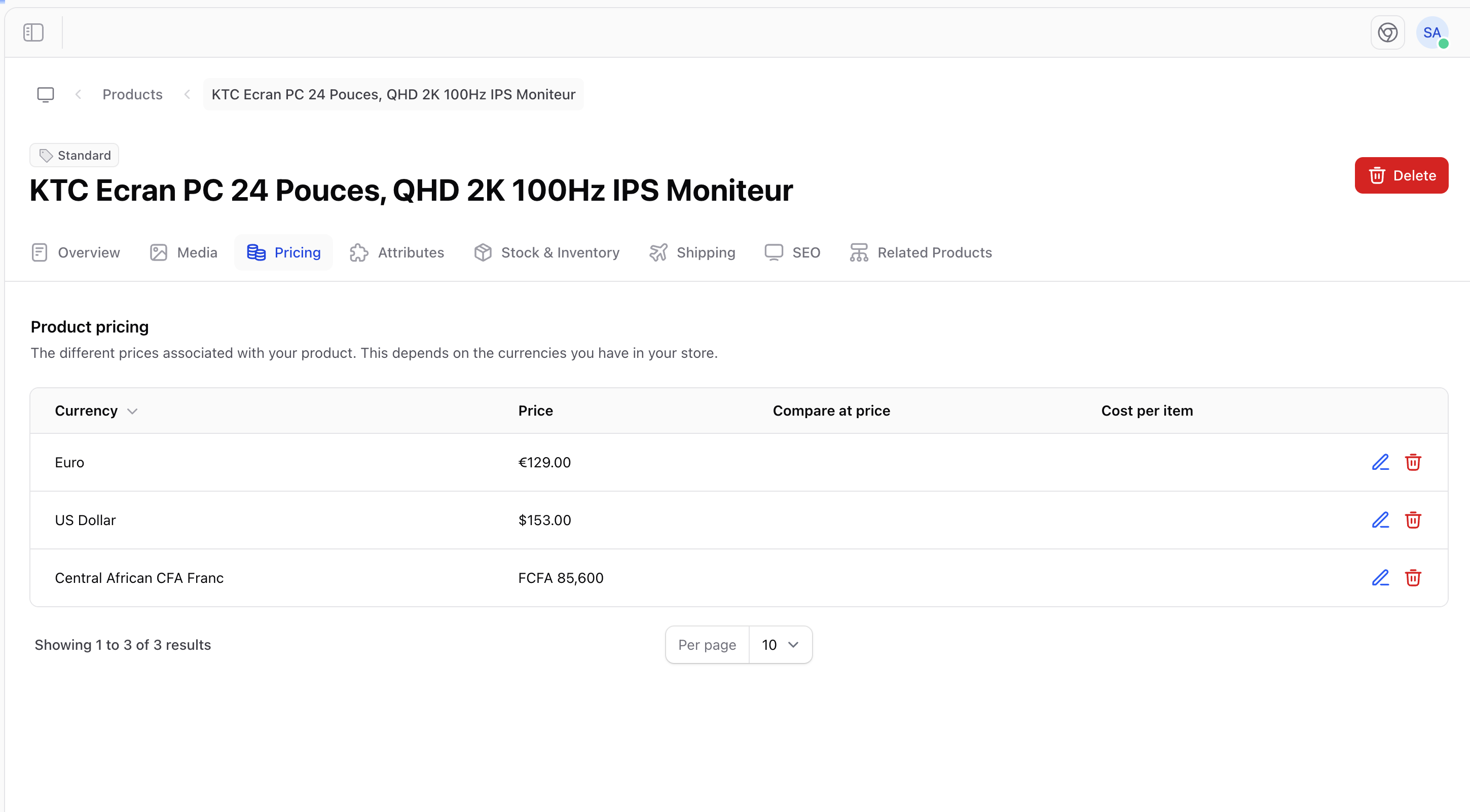
Multi-Currency Pricing
If you have multiple currencies configured in your store:- Each currency has its own set of price fields
- Set appropriate prices for each market (don’t just convert; consider local pricing strategies)
- The customer sees the price in their local currency based on your store’s currency detection
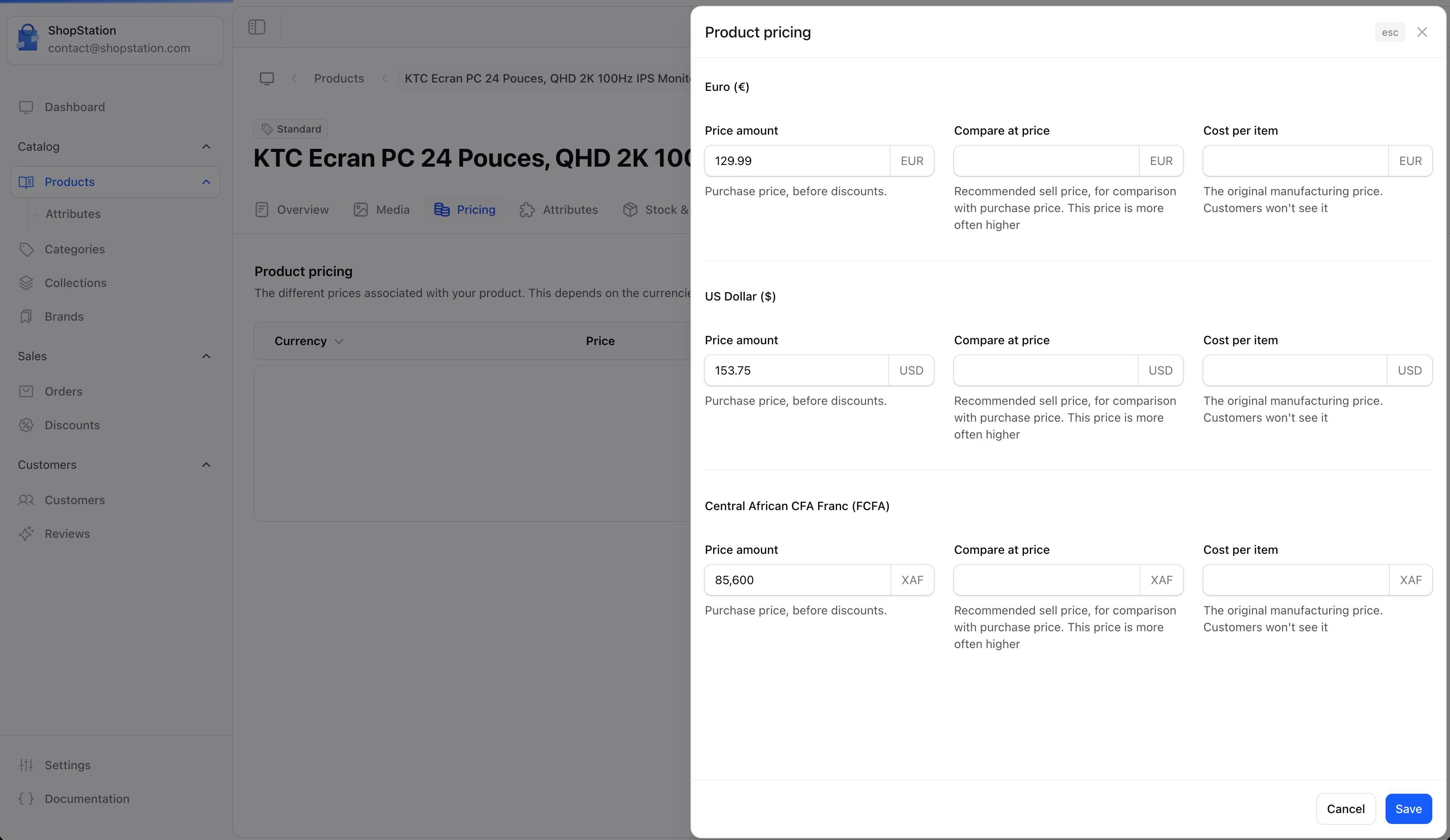
Pricing Strategies
Media Management
Manage your product’s visual content, including thumbnail and gallery images.Thumbnail
The thumbnail is your product’s primary image. It appears in:- Product listings and search results
- Shopping cart and checkout
- Order confirmations and invoices
Product Gallery
Additional images shown on the product detail page:- Upload multiple images for different angles
- Drag and drop to reorder images
- Delete images you no longer need
- Minimum resolution: 800x800 pixels
- Consistent aspect ratio across products (square works best for most stores)
- Clean white or neutral background for the thumbnail
- Lifestyle and detail shots for gallery images
SEO Optimization
Optimize your product pages for search engines to drive organic traffic.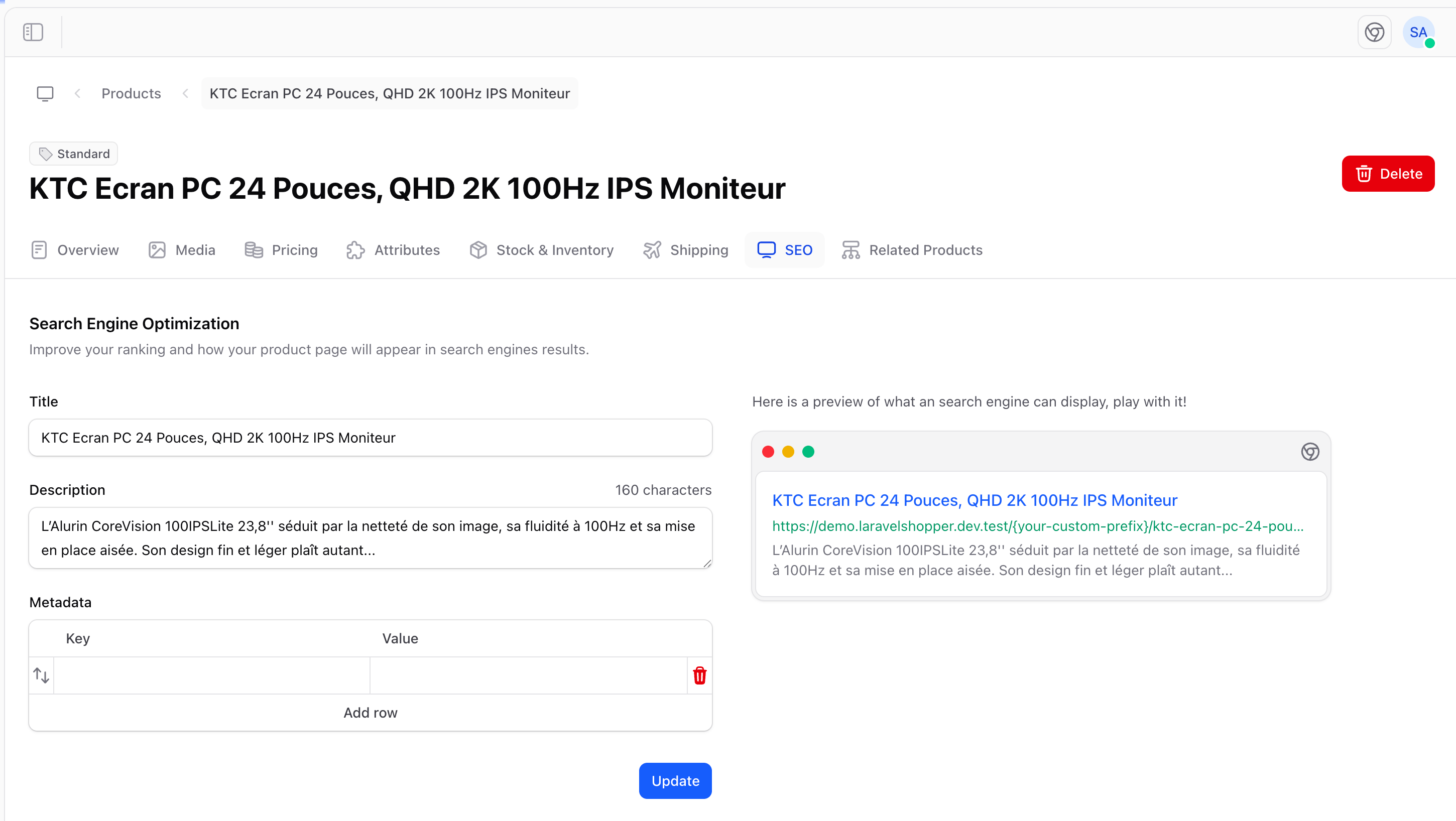
SEO Tips
- Include keywords naturally in the title and description. Think about what customers search for
- Be specific. “Red Leather Crossbody Bag” is better than “Nice Bag”
- Add a call to action in the meta description, such as “Shop now”, “Free shipping”, “Limited edition”
- Avoid duplicate content. Each product should have unique SEO text
If left empty, search engines will use your product name as the title and pull text from your description. It’s always better to set these explicitly for optimal results.
Related Products
Link related products to encourage customers to explore more of your catalog and increase average order value.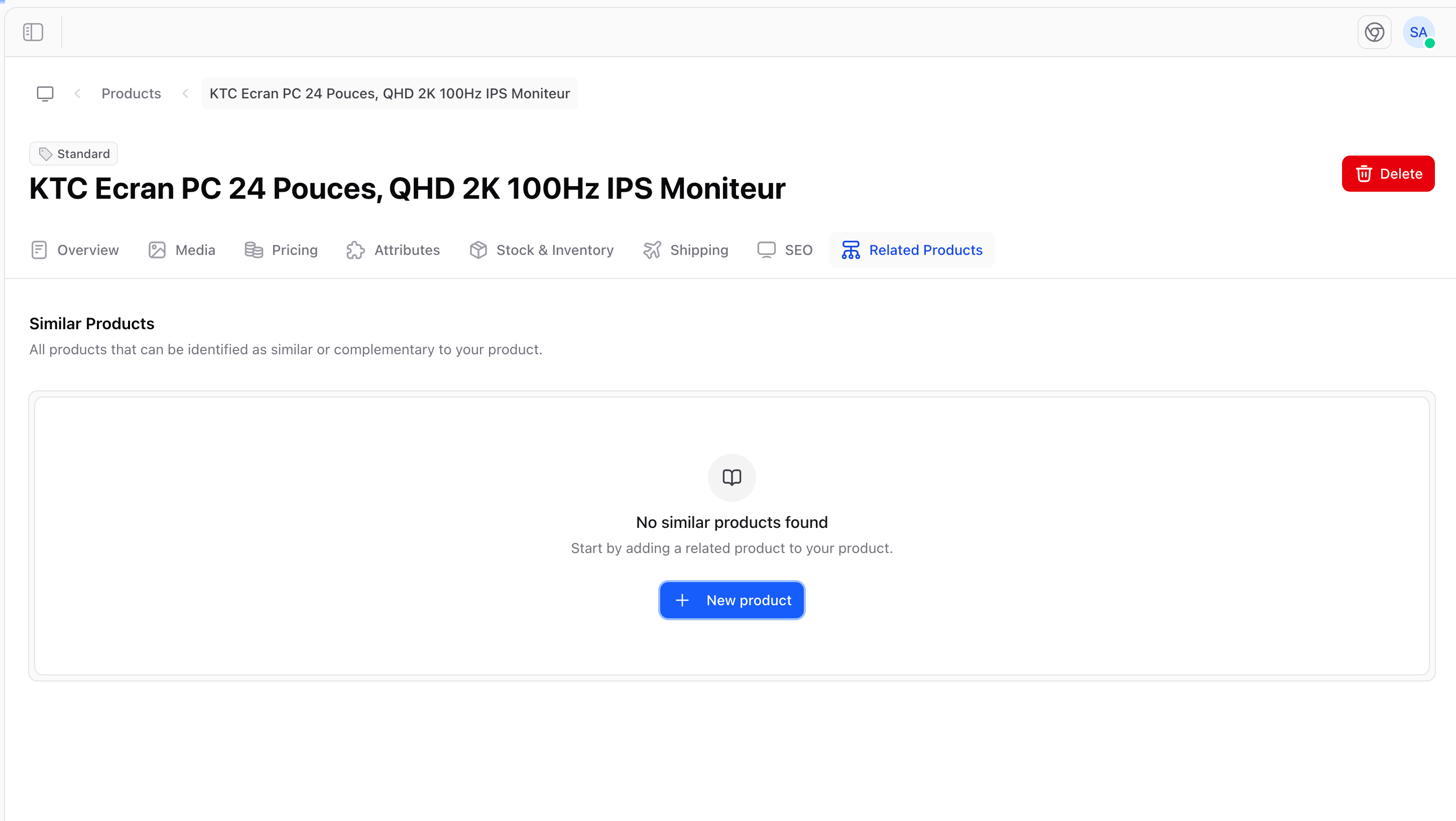
Adding Related Products
- Navigate to the Related Products section on your product
- Click Add related product
- Search for and select products to link
- Related products appear on the product detail page on your storefront
When to Use Related Products
Visibility & Publishing
Control when and where your product is visible.Visibility Toggle
- Visible: Product appears on your storefront and in search results
- Hidden: Product exists in the admin but is not shown to customers
- Prepare products before a launch
- Temporarily remove seasonal items
- Hide products being updated or photographed
Publication Date
The Published at date controls when the product goes live:- Past or current date: Product is immediately available (if visible)
- Future date: Product is scheduled and will become available at that date and time
Channels
If your store uses multiple sales channels, you can control which channels a product appears on:- Web store. Your main online store
- Mobile app. If you have a mobile shopping app
- POS. Point of sale / in-store
- Marketplace. Third-party marketplace listings
Product on Storefront
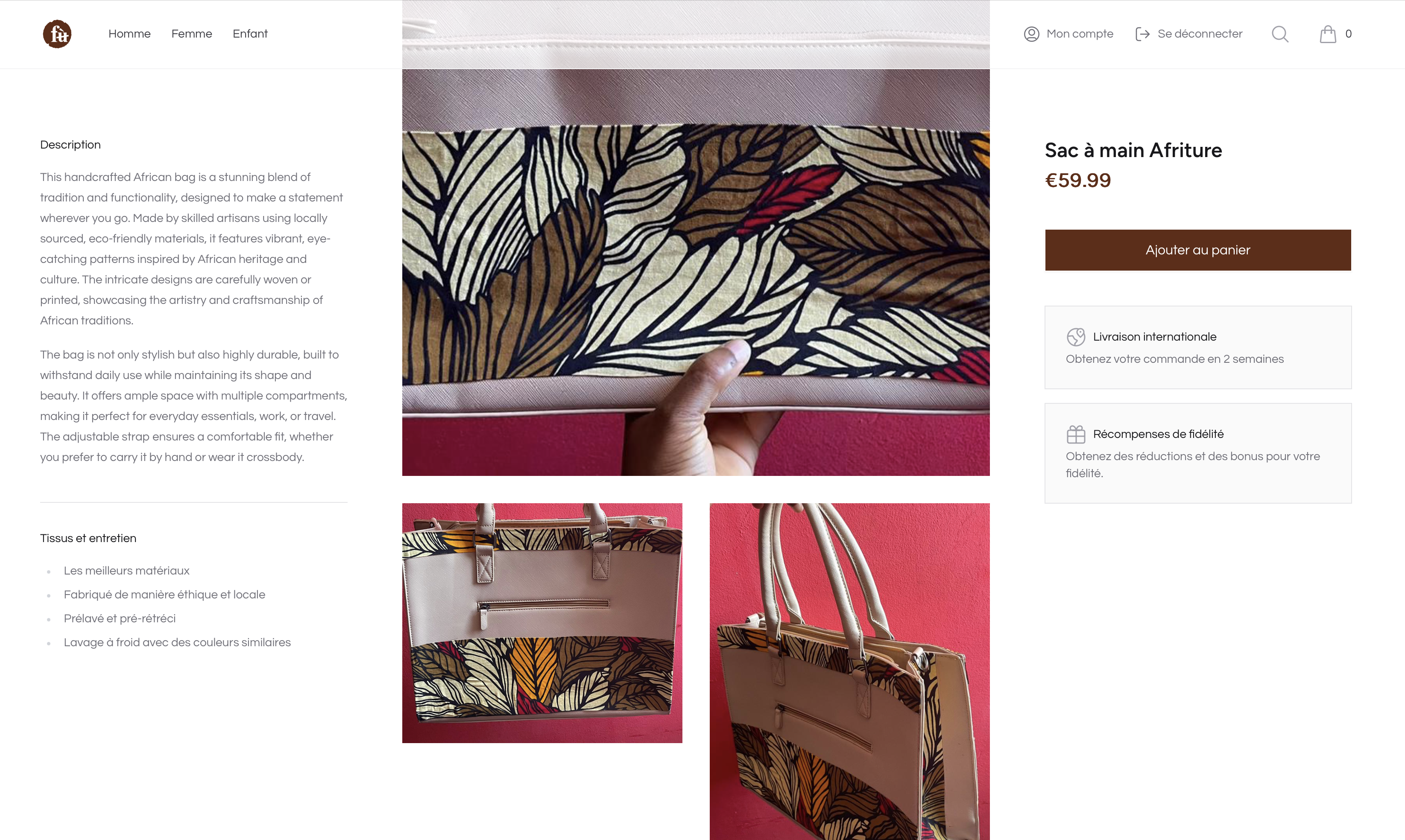
Here’s how a fully configured product appears to customers:
Common Actions
For developer details, see the Products documentation.