
- Enter the account password.
- Authenticate through a mobile app security key.
Configuration
Two-factor authentication must be enabled in your configuration before the feature becomes available in the UI. In theconfig/shopper/auth.php file, set the 2fa_enabled option to true:
config/shopper/auth.php
.env file:
false (the default), the two-factor authentication section will not appear on the account page
and the login flow will not prompt for a second factor even if a user has previously configured it.
Enabling Two-Factor Authentication
To enable two-step authentication, you’ll need first to download an authenticator app to your mobile device. The app will be able to scan QR codes and retrieve authentication data for you. Recommended authenticator apps: In addition, you should store the listed recovery codes in a secure password manager such as 1Password. When you install an authenticator app, make sure that you follow its instructions carefully. After your app is successfully downloaded and set up, you can activate the feature in Shopper. From your administrator interface, click on your name with account picture in the upper right corner. Next click on Personal Account Scroll to the two factor authenticate section on the screen, click Enable authentication. This action will trigger a modal to ask you to confirm your password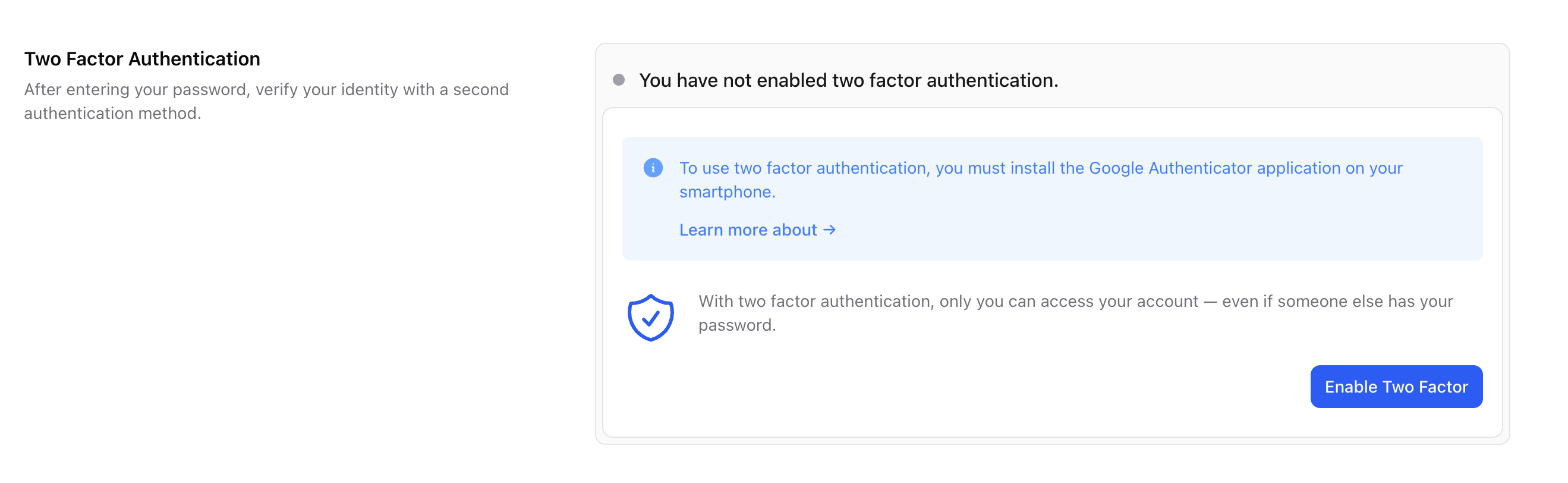
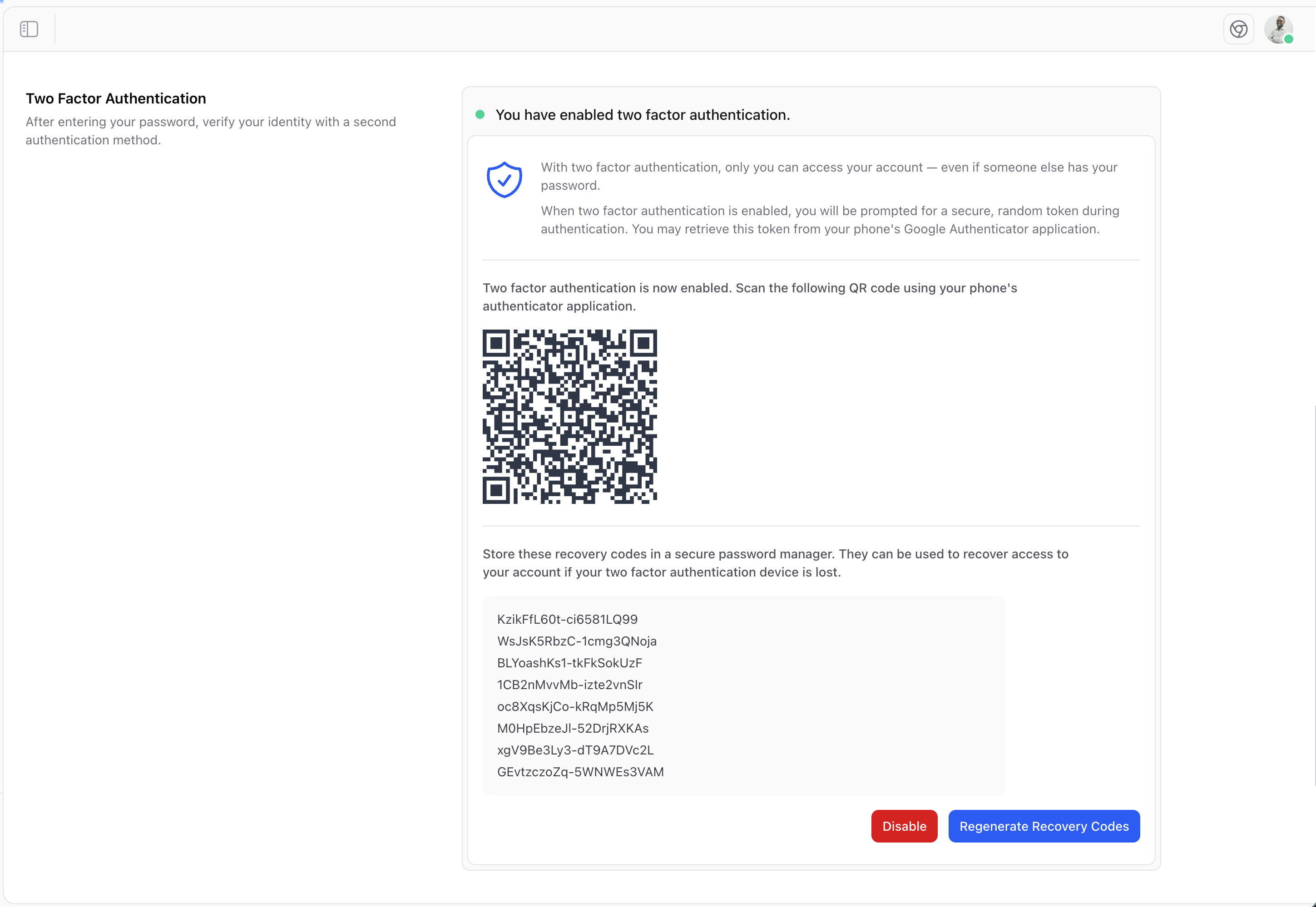
Logging in with Two-Factor Authentication
Go to the Shopper administration login page and enter your email address and password. Click the Login button. The login form will switch to a two-factor challenge, prompting you to enter your authentication code. If you used a two-factor authentication app, open it and enter the code displayed, then click Login. If you can’t access your authenticator app, click Use a recovery code and enter one of your saved recovery codes to authenticate.Disable Two-Factor Authentication
From your administrator interface, click on your name and your account photo in the upper right corner and click on Personal Account menu. In the Two-factor authentication section, use the Disable button for the authentication method you want to deactivate. This will ask you for a password confirmation, you enter your password and click on confirm to completely deactivate the Two-factor authentication.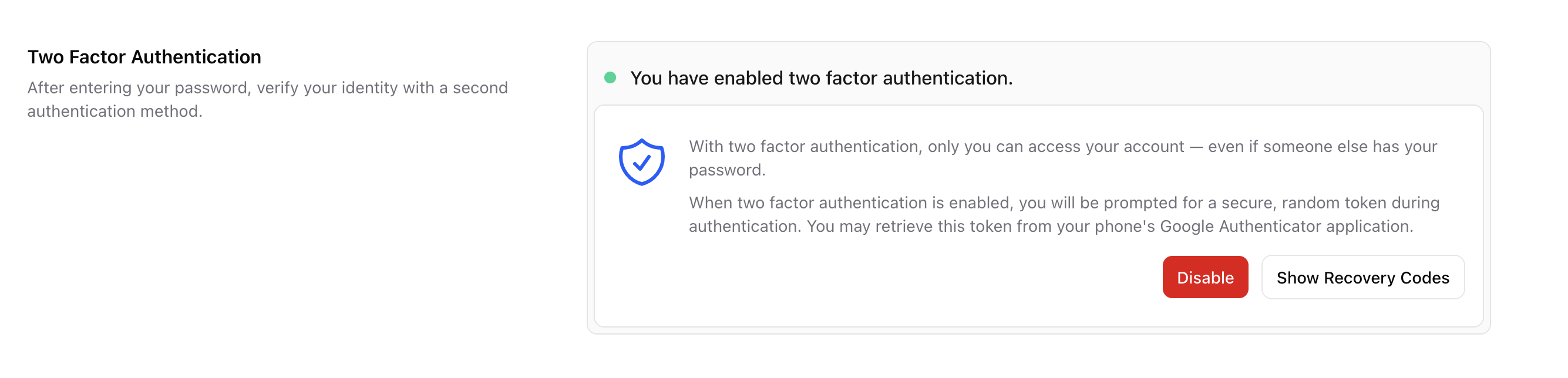
Developer Integration
Interfaces and Traits
Two-factor authentication is implemented through two focused interfaces (following the Interface Segregation Principle):Shopper\Contracts\HasStoreAuthentication manages the TOTP secret and QR code:
getStoreAuthenticationSecret(): ?stringsaveStoreAuthenticationSecret(?string $secret): voidgetStoreAuthenticationHolderName(): stringgetStoreAuthenticationQrCodeSvg(): stringgetStoreAuthenticationQrCodeUrl(): string
Shopper\Contracts\HasStoreAuthenticationRecovery manages recovery codes:
getStoreAuthenticationRecoveryCodes(): ?arraysaveStoreAuthenticationRecoveryCodes(?array $codes): voidreplaceStoreAuthenticationRecoveryCode(string $code): void
Database Columns
The following columns are added to theusers table by Shopper’s migrations: