In most e-commerce tools, collections are considered as categories. And especially on Shopify, collections are a great feature for grouping products. And for the constitution of the collections we got closer to what Shopify offers in terms of configuration, and the management of collections in Shopper is inspired by Shopify.

Context

For example if you have a store that sells various electronic products, you will probably have categories like “Phones”, “Computers”, “Cameras” etc. Each of these categories may have several products that can be listed. And to try to group the products in an even more detailed way you can create for example a collection called “Gaming Collection” and specify in this collection that any product with certain conditions can be included. And that Gaming Collection can have products that even come from various categories in your site (desktop, laptop, monitor, and many others of the same type) or that don’t even have categories (very rare case in e-commerce sites). Let’s use Netflix as an example. Categories are essentially genres: adventure, action, horror, romance, etc., while collections are similar to a TV series or movie sequels that are ultimately meant to be viewed together.

Collections vs Categories

The question is essential, it is difficult to find this type of configuration on e-commerce tools because most of the time categories, collections or taxonomies are used to perform the same action group products. The advantage of having collections in addition to categories in Shopper is to differentiate or optimize the search for products by customers in your store.

Depth

A collection can’t have a child or a parent like a category. So all the collections are at the same hierachical level.

Condition

Where products can be added to any category, collections cannot. Depending on the type of collection you want to create (Manual or Automatic) you will find yourself creating conditions or rules for the products that should be in that collection.

Overview

As mentioned above, the collections in Shopper are inspired by Shopify collections. So there are also 2 types of collections: “Manual” and “Automatic” and the configuration for each is different.
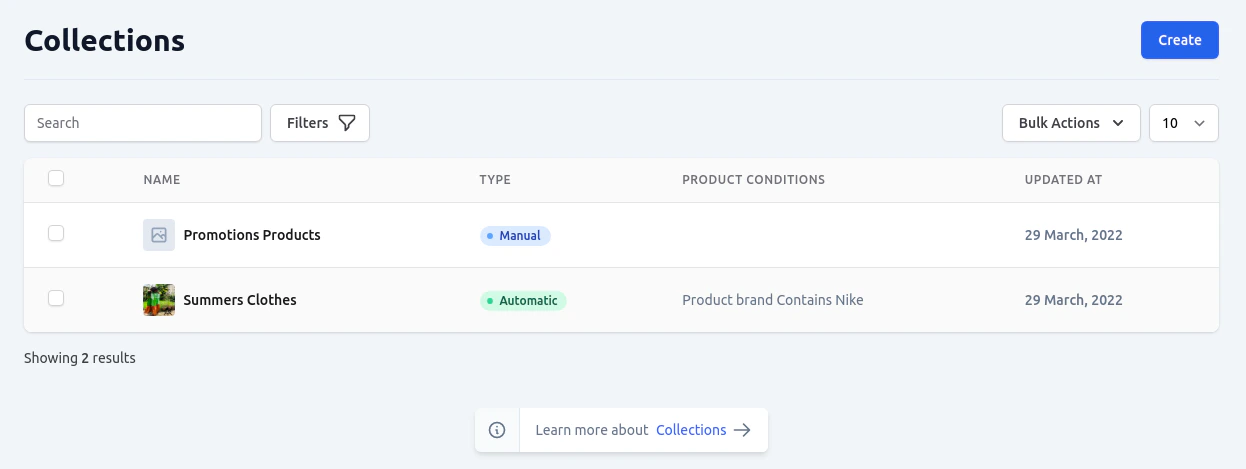
Collections

Collections

Fields

As the collections can be automatic, they are managed by 2 Models, the Collection model and the model for rules associated with automatic collections. Manual collections do not need to have rules.
  • Collection model is Shopper\Framework\Models\Shop\Product\Collection.
  • Rule model is Shopper\Framework\Models\Shop\Product\CollectionRule
Collection Model
NameTypeRequiredNotes
idautoincauto
namestringyes
slugstringyesUnique, default value is generated using collection name
descriptionlongTextnoNullable
typeenumyesValues ['manual', 'auto']
sortstringnoNullable, potential values alpha_asc, alpha_desc, price_desc, price_asc, created_desc, created_asc
match_conditionsenumnoNullable, ['all', 'any']
published_atdateTimeTznoDefault now()
CollectionRule Model
NameTypeRequiredNotes
idautoincauto
rulestringyescurrent values product_title, product_price, compare_at_price, inventory_stock, product_brand, product_category
operatorstringyescurrent values equals_to, not_equals_to, less_than, greater_than, starts_with, ends_with, contains, not_contains
valuestringyes
collection_idbigintnoCollection ID
Models are customizable, and we recommend changing the Collection model when you configure your store. To change the model you need to look at the configuration file config/shopper/system.php at the key models.
Let’s keep in mind the modification that was made in the previous section regarding Categories.
return [
  'models' => [
    /*
      * Eloquent model should be used to retrieve your categories. Of course,
      * it is often just the "Category" model but you may use whatever you like.
      *
      * The model you want to use as a Category model needs to extends the
      * `\Shopper\Framework\Models\Shop\Product\Category` model.
      */
    'category'  => \App\Models\Category::class,

    /*
    * Eloquent model should be used to retrieve your collections. Of course,
    * it is often just the "Collection" model but you may use whatever you like.
    *
    * The model you want to use as a Collection model needs to extends the
    * `\Shopper\Framework\Models\Shop\Product\Collection` model.
    */
    'collection'  => \Shopper\Framework\Models\Shop\Product\Collection::class,
  ]
];
  1. Create your own model that you have to use
    php artisan make:model Collection
    
    Once the app/Models/Collection.php model is created in our app folder, we will make it extend from the Shopper\Framework\Models\Shop\Product\Collection model available in Shopper.
  2. Extend our Collection model from the Collection Shopper Model
    namespace App\Models;
    
    use Shopper\Framework\Models\Shop\Product;
    
    class Collection extends Product\Collection
    {
    }
    
  3. Update Collection key for the model on the system.php config file to use our new model
    return [
      'models' => [
        /*
          * Eloquent model should be used to retrieve your categories. Of course,
          * it is often just the "Category" model but you may use whatever you like.
          *
          * The model you want to use as a Category model needs to extends the
          * `\Shopper\Framework\Models\Shop\Product\Category` model.
          */
        'category'  => \App\Models\Category::class,
    
        /*
          * Eloquent model should be used to retrieve your collections. Of course,
          * it is often just the "Collection" model but you may use whatever you like.
          *
          * The model you want to use as a Collection model needs to extends the
          * `\Shopper\Framework\Models\Shop\Product\Collection` model.
          */
        'collection'  => \App\Models\Collection::class,
      ]
    ];
    

Components

Livewire components for managing collections are available in the component configuration file config/shopper/components.php.
use Shopper\Framework\Http\Livewire;

return [

  'livewire' => [

    'collections.browse' => Livewire\Collections\Browse::class,
    'collections.create' => Livewire\Collections\Create::class,
    'collections.edit' => Livewire\Collections\Edit::class,
    'collections.products' => Livewire\Collections\Products::class,

    'tables.collections-table' => Livewire\Tables\CollectionsTable::class,

  ];

];

Manage Collections

Form your Shopper admin on the sidebar go to Collections. The display page is rendered by the Livewire component Shopper\Framework\Http\Livewire\Collections\Browse and for the display of the collections table is the component Shopper\Framework\Http\Livewire\Tables\CollectionsTable. By default you will see this page without data which is rendered by a blade component of Shopper called empty state.
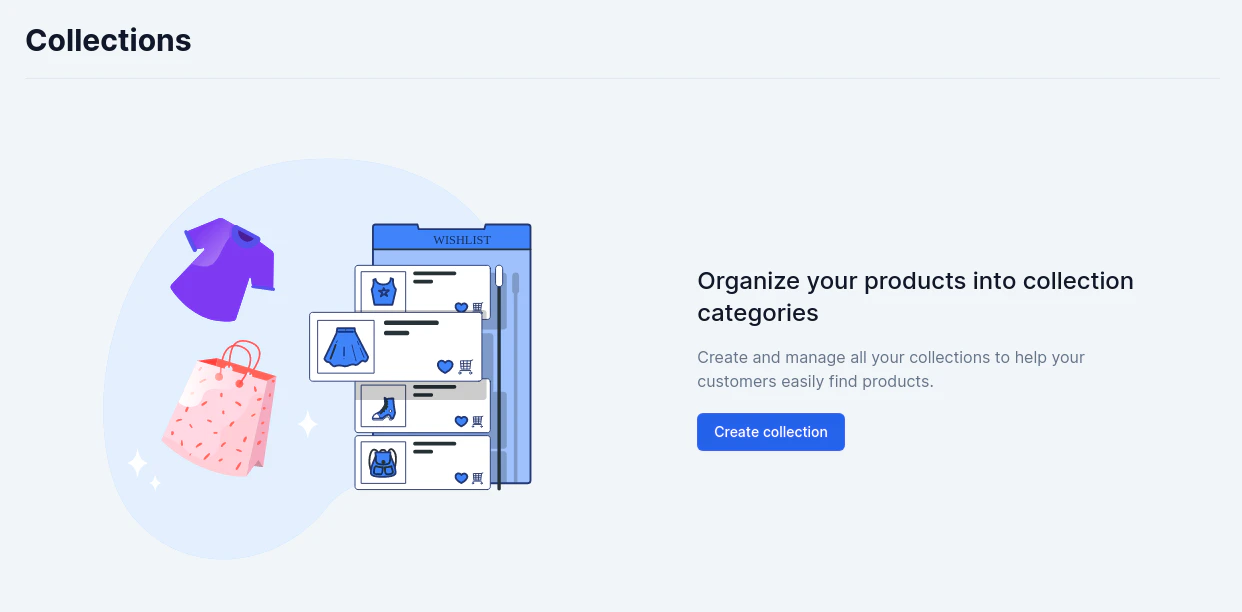
Collections empty data

Collections empty data

Create collection

Click on the “Create” button on the collections page, and a creation form appears.
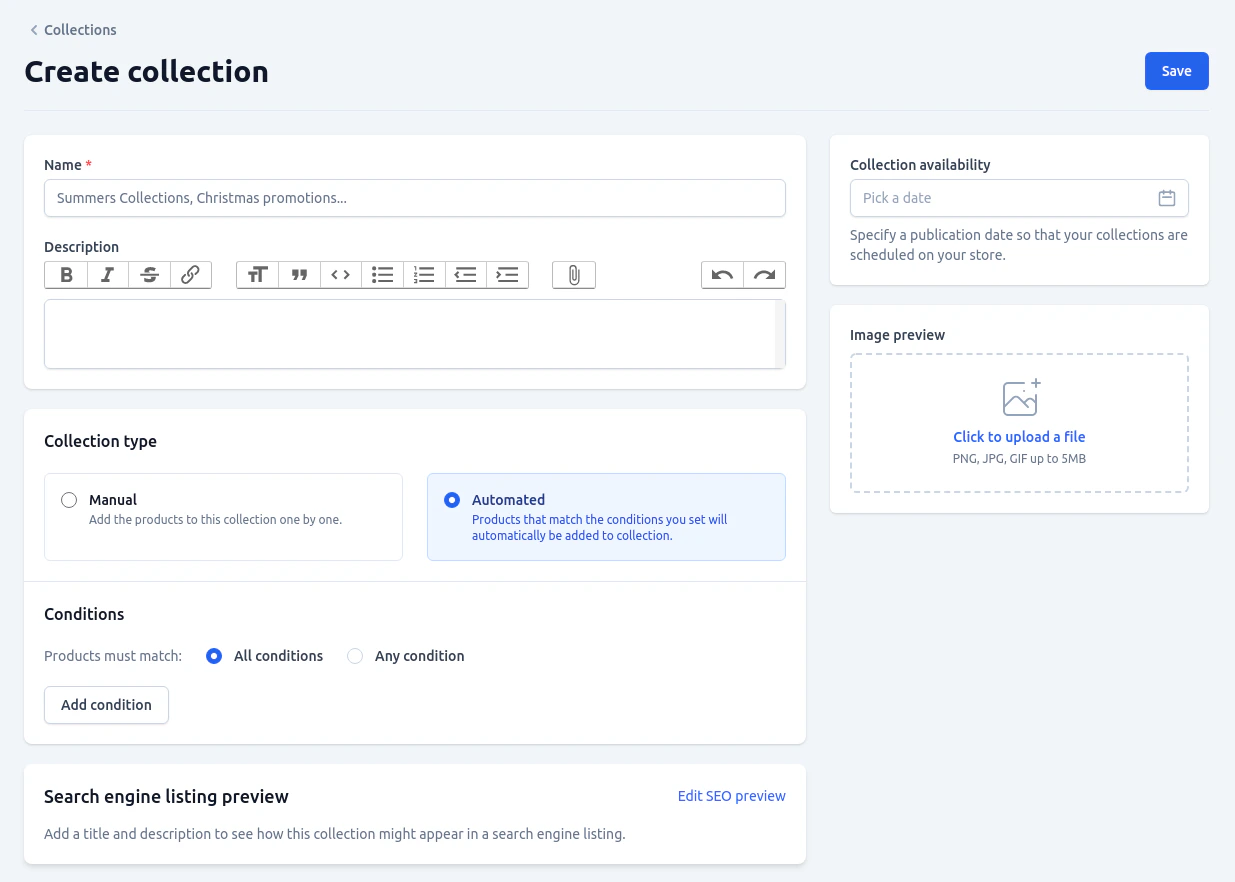
Create collection form
Create collection

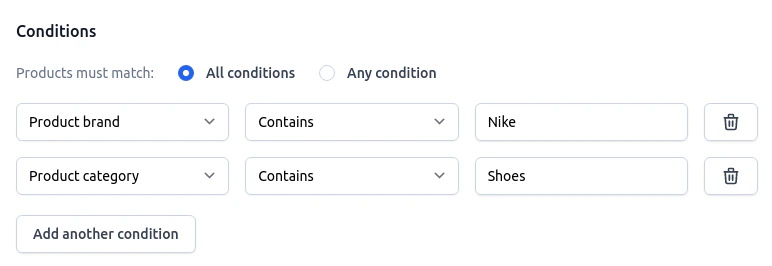
Save your changes in order to be taken back to the collections list. Required fields are marked with an asterisk (*). You can create two types of collections as we said: Automatic and manual collection. Only automatic collections have rules for automating them. When you choose to create an automatic collection the rules section will be available in the creation form
automatic collection rules

Automatic collection rules

After you create a collection, you can’t change its type. The Livewire component for collection creation is Shopper\Framework\Http\Livewire\Collections\Create. Here is the function to save a collection
namespace Shopper\Framework\Http\Livewire\Collections;

use Shopper\Framework\Models\Shop\Product\CollectionRule;
use Shopper\Framework\Repositories\Ecommerce\CollectionRepository;

class Create extends Component
{
  public function store()
  {
    $this->validate($this->rules());

    $collection = (new CollectionRepository())->create([
      'name' => $this->name,
      'slug' => $this->name,
      'description' => $this->description,
      'type' => $this->type,
      'match_conditions' => $this->condition_match,
      'seo_title' => $this->seoTitle,
      'seo_description' => $this->seoDescription,
      'published_at' => $this->publishedAt ?? now(),
    ]);

    if ($this->fileUrl) {
      $collection->addMedia($this->fileUrl)
        ->toMediaCollection(config('shopper.system.storage.disks.uploads'));
    }

    if ($this->type === 'auto' && count($this->conditions) > 0 && $this->rule) {
      foreach ($this->rule as $key => $value) {
        CollectionRule::query()->create([
          'collection_id' => $collection->id,
          'rule' => $this->rule[$key],
          'operator' => $this->operator[$key],
          'value' => $this->value[$key],
        ]);
      }

      $this->conditions = [];
      $this->resetConditionsFields();
    }

    session()->flash('success', __('Collection successfully added!'));

    $this->redirectRoute('shopper.collections.edit', $collection);
  }
}

Retrieve Data

After extending the Shopper Collection model you can use your own model to retrieve data from the database. Here an example code.
use App\Models\Collection;

// To retrieve only manual collections
$collections = Collection::manual()->get();
// To retrieve collection by slug
$collection = Collection::findBySlug('summers-clothes');
To view the image of a collection you can consult the media documentation. And you can display collections in your frontend.
example collection rules

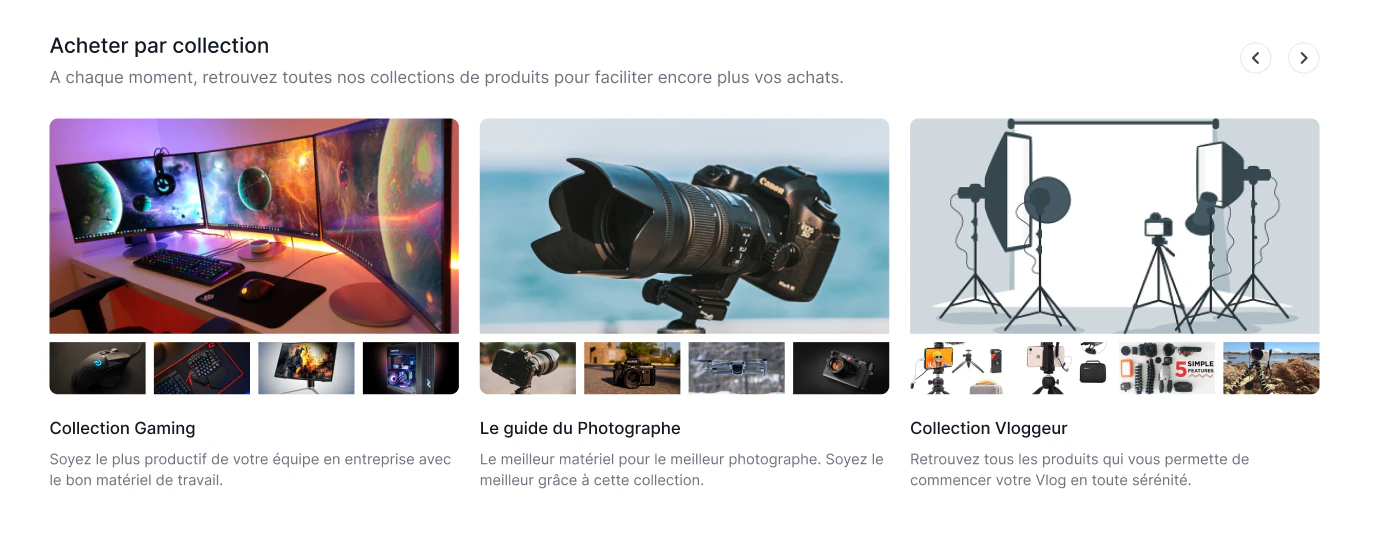
Example display for collections