> ## Documentation Index
> Fetch the complete documentation index at: https://docs.laravelshopper.dev/llms.txt
> Use this file to discover all available pages before exploring further.
# Shipping Zones
> Define where you ship, which currencies you accept, and which payment and delivery methods are available.
A shipping zone is a group of countries that share the same currency, payment methods, and delivery options. For example, you might have a "Europe" zone with EUR currency and Colissimo/DHL delivery, and a "North America" zone with USD currency and UPS/FedEx delivery.
Zones are central to how your store operates. When a customer checks out, Shopper matches their shipping address to a zone and uses it to determine:
* Which **currency** to charge in
* Which **payment methods** to show (Stripe, PayPal, Cash on Delivery)
* Which **delivery options** are available and at what price
* Which **tax rules** apply
You need at least one enabled zone before customers can complete checkout.
## Accessing Zones
1. Click on **Settings** in the sidebar
2. Select **Zones** from the settings menu
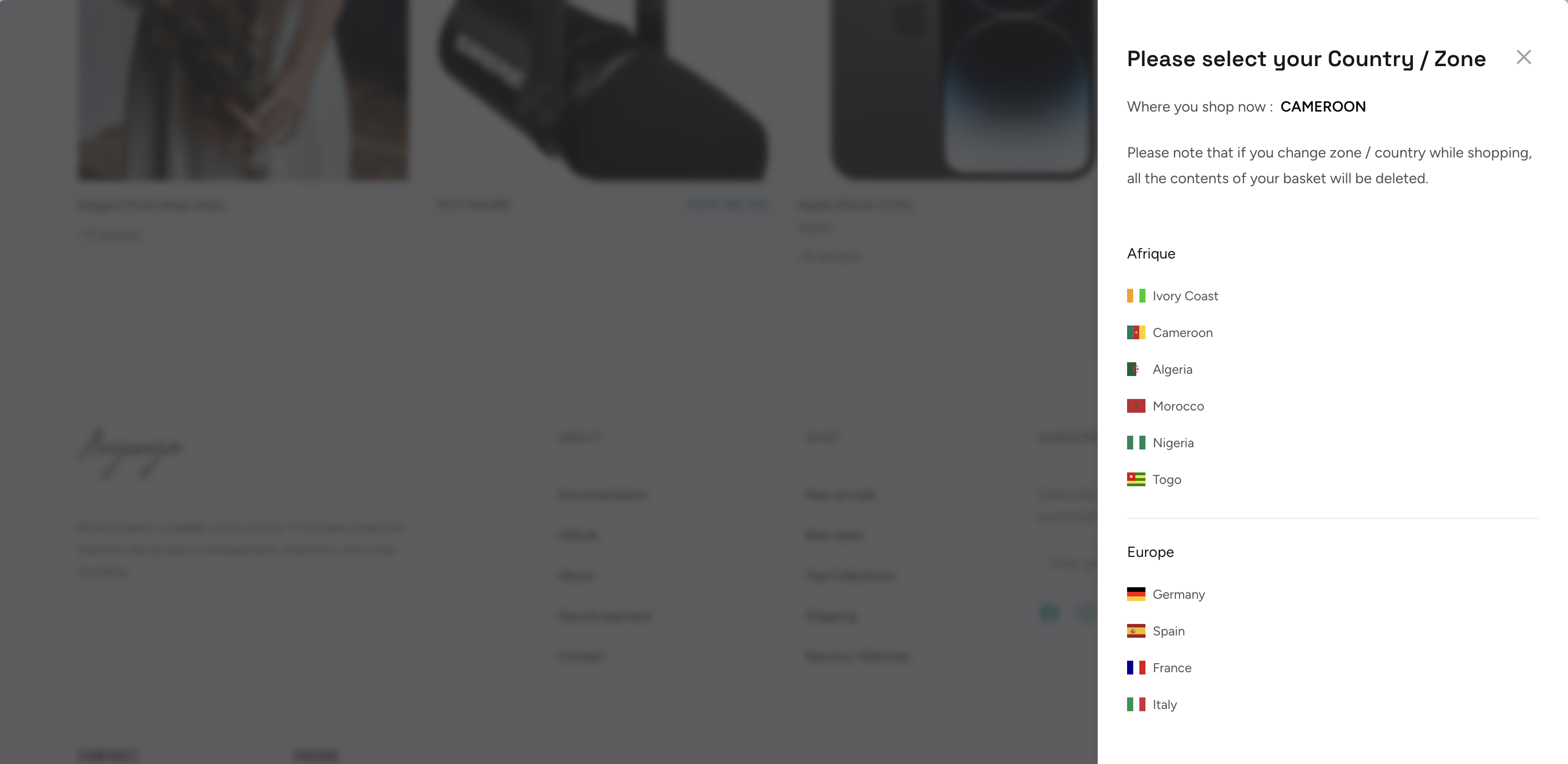 The zones page shows all your configured zones. Click on a zone to view its details, shipping options, and connected carriers.
## Creating a Zone
To create a new zone:
1. Click the **plus icon** button
2. Fill in the zone details
3. Click **Save**
The zones page shows all your configured zones. Click on a zone to view its details, shipping options, and connected carriers.
## Creating a Zone
To create a new zone:
1. Click the **plus icon** button
2. Fill in the zone details
3. Click **Save**
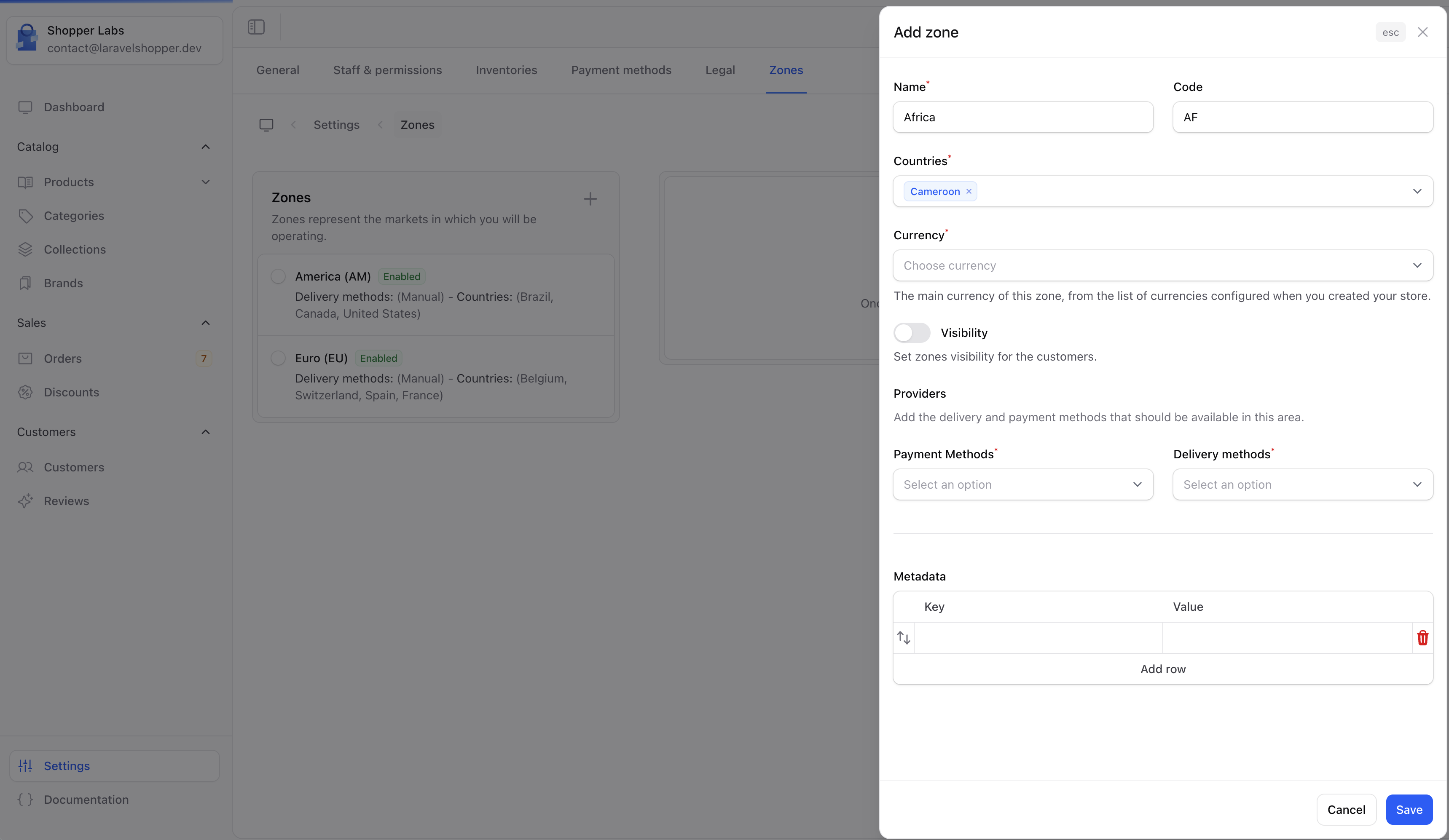 ### Zone Fields
| Field | Required | Description |
| ------------------- | -------- | -------------------------------------------------------------------------------------------- |
| **Name** | Yes | A descriptive name (e.g., "Europe", "North America", "Africa") |
| **Code** | No | A short identifier code (e.g., "EU", "NA", "AF") |
| **Countries** | Yes | The countries included in this zone. A country can only belong to one zone. |
| **Currency** | Yes | The currency used for pricing and checkout in this zone. Each zone has exactly one currency. |
| **Visibility** | No | Whether this zone is active. Disabled zones are not matched during checkout. |
| **Payment methods** | Yes | Which payment methods are available in this zone (e.g., Stripe, Cash on Delivery) |
| **Carriers** | Yes | Which shipping carriers serve this zone (e.g., UPS, Colissimo, Local Delivery) |
| **Metadata** | No | Optional key-value data for custom use |
Countries already assigned to another zone are grayed out in the country selector. Each country can only belong to one zone.
## Zone Detail Page
After creating a zone, click on it to view its detail page. The detail page shows the zone's configuration and its shipping options.
### Zone Fields
| Field | Required | Description |
| ------------------- | -------- | -------------------------------------------------------------------------------------------- |
| **Name** | Yes | A descriptive name (e.g., "Europe", "North America", "Africa") |
| **Code** | No | A short identifier code (e.g., "EU", "NA", "AF") |
| **Countries** | Yes | The countries included in this zone. A country can only belong to one zone. |
| **Currency** | Yes | The currency used for pricing and checkout in this zone. Each zone has exactly one currency. |
| **Visibility** | No | Whether this zone is active. Disabled zones are not matched during checkout. |
| **Payment methods** | Yes | Which payment methods are available in this zone (e.g., Stripe, Cash on Delivery) |
| **Carriers** | Yes | Which shipping carriers serve this zone (e.g., UPS, Colissimo, Local Delivery) |
| **Metadata** | No | Optional key-value data for custom use |
Countries already assigned to another zone are grayed out in the country selector. Each country can only belong to one zone.
## Zone Detail Page
After creating a zone, click on it to view its detail page. The detail page shows the zone's configuration and its shipping options.
 ## Editing a Zone
To update a zone's settings:
1. Click on the zone from the zones list
2. Click the **Edit** button
3. Modify the fields you want to change
4. Click **Save**
You can change the zone's name, code, countries, currency, payment methods, and carriers at any time.
Changing a zone's currency affects how prices are displayed to customers in that region. Make sure you have [prices](/v2/user-guide/marketing/pricing) configured in the new currency before switching.
## What's Configured Inside a Zone
Each zone connects three things together for a region:
| What | Purpose | Where to manage |
| -------------------- | ------------------------------------------------------ | ---------------------------------------------------------------------- |
| **Countries** | Which countries belong to this zone | Zone form |
| **Currency** | What currency customers pay in | Zone form |
| **Payment methods** | How customers can pay (Stripe, Cash on Delivery, etc.) | Zone form (select from available methods) |
| **Carriers** | Which shipping providers serve this zone | Zone form (select from available carriers) |
| **Shipping options** | Specific delivery options with pricing | Zone detail page (see [Carriers](/v2/user-guide/store-setup/carriers)) |
| **Tax rules** | Tax rates applied at checkout | Managed separately in tax settings |
You need to create [carriers](/v2/user-guide/store-setup/carriers) and payment methods before you can assign them to a zone. Set those up first, then create your zones.
## Zones in Orders
When viewing orders, you can see which zone applies to each order. This helps you understand which shipping and payment rules were used.
## Editing a Zone
To update a zone's settings:
1. Click on the zone from the zones list
2. Click the **Edit** button
3. Modify the fields you want to change
4. Click **Save**
You can change the zone's name, code, countries, currency, payment methods, and carriers at any time.
Changing a zone's currency affects how prices are displayed to customers in that region. Make sure you have [prices](/v2/user-guide/marketing/pricing) configured in the new currency before switching.
## What's Configured Inside a Zone
Each zone connects three things together for a region:
| What | Purpose | Where to manage |
| -------------------- | ------------------------------------------------------ | ---------------------------------------------------------------------- |
| **Countries** | Which countries belong to this zone | Zone form |
| **Currency** | What currency customers pay in | Zone form |
| **Payment methods** | How customers can pay (Stripe, Cash on Delivery, etc.) | Zone form (select from available methods) |
| **Carriers** | Which shipping providers serve this zone | Zone form (select from available carriers) |
| **Shipping options** | Specific delivery options with pricing | Zone detail page (see [Carriers](/v2/user-guide/store-setup/carriers)) |
| **Tax rules** | Tax rates applied at checkout | Managed separately in tax settings |
You need to create [carriers](/v2/user-guide/store-setup/carriers) and payment methods before you can assign them to a zone. Set those up first, then create your zones.
## Zones in Orders
When viewing orders, you can see which zone applies to each order. This helps you understand which shipping and payment rules were used.
 ## Common Zone Setups
### Single-Country Store
If you only sell domestically, create one zone:
| Zone | Countries | Currency | Carriers |
| -------- | ------------ | ------------- | -------------- |
| Domestic | Your country | Your currency | Local carriers |
### Multi-Region Store
For stores selling across regions:
| Zone | Countries | Currency | Carriers |
| ------------- | ------------------------------ | -------- | --------------------- |
| Domestic | France | EUR | Colissimo, Chronopost |
| Europe | Germany, Belgium, Spain, Italy | EUR | DHL, UPS |
| North America | United States, Canada | USD | FedEx, UPS |
| Africa | Cameroon, Senegal, Ivory Coast | XAF | DHL Express |
### Global Store with Few Zones
Keep it simple with broad zones:
| Zone | Countries | Currency |
| ------------- | ------------ | ------------- |
| Domestic | Your country | Your currency |
| International | All others | USD |
## Best Practices
Begin with a domestic zone and expand to international zones as your business grows.
Countries with similar shipping costs should share a zone to simplify pricing.
Each zone uses one currency. If you sell in EUR and USD, you need separate zones.
After configuring zones, place test orders from different countries to verify everything works.
## Related Pages
Set up shipping carriers and configure delivery options.
Manage the currencies available in your store.
Developer reference for zones, relationships, and configuration.
## Common Zone Setups
### Single-Country Store
If you only sell domestically, create one zone:
| Zone | Countries | Currency | Carriers |
| -------- | ------------ | ------------- | -------------- |
| Domestic | Your country | Your currency | Local carriers |
### Multi-Region Store
For stores selling across regions:
| Zone | Countries | Currency | Carriers |
| ------------- | ------------------------------ | -------- | --------------------- |
| Domestic | France | EUR | Colissimo, Chronopost |
| Europe | Germany, Belgium, Spain, Italy | EUR | DHL, UPS |
| North America | United States, Canada | USD | FedEx, UPS |
| Africa | Cameroon, Senegal, Ivory Coast | XAF | DHL Express |
### Global Store with Few Zones
Keep it simple with broad zones:
| Zone | Countries | Currency |
| ------------- | ------------ | ------------- |
| Domestic | Your country | Your currency |
| International | All others | USD |
## Best Practices
Begin with a domestic zone and expand to international zones as your business grows.
Countries with similar shipping costs should share a zone to simplify pricing.
Each zone uses one currency. If you sell in EUR and USD, you need separate zones.
After configuring zones, place test orders from different countries to verify everything works.
## Related Pages
Set up shipping carriers and configure delivery options.
Manage the currencies available in your store.
Developer reference for zones, relationships, and configuration.