> ## Documentation Index
> Fetch the complete documentation index at: https://docs.laravelshopper.dev/llms.txt
> Use this file to discover all available pages before exploring further.
# Taxes
> Configure tax zones and rates for your store.
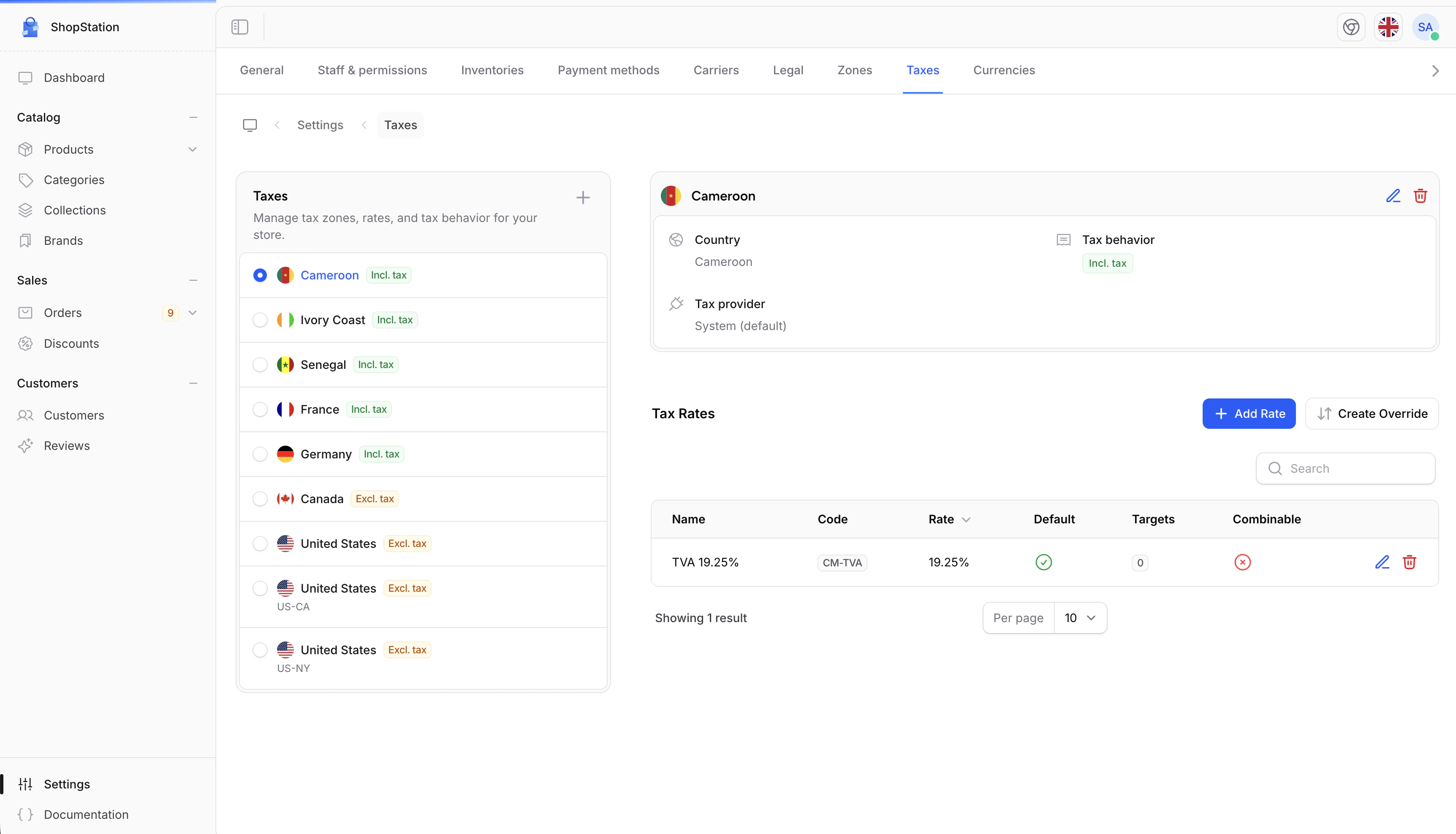
Taxes are calculated automatically at checkout based on where the customer's order is being shipped. You define tax zones (geographic regions), set percentage rates for each zone, and Shopper handles the calculation for every order.
Shopper supports both **tax-inclusive pricing** (VAT, common in Europe where tax is included in the displayed price) and **tax-exclusive pricing** (sales tax, common in the US where tax is added at checkout).
## Accessing Tax Settings
1. Click on **Settings** in the sidebar
2. Select **Taxes** from the settings menu
 ## Creating a Tax Zone
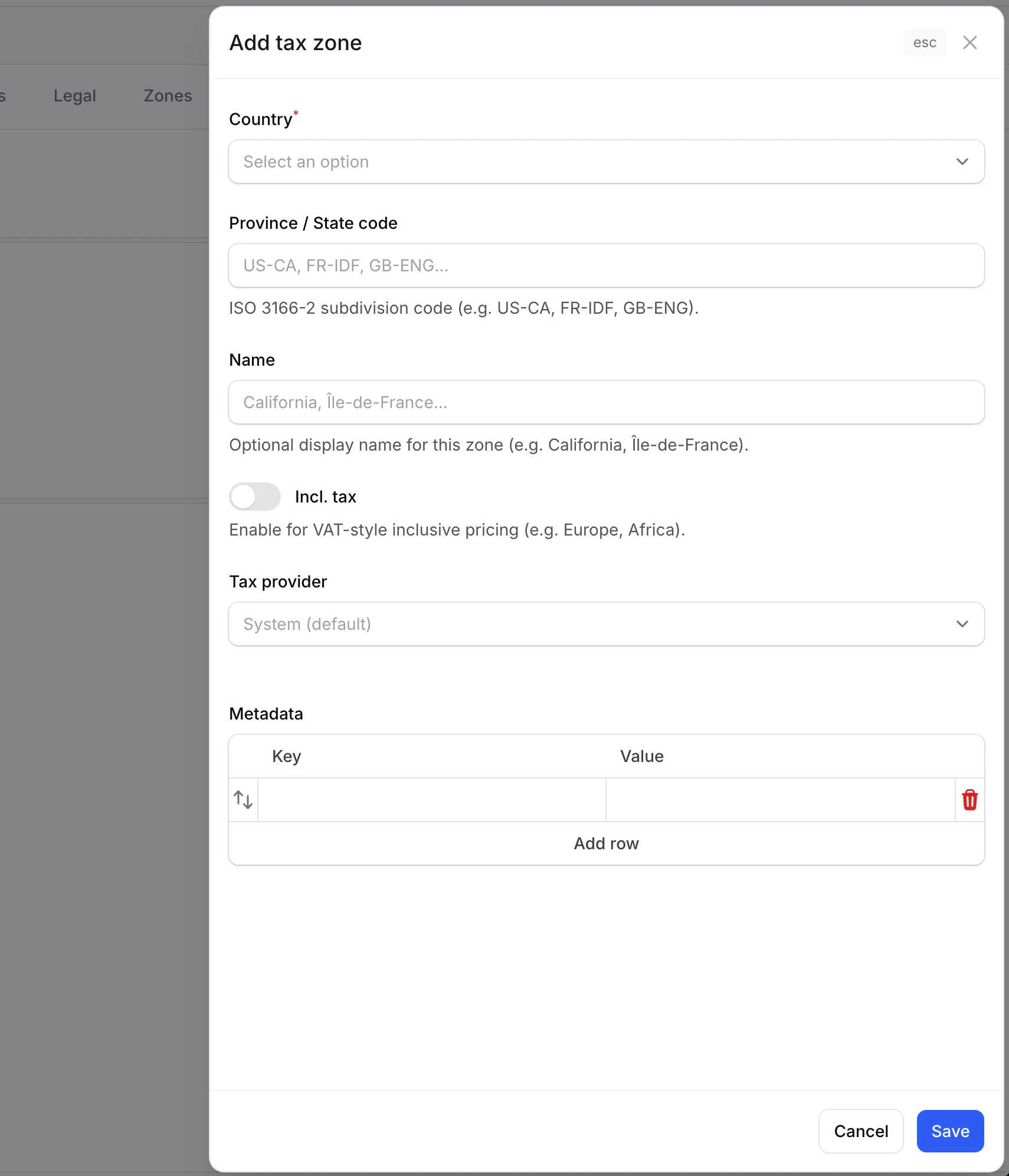
A tax zone maps to a country (and optionally a province/state). To create one:
1. Click the **Add tax zone** button
2. Select the country
3. Optionally enter a province/state code (e.g., "CA" for California)
4. Choose whether prices include tax (**tax-inclusive**) or tax is added at checkout (**tax-exclusive**)
5. Click **Save**
## Creating a Tax Zone
A tax zone maps to a country (and optionally a province/state). To create one:
1. Click the **Add tax zone** button
2. Select the country
3. Optionally enter a province/state code (e.g., "CA" for California)
4. Choose whether prices include tax (**tax-inclusive**) or tax is added at checkout (**tax-exclusive**)
5. Click **Save**
 ### Tax Zone Fields
| Field | Required | Description |
| ------------------ | -------- | ---------------------------------------------------------------------------------------- |
| **Country** | Yes | The country this tax zone applies to |
| **Province/State** | No | A specific province or state code (e.g., "CA", "NY"). Leave empty for country-wide rules |
| **Name** | No | A label to identify this zone (e.g., "Standard VAT", "California Sales Tax") |
| **Tax Inclusive** | Yes | If ON, prices already include tax (VAT). If OFF, tax is added at checkout (sales tax) |
### Tax-Inclusive vs Tax-Exclusive
| Setting | How it works | Common in |
| ----------------------- | --------------------------------------------------------------------------------------------- | ----------------------------- |
| **Tax Inclusive (ON)** | A product listed at 100 EUR already includes tax. The tax amount is extracted from the price. | Europe (VAT), Australia (GST) |
| **Tax Exclusive (OFF)** | A product listed at $100 has tax added on top at checkout (e.g., $100 + $10 tax = $110). | United States, Canada |
## Adding Tax Rates
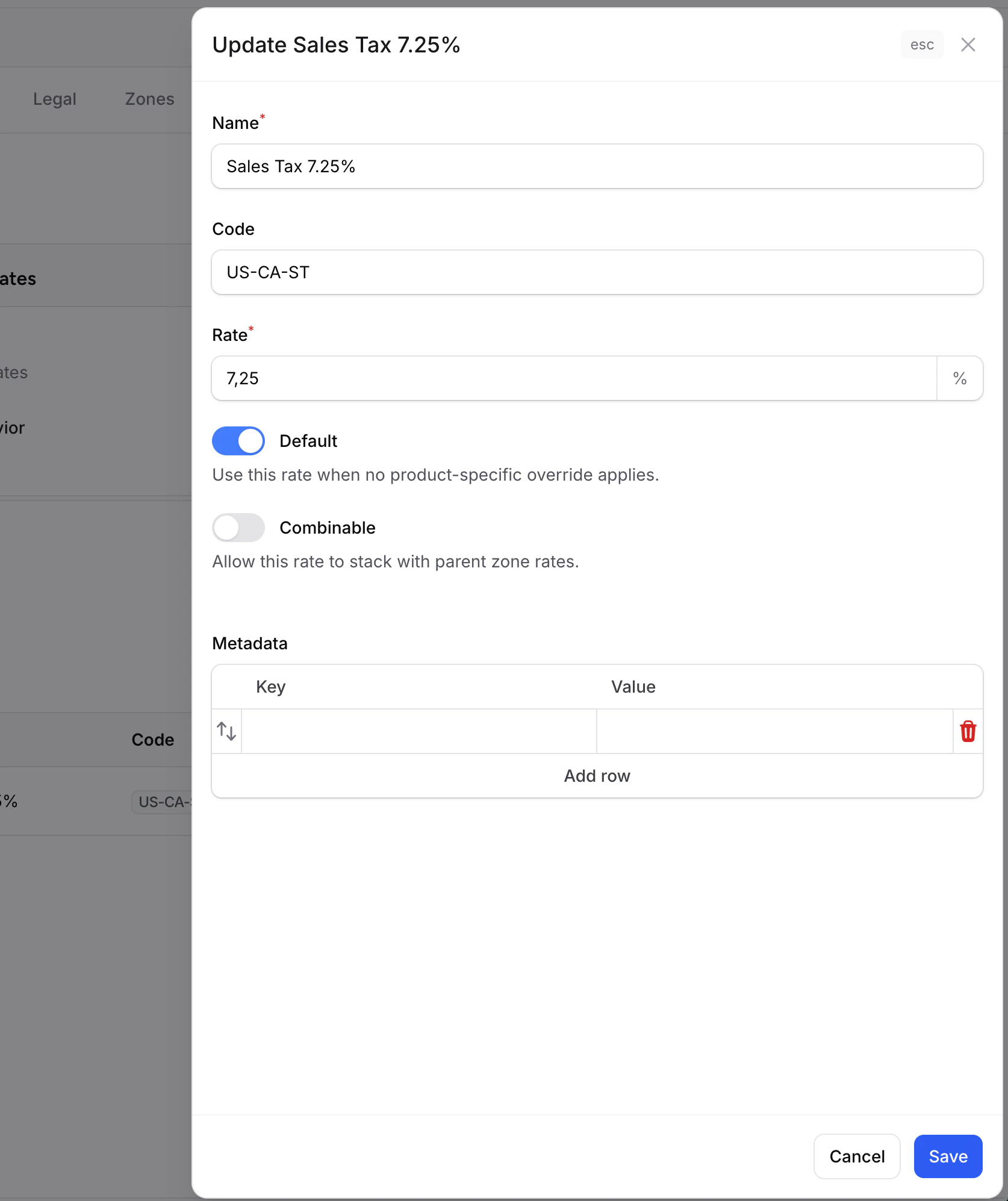
Each tax zone needs at least one tax rate. The **default rate** applies to all products in the zone unless a more specific override exists.
To add a rate:
1. Select a tax zone from the list
2. Click **Add rate**
3. Enter the rate name, code, and percentage
4. Toggle **Default** if this is the zone's primary rate
5. Click **Save**
### Tax Zone Fields
| Field | Required | Description |
| ------------------ | -------- | ---------------------------------------------------------------------------------------- |
| **Country** | Yes | The country this tax zone applies to |
| **Province/State** | No | A specific province or state code (e.g., "CA", "NY"). Leave empty for country-wide rules |
| **Name** | No | A label to identify this zone (e.g., "Standard VAT", "California Sales Tax") |
| **Tax Inclusive** | Yes | If ON, prices already include tax (VAT). If OFF, tax is added at checkout (sales tax) |
### Tax-Inclusive vs Tax-Exclusive
| Setting | How it works | Common in |
| ----------------------- | --------------------------------------------------------------------------------------------- | ----------------------------- |
| **Tax Inclusive (ON)** | A product listed at 100 EUR already includes tax. The tax amount is extracted from the price. | Europe (VAT), Australia (GST) |
| **Tax Exclusive (OFF)** | A product listed at $100 has tax added on top at checkout (e.g., $100 + $10 tax = $110). | United States, Canada |
## Adding Tax Rates
Each tax zone needs at least one tax rate. The **default rate** applies to all products in the zone unless a more specific override exists.
To add a rate:
1. Select a tax zone from the list
2. Click **Add rate**
3. Enter the rate name, code, and percentage
4. Toggle **Default** if this is the zone's primary rate
5. Click **Save**
 ### Tax Rate Fields
| Field | Required | Description |
| -------------- | -------- | ----------------------------------------------------------------------------- |
| **Name** | Yes | Rate name shown on invoices (e.g., "TVA 20%", "State Sales Tax") |
| **Code** | No | Machine-readable identifier (e.g., "FR\_VAT\_STANDARD") |
| **Rate** | Yes | The percentage (e.g., 20 for 20%) |
| **Default** | Yes | If ON, this rate applies to all products that don't match a specific override |
| **Combinable** | No | Whether this rate stacks with rates from a parent zone |
### Multiple Rates per Zone
Some countries have different tax rates for different types of products. For example, France has:
| Rate | Percentage | Applies to |
| ------------ | ---------- | ----------------------- |
| Standard VAT | 20% | Most products |
| Reduced VAT | 5.5% | Food, books |
| Zero VAT | 0% | Certain essential goods |
Create each rate in the same zone. The default rate applies to all products. Use **rate overrides** to assign non-default rates to specific products or categories.
## Rate Overrides
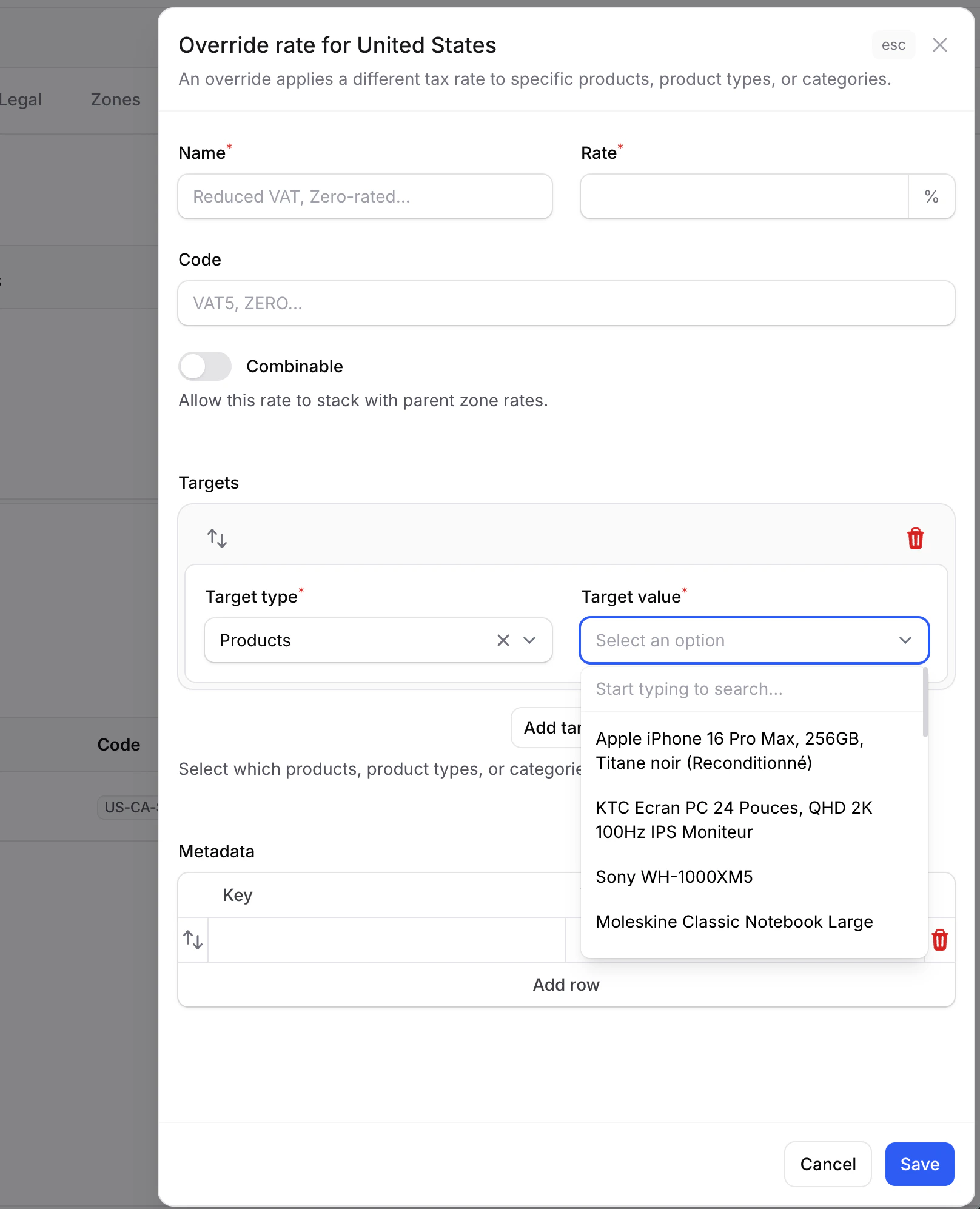
Overrides let you apply a non-default tax rate to specific products, product types, or categories. For example, you can set food products to use the 5.5% reduced rate instead of the default 20%.
### Tax Rate Fields
| Field | Required | Description |
| -------------- | -------- | ----------------------------------------------------------------------------- |
| **Name** | Yes | Rate name shown on invoices (e.g., "TVA 20%", "State Sales Tax") |
| **Code** | No | Machine-readable identifier (e.g., "FR\_VAT\_STANDARD") |
| **Rate** | Yes | The percentage (e.g., 20 for 20%) |
| **Default** | Yes | If ON, this rate applies to all products that don't match a specific override |
| **Combinable** | No | Whether this rate stacks with rates from a parent zone |
### Multiple Rates per Zone
Some countries have different tax rates for different types of products. For example, France has:
| Rate | Percentage | Applies to |
| ------------ | ---------- | ----------------------- |
| Standard VAT | 20% | Most products |
| Reduced VAT | 5.5% | Food, books |
| Zero VAT | 0% | Certain essential goods |
Create each rate in the same zone. The default rate applies to all products. Use **rate overrides** to assign non-default rates to specific products or categories.
## Rate Overrides
Overrides let you apply a non-default tax rate to specific products, product types, or categories. For example, you can set food products to use the 5.5% reduced rate instead of the default 20%.
 ### Override Types
| Type | What it targets | Example |
| ---------------- | ---------------------------------------------------- | -------------------------------------- |
| **Product Type** | All products of a type (standard, virtual, external) | Virtual products with digital tax rate |
| **Product** | A specific product | A book with zero-rated VAT |
| **Category** | All products in a category | Food category with reduced rate |
## Best Practices
Set up one default rate per zone. Add overrides only when needed for specific product categories.
Tax rules vary by country. Consult your accountant or tax advisor for the correct rates.
Test checkout with both tax-inclusive (VAT) and tax-exclusive (sales tax) zones to verify prices display correctly.
Give each rate a clear code (e.g., "FR\_VAT\_20") for easy identification in reports and invoices.
For developer details on tax calculation, custom tax providers, and the tax pipeline, see the [Taxes documentation](/v2/taxes).
### Override Types
| Type | What it targets | Example |
| ---------------- | ---------------------------------------------------- | -------------------------------------- |
| **Product Type** | All products of a type (standard, virtual, external) | Virtual products with digital tax rate |
| **Product** | A specific product | A book with zero-rated VAT |
| **Category** | All products in a category | Food category with reduced rate |
## Best Practices
Set up one default rate per zone. Add overrides only when needed for specific product categories.
Tax rules vary by country. Consult your accountant or tax advisor for the correct rates.
Test checkout with both tax-inclusive (VAT) and tax-exclusive (sales tax) zones to verify prices display correctly.
Give each rate a clear code (e.g., "FR\_VAT\_20") for easy identification in reports and invoices.
For developer details on tax calculation, custom tax providers, and the tax pipeline, see the [Taxes documentation](/v2/taxes).