> ## Documentation Index
> Fetch the complete documentation index at: https://docs.laravelshopper.dev/llms.txt
> Use this file to discover all available pages before exploring further.
# Payment Methods
> Configure how customers can pay for their orders.
Payment methods define how customers can pay at checkout. You can offer credit card payments via Stripe, cash on delivery, bank transfers, or mobile money, and restrict each method to specific [zones](/v2/user-guide/store-setup/zones).
## Accessing Payment Methods
1. Click on **Settings** in the sidebar
2. Select **Payment Methods** from the settings menu
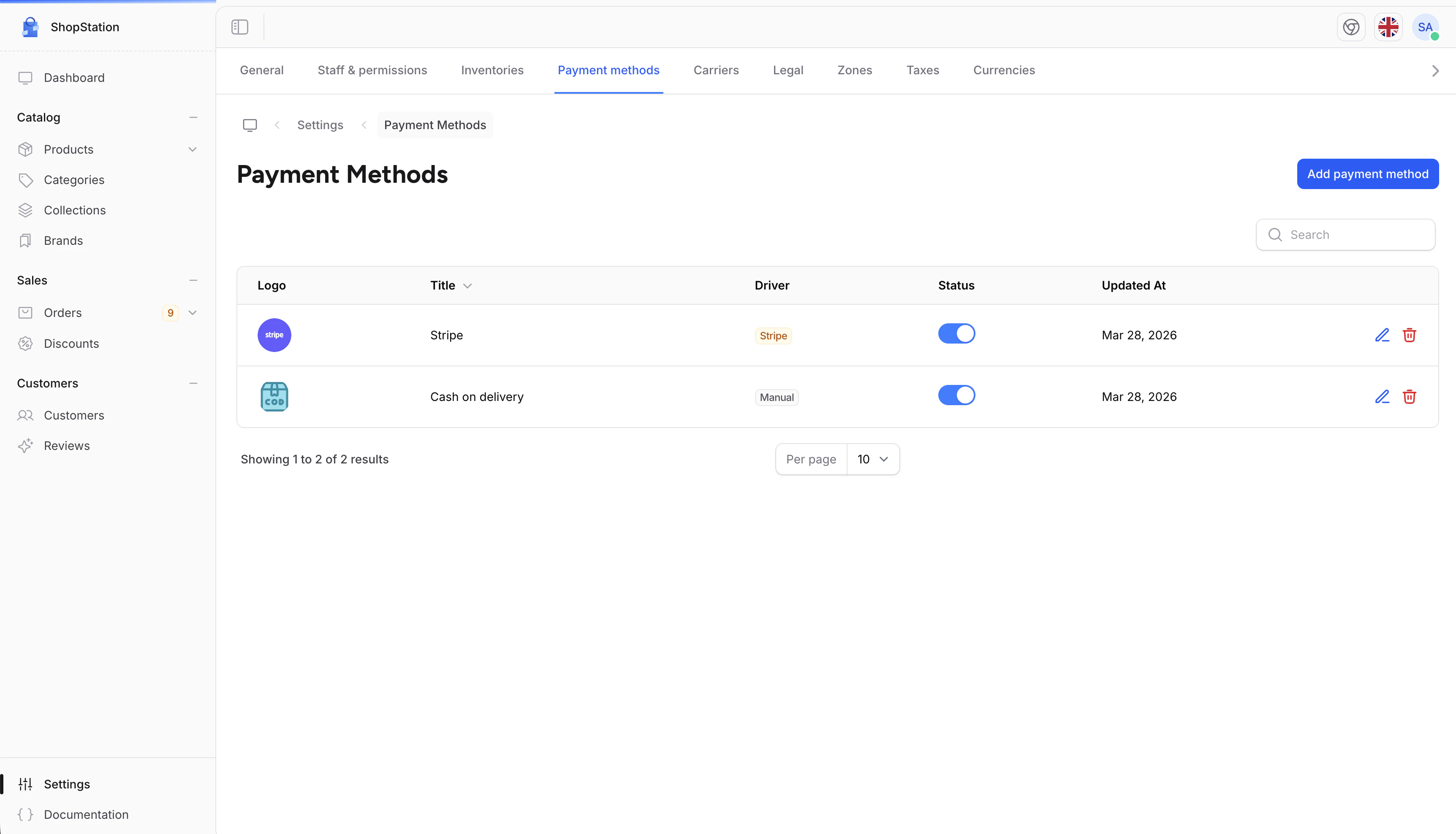 The payment methods list shows all configured methods with their driver, status, and last update date.
## Adding a Payment Method
To add a new payment method:
1. Click the **Create** button
2. Fill in the payment method details
3. Click **Save**
The payment methods list shows all configured methods with their driver, status, and last update date.
## Adding a Payment Method
To add a new payment method:
1. Click the **Create** button
2. Fill in the payment method details
3. Click **Save**
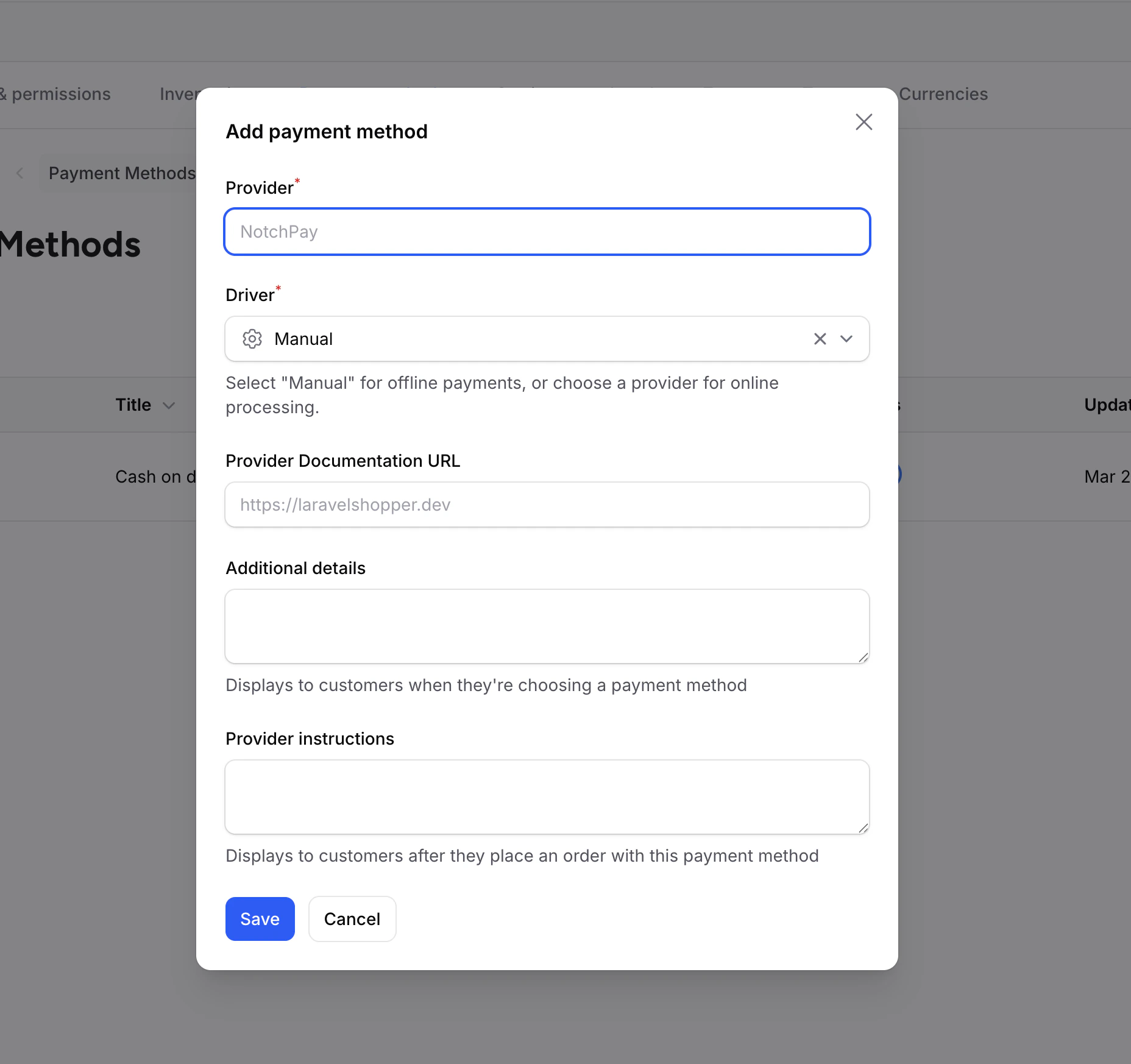 ### Payment Method Fields
| Field | Required | Description |
| ---------------- | -------- | ----------------------------------------------------------------------------------------------------------------------- |
| **Title** | Yes | The name shown to customers at checkout (e.g., "Credit Card", "PayPal") |
| **Slug** | Yes | Auto-generated from the title |
| **Driver** | No | The payment provider that processes this method. Choose **Manual** for offline payments or **Stripe** for card payments |
| **Link URL** | No | External URL for the payment provider |
| **Description** | No | Explanation shown to customers when selecting this method |
| **Instructions** | No | Post-purchase instructions (e.g., bank transfer details) |
### Understanding Drivers
The driver connects a payment method to a payment provider:
| Driver | How it works | Example |
| ---------- | ----------------------------------------------------------- | -------------------------------------- |
| **Manual** | No online processing. You handle payment outside of Shopper | Cash on delivery, bank transfer, check |
| **Stripe** | Payments processed via Stripe (requires API keys) | Credit cards, Apple Pay, Google Pay |
### Payment Method Fields
| Field | Required | Description |
| ---------------- | -------- | ----------------------------------------------------------------------------------------------------------------------- |
| **Title** | Yes | The name shown to customers at checkout (e.g., "Credit Card", "PayPal") |
| **Slug** | Yes | Auto-generated from the title |
| **Driver** | No | The payment provider that processes this method. Choose **Manual** for offline payments or **Stripe** for card payments |
| **Link URL** | No | External URL for the payment provider |
| **Description** | No | Explanation shown to customers when selecting this method |
| **Instructions** | No | Post-purchase instructions (e.g., bank transfer details) |
### Understanding Drivers
The driver connects a payment method to a payment provider:
| Driver | How it works | Example |
| ---------- | ----------------------------------------------------------- | -------------------------------------- |
| **Manual** | No online processing. You handle payment outside of Shopper | Cash on delivery, bank transfer, check |
| **Stripe** | Payments processed via Stripe (requires API keys) | Credit cards, Apple Pay, Google Pay |
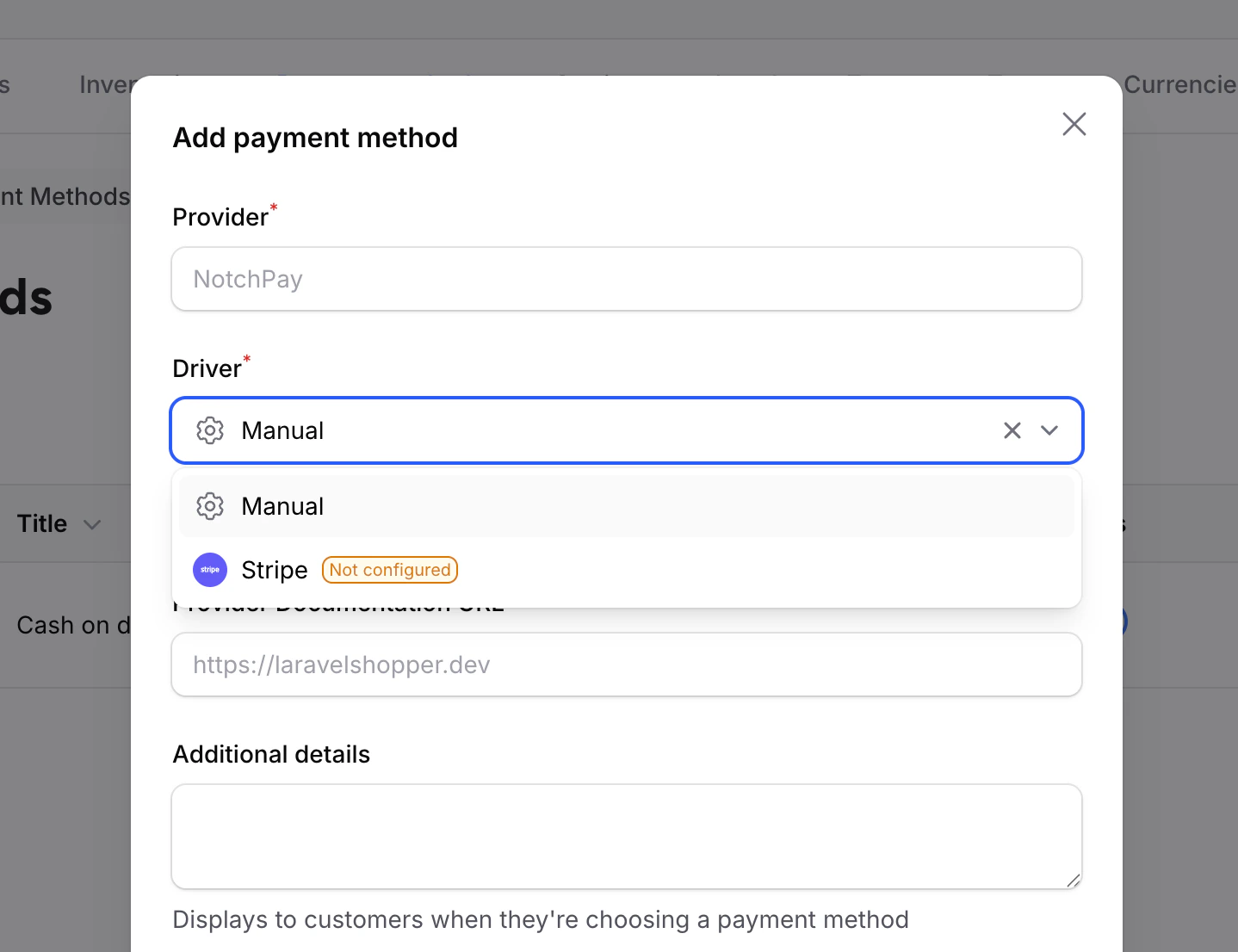 Drivers like Stripe require API credentials configured by your developer. If a driver shows "Not Configured" in the dropdown, the API keys have not been set up yet. See the [Payments developer documentation](/v2/payments) for setup instructions.
## Assigning to Zones
Payment methods are assigned to [zones](/v2/user-guide/store-setup/zones) when creating or editing a zone. A payment method only appears at checkout if it belongs to the customer's zone.
To make a payment method available in a zone:
1. Go to **Settings > Zones**
2. Edit the zone
3. Select the payment method in the **Payment methods** field
4. Click **Save**
## Managing Payment Methods
### Editing a Payment Method
Click the **Edit** icon next to a method, update the fields, and click **Save**.
### Enabling or Disabling
Toggle the **Status** switch in the list to quickly enable or disable a payment method. Disabled methods are not shown at checkout.
### Deleting a Payment Method
Click the **Delete** icon and confirm. Active orders that used this method are not affected.
## Common Setups
| Payment Method | Driver | Best For |
| ---------------- | ------ | ------------------------------------------------------- |
| Credit Card | Stripe | Online stores accepting card payments |
| Cash on Delivery | Manual | Local deliveries where customers pay on receipt |
| Bank Transfer | Manual | B2B orders or high-value purchases |
| Mobile Money | Manual | Markets where mobile payments are common (Africa, Asia) |
## Best Practices
Customers are more likely to complete checkout when they see a payment method they trust.
Some methods work only in certain regions. Assign them to the right zones.
For manual methods like bank transfers, provide clear payment instructions so customers know what to do after ordering.
Use your payment provider's test/sandbox mode to verify the checkout flow before going live.
For developer details on payment drivers, custom providers, and transaction management, see the [Payments documentation](/v2/payments).
Drivers like Stripe require API credentials configured by your developer. If a driver shows "Not Configured" in the dropdown, the API keys have not been set up yet. See the [Payments developer documentation](/v2/payments) for setup instructions.
## Assigning to Zones
Payment methods are assigned to [zones](/v2/user-guide/store-setup/zones) when creating or editing a zone. A payment method only appears at checkout if it belongs to the customer's zone.
To make a payment method available in a zone:
1. Go to **Settings > Zones**
2. Edit the zone
3. Select the payment method in the **Payment methods** field
4. Click **Save**
## Managing Payment Methods
### Editing a Payment Method
Click the **Edit** icon next to a method, update the fields, and click **Save**.
### Enabling or Disabling
Toggle the **Status** switch in the list to quickly enable or disable a payment method. Disabled methods are not shown at checkout.
### Deleting a Payment Method
Click the **Delete** icon and confirm. Active orders that used this method are not affected.
## Common Setups
| Payment Method | Driver | Best For |
| ---------------- | ------ | ------------------------------------------------------- |
| Credit Card | Stripe | Online stores accepting card payments |
| Cash on Delivery | Manual | Local deliveries where customers pay on receipt |
| Bank Transfer | Manual | B2B orders or high-value purchases |
| Mobile Money | Manual | Markets where mobile payments are common (Africa, Asia) |
## Best Practices
Customers are more likely to complete checkout when they see a payment method they trust.
Some methods work only in certain regions. Assign them to the right zones.
For manual methods like bank transfers, provide clear payment instructions so customers know what to do after ordering.
Use your payment provider's test/sandbox mode to verify the checkout flow before going live.
For developer details on payment drivers, custom providers, and transaction management, see the [Payments documentation](/v2/payments).