> ## Documentation Index
> Fetch the complete documentation index at: https://docs.laravelshopper.dev/llms.txt
> Use this file to discover all available pages before exploring further.
# Inventory Locations
> Manage your store's inventory locations for stock management.
Locations in Shopper represent physical places where you store your inventory. This could be warehouses, retail stores, or any other location where you keep products.
## Why Use Multiple Locations?
Managing inventory across multiple locations allows you to:
* Track stock levels at different warehouses
* Fulfill orders from the nearest location
* Manage inventory for physical retail stores
* Keep accurate stock counts across your business
## Accessing Locations
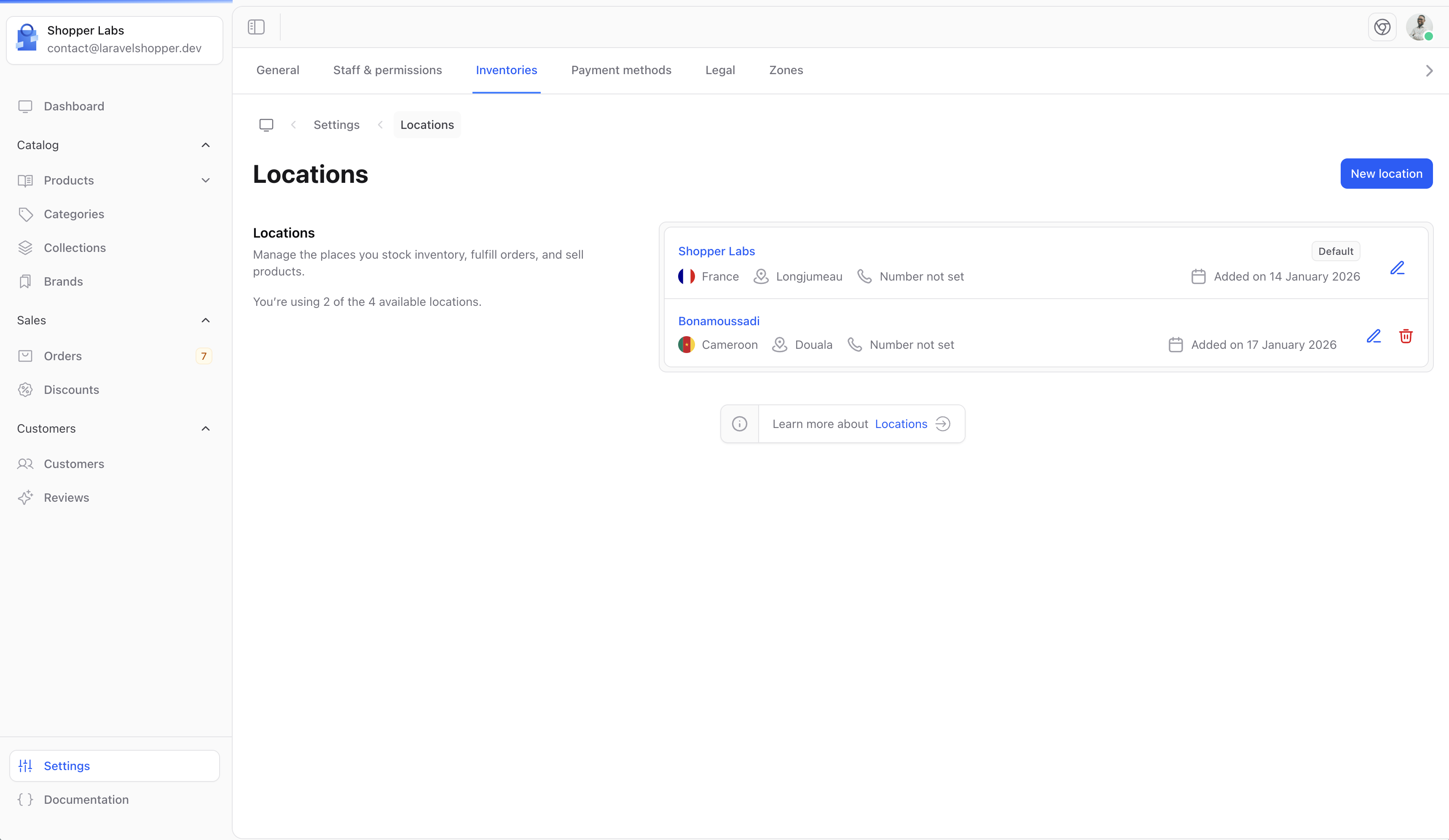
1. Click on **Settings** in the sidebar
2. Select **Inventories** from the settings menu
 ## Default Inventory
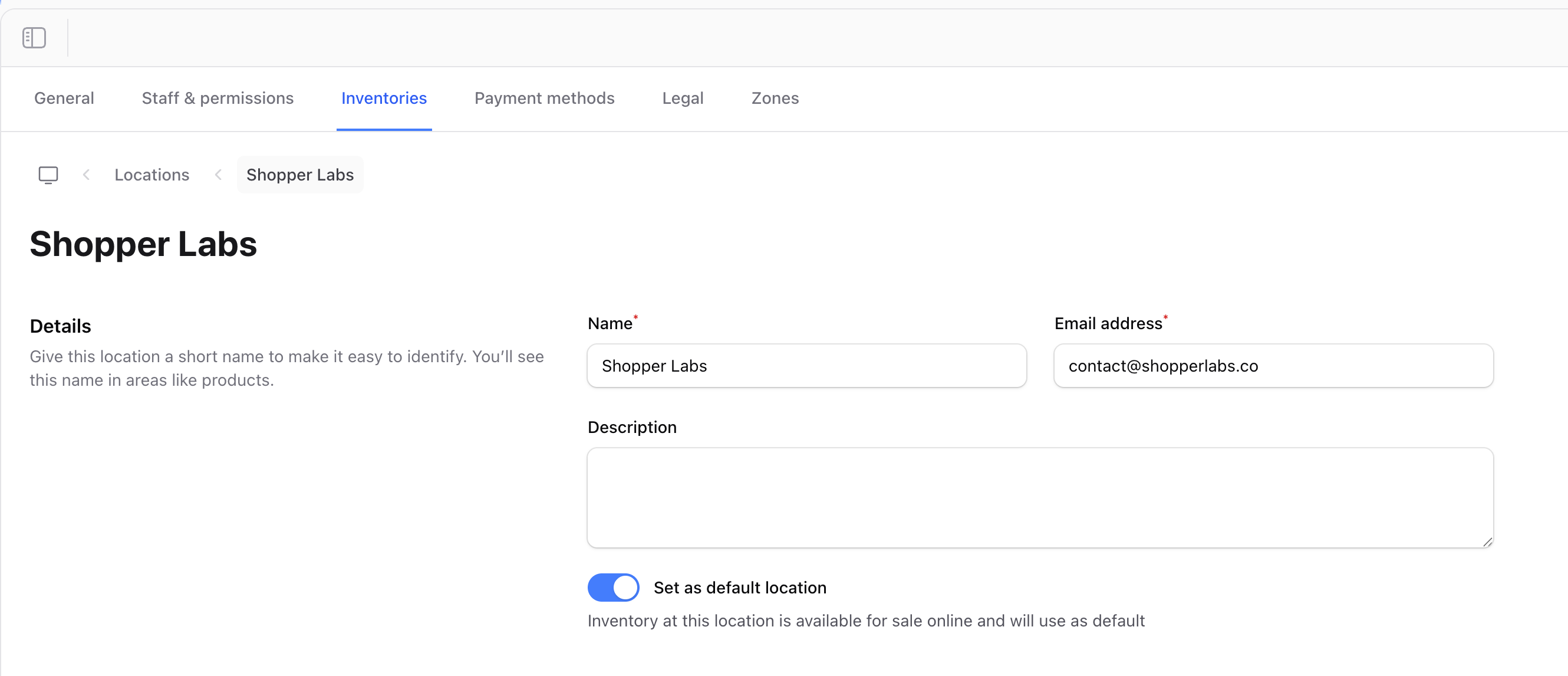
When you set up Shopper, a default inventory location is created for you. This location is used as the primary inventory source.
## Default Inventory
When you set up Shopper, a default inventory location is created for you. This location is used as the primary inventory source.
 ## Creating a New Location
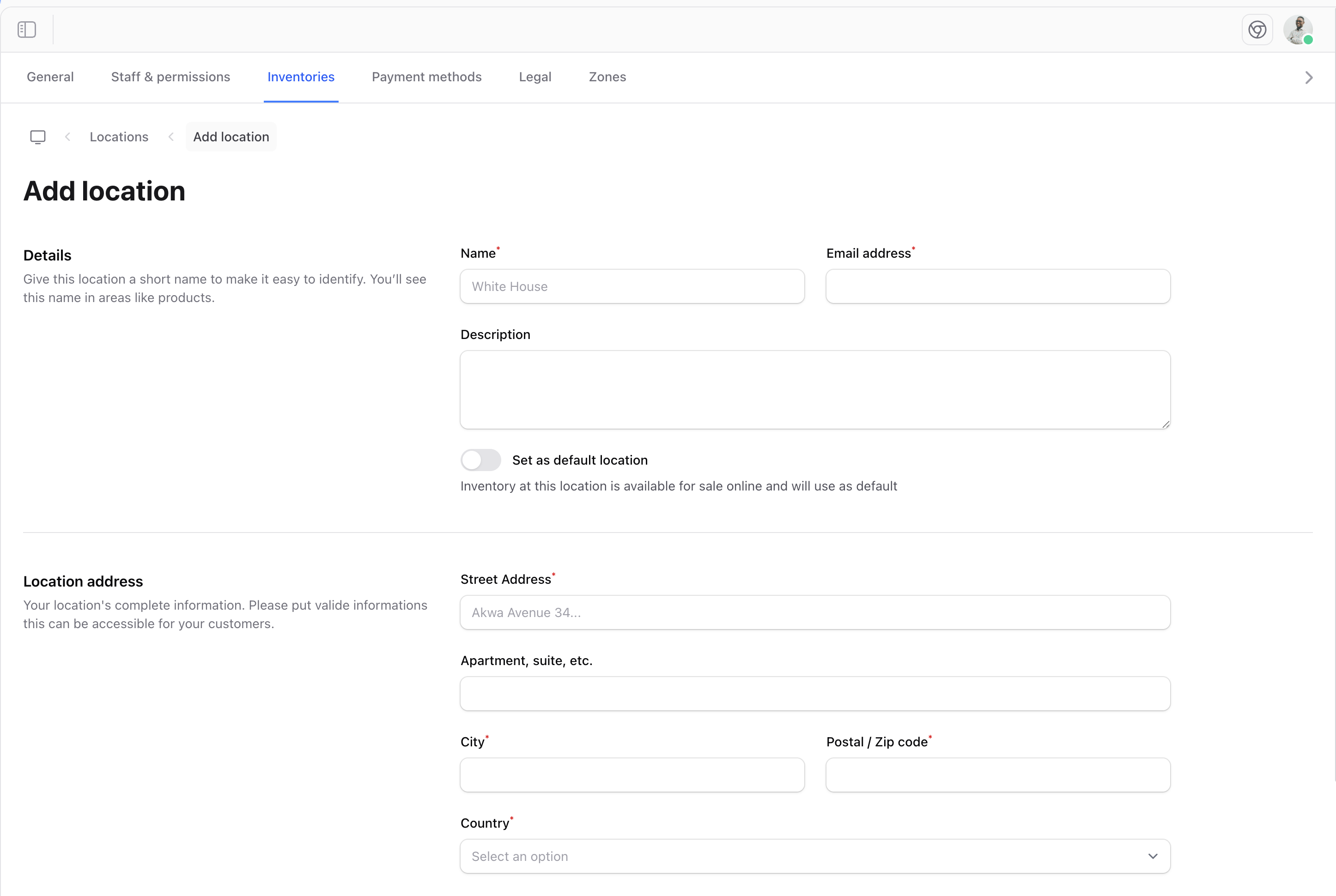
To add a new inventory location:
1. Click the **Create** button on the Locations page
2. Fill in the inventory details
## Creating a New Location
To add a new inventory location:
1. Click the **Create** button on the Locations page
2. Fill in the inventory details
 ### Location Fields
| Field | Description |
| ------------------------- | ------------------------------------------------------------ |
| **Name** | A descriptive name for the location (e.g., "Main Warehouse") |
| **Email** | Contact email for this location |
| **Phone** | Contact phone number |
| **Street address** | Physical address of the location |
| **Street address line 2** | Additional address line (optional) |
| **City** | City where the location is situated |
| **Zip code** | Postal/ZIP code |
| **State** | State/Province/region |
| **Country** | Country selection |
| **Description** | Additional notes about the location (optional) |
## Editing a Location
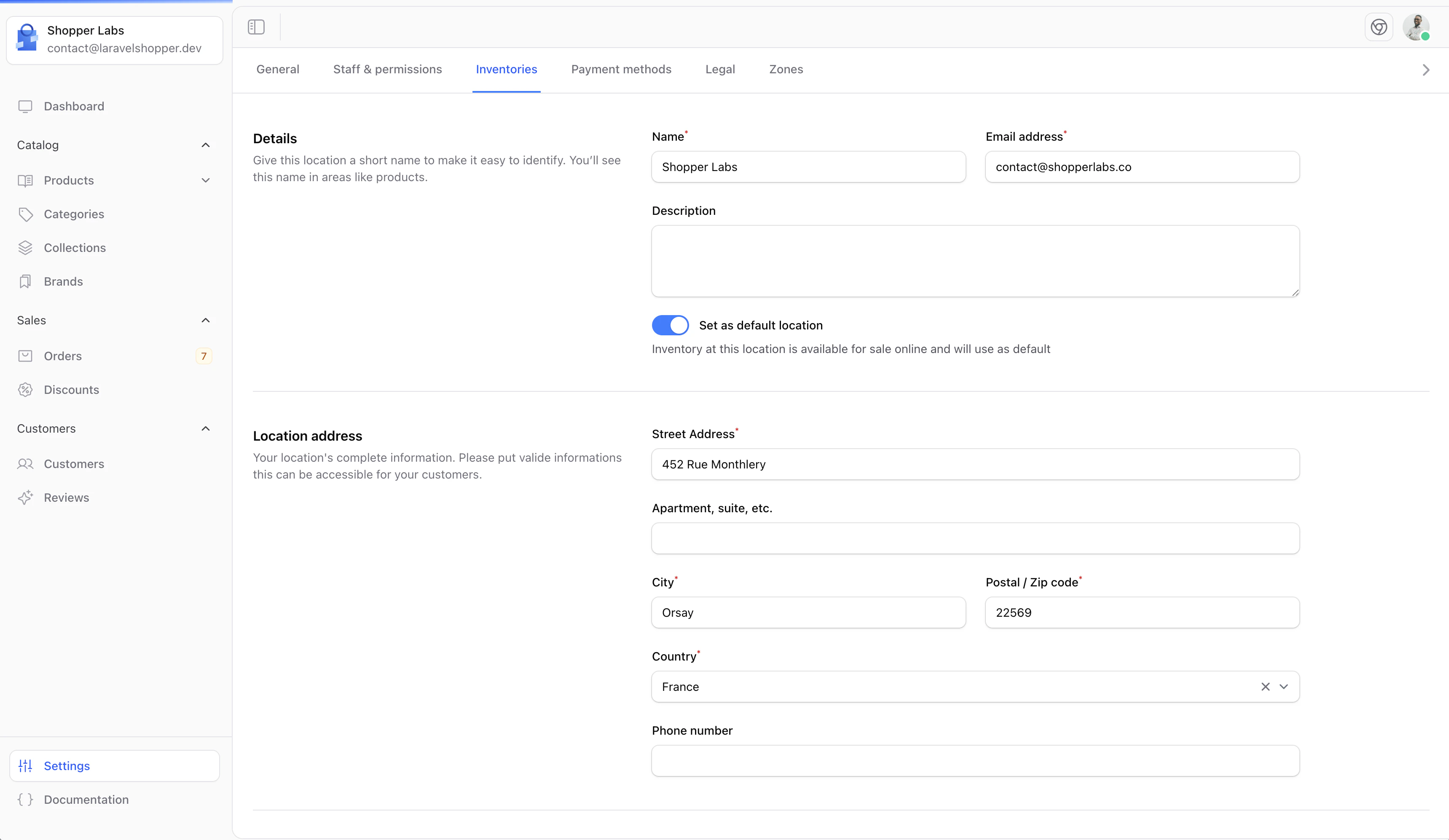
To modify an existing location:
1. Click on the location name in the list
2. Update the desired fields
3. Click **Save** to apply changes
### Location Fields
| Field | Description |
| ------------------------- | ------------------------------------------------------------ |
| **Name** | A descriptive name for the location (e.g., "Main Warehouse") |
| **Email** | Contact email for this location |
| **Phone** | Contact phone number |
| **Street address** | Physical address of the location |
| **Street address line 2** | Additional address line (optional) |
| **City** | City where the location is situated |
| **Zip code** | Postal/ZIP code |
| **State** | State/Province/region |
| **Country** | Country selection |
| **Description** | Additional notes about the location (optional) |
## Editing a Location
To modify an existing location:
1. Click on the location name in the list
2. Update the desired fields
3. Click **Save** to apply changes
 ## Setting a Default Location
One location must be set as the default. This location will be used:
* As the primary inventory source
* For new products when no location is specified
* As the default shipping origin
To change the default location, select a different location and mark it as default in the location settings.
Keep your location information accurate, especially addresses, as they may be used for shipping calculations and customer communications.
For developer details, see the [Locations documentation](/v2/locations).
## Setting a Default Location
One location must be set as the default. This location will be used:
* As the primary inventory source
* For new products when no location is specified
* As the default shipping origin
To change the default location, select a different location and mark it as default in the location settings.
Keep your location information accurate, especially addresses, as they may be used for shipping calculations and customer communications.
For developer details, see the [Locations documentation](/v2/locations).