> ## Documentation Index
> Fetch the complete documentation index at: https://docs.laravelshopper.dev/llms.txt
> Use this file to discover all available pages before exploring further.
# Logging In
> Learn how to access your Shopper administration panel.
To manage your store, you need to log in to the Shopper administration panel. This guide will walk you through the login process.
## Accessing the Login Page
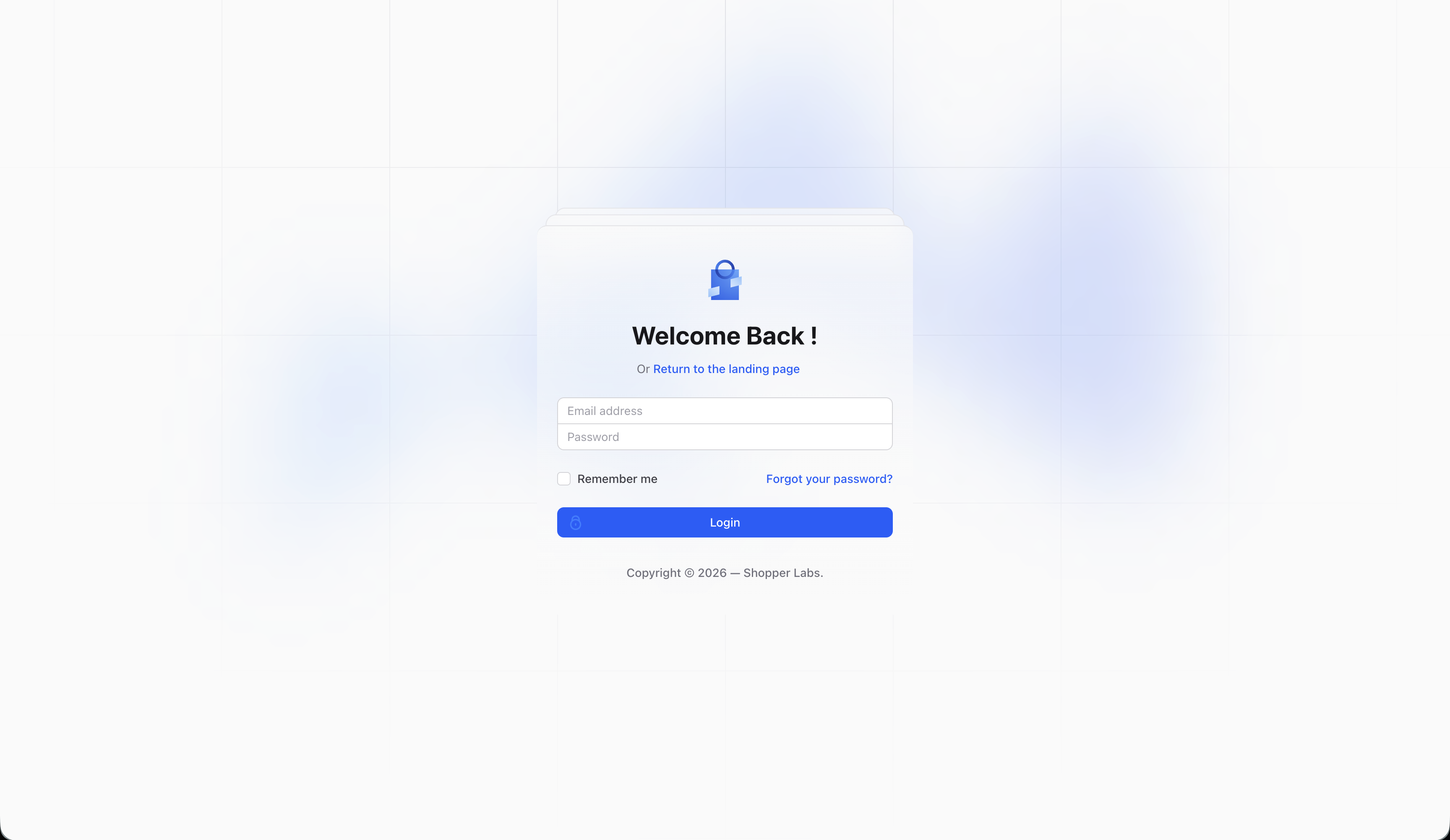
Your Shopper administration panel is accessible at your website URL followed by `/cpanel`. For example:
```
https://your-store.com/cpanel/login
```
 ## Logging In
1. Enter your **email address** in the first field
2. Enter your **password** in the second field
3. Click the **Log in** button
If you've enabled two-factor authentication on your account, you'll be prompted to enter a verification code after submitting your credentials. Learn more about [Two-Factor Authentication](/v2/user-guide/administration/two-factor).
## Forgot Your Password?
If you've forgotten your password:
1. Click the **Forgot your password?** link on the login page
2. Enter your email address
3. Check your email for a password reset link
4. Follow the instructions in the email to create a new password
## After Logging In
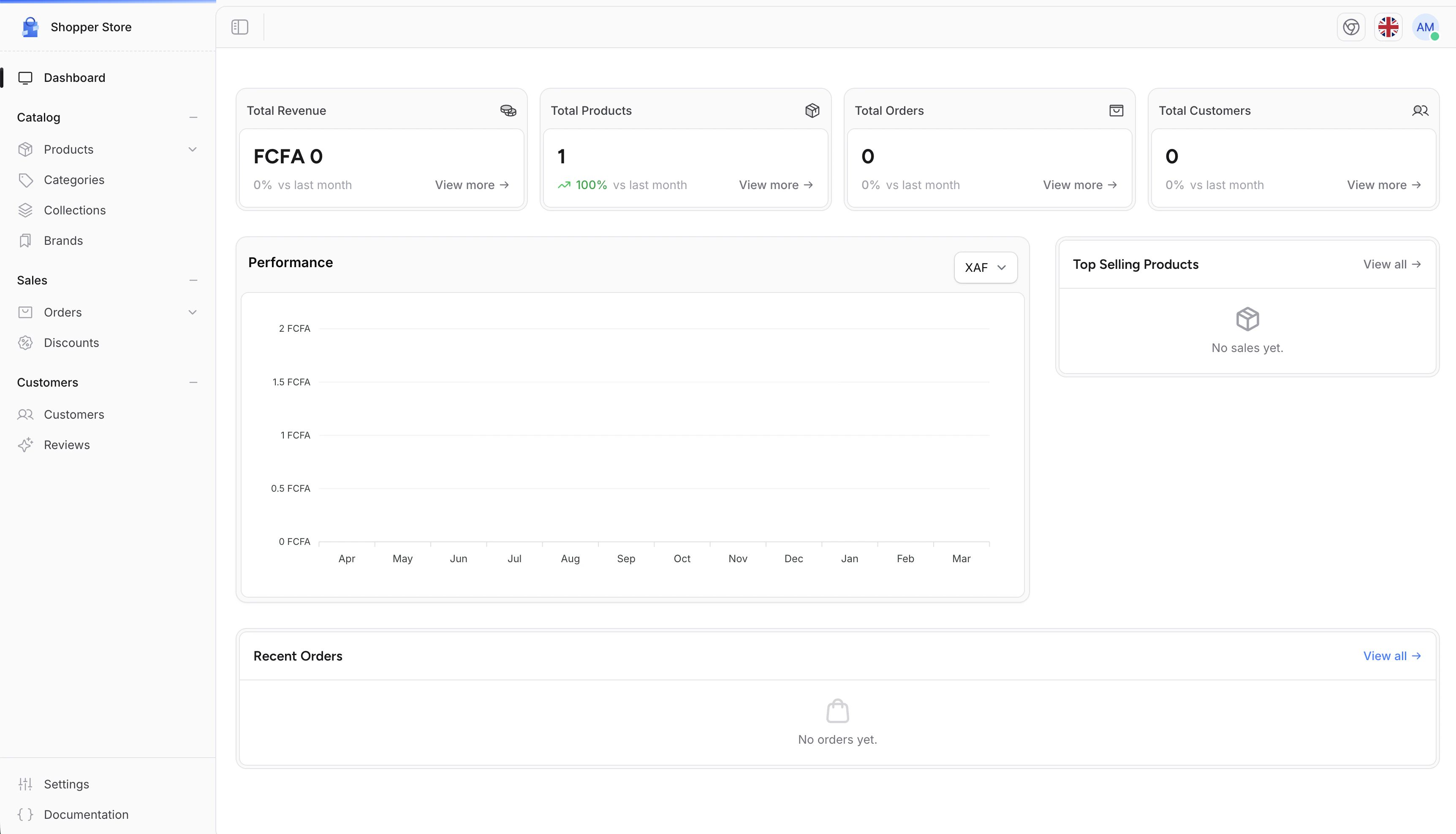
Once logged in, you'll be taken to the **Dashboard**, which provides an overview of your store's activity. From here, you can navigate to any section of the administration panel using the sidebar on the left.
## Logging In
1. Enter your **email address** in the first field
2. Enter your **password** in the second field
3. Click the **Log in** button
If you've enabled two-factor authentication on your account, you'll be prompted to enter a verification code after submitting your credentials. Learn more about [Two-Factor Authentication](/v2/user-guide/administration/two-factor).
## Forgot Your Password?
If you've forgotten your password:
1. Click the **Forgot your password?** link on the login page
2. Enter your email address
3. Check your email for a password reset link
4. Follow the instructions in the email to create a new password
## After Logging In
Once logged in, you'll be taken to the **Dashboard**, which provides an overview of your store's activity. From here, you can navigate to any section of the administration panel using the sidebar on the left.
 ## Logging Out
To log out of your account:
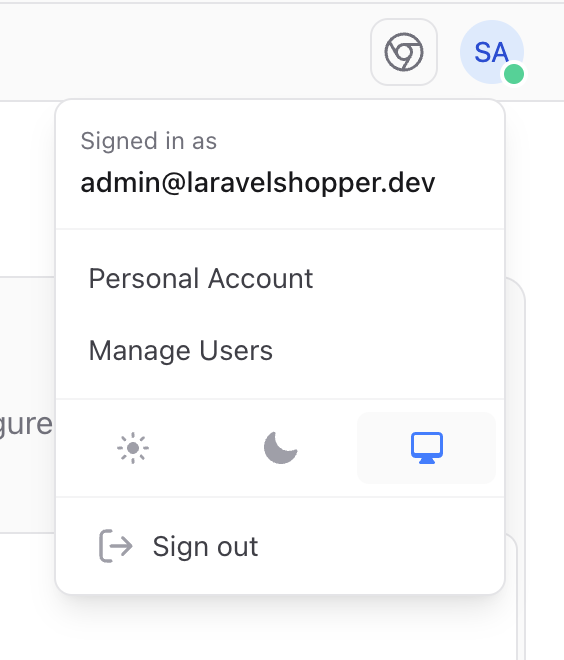
1. Click on your **profile picture** in the bottom-left corner of the sidebar
2. Select **Log out** from the dropdown menu
## Logging Out
To log out of your account:
1. Click on your **profile picture** in the bottom-left corner of the sidebar
2. Select **Log out** from the dropdown menu