> ## Documentation Index
> Fetch the complete documentation index at: https://docs.laravelshopper.dev/llms.txt
> Use this file to discover all available pages before exploring further.
# Discovering Dashboard
> Get familiar with the Shopper dashboard and navigation.
The Dashboard is your command center for managing your online store. Let's explore its key elements and learn how to navigate efficiently.
## Overview
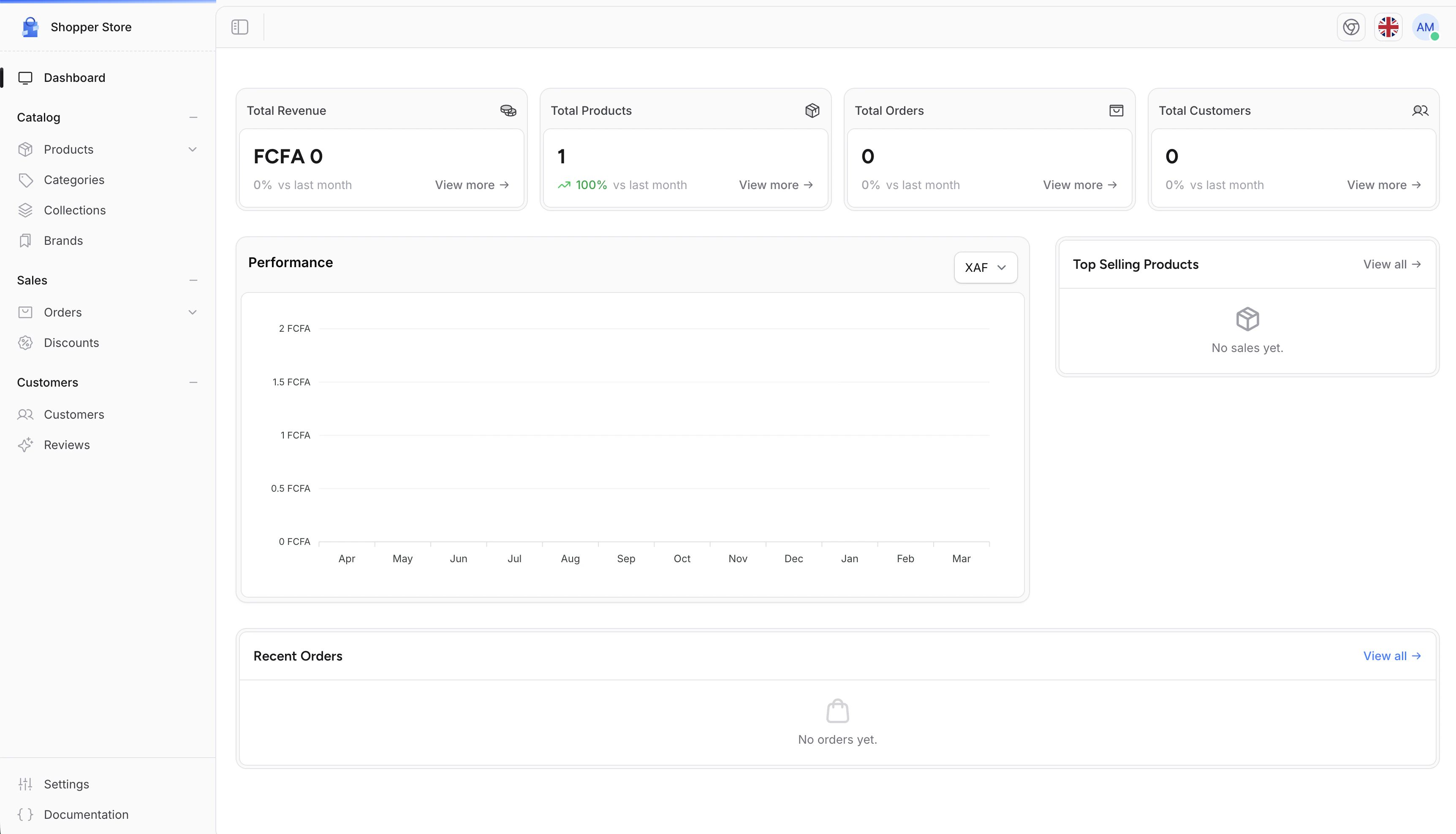
When you log in, you'll see the main dashboard which displays key metrics and quick access to important features.
 ## Main Navigation
The sidebar on the left side of the screen is your main navigation tool. It provides access to all sections of your store management:
| Section | Description |
| --------------- | -------------------------------------------------------- |
| **Dashboard** | Overview of your store's performance and recent activity |
| **Products** | Manage your product catalog |
| **Categories** | Organize products into categories |
| **Collections** | Create curated product collections |
| **Brands** | Manage product brands |
| **Customers** | View and manage customer accounts |
| **Orders** | Process and track orders |
| **Discounts** | Create and manage discount codes |
| **Reviews** | Moderate customer reviews |
| **Settings** | Configure your store settings |
## Quick Actions
From the dashboard, you can quickly access common tasks:
* View recent orders
* Check new customer registrations
* Monitor product inventory
* Access store settings
## Settings Panel
Click on **Settings** in the sidebar to access all configuration options for your store.
## Main Navigation
The sidebar on the left side of the screen is your main navigation tool. It provides access to all sections of your store management:
| Section | Description |
| --------------- | -------------------------------------------------------- |
| **Dashboard** | Overview of your store's performance and recent activity |
| **Products** | Manage your product catalog |
| **Categories** | Organize products into categories |
| **Collections** | Create curated product collections |
| **Brands** | Manage product brands |
| **Customers** | View and manage customer accounts |
| **Orders** | Process and track orders |
| **Discounts** | Create and manage discount codes |
| **Reviews** | Moderate customer reviews |
| **Settings** | Configure your store settings |
## Quick Actions
From the dashboard, you can quickly access common tasks:
* View recent orders
* Check new customer registrations
* Monitor product inventory
* Access store settings
## Settings Panel
Click on **Settings** in the sidebar to access all configuration options for your store.
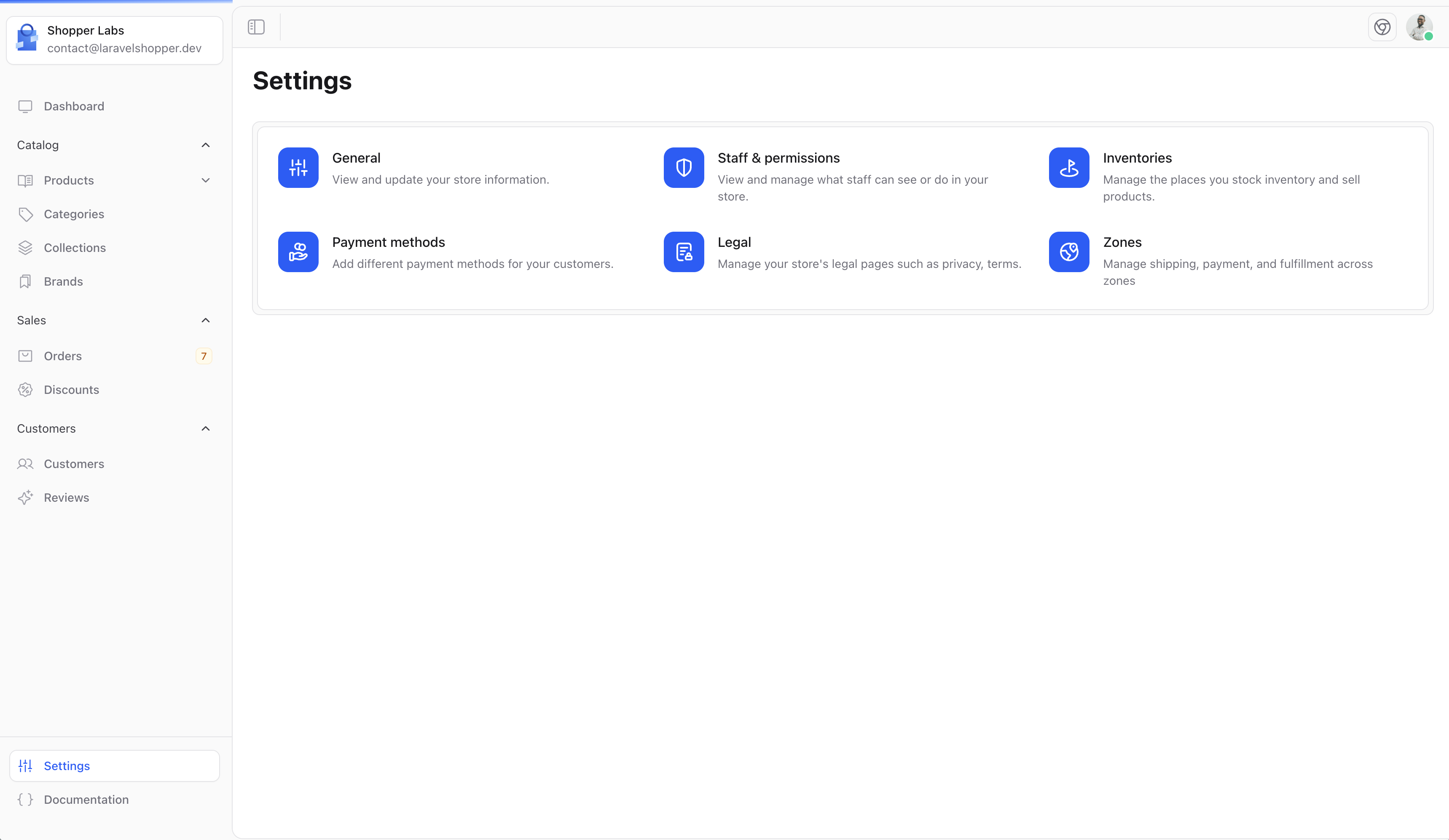 The settings panel includes:
* **General** - Store name, description, and basic information
* **Locations** - Manage inventory locations
* **Staff** - Manage administrator accounts
* **Legal** - Terms of service and privacy policies
* **And more...**
## Your Profile
Access your personal profile settings by clicking on your avatar at the top of the header.
The settings panel includes:
* **General** - Store name, description, and basic information
* **Locations** - Manage inventory locations
* **Staff** - Manage administrator accounts
* **Legal** - Terms of service and privacy policies
* **And more...**
## Your Profile
Access your personal profile settings by clicking on your avatar at the top of the header.
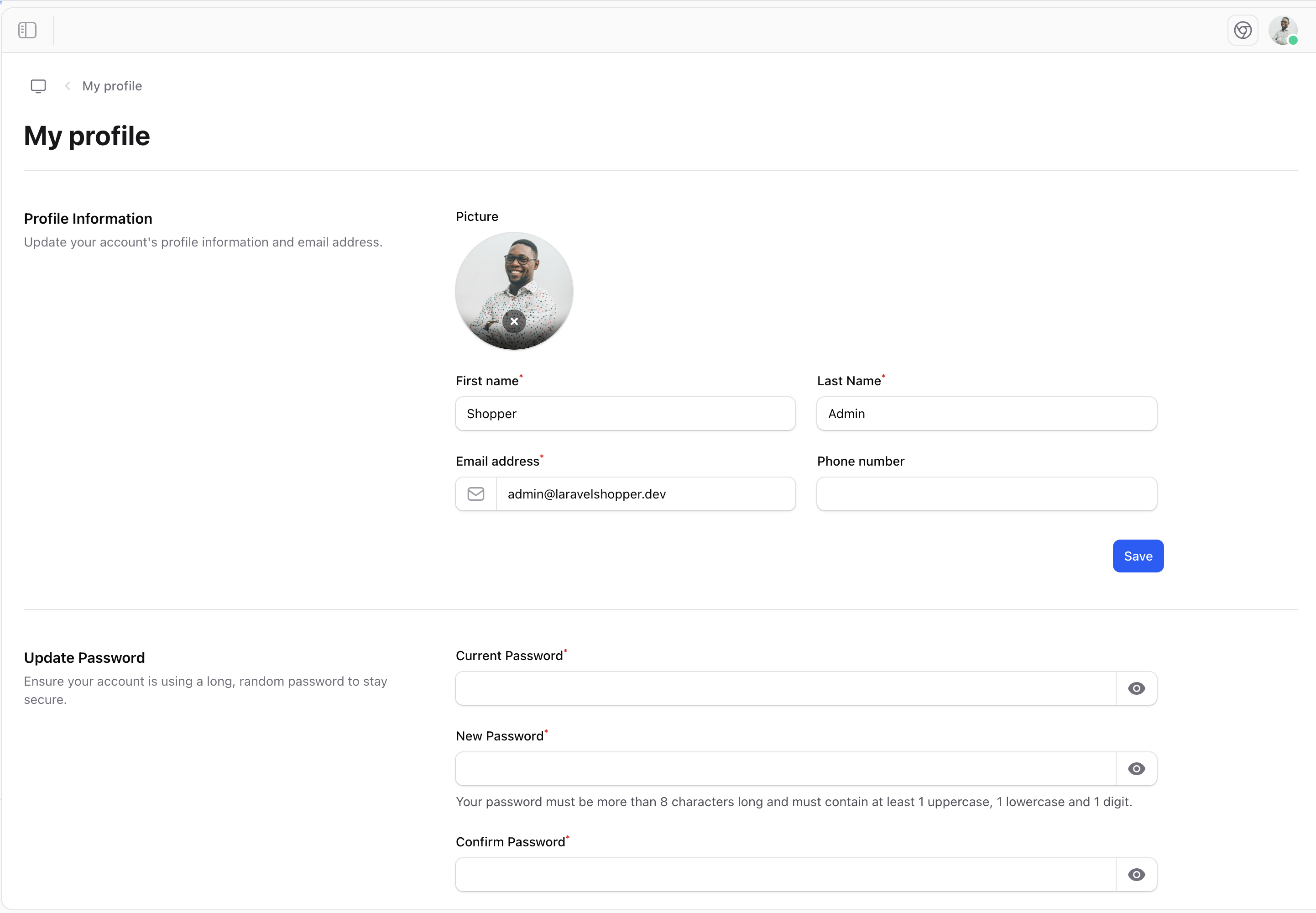 From here you can:
* Update your personal information
* Change your password
* Enable two-factor authentication
* Log out of your account
From here you can:
* Update your personal information
* Change your password
* Enable two-factor authentication
* Log out of your account