> ## Documentation Index
> Fetch the complete documentation index at: https://docs.laravelshopper.dev/llms.txt
> Use this file to discover all available pages before exploring further.
# Managing Tags
> Organize products with simple labels for filtering and marketing campaigns.
Tags are flat, flexible labels you attach to products for cross-cutting organization. Unlike [categories](/v2/user-guide/catalog/categories) (which are hierarchical) or [collections](/v2/user-guide/catalog/collections) (which can be rule-based), tags are simple keywords that help you group products across your catalog.
Common uses for tags include seasonal labels ("Summer 2026"), marketing campaigns ("Flash Sale"), product attributes ("Eco-Friendly"), or storefront filters ("New Arrival", "Best Seller").
## Accessing Tags
1. Click on **Products** in the sidebar
2. Select **Tags** from the submenu
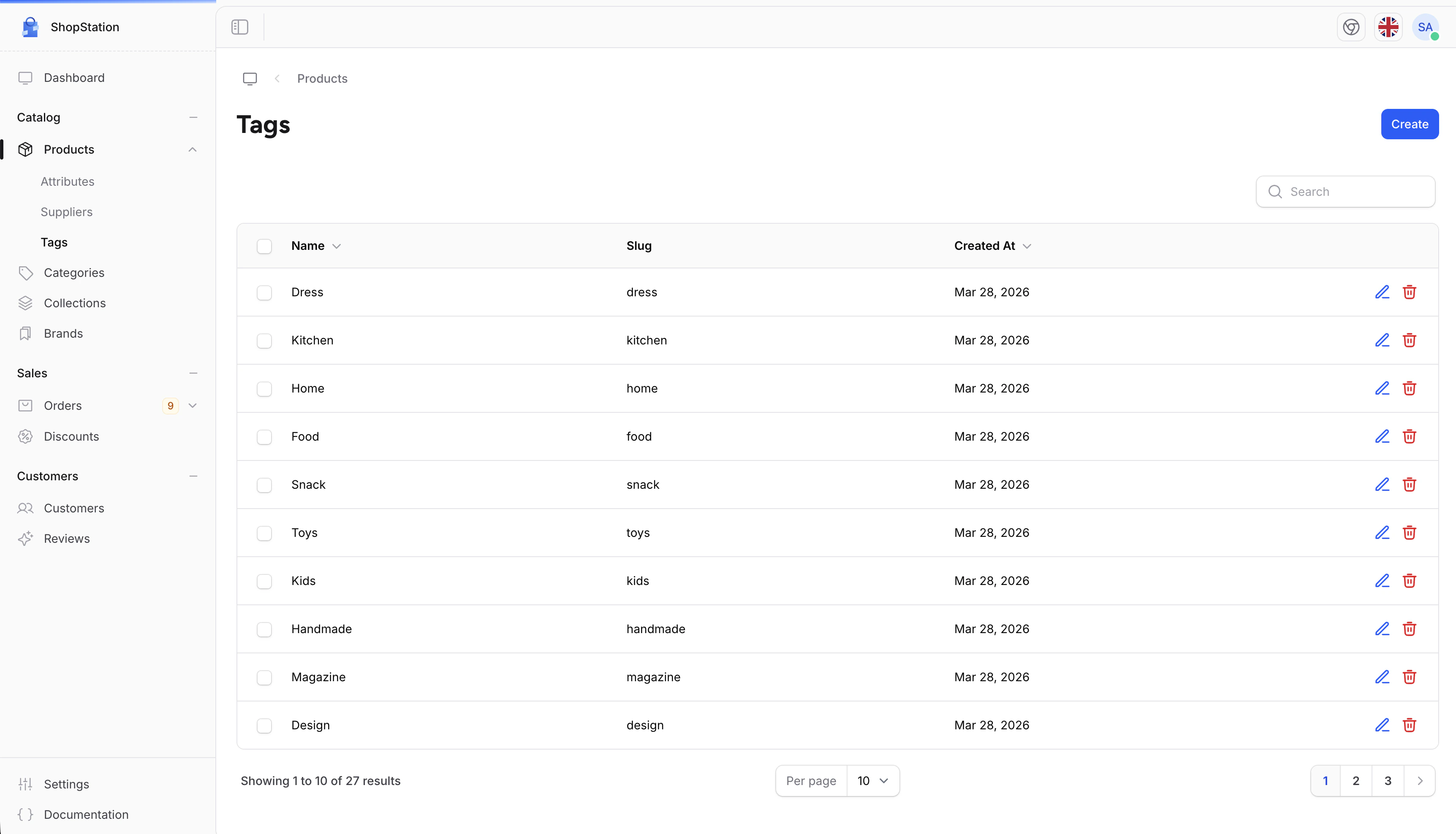 The tags list shows all your tags with their name, slug, and creation date. You can search, edit, and delete tags from this page.
## Creating a Tag
To create a new tag:
1. Click the **Create tag** button
2. Enter the tag name
3. Click **Save**
The tags list shows all your tags with their name, slug, and creation date. You can search, edit, and delete tags from this page.
## Creating a Tag
To create a new tag:
1. Click the **Create tag** button
2. Enter the tag name
3. Click **Save**
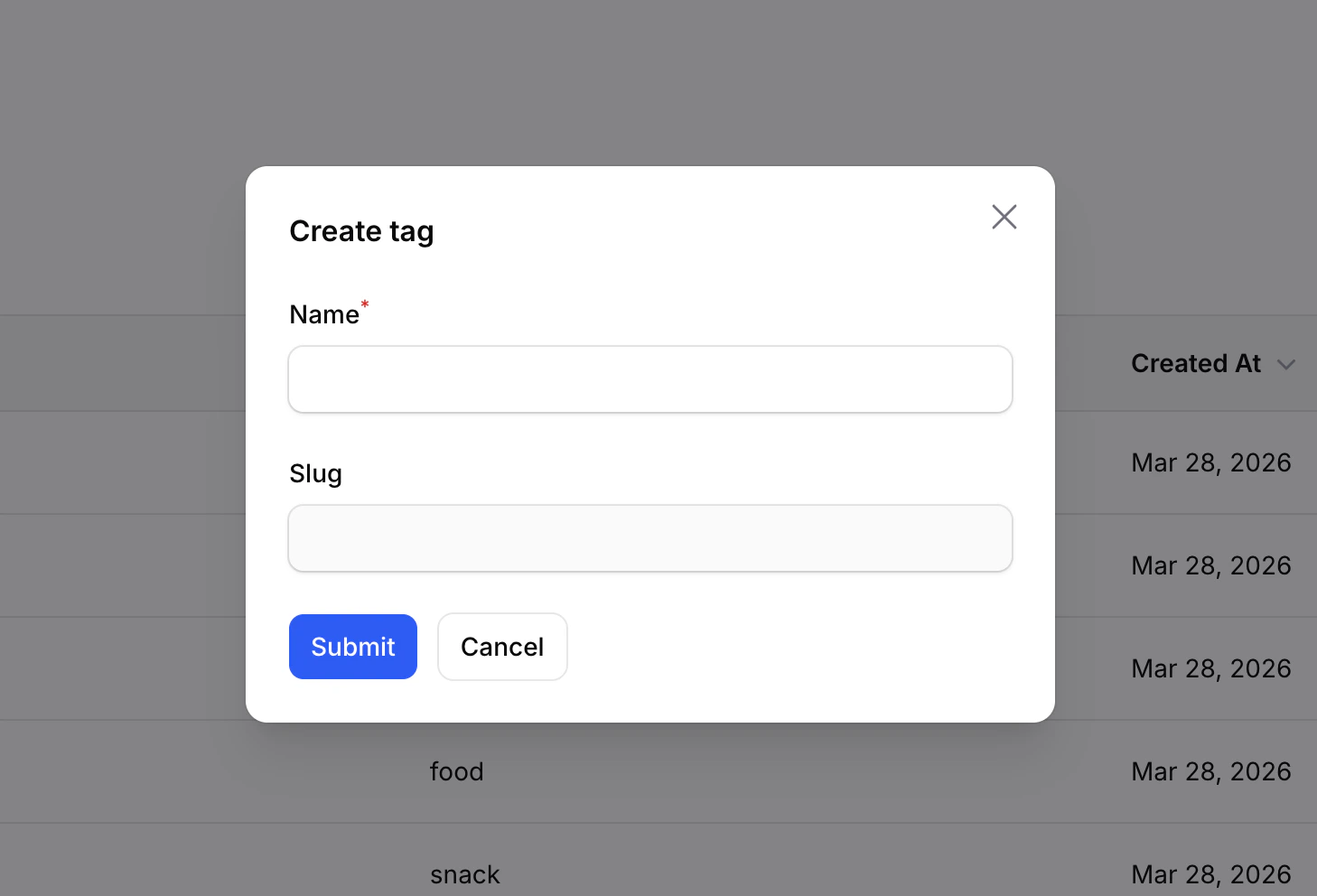 | Field | Required | Description |
| -------- | -------- | ----------------------------------------------------------------------- |
| **Name** | Yes | The tag label (e.g., "Summer 2026", "New Arrival") |
| **Slug** | Auto | Generated automatically from the name. Used in URLs on your storefront. |
The slug is generated automatically from the tag name and cannot be edited manually. If two tags have the same name, the slug is made unique by appending a number (e.g., "summer-2026-1").
## Editing a Tag
To update an existing tag:
1. Click the **Edit** icon next to the tag
2. Modify the name
3. Click **Save**
| Field | Required | Description |
| -------- | -------- | ----------------------------------------------------------------------- |
| **Name** | Yes | The tag label (e.g., "Summer 2026", "New Arrival") |
| **Slug** | Auto | Generated automatically from the name. Used in URLs on your storefront. |
The slug is generated automatically from the tag name and cannot be edited manually. If two tags have the same name, the slug is made unique by appending a number (e.g., "summer-2026-1").
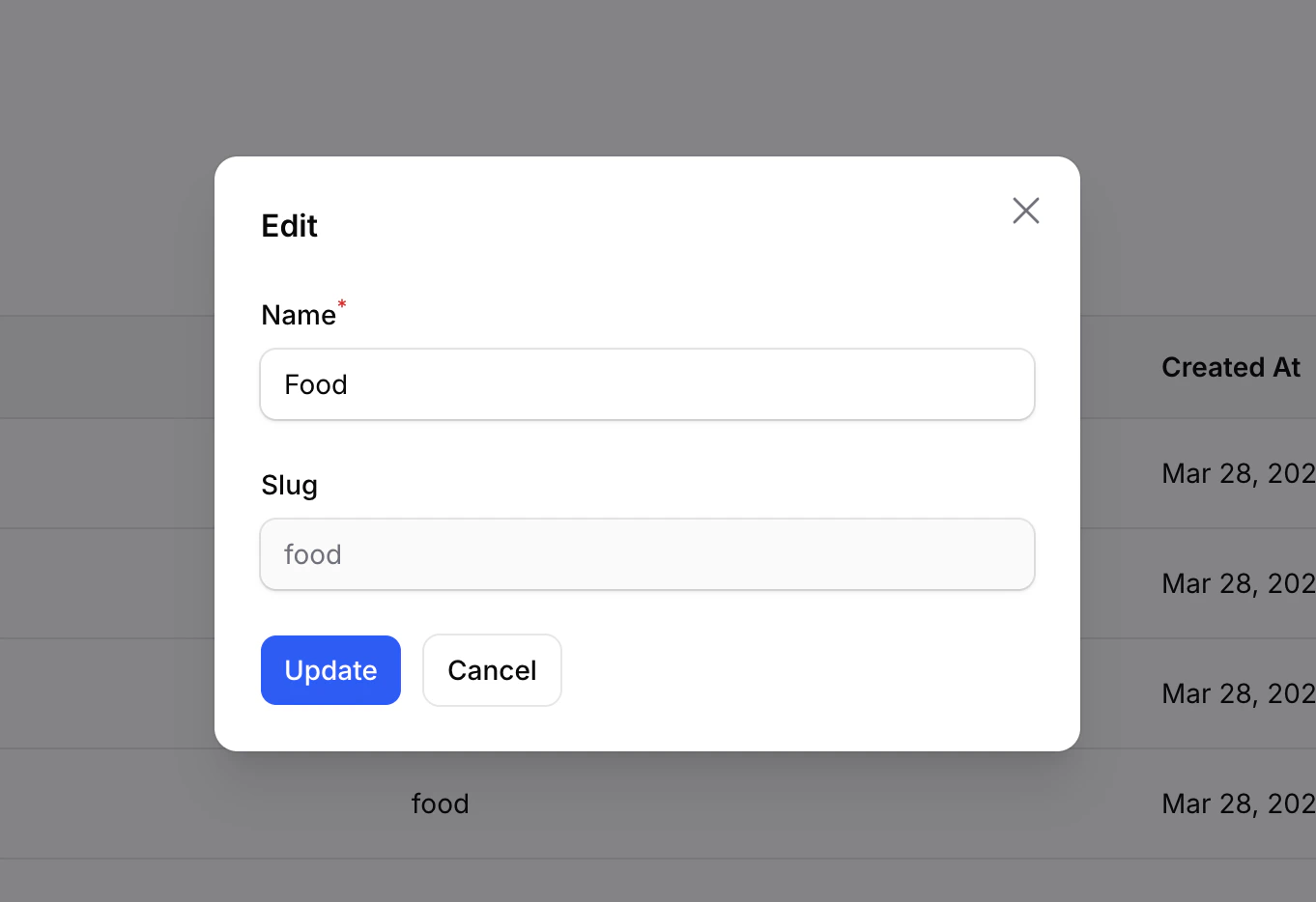
## Editing a Tag
To update an existing tag:
1. Click the **Edit** icon next to the tag
2. Modify the name
3. Click **Save**
 ## Deleting Tags
To remove a tag:
1. Click the **Delete** icon next to the tag
2. Confirm the deletion
You can also select multiple tags and use the bulk delete action to remove several at once.
Deleting a tag removes it from all products that use it. The products themselves are not affected.
## Assigning Tags to Products
Tags are assigned to products from the product edit form, not from the tags page. When editing a product:
1. Go to the product's edit page
2. Find the **Tags** field
3. Select existing tags or create a new one inline
4. Click **Save**
## Deleting Tags
To remove a tag:
1. Click the **Delete** icon next to the tag
2. Confirm the deletion
You can also select multiple tags and use the bulk delete action to remove several at once.
Deleting a tag removes it from all products that use it. The products themselves are not affected.
## Assigning Tags to Products
Tags are assigned to products from the product edit form, not from the tags page. When editing a product:
1. Go to the product's edit page
2. Find the **Tags** field
3. Select existing tags or create a new one inline
4. Click **Save**
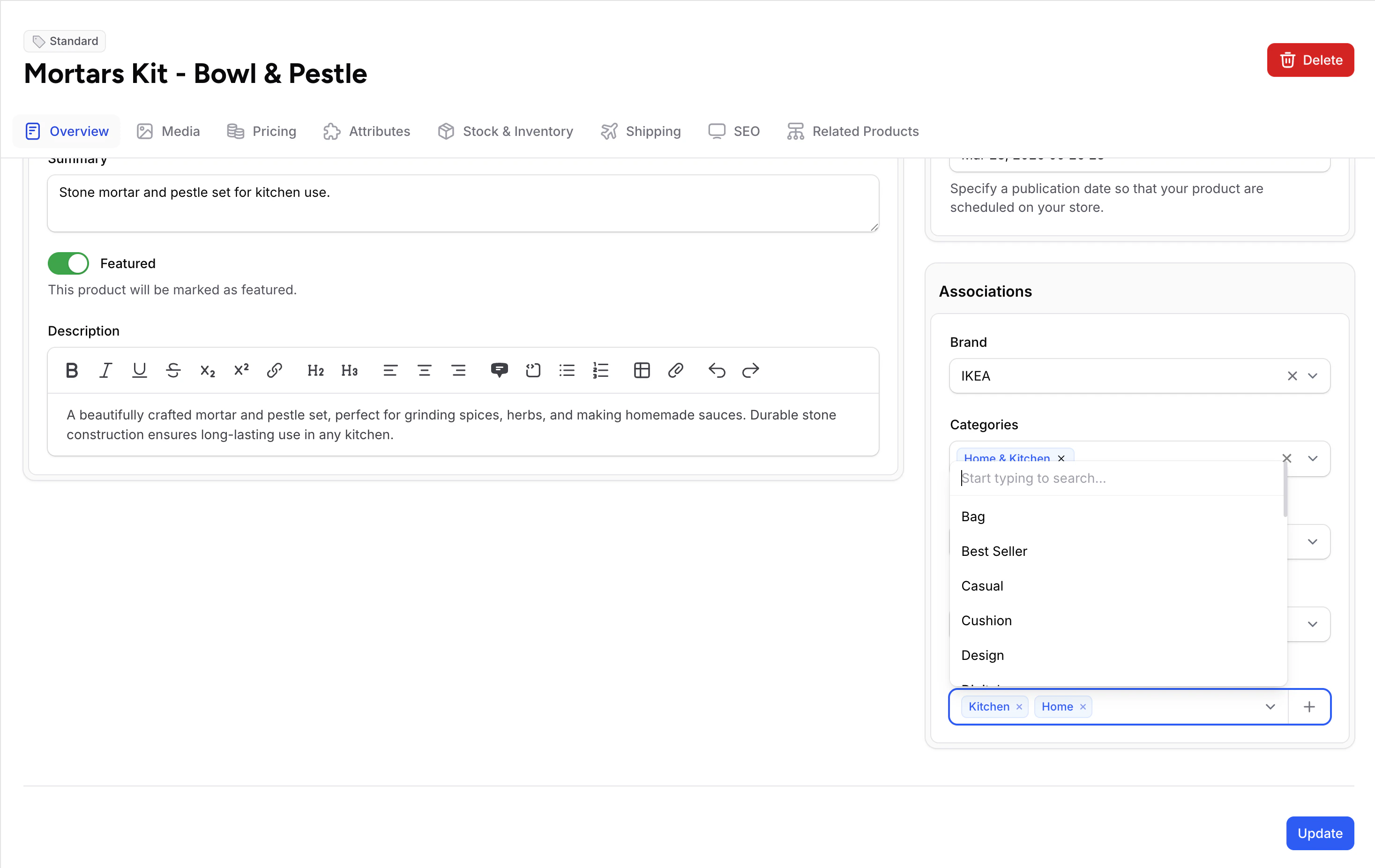 You can create new tags directly from the product edit form without going to the Tags page. Just type a new tag name and select **Create** from the dropdown.
## Tags vs Categories vs Collections
| Feature | Tags | Categories | Collections |
| -------------- | ------------------------------- | --------------------------------- | ----------------------------------- |
| **Structure** | Flat labels | Hierarchical tree | Flat groups |
| **Assignment** | Manual per product | Manual per product | Manual or automatic (rule-based) |
| **Best for** | Cross-cutting labels, campaigns | Product taxonomy, navigation | Marketing groups, curated lists |
| **Example** | "Eco-Friendly", "Flash Sale" | Electronics > Computers > Laptops | "Summer Essentials", "Best Sellers" |
## Common Tag Strategies
| Strategy | Tags | Use Case |
| -------------- | ------------------------------ | -------------------------------------------- |
| Seasonal | "Spring 2026", "Summer 2026" | Rotate seasonal products on your storefront |
| Marketing | "Flash Sale", "Clearance" | Highlight promotional products |
| Product traits | "Organic", "Handmade", "Vegan" | Help customers filter by values |
| Internal | "Low Margin", "Restock Soon" | Track products without showing on storefront |
Tags are visible on your storefront if your developer builds filtering based on them. If a tag is for internal use only, you can use it without displaying it to customers.
For developer details on tags, see the [Product Tags documentation](/v2/product-tags).
You can create new tags directly from the product edit form without going to the Tags page. Just type a new tag name and select **Create** from the dropdown.
## Tags vs Categories vs Collections
| Feature | Tags | Categories | Collections |
| -------------- | ------------------------------- | --------------------------------- | ----------------------------------- |
| **Structure** | Flat labels | Hierarchical tree | Flat groups |
| **Assignment** | Manual per product | Manual per product | Manual or automatic (rule-based) |
| **Best for** | Cross-cutting labels, campaigns | Product taxonomy, navigation | Marketing groups, curated lists |
| **Example** | "Eco-Friendly", "Flash Sale" | Electronics > Computers > Laptops | "Summer Essentials", "Best Sellers" |
## Common Tag Strategies
| Strategy | Tags | Use Case |
| -------------- | ------------------------------ | -------------------------------------------- |
| Seasonal | "Spring 2026", "Summer 2026" | Rotate seasonal products on your storefront |
| Marketing | "Flash Sale", "Clearance" | Highlight promotional products |
| Product traits | "Organic", "Handmade", "Vegan" | Help customers filter by values |
| Internal | "Low Margin", "Restock Soon" | Track products without showing on storefront |
Tags are visible on your storefront if your developer builds filtering based on them. If a tag is for internal use only, you can use it without displaying it to customers.
For developer details on tags, see the [Product Tags documentation](/v2/product-tags).