> ## Documentation Index
> Fetch the complete documentation index at: https://docs.laravelshopper.dev/llms.txt
> Use this file to discover all available pages before exploring further.
# Managing Suppliers
> Add and manage product suppliers for dropshipping and external sourcing.
Suppliers represent external vendors or manufacturers who provide products for your store. This is primarily used in **dropshipping** scenarios where products are shipped directly from the supplier to the customer, without you handling inventory yourself.
The supplier feature must be enabled by your developer before it appears in the admin panel. If you don't see "Suppliers" in the sidebar, ask your developer to enable it in the configuration.
## Accessing Suppliers
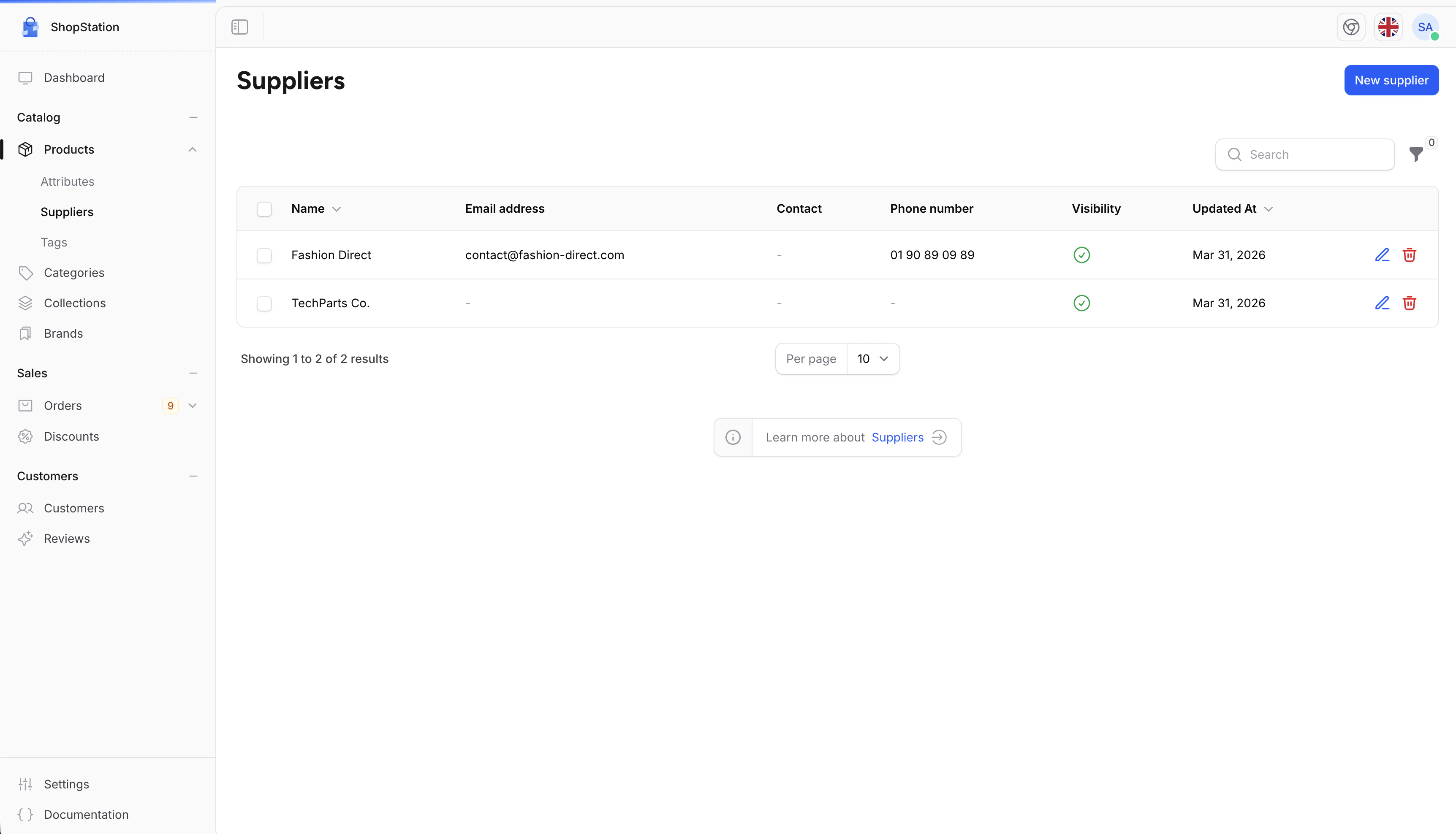
When the feature is enabled, suppliers appear under the Products section:
1. Click on **Products** in the sidebar
2. Select **Suppliers** from the submenu
 ## Adding a Supplier
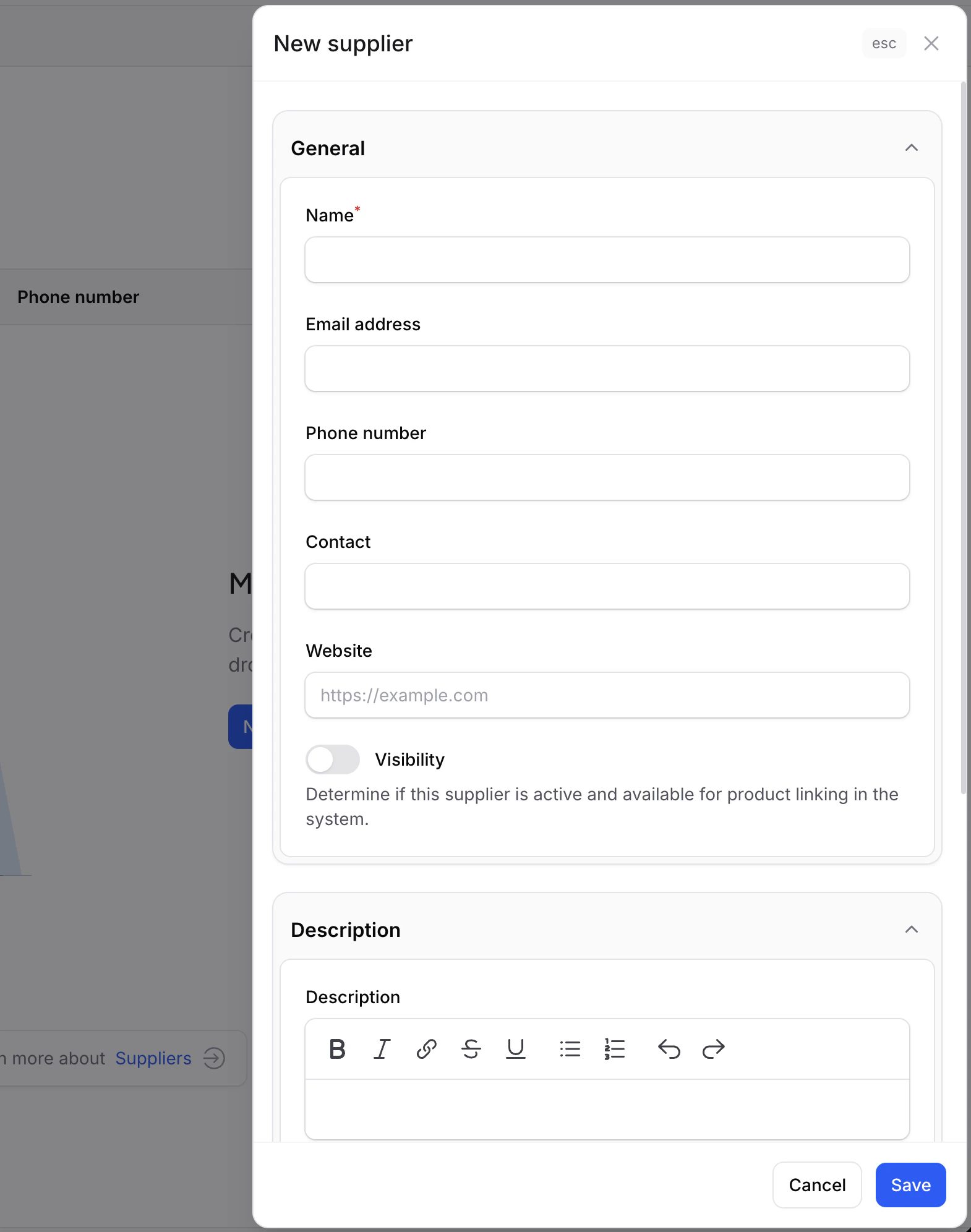
To add a new supplier:
1. Click the **Add supplier** button
2. Fill in the supplier details
3. Click **Save**
## Adding a Supplier
To add a new supplier:
1. Click the **Add supplier** button
2. Fill in the supplier details
3. Click **Save**
 ### Supplier Fields
| Field | Required | Description |
| ---------------- | -------- | --------------------------------------------- |
| **Name** | Yes | The supplier's company name |
| **Email** | No | Contact email for placing orders |
| **Phone** | No | Contact phone number |
| **Contact Name** | No | Primary contact person at the supplier |
| **Website** | No | Supplier's website URL |
| **Description** | No | Details about the supplier and their products |
| **Notes** | No | Internal notes (not visible to customers) |
| **Status** | No | Whether the supplier is active |
## Editing a Supplier
To update a supplier's information:
1. Click the **Edit** icon next to the supplier
2. Modify the fields you want to change
3. Click **Save**
## Enabling or Disabling a Supplier
Toggle the **Status** switch in the list to quickly enable or disable a supplier. Disabled suppliers are still linked to their products but are marked as inactive.
## Linking Products to Suppliers
Products are linked to suppliers from the product edit form. When creating or editing an **External** product:
1. Go to the product's edit page
2. Find the **Supplier** dropdown
3. Select the supplier
4. Click **Save**
### Supplier Fields
| Field | Required | Description |
| ---------------- | -------- | --------------------------------------------- |
| **Name** | Yes | The supplier's company name |
| **Email** | No | Contact email for placing orders |
| **Phone** | No | Contact phone number |
| **Contact Name** | No | Primary contact person at the supplier |
| **Website** | No | Supplier's website URL |
| **Description** | No | Details about the supplier and their products |
| **Notes** | No | Internal notes (not visible to customers) |
| **Status** | No | Whether the supplier is active |
## Editing a Supplier
To update a supplier's information:
1. Click the **Edit** icon next to the supplier
2. Modify the fields you want to change
3. Click **Save**
## Enabling or Disabling a Supplier
Toggle the **Status** switch in the list to quickly enable or disable a supplier. Disabled suppliers are still linked to their products but are marked as inactive.
## Linking Products to Suppliers
Products are linked to suppliers from the product edit form. When creating or editing an **External** product:
1. Go to the product's edit page
2. Find the **Supplier** dropdown
3. Select the supplier
4. Click **Save**
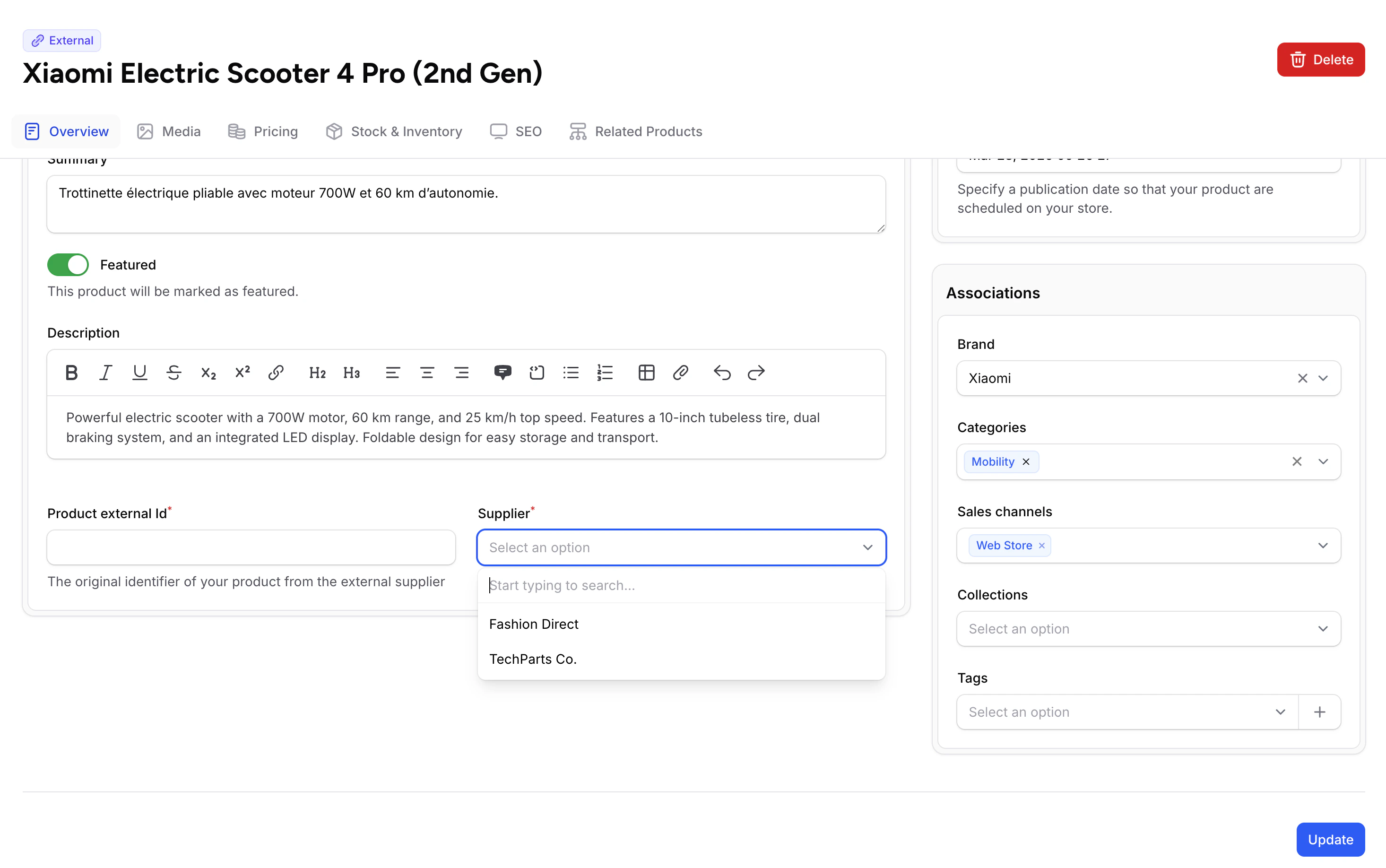 Only **External** products can be linked to suppliers. Standard, variant, and virtual products are managed from your own inventory.
## How Dropshipping Works
When a customer orders a product linked to a supplier, the order flow is:
1. **Customer places order** on your store
2. **You receive the order** in the admin panel
3. **You forward the order** to the supplier (via email, their portal, or API)
4. **Supplier ships directly** to the customer
5. **You add tracking info** from the supplier to the order
6. **Customer receives the product**
The key difference from regular orders is that you never handle the physical product. The supplier ships directly to your customer.
With dropshipping, you depend on the supplier's inventory and shipping speed. Make sure to verify your supplier's reliability before listing their products. Delays or quality issues reflect on your store.
## Supplier Information to Collect
When onboarding a new supplier, gather this information:
| Information | Why You Need It |
| ------------------- | ------------------------------------------------ |
| **Order email** | To send purchase orders when customers buy |
| **Product catalog** | To know what they offer and at what price |
| **Lead time** | To set customer expectations for delivery |
| **Return policy** | To handle customer returns |
| **Payment terms** | To manage your cash flow (Net 30, prepaid, etc.) |
| **Minimum order** | To know if there's a minimum quantity per order |
## Best Practices
Order samples from a supplier before listing their products. Test quality, packaging, and delivery time.
Use the cost price field on products to track your profit margin on supplier products.
Set clear expectations with suppliers about order format, shipping requirements, and branding.
Use the Notes field to track payment terms, minimum orders, and special instructions.
For developer details on suppliers, fulfillment workflows, and the dropshipping API, see the [Suppliers documentation](/v2/suppliers).
Only **External** products can be linked to suppliers. Standard, variant, and virtual products are managed from your own inventory.
## How Dropshipping Works
When a customer orders a product linked to a supplier, the order flow is:
1. **Customer places order** on your store
2. **You receive the order** in the admin panel
3. **You forward the order** to the supplier (via email, their portal, or API)
4. **Supplier ships directly** to the customer
5. **You add tracking info** from the supplier to the order
6. **Customer receives the product**
The key difference from regular orders is that you never handle the physical product. The supplier ships directly to your customer.
With dropshipping, you depend on the supplier's inventory and shipping speed. Make sure to verify your supplier's reliability before listing their products. Delays or quality issues reflect on your store.
## Supplier Information to Collect
When onboarding a new supplier, gather this information:
| Information | Why You Need It |
| ------------------- | ------------------------------------------------ |
| **Order email** | To send purchase orders when customers buy |
| **Product catalog** | To know what they offer and at what price |
| **Lead time** | To set customer expectations for delivery |
| **Return policy** | To handle customer returns |
| **Payment terms** | To manage your cash flow (Net 30, prepaid, etc.) |
| **Minimum order** | To know if there's a minimum quantity per order |
## Best Practices
Order samples from a supplier before listing their products. Test quality, packaging, and delivery time.
Use the cost price field on products to track your profit margin on supplier products.
Set clear expectations with suppliers about order format, shipping requirements, and branding.
Use the Notes field to track payment terms, minimum orders, and special instructions.
For developer details on suppliers, fulfillment workflows, and the dropshipping API, see the [Suppliers documentation](/v2/suppliers).