> ## Documentation Index
> Fetch the complete documentation index at: https://docs.laravelshopper.dev/llms.txt
> Use this file to discover all available pages before exploring further.
# Variant Product
> Products with multiple options like size, color, or material, where each combination becomes a unique variant.
A variant product is a **physical item that comes in multiple options**. Instead of creating separate products for each size or color, you create one parent product and generate variants for every combination. Each variant has its own SKU, price, stock level, and image.
## When to Use Variant Products
Use the Variant product type when:
* A product comes in **multiple sizes** (S, M, L, XL, XXL)
* A product is available in **different colors** (Red, Blue, Black)
* A product has **different materials** (Cotton, Polyester, Silk)
* A product has **capacity options** (64GB, 128GB, 256GB)
* Any combination of the above (Size + Color, Color + Material, etc.)
**Do NOT use variants when:**
| Scenario | Better approach |
| ------------------------------------ | --------------------------------------------------- |
| Completely different products | Create separate Standard products |
| Products with only price differences | Use separate Standard products with different names |
| Digital products with tiers | Create separate Virtual products |
| Bundles or kits | Use related products |
## How Variants Work
Variants are built from **attributes**, structured properties you define for your products. Here's the flow:
1. Create a **Variant** product
2. Attach **attributes** to the product (e.g., Size, Color)
3. Each attribute has **values** (Size: S, M, L / Color: Red, Blue)
4. **Generate variants** from all combinations
5. Configure each variant (price, stock, image)
### Example: T-Shirt with Size and Color
**Attributes:**
* Size: S, M, L, XL
* Color: Red, Blue, Black
**Generated variants (12 total):**
| Variant | SKU | Price | Stock |
| ---------- | ---------- | ------- | ----- |
| S / Red | TSH-S-RED | \$29.99 | 25 |
| S / Blue | TSH-S-BLU | \$29.99 | 30 |
| S / Black | TSH-S-BLK | \$29.99 | 20 |
| M / Red | TSH-M-RED | \$29.99 | 40 |
| M / Blue | TSH-M-BLU | \$29.99 | 35 |
| M / Black | TSH-M-BLK | \$29.99 | 45 |
| L / Red | TSH-L-RED | \$32.99 | 20 |
| L / Blue | TSH-L-BLU | \$32.99 | 25 |
| L / Black | TSH-L-BLK | \$32.99 | 30 |
| XL / Red | TSH-XL-RED | \$34.99 | 15 |
| XL / Blue | TSH-XL-BLU | \$34.99 | 20 |
| XL / Black | TSH-XL-BLK | \$34.99 | 10 |
## Setting Up Variant Attributes
Before generating variants, you need to attach attributes to your product.
### Prerequisites
Make sure you have created the necessary attributes in the [Attributes](/v2/user-guide/catalog/attributes) section. Variant-compatible attributes typically use these field types:
* **Select**. A dropdown list of values (most common for variants)
* **Color picker**. Visual color selection
* **Checkbox**. Multiple selectable values
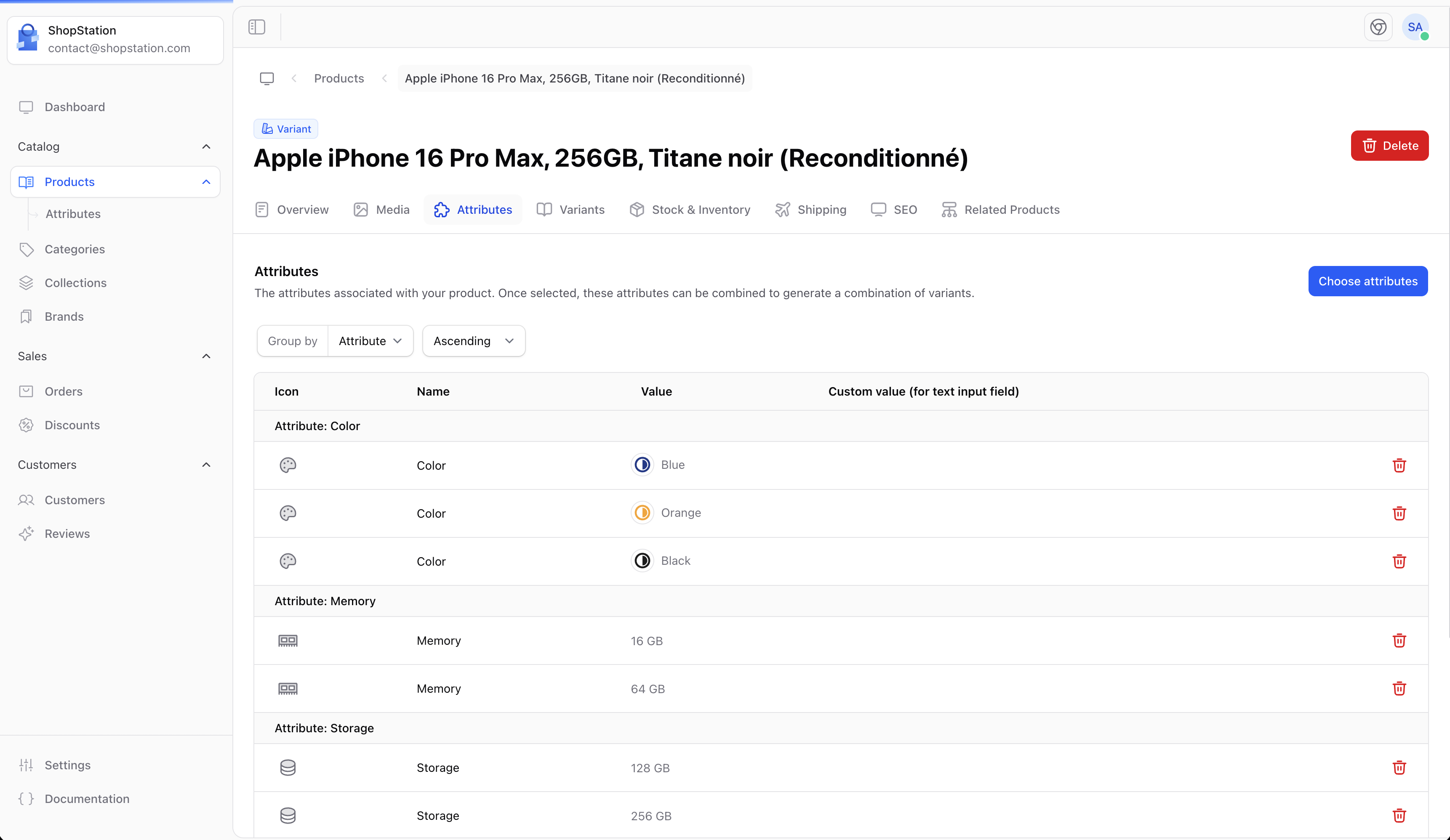
### Adding Attributes to Your Product
1. Navigate to your variant product's **Attributes** tab
2. Click **Add attribute**
3. Select the attributes you want to use for variants (e.g., Size, Color)
4. The attribute values become the options for variant generation
 ## Generating Variants
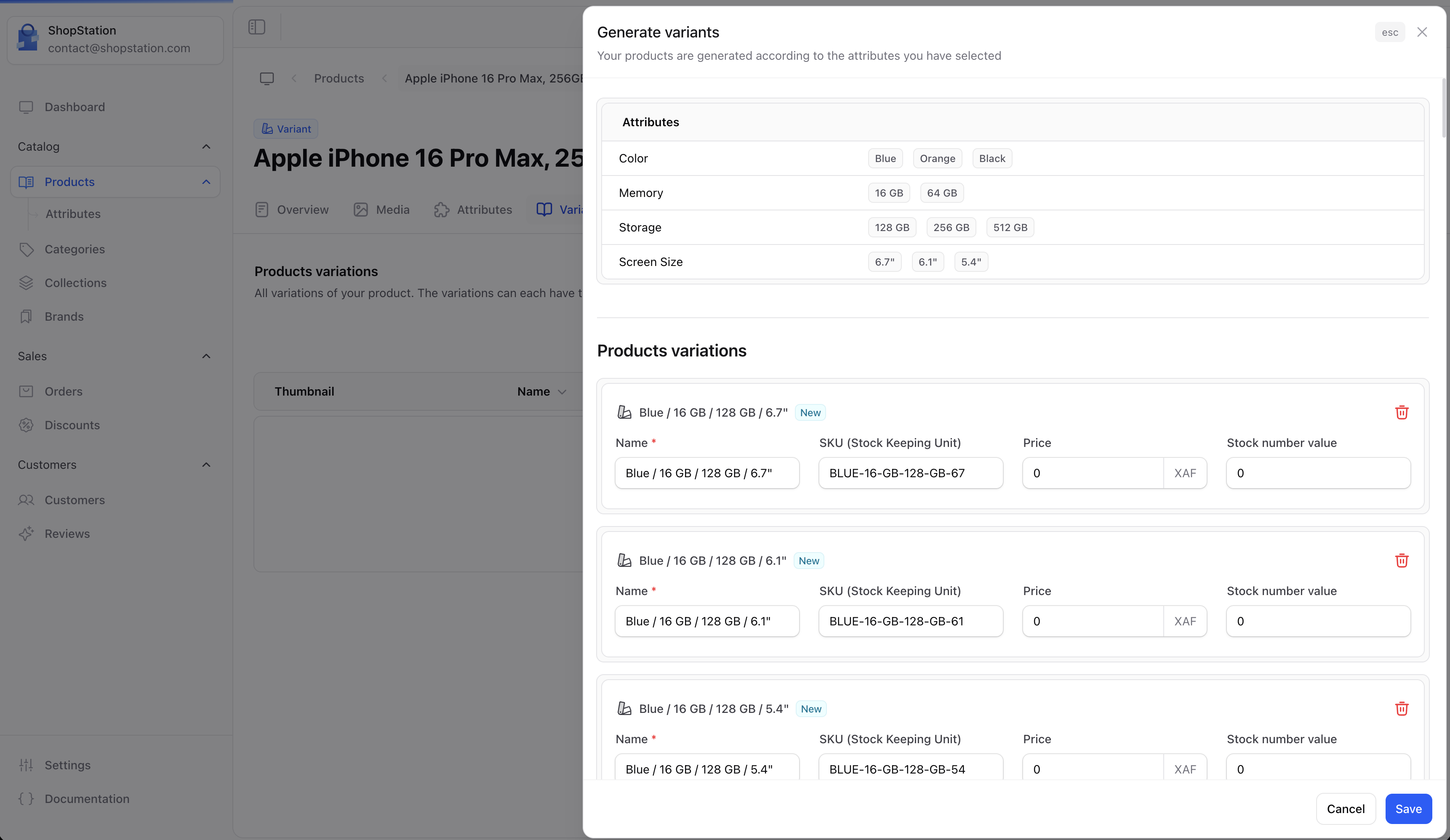
Once attributes are attached, you can generate all variant combinations automatically.
### Automatic Generation
1. Go to the **Variants** tab on your product
2. Click **Generate variants**
3. Shopper calculates all possible combinations from your attribute values
4. Review the generated list. Each combination is shown with a default SKU
5. You can edit the SKU and set an initial price before confirming
6. Click **Save** to create all variants at once
## Generating Variants
Once attributes are attached, you can generate all variant combinations automatically.
### Automatic Generation
1. Go to the **Variants** tab on your product
2. Click **Generate variants**
3. Shopper calculates all possible combinations from your attribute values
4. Review the generated list. Each combination is shown with a default SKU
5. You can edit the SKU and set an initial price before confirming
6. Click **Save** to create all variants at once
 The number of variants equals the product of all attribute value counts. For example: 4 sizes x 3 colors = 12 variants. Keep this manageable, too many combinations can be hard to maintain.
### Adding Individual Variants
You can also add variants one at a time:
1. Go to the **Variants** tab
2. Click **Add variant**
3. Fill in the variant details step by step
The individual variant creation wizard has 4 steps:
**Step 1: General**
* Variant name
* SKU (must be unique)
* Select attribute values for this variant
**Step 2: Media**
* Variant-specific thumbnail
* Additional images for this variant
**Step 3: Pricing**
* Price per currency
* Compare at price
* Cost per item
**Step 4: Stock**
* Barcode
* Initial quantity
## Managing Variants
After generation, you can manage each variant individually.
The number of variants equals the product of all attribute value counts. For example: 4 sizes x 3 colors = 12 variants. Keep this manageable, too many combinations can be hard to maintain.
### Adding Individual Variants
You can also add variants one at a time:
1. Go to the **Variants** tab
2. Click **Add variant**
3. Fill in the variant details step by step
The individual variant creation wizard has 4 steps:
**Step 1: General**
* Variant name
* SKU (must be unique)
* Select attribute values for this variant
**Step 2: Media**
* Variant-specific thumbnail
* Additional images for this variant
**Step 3: Pricing**
* Price per currency
* Compare at price
* Cost per item
**Step 4: Stock**
* Barcode
* Initial quantity
## Managing Variants
After generation, you can manage each variant individually.
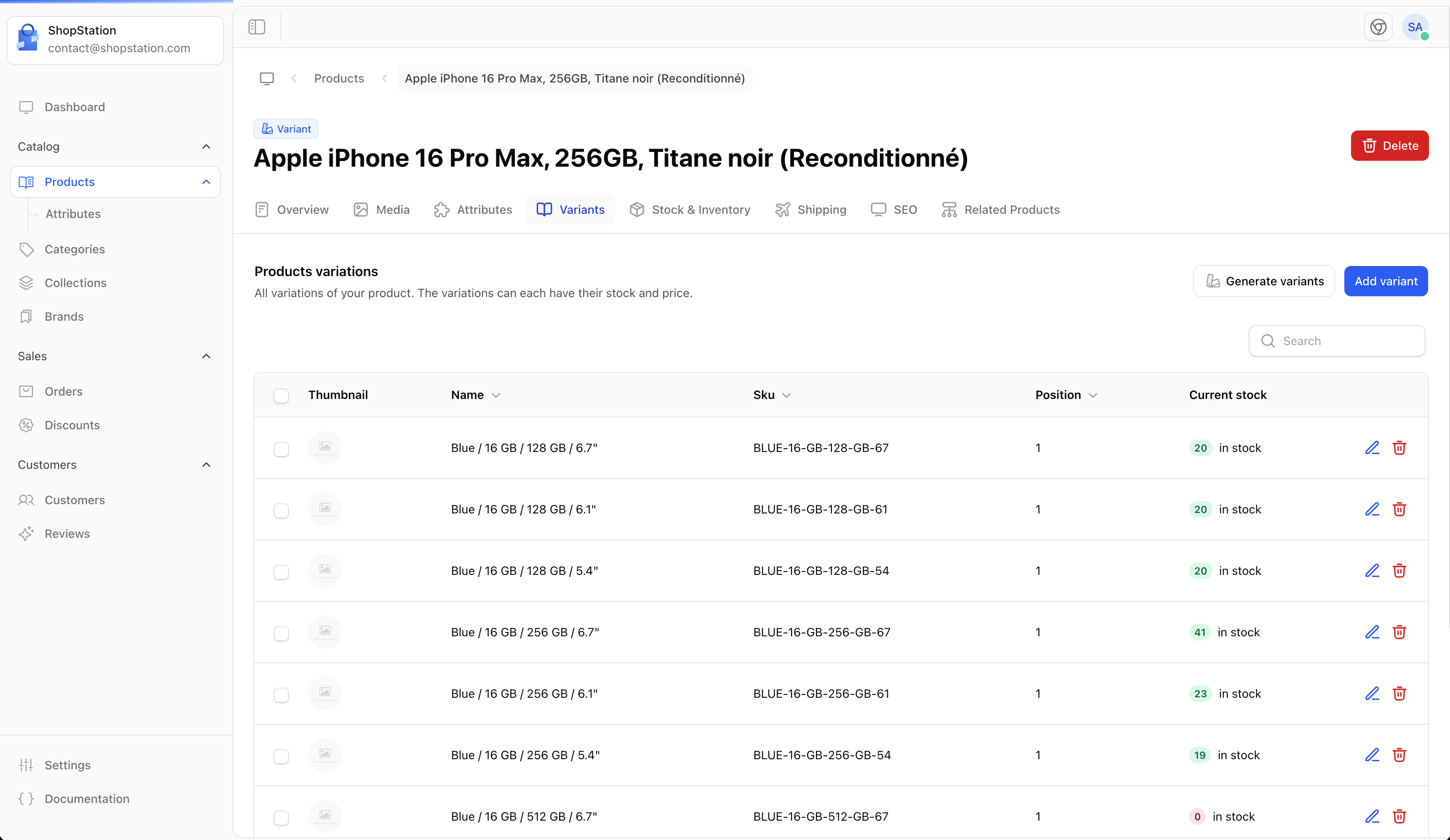 ### Variant Properties
Each variant can have its own:
| Property | Description |
| ----------------------- | ------------------------------------------------------- |
| **Name** | Descriptive name (auto-generated from attribute values) |
| **SKU** | Unique stock keeping unit for this specific variant |
| **Barcode** | Unique barcode (UPC, EAN) for this variant |
| **Price** | Different pricing per variant and per currency |
| **Compare at price** | Show original price for discounted variants |
| **Cost** | Your cost for this variant (for margin calculations) |
| **Quantity** | Stock level for this specific combination |
| **Image** | A specific image showing this color/option |
| **Weight & dimensions** | Shipping info if it varies by size |
| **Allow backorder** | Whether to accept orders when out of stock |
### Editing a Variant
Click on any variant in the list to open its detail panel where you can update:
### Variant Properties
Each variant can have its own:
| Property | Description |
| ----------------------- | ------------------------------------------------------- |
| **Name** | Descriptive name (auto-generated from attribute values) |
| **SKU** | Unique stock keeping unit for this specific variant |
| **Barcode** | Unique barcode (UPC, EAN) for this variant |
| **Price** | Different pricing per variant and per currency |
| **Compare at price** | Show original price for discounted variants |
| **Cost** | Your cost for this variant (for margin calculations) |
| **Quantity** | Stock level for this specific combination |
| **Image** | A specific image showing this color/option |
| **Weight & dimensions** | Shipping info if it varies by size |
| **Allow backorder** | Whether to accept orders when out of stock |
### Editing a Variant
Click on any variant in the list to open its detail panel where you can update:
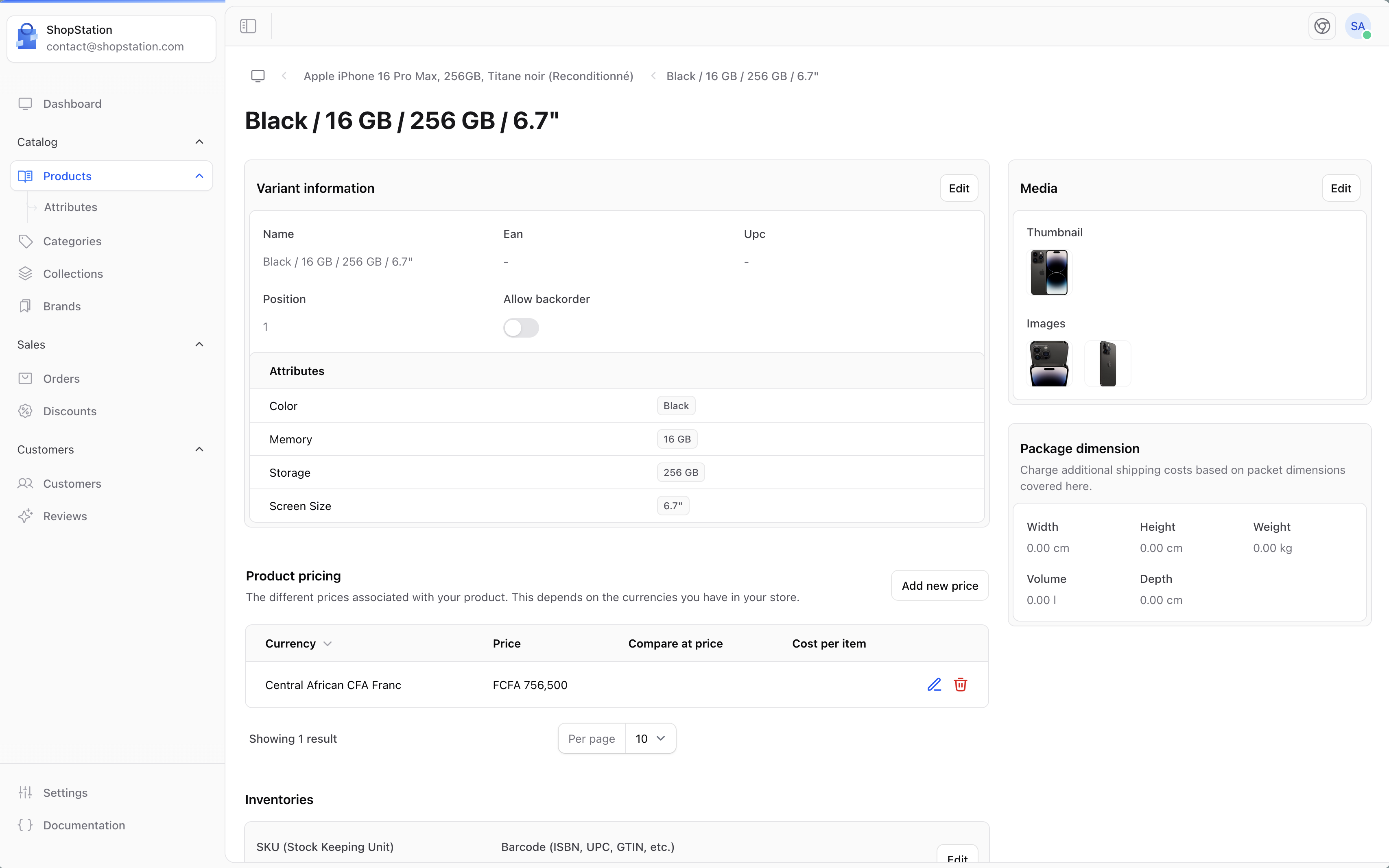 * All pricing fields (per currency if multi-currency is enabled)
* Stock levels and barcode
* Weight and package dimensions
* Variant-specific images
### Deleting Variants
If you discontinue a specific option (e.g., removing the "XS" size):
1. Find the variant in the list
2. Click the delete action
3. Confirm the deletion
Deleting a variant is permanent and removes its stock history. If a variant is temporarily unavailable, consider setting its stock to 0 instead.
## Variant Pricing Strategies
### Same Price for All
All variants at the same price point:
* Basic t-shirt: All sizes and colors at \$29.99
### Price by Size
Larger sizes cost more due to material usage:
* S/M: \$29.99
* L/XL: \$34.99
* XXL: \$39.99
### Price by Option
Premium options at a higher price:
* Standard colors (Black, White, Gray): \$49.99
* Limited edition colors (Gold, Rose): \$59.99
### Per-Variant Pricing
Each combination has its own price:
* Useful for products where cost varies significantly by option
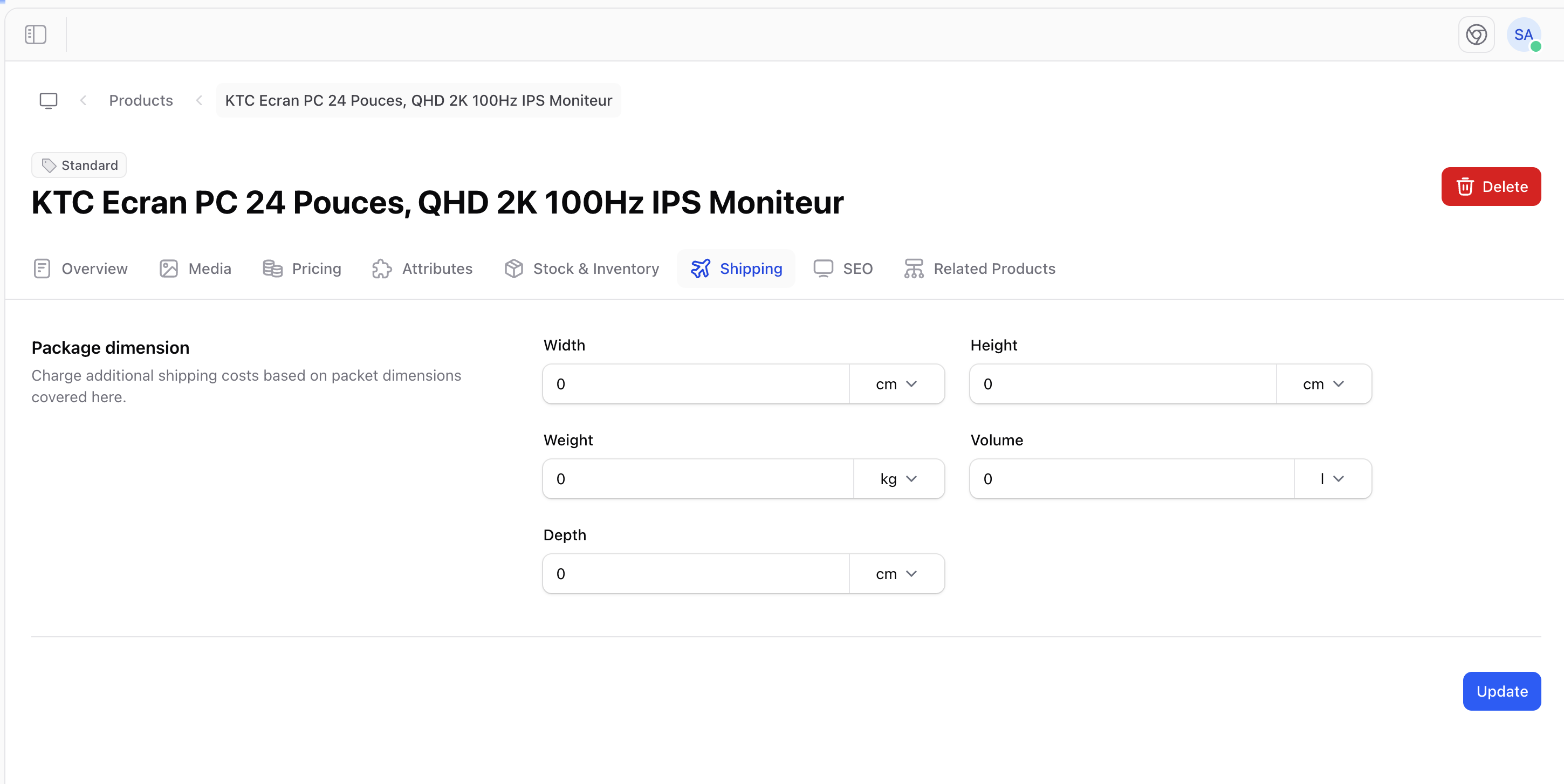
## Shipping for Variant Products
Variant products support shipping configuration at both levels:
* **Parent product**: Default shipping dimensions shared by all variants
* **Individual variants**: Override dimensions when a variant differs (e.g., XL is heavier)
* All pricing fields (per currency if multi-currency is enabled)
* Stock levels and barcode
* Weight and package dimensions
* Variant-specific images
### Deleting Variants
If you discontinue a specific option (e.g., removing the "XS" size):
1. Find the variant in the list
2. Click the delete action
3. Confirm the deletion
Deleting a variant is permanent and removes its stock history. If a variant is temporarily unavailable, consider setting its stock to 0 instead.
## Variant Pricing Strategies
### Same Price for All
All variants at the same price point:
* Basic t-shirt: All sizes and colors at \$29.99
### Price by Size
Larger sizes cost more due to material usage:
* S/M: \$29.99
* L/XL: \$34.99
* XXL: \$39.99
### Price by Option
Premium options at a higher price:
* Standard colors (Black, White, Gray): \$49.99
* Limited edition colors (Gold, Rose): \$59.99
### Per-Variant Pricing
Each combination has its own price:
* Useful for products where cost varies significantly by option
## Shipping for Variant Products
Variant products support shipping configuration at both levels:
* **Parent product**: Default shipping dimensions shared by all variants
* **Individual variants**: Override dimensions when a variant differs (e.g., XL is heavier)
 ## Inventory Per Variant
Stock is tracked individually for each variant:
* Each variant has its own quantity and safety stock level
* The parent product shows total stock across all variants
* When a variant reaches safety stock level, you're alerted for that specific combination
* Out-of-stock variants can be hidden or shown as unavailable while others remain purchasable
## Storefront Display
On your storefront, variant products display option selectors that let customers choose their preferred combination:
## Inventory Per Variant
Stock is tracked individually for each variant:
* Each variant has its own quantity and safety stock level
* The parent product shows total stock across all variants
* When a variant reaches safety stock level, you're alerted for that specific combination
* Out-of-stock variants can be hidden or shown as unavailable while others remain purchasable
## Storefront Display
On your storefront, variant products display option selectors that let customers choose their preferred combination:
 When a customer selects different options:
* The **price** updates if variants have different prices
* The **image** can change to show the selected variant (e.g., different color)
* **Availability** is shown for the selected combination
* The **Add to cart** button adapts based on stock
## Example: Creating a Variant Product
Let's create a "Classic Cotton Hoodie" with Size and Color options:
1. **Type**: Select "Variant Product"
2. **General info**: Name "Classic Cotton Hoodie", describe the material and fit
3. **Associations**: Brand "UrbanWear", categories "Clothing > Hoodies", collection "Fall Collection"
4. **Media**: Upload lifestyle photos showing different colors
5. **Stock**: SKU for parent product `HOOD-CLASSIC` (variants will have their own SKUs)
After creation:
1. **Attributes**: Attach "Size" (S, M, L, XL) and "Color" (Navy, Gray, Black)
2. **Generate variants**: Creates 12 combinations automatically
3. **Pricing**: S/M at $59.99, L/XL at $64.99
4. **Stock**: Set quantities per variant based on your inventory
5. **Images**: Upload color-specific photos for each color variant
6. **Shipping**: Weight 0.5 kg for S/M, 0.6 kg for L/XL
## Best Practices
Keep variant count manageable. 3 sizes x 3 colors (9 variants) is easier to manage than 6 sizes x 8 colors (48 variants).
Use a consistent SKU pattern: PRODUCT-SIZE-COLOR (e.g., HOOD-M-NAV).
Upload variant-specific images for color options so customers see exactly what they'll receive.
Set safety stock on popular variants to avoid stockouts on your best sellers.
## Limitations
* A product can use up to **3 variant attributes** (e.g., Size + Color + Material)
* The total number of variants is the product of all attribute values
* Consider splitting into separate products if you exceed 50+ variants
* Product type cannot be changed after creation, so plan ahead
For developer details, see the [Product Variants documentation](/v2/product-variants).
When a customer selects different options:
* The **price** updates if variants have different prices
* The **image** can change to show the selected variant (e.g., different color)
* **Availability** is shown for the selected combination
* The **Add to cart** button adapts based on stock
## Example: Creating a Variant Product
Let's create a "Classic Cotton Hoodie" with Size and Color options:
1. **Type**: Select "Variant Product"
2. **General info**: Name "Classic Cotton Hoodie", describe the material and fit
3. **Associations**: Brand "UrbanWear", categories "Clothing > Hoodies", collection "Fall Collection"
4. **Media**: Upload lifestyle photos showing different colors
5. **Stock**: SKU for parent product `HOOD-CLASSIC` (variants will have their own SKUs)
After creation:
1. **Attributes**: Attach "Size" (S, M, L, XL) and "Color" (Navy, Gray, Black)
2. **Generate variants**: Creates 12 combinations automatically
3. **Pricing**: S/M at $59.99, L/XL at $64.99
4. **Stock**: Set quantities per variant based on your inventory
5. **Images**: Upload color-specific photos for each color variant
6. **Shipping**: Weight 0.5 kg for S/M, 0.6 kg for L/XL
## Best Practices
Keep variant count manageable. 3 sizes x 3 colors (9 variants) is easier to manage than 6 sizes x 8 colors (48 variants).
Use a consistent SKU pattern: PRODUCT-SIZE-COLOR (e.g., HOOD-M-NAV).
Upload variant-specific images for color options so customers see exactly what they'll receive.
Set safety stock on popular variants to avoid stockouts on your best sellers.
## Limitations
* A product can use up to **3 variant attributes** (e.g., Size + Color + Material)
* The total number of variants is the product of all attribute values
* Consider splitting into separate products if you exceed 50+ variants
* Product type cannot be changed after creation, so plan ahead
For developer details, see the [Product Variants documentation](/v2/product-variants).