> ## Documentation Index
> Fetch the complete documentation index at: https://docs.laravelshopper.dev/llms.txt
> Use this file to discover all available pages before exploring further.
# Overview
> Understand the different product types available and how to manage your catalog.
Products are the core of your e-commerce store. Shopper supports multiple product types to cover a wide range of selling scenarios, from physical goods to digital downloads and dropshipping.
## Accessing Products
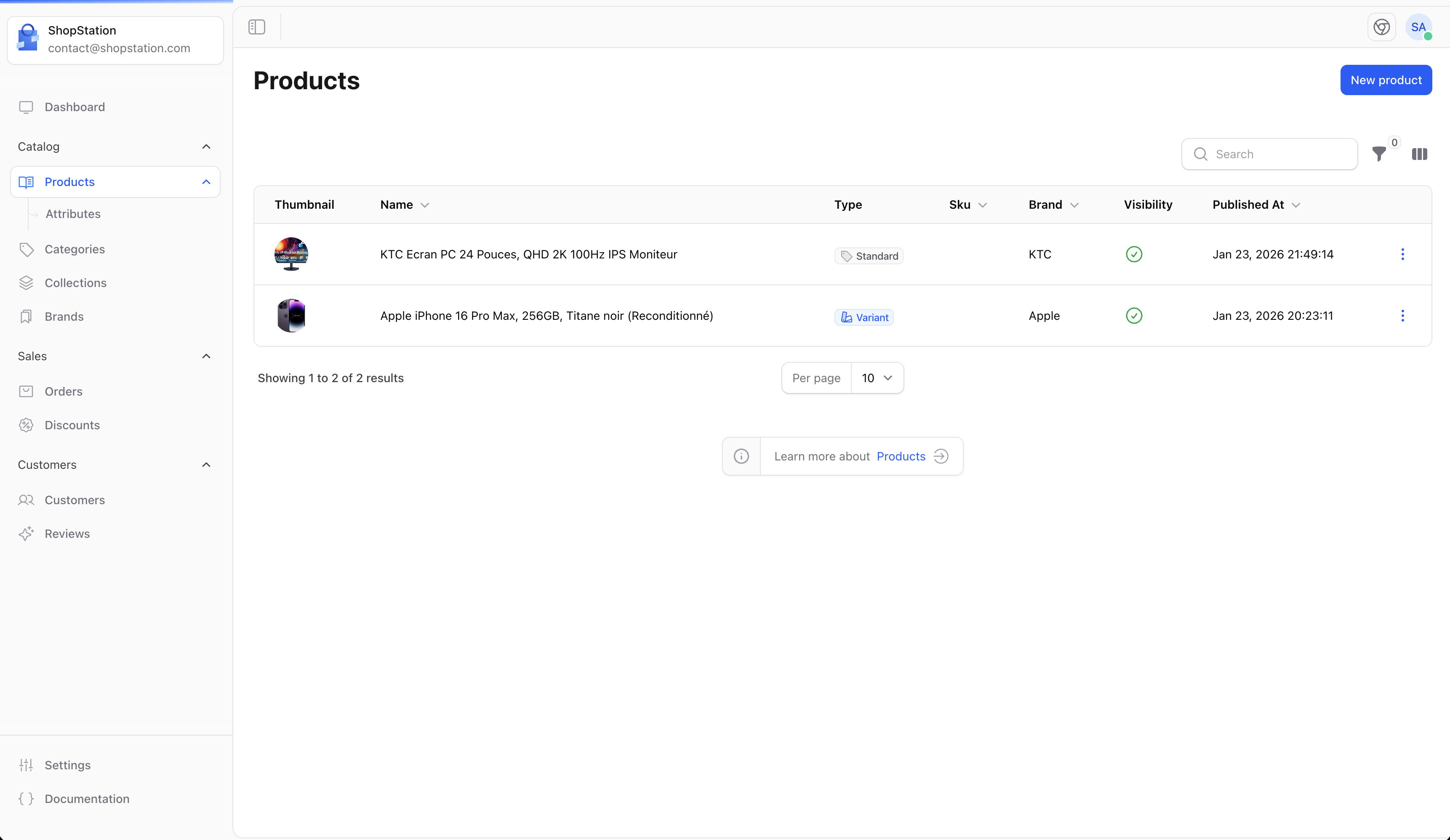
Click on **Products** in the sidebar to access the product management page. Here you can see all your products, filter by status, type, or category, and quickly access any product for editing.
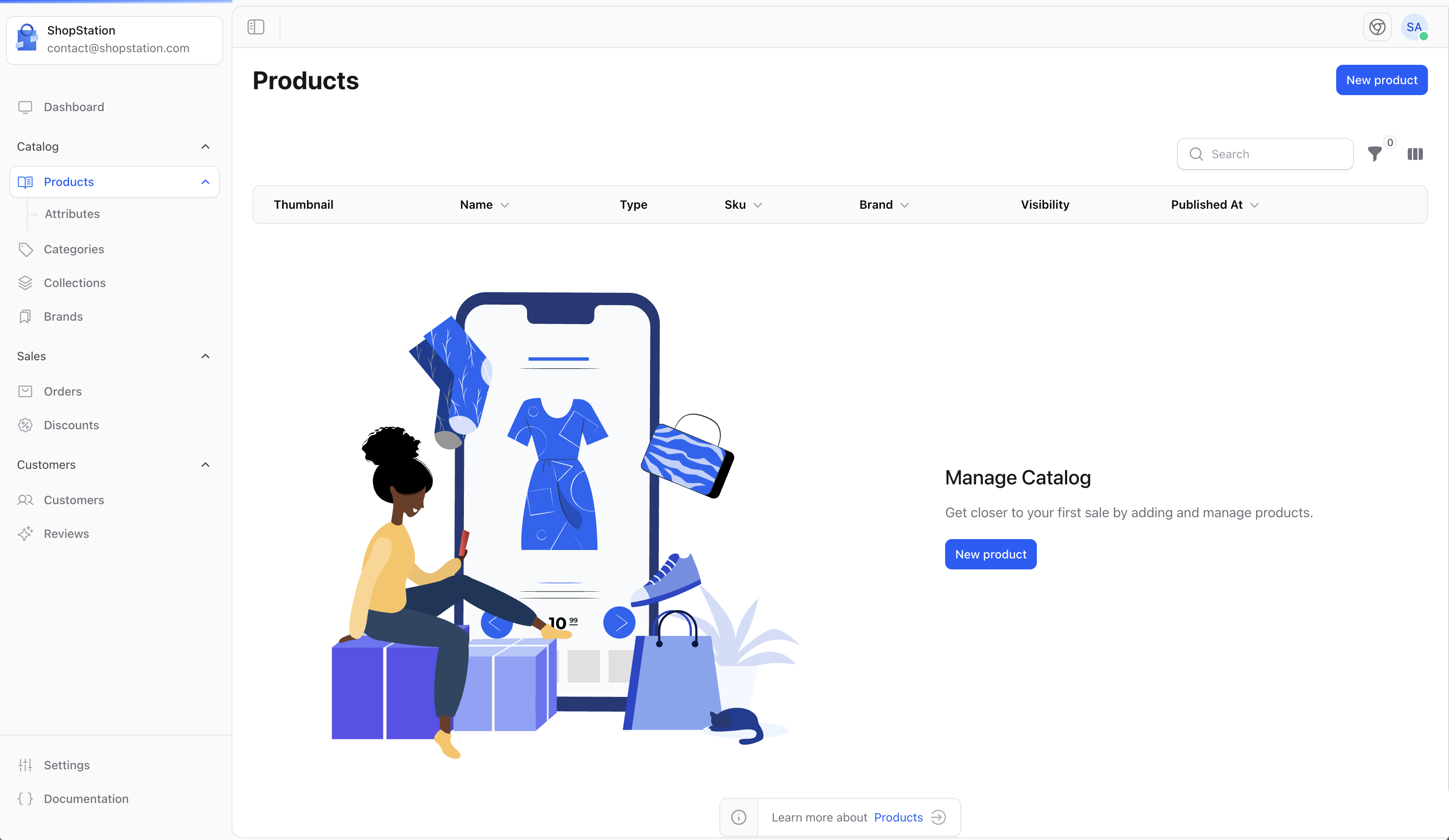
 If you haven't created any products yet, you'll see an empty state with a button to create your first product.
 ## Product Types
Shopper offers four product types, each designed for a specific selling scenario. When creating a product, you'll choose the type that best fits what you're selling.
## Product Types
Shopper offers four product types, each designed for a specific selling scenario. When creating a product, you'll choose the type that best fits what you're selling.
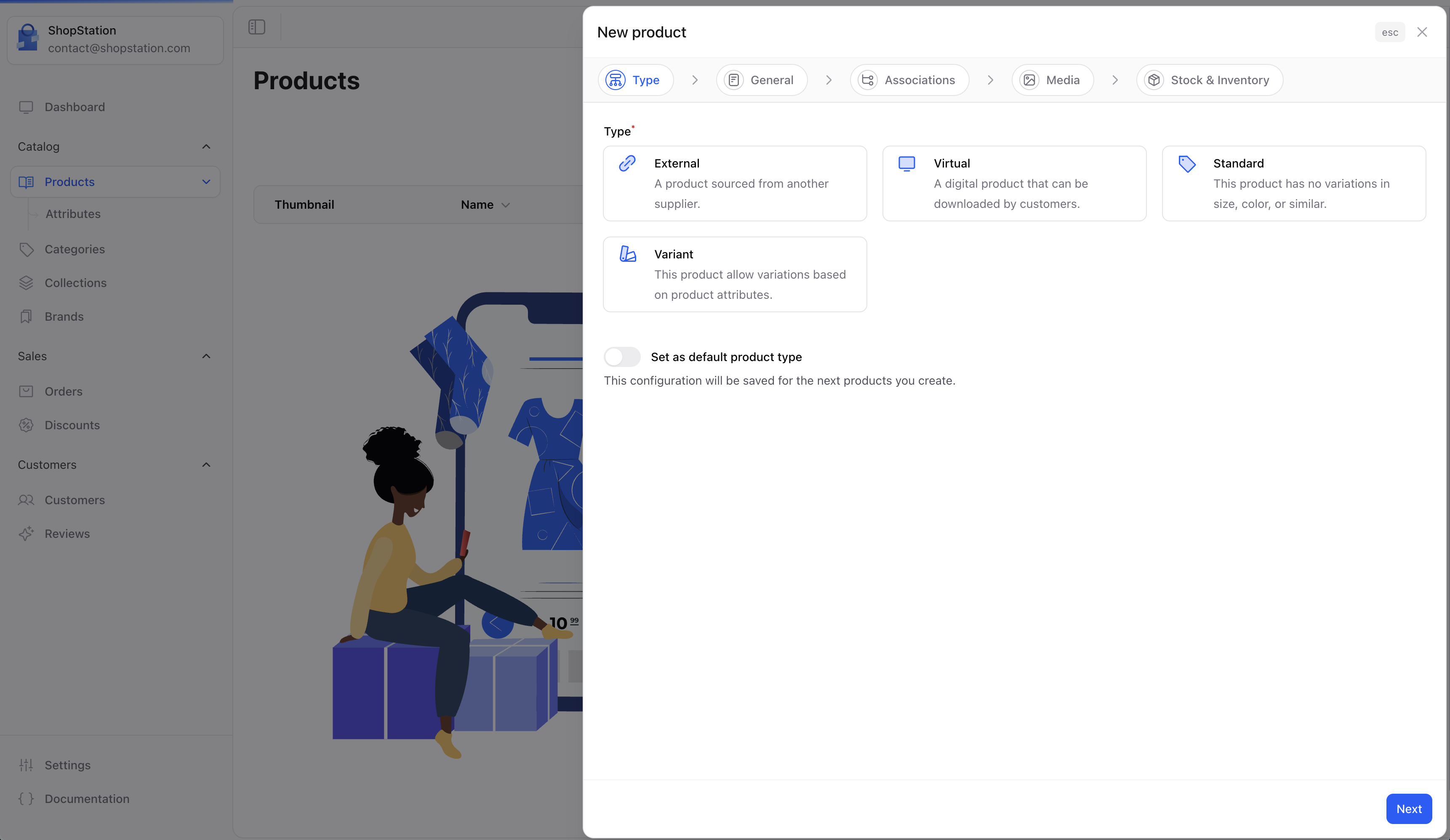 Physical goods that require shipping. This is the most common product type for stores selling tangible items like clothing, electronics, or furniture.
Digital products that don't require shipping. Ideal for downloadable files, software licenses, online courses, or subscriptions.
Products fulfilled by a third-party supplier. Perfect for dropshipping, where you sell products without holding inventory.
Products with multiple options like size, color, or material. Each combination becomes a separate variant with its own price, stock, and SKU.
## Choosing the Right Type
| What you're selling | Recommended type |
| ------------------------------------------ | --------------------------- |
| Physical items you stock and ship yourself | **Standard** |
| Digital files (ebooks, music, software) | **Virtual** |
| Online courses or memberships | **Virtual** |
| Items shipped directly by a supplier | **External** (Dropshipping) |
| A t-shirt in multiple sizes and colors | **Variant** |
| A single unique handmade item | **Standard** |
| Affiliate products from another store | **External** (Dropshipping) |
| A phone case in 10 colors | **Variant** |
The product type is set during creation and cannot be changed afterward. Make sure to choose the correct type before proceeding.
## Type Capabilities
Not all features are available for every product type. Here's what each type supports:
| Feature | Standard | Virtual | External | Variant |
| ------------------------- | -------- | ------- | -------- | ----------------- |
| Shipping & dimensions | Yes | No | No | Yes |
| Inventory tracking | Yes | No | No | Yes (per variant) |
| Product attributes | Yes | No | No | Yes |
| Variants (size, color...) | No | No | No | Yes |
| Digital file downloads | No | Yes | No | No |
| Pricing | Yes | Yes | Yes | Yes (per variant) |
| SEO | Yes | Yes | Yes | Yes |
| Categories & collections | Yes | Yes | Yes | Yes |
| Related products | Yes | Yes | Yes | Yes |
| Media (images) | Yes | Yes | Yes | Yes |
## What's Next?
Follow the step-by-step wizard to create your first product.
Learn how to edit pricing, SEO, media, and more after creation.
For developer details, see the [Products documentation](/v2/products).
Physical goods that require shipping. This is the most common product type for stores selling tangible items like clothing, electronics, or furniture.
Digital products that don't require shipping. Ideal for downloadable files, software licenses, online courses, or subscriptions.
Products fulfilled by a third-party supplier. Perfect for dropshipping, where you sell products without holding inventory.
Products with multiple options like size, color, or material. Each combination becomes a separate variant with its own price, stock, and SKU.
## Choosing the Right Type
| What you're selling | Recommended type |
| ------------------------------------------ | --------------------------- |
| Physical items you stock and ship yourself | **Standard** |
| Digital files (ebooks, music, software) | **Virtual** |
| Online courses or memberships | **Virtual** |
| Items shipped directly by a supplier | **External** (Dropshipping) |
| A t-shirt in multiple sizes and colors | **Variant** |
| A single unique handmade item | **Standard** |
| Affiliate products from another store | **External** (Dropshipping) |
| A phone case in 10 colors | **Variant** |
The product type is set during creation and cannot be changed afterward. Make sure to choose the correct type before proceeding.
## Type Capabilities
Not all features are available for every product type. Here's what each type supports:
| Feature | Standard | Virtual | External | Variant |
| ------------------------- | -------- | ------- | -------- | ----------------- |
| Shipping & dimensions | Yes | No | No | Yes |
| Inventory tracking | Yes | No | No | Yes (per variant) |
| Product attributes | Yes | No | No | Yes |
| Variants (size, color...) | No | No | No | Yes |
| Digital file downloads | No | Yes | No | No |
| Pricing | Yes | Yes | Yes | Yes (per variant) |
| SEO | Yes | Yes | Yes | Yes |
| Categories & collections | Yes | Yes | Yes | Yes |
| Related products | Yes | Yes | Yes | Yes |
| Media (images) | Yes | Yes | Yes | Yes |
## What's Next?
Follow the step-by-step wizard to create your first product.
Learn how to edit pricing, SEO, media, and more after creation.
For developer details, see the [Products documentation](/v2/products).