> ## Documentation Index
> Fetch the complete documentation index at: https://docs.laravelshopper.dev/llms.txt
> Use this file to discover all available pages before exploring further.
# Managing Categories
> Organize your products with categories for better navigation.
Categories are essential for organizing your product catalog. They help customers navigate your store and find products easily.
## Overview
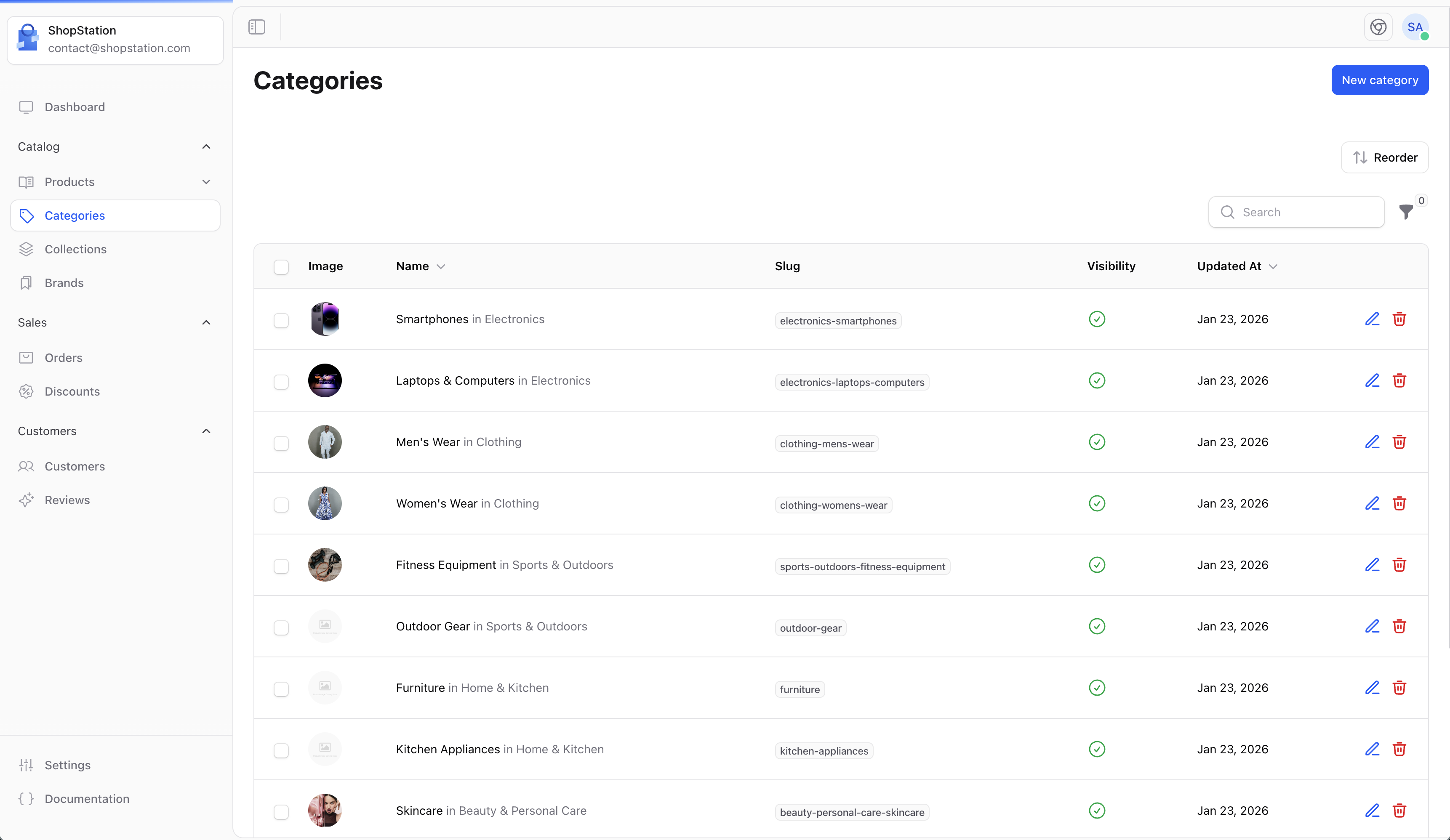
Categories create a hierarchical structure for your products. You can create:
* **Parent categories** - Top-level categories (e.g., "Clothing", "Electronics")
* **Subcategories** - Nested categories (e.g., "Men's Shirts" under "Clothing")
## Accessing Categories
Click on **Categories** in the sidebar to access the category management page.
 ## Creating a Category
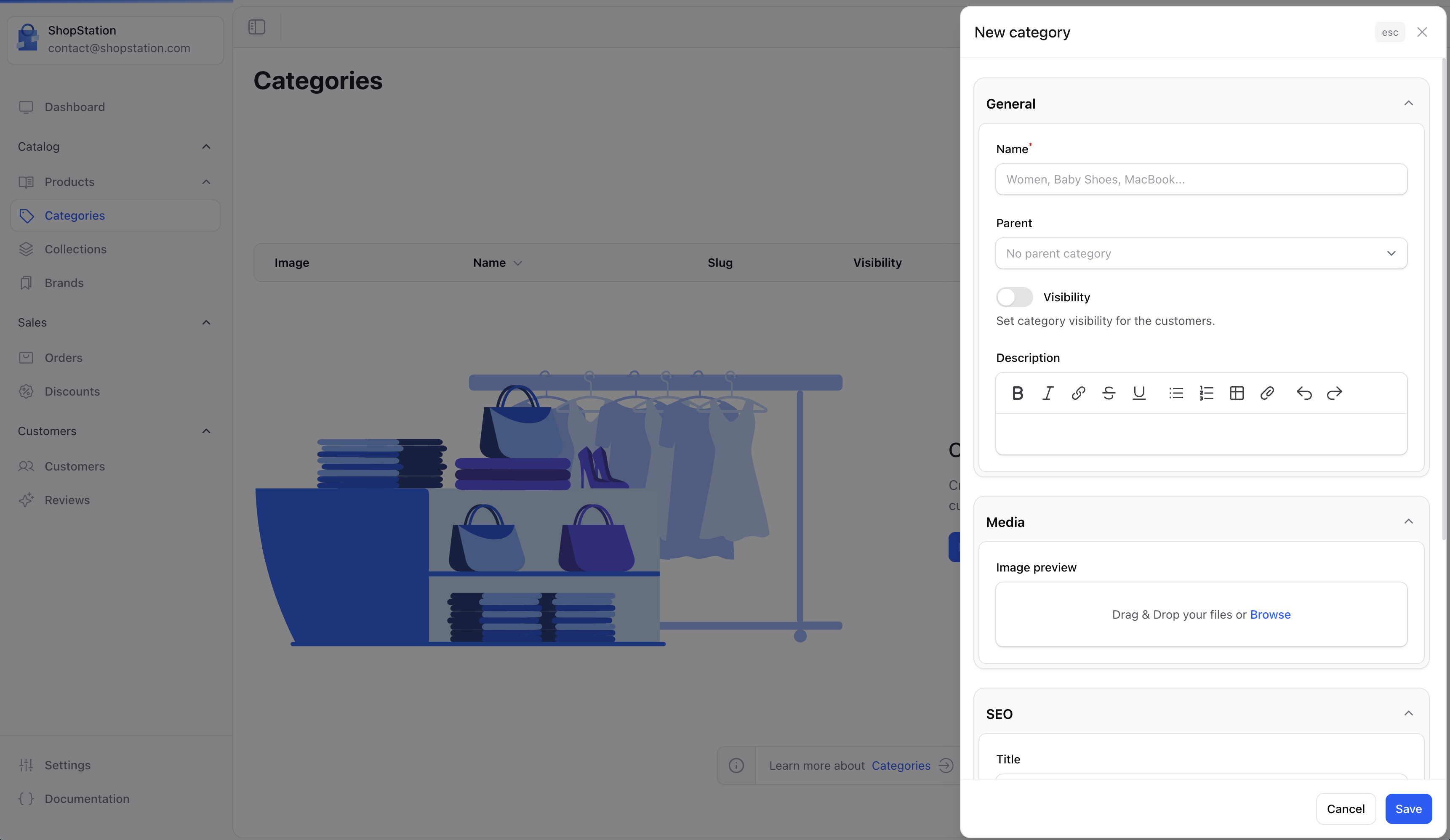
To add a new category:
1. Click the **Create** button on the Categories page
2. Fill in the category details
3. Click **Save** to create the category
## Creating a Category
To add a new category:
1. Click the **Create** button on the Categories page
2. Fill in the category details
3. Click **Save** to create the category
 ### Category Fields
| Field | Required | Description |
| ------------------- | -------- | ---------------------------------------- |
| **Name** | Yes | The category name displayed to customers |
| **Parent category** | No | Select a parent to create a subcategory |
| **Description** | No | Detailed description of the category |
| **Image** | No | A representative image for the category |
| **Enabled** | No | Toggle to show/hide the category |
### SEO Settings
Improve your category pages visibility in search engines:
| Field | Description |
| ------------------- | -------------------------------------- |
| **SEO Title** | Custom title for search results |
| **SEO Description** | Meta description for the category page |
## Category Hierarchy
Categories can be nested to create a logical structure:
```
Electronics
├── Computers
│ ├── Laptops
│ └── Desktops
├── Phones
│ ├── Smartphones
│ └── Accessories
└── Audio
├── Headphones
└── Speakers
```
To create a subcategory:
1. Create a new category
2. Select the parent category from the dropdown
3. Save the category
## Managing Category Order
Categories can be reordered to control how they appear in navigation:
* Use drag-and-drop to reorder categories
* Position determines the display order on your storefront
## Category States
* **Enabled** - Visible to customers and appears in navigation
* **Disabled** - Hidden from customers but products remain categorized
Create a clear and logical category structure from the start. Reorganizing categories later may affect URLs and SEO.
## Best Practices
Don't create too many levels. 2-3 levels deep is usually sufficient.
Category names should be descriptive and match what customers search for.
Visual categories help customers navigate faster.
Think about your full product range before creating the category structure.
For developer details, see the [Categories documentation](/v2/categories).
### Category Fields
| Field | Required | Description |
| ------------------- | -------- | ---------------------------------------- |
| **Name** | Yes | The category name displayed to customers |
| **Parent category** | No | Select a parent to create a subcategory |
| **Description** | No | Detailed description of the category |
| **Image** | No | A representative image for the category |
| **Enabled** | No | Toggle to show/hide the category |
### SEO Settings
Improve your category pages visibility in search engines:
| Field | Description |
| ------------------- | -------------------------------------- |
| **SEO Title** | Custom title for search results |
| **SEO Description** | Meta description for the category page |
## Category Hierarchy
Categories can be nested to create a logical structure:
```
Electronics
├── Computers
│ ├── Laptops
│ └── Desktops
├── Phones
│ ├── Smartphones
│ └── Accessories
└── Audio
├── Headphones
└── Speakers
```
To create a subcategory:
1. Create a new category
2. Select the parent category from the dropdown
3. Save the category
## Managing Category Order
Categories can be reordered to control how they appear in navigation:
* Use drag-and-drop to reorder categories
* Position determines the display order on your storefront
## Category States
* **Enabled** - Visible to customers and appears in navigation
* **Disabled** - Hidden from customers but products remain categorized
Create a clear and logical category structure from the start. Reorganizing categories later may affect URLs and SEO.
## Best Practices
Don't create too many levels. 2-3 levels deep is usually sufficient.
Category names should be descriptive and match what customers search for.
Visual categories help customers navigate faster.
Think about your full product range before creating the category structure.
For developer details, see the [Categories documentation](/v2/categories).