> ## Documentation Index
> Fetch the complete documentation index at: https://docs.laravelshopper.dev/llms.txt
> Use this file to discover all available pages before exploring further.
# Managing Staff Users
> Add and manage administrator accounts for your store.
Staff users are the people who help manage your store. Shopper allows you to create multiple admin accounts with different levels of access.
## Overview
The Staff management section allows you to:
* Add new administrators
* Manage existing staff accounts
* Assign roles and permissions
* Enable/disable accounts
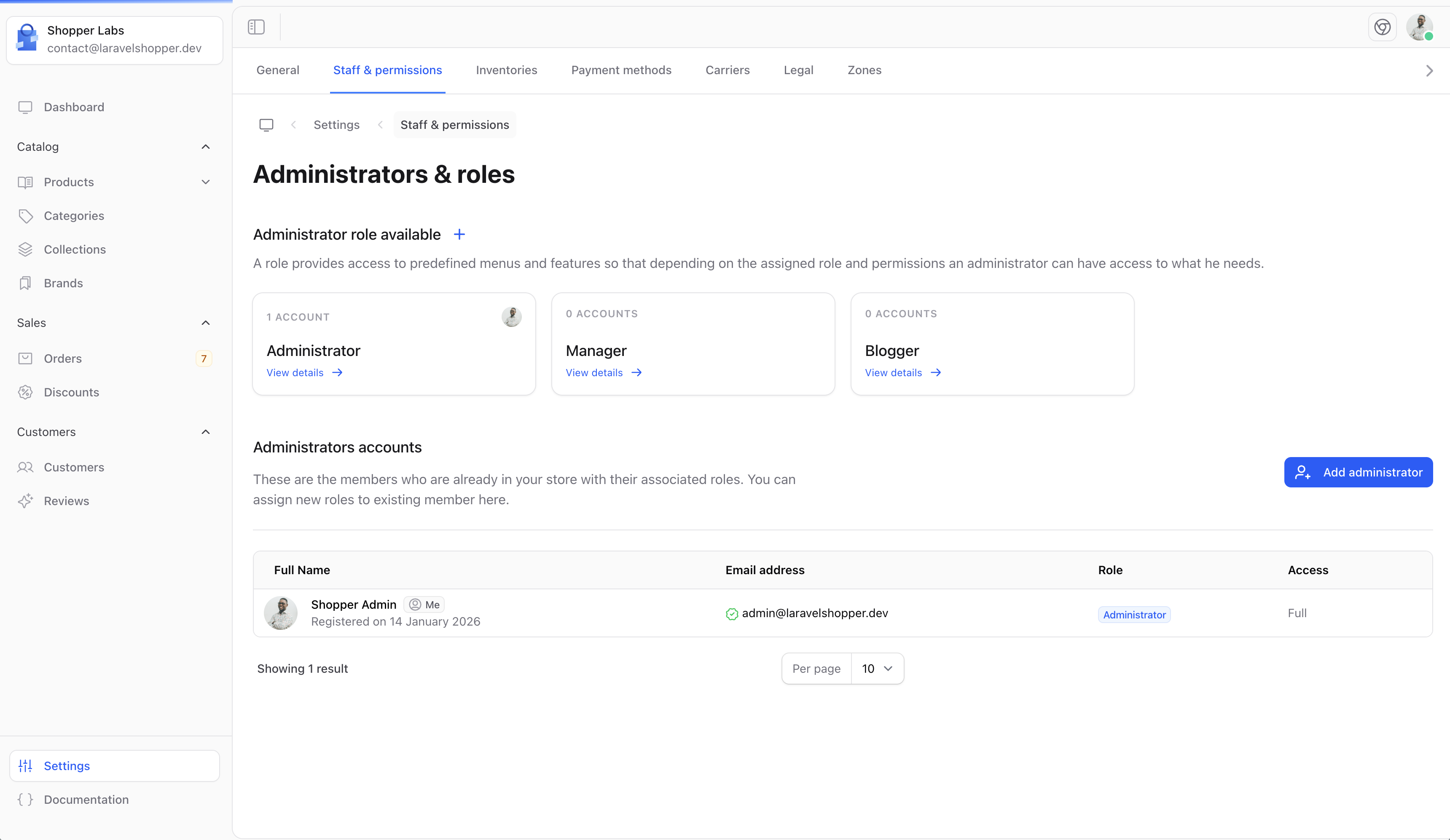
## Accessing Staff Settings
1. Click on **Settings** in the sidebar
2. Select **Staff** from the settings menu
 ## Adding a New Admin
To add a new staff member:
1. Click the **Add admin** button
2. Fill in the administrator details
3. Assign a role
4. Click **Save**
## Adding a New Admin
To add a new staff member:
1. Click the **Add admin** button
2. Fill in the administrator details
3. Assign a role
4. Click **Save**
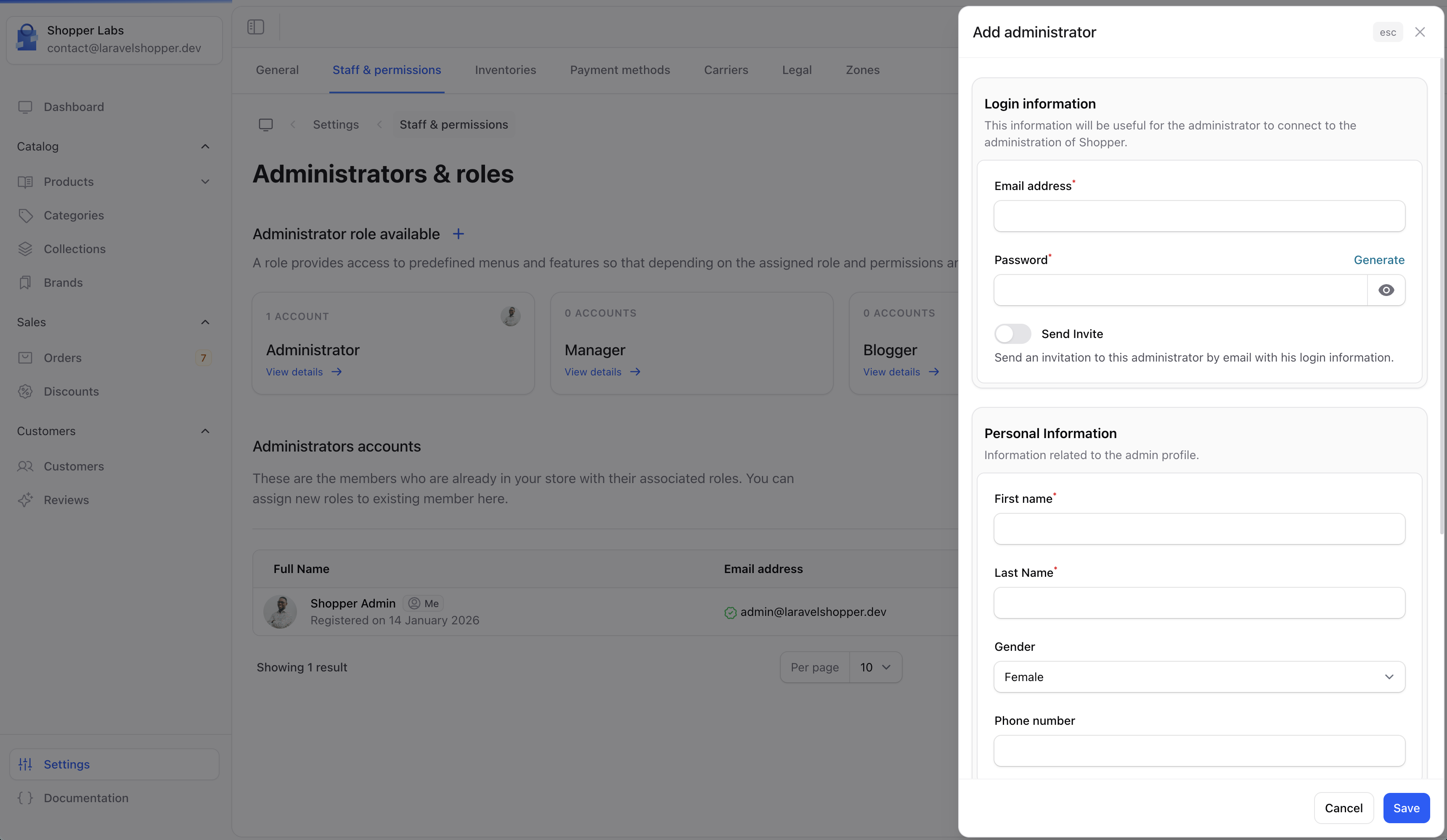 ### Admin Fields
| Field | Required | Description |
| --------------- | -------- | ------------------------------------ |
| **First name** | Yes | Staff member's first name |
| **Last name** | Yes | Staff member's last name |
| **Email** | Yes | Login email address (must be unique) |
| **Phone** | No | Contact phone number |
| **Role** | Yes | Permission level for this user |
| **Send invite** | No | Email login credentials |
## Staff Roles
Each staff member is assigned a role that determines what they can access:
| Role | Typical Access |
| ----------------- | ------------------------------ |
| **Administrator** | Full access to all features |
| **Manager** | Most features except settings |
| **Editor** | Product and content management |
| **Support** | Orders and customer management |
Create roles that match your team structure. The principle of least privilege suggests giving users only the access they need for their job.
## Managing Existing Staff
### Edit Staff Member
1. Click on a staff member's name
2. Update their information
3. Click **Save**
### Disable Staff Member
Instead of deleting, you can disable a staff account:
* They won't be able to log in
* Their activity history is preserved
* Can be re-enabled later
### Delete Staff Member
Permanently remove a staff account:
* Use with caution - this cannot be undone
* Consider disabling instead for record-keeping
## Your Profile
Each staff member can manage their own profile:
### Admin Fields
| Field | Required | Description |
| --------------- | -------- | ------------------------------------ |
| **First name** | Yes | Staff member's first name |
| **Last name** | Yes | Staff member's last name |
| **Email** | Yes | Login email address (must be unique) |
| **Phone** | No | Contact phone number |
| **Role** | Yes | Permission level for this user |
| **Send invite** | No | Email login credentials |
## Staff Roles
Each staff member is assigned a role that determines what they can access:
| Role | Typical Access |
| ----------------- | ------------------------------ |
| **Administrator** | Full access to all features |
| **Manager** | Most features except settings |
| **Editor** | Product and content management |
| **Support** | Orders and customer management |
Create roles that match your team structure. The principle of least privilege suggests giving users only the access they need for their job.
## Managing Existing Staff
### Edit Staff Member
1. Click on a staff member's name
2. Update their information
3. Click **Save**
### Disable Staff Member
Instead of deleting, you can disable a staff account:
* They won't be able to log in
* Their activity history is preserved
* Can be re-enabled later
### Delete Staff Member
Permanently remove a staff account:
* Use with caution - this cannot be undone
* Consider disabling instead for record-keeping
## Your Profile
Each staff member can manage their own profile:
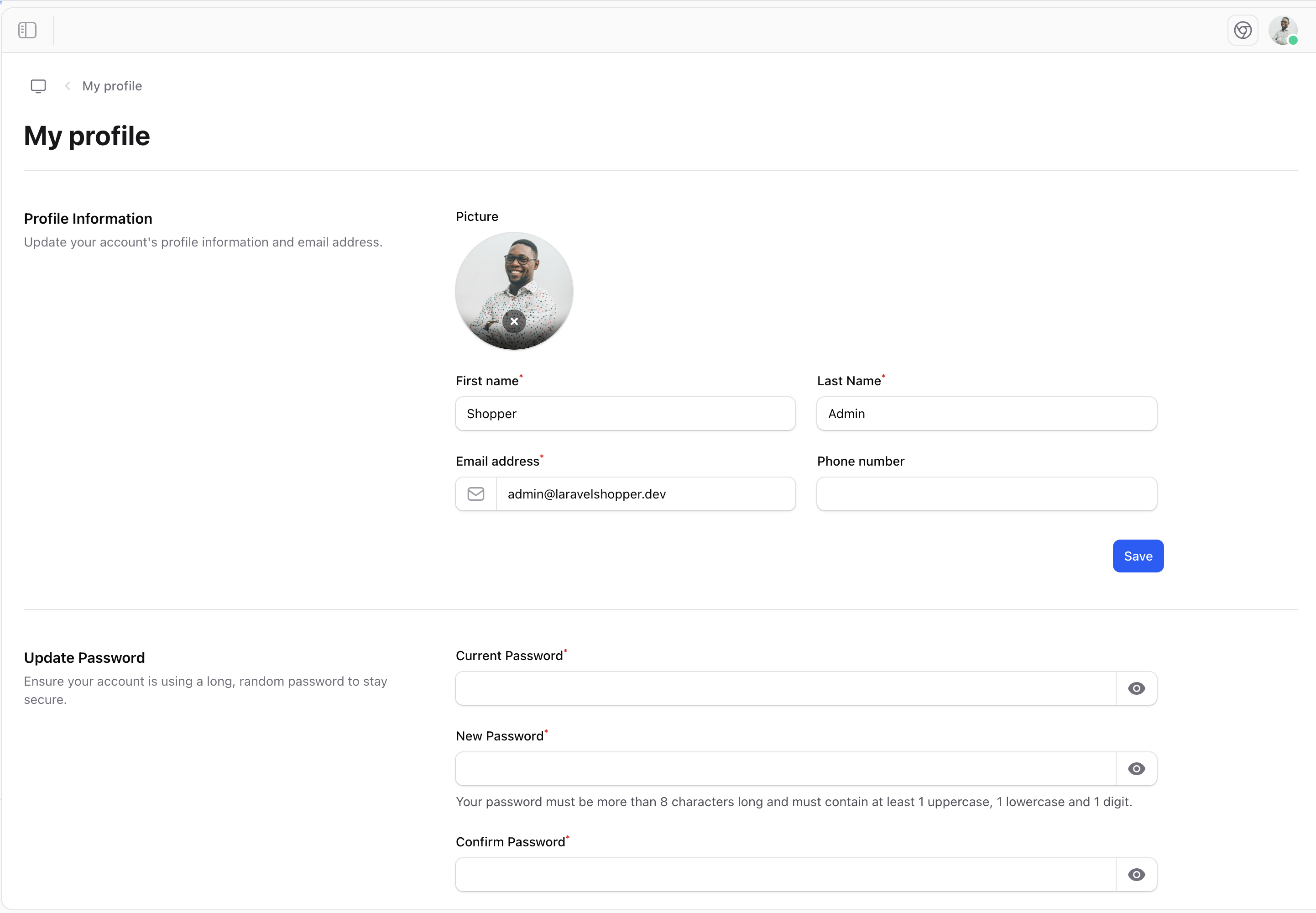 From your profile, you can:
* Update personal information
* Change your password
* Enable two-factor authentication
* Set notification preferences
## Best Practices
Give each person their own account - never share credentials.
Require strong passwords for all admin accounts.
Encourage or require two-factor authentication.
Periodically review who has access to your admin.
## Security Recommendations
1. **Remove inactive accounts** - Disable accounts for staff who leave
2. **Use role-based access** - Don't give everyone admin access
3. **Enable two-factor** - Add an extra layer of security
4. **Monitor activity** - Keep track of who does what
5. **Regular password changes** - Encourage periodic password updates
For developer details, see the [Roles & Permissions documentation](/v2/acl).
From your profile, you can:
* Update personal information
* Change your password
* Enable two-factor authentication
* Set notification preferences
## Best Practices
Give each person their own account - never share credentials.
Require strong passwords for all admin accounts.
Encourage or require two-factor authentication.
Periodically review who has access to your admin.
## Security Recommendations
1. **Remove inactive accounts** - Disable accounts for staff who leave
2. **Use role-based access** - Don't give everyone admin access
3. **Enable two-factor** - Add an extra layer of security
4. **Monitor activity** - Keep track of who does what
5. **Regular password changes** - Encourage periodic password updates
For developer details, see the [Roles & Permissions documentation](/v2/acl).