> ## Documentation Index
> Fetch the complete documentation index at: https://docs.laravelshopper.dev/llms.txt
> Use this file to discover all available pages before exploring further.
# Two-Factor Authentication
> Secure your account with two-factor authentication (2FA).
Two-factor authentication (2FA) adds an extra layer of security to your administrator account. Even if someone discovers your password, they won't be able to access your account without the second factor.
## What is Two-Factor Authentication?
2FA requires two forms of verification:
1. **Something you know** - Your password
2. **Something you have** - A code from your phone
This means an attacker would need both your password AND your phone to access your account.
## Enabling Two-Factor Authentication
### Step 1: Access Security Settings
1. Click on your profile avatar in the sidebar
2. Go to your account settings
3. Find the Two-Factor Authentication section
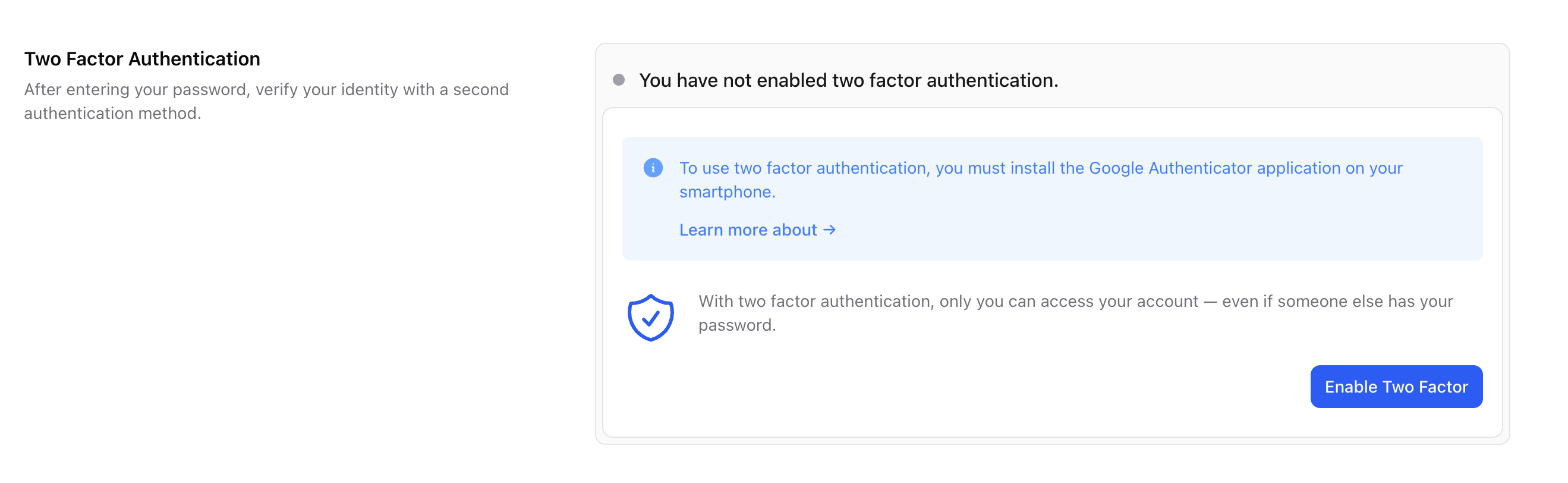 ### Step 2: Start Setup
Click **Enable** to begin the setup process.
### Step 2: Start Setup
Click **Enable** to begin the setup process.
 ### Step 3: Scan QR Code
1. Install an authenticator app on your phone:
* Google Authenticator
* Authy
* Microsoft Authenticator
* 1Password
2. Open the app and scan the QR code displayed on screen
3. The app will generate a 6-digit code
### Step 4: Verify Setup
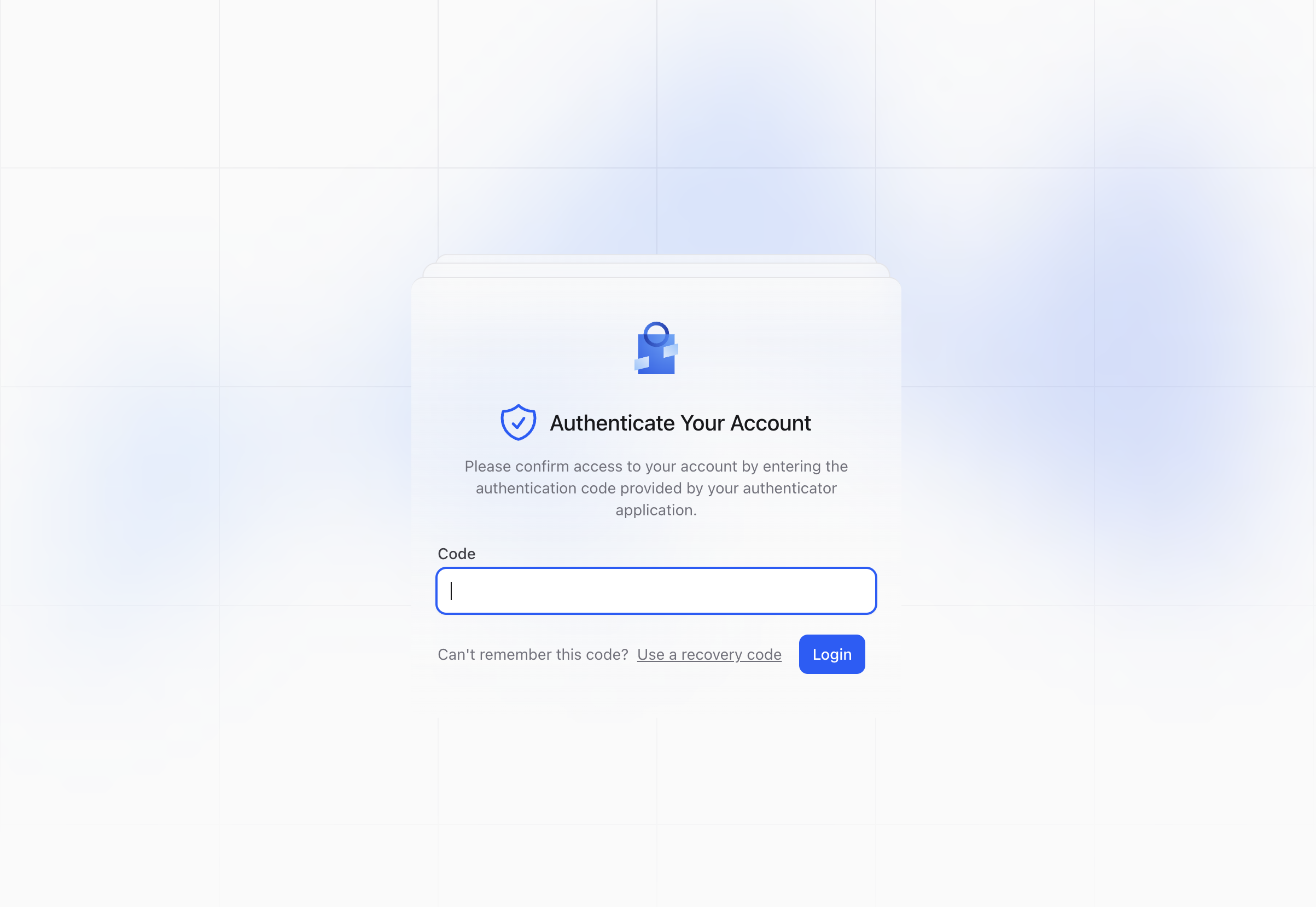
Enter the code from your authenticator app to verify:
### Step 3: Scan QR Code
1. Install an authenticator app on your phone:
* Google Authenticator
* Authy
* Microsoft Authenticator
* 1Password
2. Open the app and scan the QR code displayed on screen
3. The app will generate a 6-digit code
### Step 4: Verify Setup
Enter the code from your authenticator app to verify:
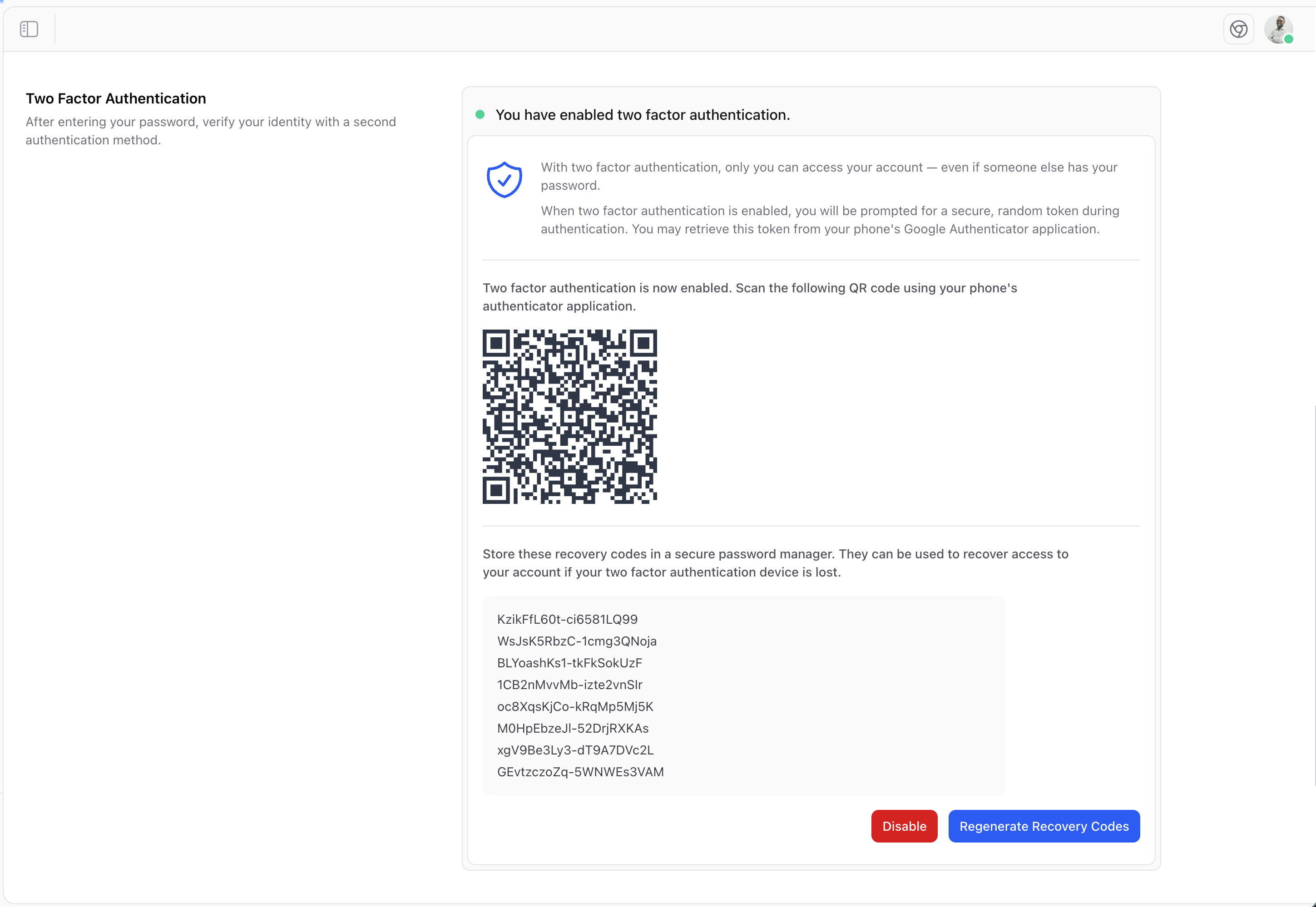 ### Step 5: Save Recovery Codes
After enabling 2FA, you'll receive recovery codes. **Save these securely!**
Recovery codes are one-time use codes that can help you regain access if you lose your phone.
Store your recovery codes in a safe place, like a password manager or a secure physical location. Don't store them on your phone.
## Logging In with 2FA
After enabling two-factor authentication:
1. Enter your email and password as usual
2. You'll be prompted for a verification code
3. Open your authenticator app
4. Enter the 6-digit code
5. You're logged in!
## Disabling Two-Factor Authentication
If you need to disable 2FA:
1. Go to your account settings
2. Find the Two-Factor Authentication section
3. Click **Disable**
4. Confirm your decision
### Step 5: Save Recovery Codes
After enabling 2FA, you'll receive recovery codes. **Save these securely!**
Recovery codes are one-time use codes that can help you regain access if you lose your phone.
Store your recovery codes in a safe place, like a password manager or a secure physical location. Don't store them on your phone.
## Logging In with 2FA
After enabling two-factor authentication:
1. Enter your email and password as usual
2. You'll be prompted for a verification code
3. Open your authenticator app
4. Enter the 6-digit code
5. You're logged in!
## Disabling Two-Factor Authentication
If you need to disable 2FA:
1. Go to your account settings
2. Find the Two-Factor Authentication section
3. Click **Disable**
4. Confirm your decision
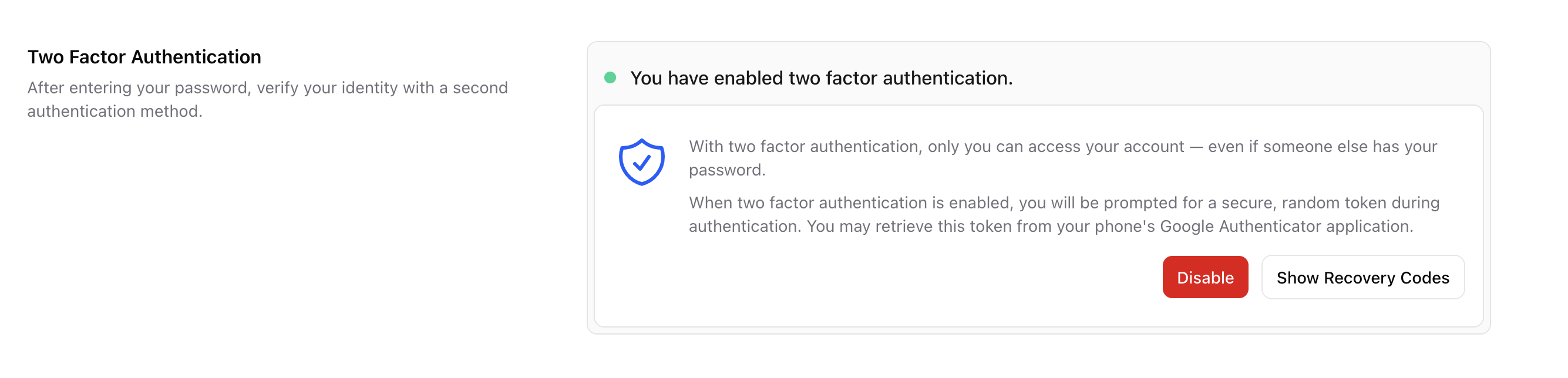 Only disable 2FA temporarily if necessary. Re-enable it as soon as possible to maintain account security.
## Recovery Options
### Lost Your Phone?
If you've lost access to your authenticator:
1. **Use a recovery code** - Enter one of your saved recovery codes
2. **Contact an administrator** - They may be able to reset your 2FA
3. **Use backup device** - If you set up 2FA on multiple devices
### Recovery Codes
Each recovery code can only be used once. After using a code:
* That code is no longer valid
* Generate new codes if you're running low
* Keep at least 2-3 codes available at all times
## Best Practices
Require 2FA for all staff with admin access.
Store recovery codes separately from your password.
Choose a reputable authenticator app.
Set up 2FA on a backup device if possible.
## Recommended Authenticator Apps
| App | Platform | Features |
| --------------------------- | --------------------- | ---------------------------- |
| **Google Authenticator** | iOS, Android | Simple, widely supported |
| **Authy** | iOS, Android, Desktop | Cloud backup, multi-device |
| **Microsoft Authenticator** | iOS, Android | Microsoft integration |
| **1Password** | All platforms | Password manager integration |
## Troubleshooting
### Code Not Working?
* **Check the time** - Your phone's time must be accurate
* **Try the next code** - Codes refresh every 30 seconds
* **Use a recovery code** - If you can't generate valid codes
### Locked Out?
1. Try using a recovery code
2. Contact another administrator
3. As a last resort, contact technical support
For developer details, see the [Two-Factor Authentication documentation](/v2/two-factor).
Only disable 2FA temporarily if necessary. Re-enable it as soon as possible to maintain account security.
## Recovery Options
### Lost Your Phone?
If you've lost access to your authenticator:
1. **Use a recovery code** - Enter one of your saved recovery codes
2. **Contact an administrator** - They may be able to reset your 2FA
3. **Use backup device** - If you set up 2FA on multiple devices
### Recovery Codes
Each recovery code can only be used once. After using a code:
* That code is no longer valid
* Generate new codes if you're running low
* Keep at least 2-3 codes available at all times
## Best Practices
Require 2FA for all staff with admin access.
Store recovery codes separately from your password.
Choose a reputable authenticator app.
Set up 2FA on a backup device if possible.
## Recommended Authenticator Apps
| App | Platform | Features |
| --------------------------- | --------------------- | ---------------------------- |
| **Google Authenticator** | iOS, Android | Simple, widely supported |
| **Authy** | iOS, Android, Desktop | Cloud backup, multi-device |
| **Microsoft Authenticator** | iOS, Android | Microsoft integration |
| **1Password** | All platforms | Password manager integration |
## Troubleshooting
### Code Not Working?
* **Check the time** - Your phone's time must be accurate
* **Try the next code** - Codes refresh every 30 seconds
* **Use a recovery code** - If you can't generate valid codes
### Locked Out?
1. Try using a recovery code
2. Contact another administrator
3. As a last resort, contact technical support
For developer details, see the [Two-Factor Authentication documentation](/v2/two-factor).