> ## Documentation Index
> Fetch the complete documentation index at: https://docs.laravelshopper.dev/llms.txt
> Use this file to discover all available pages before exploring further.
# Customers
> In e-commerce stores, customers are one if not the fundamental point for the functioning of your store.
This is documentation for Shopper v1, which is no longer maintained. Please refer to the [v2 docs](/v2) for the latest information.
The first page under the "Customers" menu gives you a list of all the registered users on your shop.
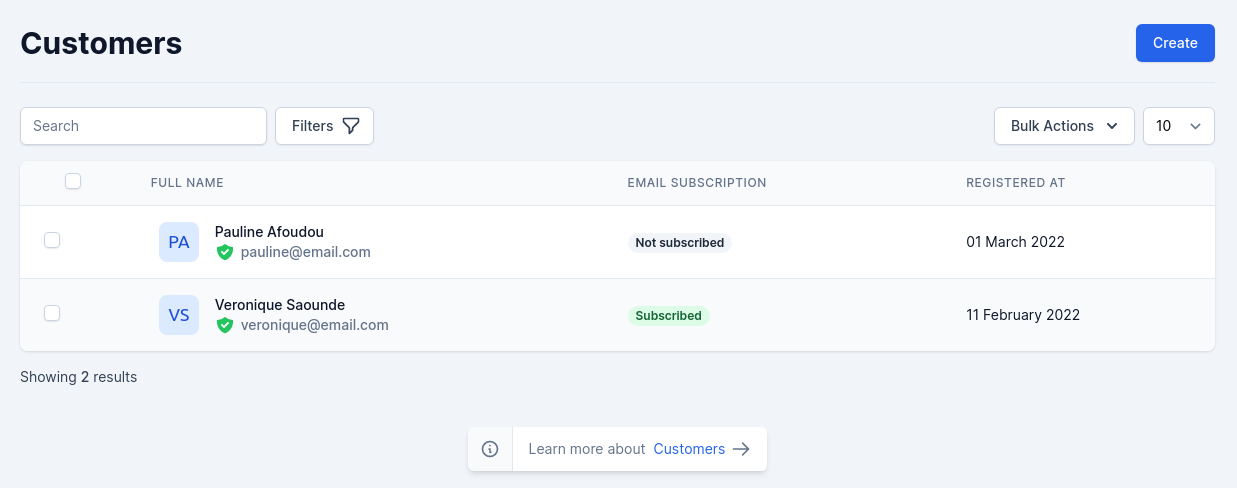 During the [installation](/installing#update-existing-files) of Shopper, one of the first things required is to inherit to our model User the features of the model User that is in Shopper.
## Fields
The model used is `App\Models\User` which extends the `\Shopper\Framework\Models\User\User` model.
During the installation of Shopper, the `name` column of the users table is removed and replaced by 2 new fields which are `first_name` and `last_name`.
| Name | Type | Required | Notes |
| ------------------- | --------- | -------- | ------------------------------------------------------ |
| `id` | autoinc | | auto |
| `first_name` | string | no | Nullable |
| `last_name` | string | yes | |
| `email` | string | yes | Unique |
| `password` | string | no | Nullable |
| `email_verified_at` | timestamp | no | Nullable |
| `gender` | enum | yes | values `['male', 'female']` |
| `phone_number` | string | no | Nullable |
| `birth_date` | date | no | Nullable |
| `avatar_type` | string | no | default [ui-avatars](https://ui-avatars.com/) |
| `avatar_location` | string | no | Nullable, picture filename |
| `timezone` | string | no | Nullable |
| `opt_in` | boolean | no | default `false`, this field is for mailing subcription |
| `last_login_at` | timestamp | no | Nullable |
| `last_login_ip` | string | no | Nullable |
## Components
The components used to manage customers are found in the component configuration file `config/shopper/components.php`.
```php theme={null}
use Shopper\Framework\Http\Livewire;
return [
'livewire' => [
'modals.delete-customer' => Livewire\Modals\DeleteCustomer::class,
'customers.addresses' => Livewire\Customers\Addresses::class,
'customers.browse' => Livewire\Customers\Browse::class,
'customers.create' => Livewire\Customers\Create::class,
'customers.orders' => Livewire\Customers\Orders::class,
'customers.profile' => Livewire\Customers\Profile::class,
'customers.show' => Livewire\Customers\Show::class,
'tables.customers-table' => Livewire\Tables\CustomersTable::class,
];
];
```
## Manage Customers
When a new customer places an order with your store, their name and information are automatically added to your customer list. A customer profile is created when a customer interacts with your store.
Alternatively, you can add a customer to your store manually.
### Create customer
From your Shopper admin, go to Customers and click on "Add customer" button.
During the [installation](/installing#update-existing-files) of Shopper, one of the first things required is to inherit to our model User the features of the model User that is in Shopper.
## Fields
The model used is `App\Models\User` which extends the `\Shopper\Framework\Models\User\User` model.
During the installation of Shopper, the `name` column of the users table is removed and replaced by 2 new fields which are `first_name` and `last_name`.
| Name | Type | Required | Notes |
| ------------------- | --------- | -------- | ------------------------------------------------------ |
| `id` | autoinc | | auto |
| `first_name` | string | no | Nullable |
| `last_name` | string | yes | |
| `email` | string | yes | Unique |
| `password` | string | no | Nullable |
| `email_verified_at` | timestamp | no | Nullable |
| `gender` | enum | yes | values `['male', 'female']` |
| `phone_number` | string | no | Nullable |
| `birth_date` | date | no | Nullable |
| `avatar_type` | string | no | default [ui-avatars](https://ui-avatars.com/) |
| `avatar_location` | string | no | Nullable, picture filename |
| `timezone` | string | no | Nullable |
| `opt_in` | boolean | no | default `false`, this field is for mailing subcription |
| `last_login_at` | timestamp | no | Nullable |
| `last_login_ip` | string | no | Nullable |
## Components
The components used to manage customers are found in the component configuration file `config/shopper/components.php`.
```php theme={null}
use Shopper\Framework\Http\Livewire;
return [
'livewire' => [
'modals.delete-customer' => Livewire\Modals\DeleteCustomer::class,
'customers.addresses' => Livewire\Customers\Addresses::class,
'customers.browse' => Livewire\Customers\Browse::class,
'customers.create' => Livewire\Customers\Create::class,
'customers.orders' => Livewire\Customers\Orders::class,
'customers.profile' => Livewire\Customers\Profile::class,
'customers.show' => Livewire\Customers\Show::class,
'tables.customers-table' => Livewire\Tables\CustomersTable::class,
];
];
```
## Manage Customers
When a new customer places an order with your store, their name and information are automatically added to your customer list. A customer profile is created when a customer interacts with your store.
Alternatively, you can add a customer to your store manually.
### Create customer
From your Shopper admin, go to Customers and click on "Add customer" button.
 When creating a customer manually, you should also fill in an address that will be used when he places an order in your store.
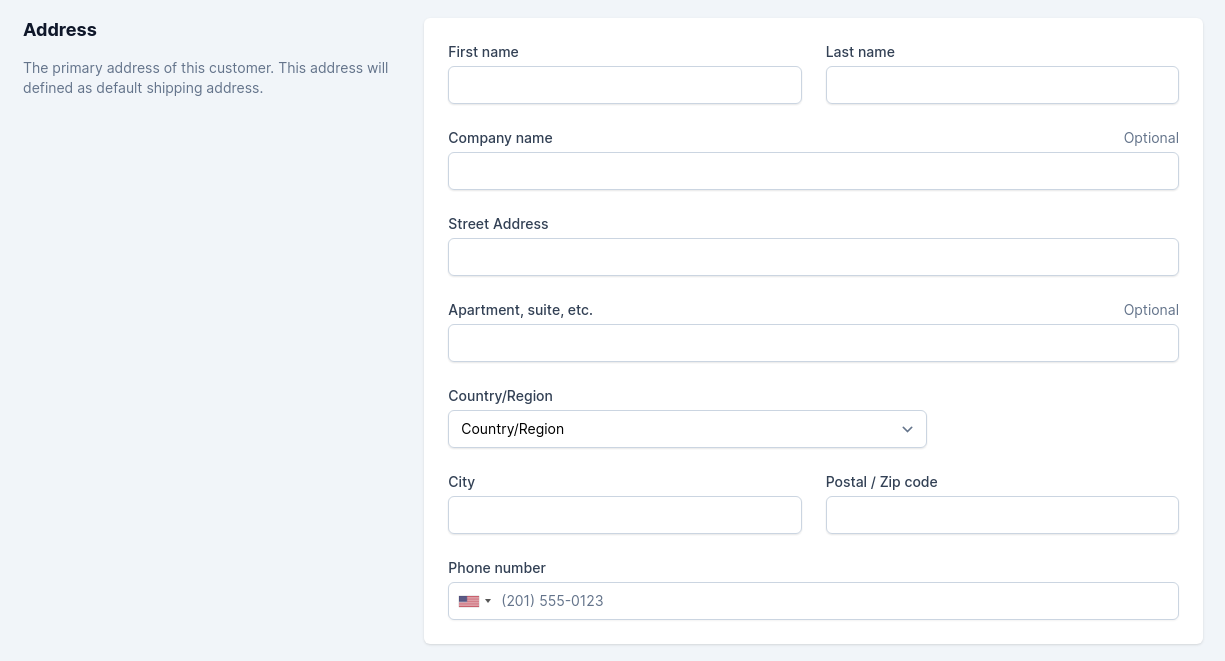 *Optional*: If the customer has agreed to receive marketing emails, and you have entered an email address, then in the Customer overview section, check Customer agreed to receive marketing emails.
And you can also check the **Send customer credentials** checkbox to sent an email to the customer with their login information.
*Optional*: If the customer has agreed to receive marketing emails, and you have entered an email address, then in the Customer overview section, check Customer agreed to receive marketing emails.
And you can also check the **Send customer credentials** checkbox to sent an email to the customer with their login information.
 The Livewire component used to create a client is `Shopper\Framework\Http\Livewire\Customers\Create`
```php theme={null}
$customer = (new UserRepository())->create([
'last_name' => $this->last_name,
'first_name' => $this->first_name,
'email' => $this->email,
'password' => Hash::make($this->password),
'phone_number' => $this->phone_number,
'email_verified_at' => now()->toDateTimeString(),
'opt_in' => $this->opt_in,
]);
$customer->assignRole(config('shopper.system.users.default_role'));
```
The clients that are displayed in the listing page are those that have the `user` profile which is the default role associated with all clients.
### Customer's Information
In the case where you would like to have more information on a given customer, you can click on the customer name row in the customer's list. A new page appears.
The Livewire component used to create a client is `Shopper\Framework\Http\Livewire\Customers\Create`
```php theme={null}
$customer = (new UserRepository())->create([
'last_name' => $this->last_name,
'first_name' => $this->first_name,
'email' => $this->email,
'password' => Hash::make($this->password),
'phone_number' => $this->phone_number,
'email_verified_at' => now()->toDateTimeString(),
'opt_in' => $this->opt_in,
]);
$customer->assignRole(config('shopper.system.users.default_role'));
```
The clients that are displayed in the listing page are those that have the `user` profile which is the default role associated with all clients.
### Customer's Information
In the case where you would like to have more information on a given customer, you can click on the customer name row in the customer's list. A new page appears.
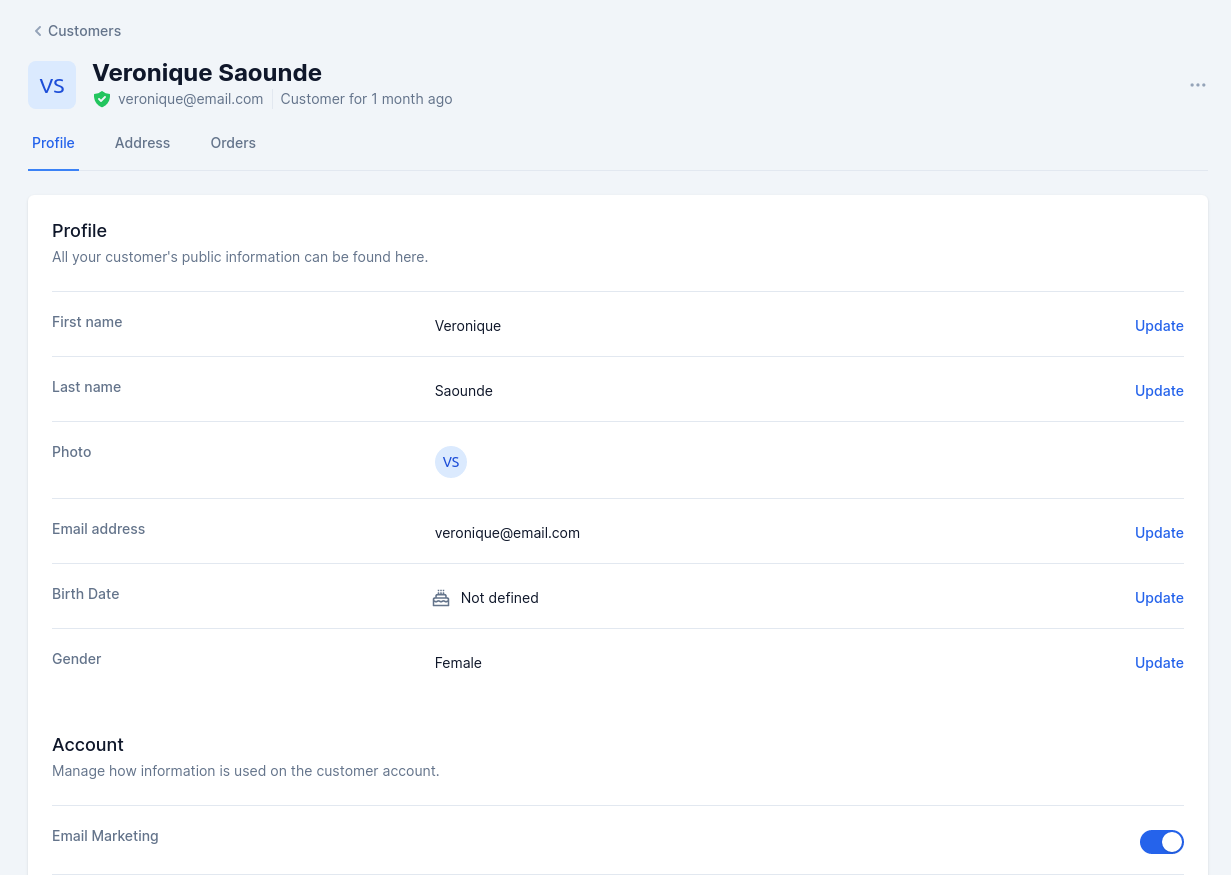 And in this page you can modify the information of a customer by clicking on the "update" button on the right of each information.
The various sections provide you with some key data on the user:
* **Customer information**, first and last name, e-mail address, picture, birth date, gender.
* Registered **Addresses**
* **Orders** Summary of purchases already made by the customer. Amount spent, payment type, order status. For more information on each order, click on the order number.
Each of its pages are accessible via Livewire components, and are fully customizable to your needs. So don't hesitate to modify them.
And in this page you can modify the information of a customer by clicking on the "update" button on the right of each information.
The various sections provide you with some key data on the user:
* **Customer information**, first and last name, e-mail address, picture, birth date, gender.
* Registered **Addresses**
* **Orders** Summary of purchases already made by the customer. Amount spent, payment type, order status. For more information on each order, click on the order number.
Each of its pages are accessible via Livewire components, and are fully customizable to your needs. So don't hesitate to modify them.