> ## Documentation Index
> Fetch the complete documentation index at: https://docs.laravelshopper.dev/llms.txt
> Use this file to discover all available pages before exploring further.
# Categories
> Categories are the primary way to group products with similar features. You can also add subcategories if desired.
This is documentation for Shopper v1, which is no longer maintained. Please refer to the [v2 docs](/v2) for the latest information.
For example, if you sell clothing, you might have “t-shirts”, “hoodies” and “pants” as categories.
## Overview
Shopper gives you a possibility to categorize your products in a very flexible way, which is one of the most vital functionalities of the modern e-commerce systems. The categories system in Shopper use the [Laravel Adjacency List](https://github.com/staudenmeir/laravel-adjacency-list) package to create categories trees like this
```plain theme={null}
Category
|
|\__ Women
| \_ T-Shirts
| \_ Shirts
| \_ Dresses
| \_ Shoes
|
|\__ Men
| \_ Accessories
| |--> Bags
| |--> Jeans
| |--> Sunglasses
| \_ Jeans
| \_ T-shirts
| \_ Shoes
|
```
 ### Fields
The model used is `Shopper\Framework\Models\Shop\Product\Category`.
| Name | Type | Required | Notes |
| ----------------- | -------- | -------- | ------------------------------------------------------ |
| `id` | autoinc | | auto |
| `name` | string | yes | |
| `slug` | string | yes | Unique, default value is generated using category name |
| `description` | longText | no | Nullable |
| `position` | string | no | Default `0` |
| `is_enabled` | boolean | no | Default `false` |
| `seo_title` | string | no | Nullable, for seo title max length is 60 |
| `seo_description` | string | no | Nullable, for seo description max length is 160 |
| `parent_id` | bigint | no | |
Models are customizable, and we recommend changing the **Category** model when you configure your store.
To change the model you need to look at the configuration file `config/shopper/system.php` at the key `models`.
Let's keep in mind the modification that was made in the previous section regarding [Brands](/brands).
```php theme={null}
return [
'models' => [
/*
* Eloquent model should be used to retrieve your brands. Of course,
* it is often just the "Brand" model but you may use whatever you like.
*
* The model you want to use as a Brand model needs to extends the
* `\Shopper\Framework\Models\Shop\Product\Brand` model.
*/
'brand' => \App\Models\Brand::class,
/*
* Eloquent model should be used to retrieve your categories. Of course,
* it is often just the "Category" model but you may use whatever you like.
*
* The model you want to use as a Category model needs to extends the
* `\Shopper\Framework\Models\Shop\Product\Category` model.
*/
'category' => \Shopper\Framework\Models\Shop\Product\Category::class,
]
];
```
1. Create your own model that you have to use
```bash theme={null}
php artisan make:model Category
```
Once the `app/Models/Category.php` model is created in our app folder, we will make it extend from the `Shopper\Framework\Models\Shop\Product\Category` model available in Shopper.
2. Extend our Category model from the Category Shopper Model
```php theme={null}
namespace App\Models;
use Shopper\Framework\Models\Shop\Product;
class Category extends Product\Category
{
}
```
3. Update `category` key for the model on the `system.php` config file to use our new model
```php theme={null}
return [
'models' => [
/*
* Eloquent model should be used to retrieve your brands. Of course,
* it is often just the "Brand" model but you may use whatever you like.
*
* The model you want to use as a Brand model needs to extends the
* `\Shopper\Framework\Models\Shop\Product\Brand` model.
*/
'brand' => \App\Models\Brand::class,
/*
* Eloquent model should be used to retrieve your categories. Of course,
* it is often just the "Category" model but you may use whatever you like.
*
* The model you want to use as a Category model needs to extends the
* `\Shopper\Framework\Models\Shop\Product\Category` model.
*/
'category' => \App\Models\Category::class,
]
];
```
### Components
Livewire components for managing categories are available in the component configuration file `config/shopper/components.php`.
```php theme={null}
use Shopper\Framework\Http\Livewire;
return [
'livewire' => [
'categories.browse' => Livewire\Categories\Browse::class,
'categories.create' => Livewire\Categories\Create::class,
'categories.edit' => Livewire\Categories\Edit::class,
'tables.categories-table' => Livewire\Tables\CategoriesTable::class,
];
];
```
## Manage Categories
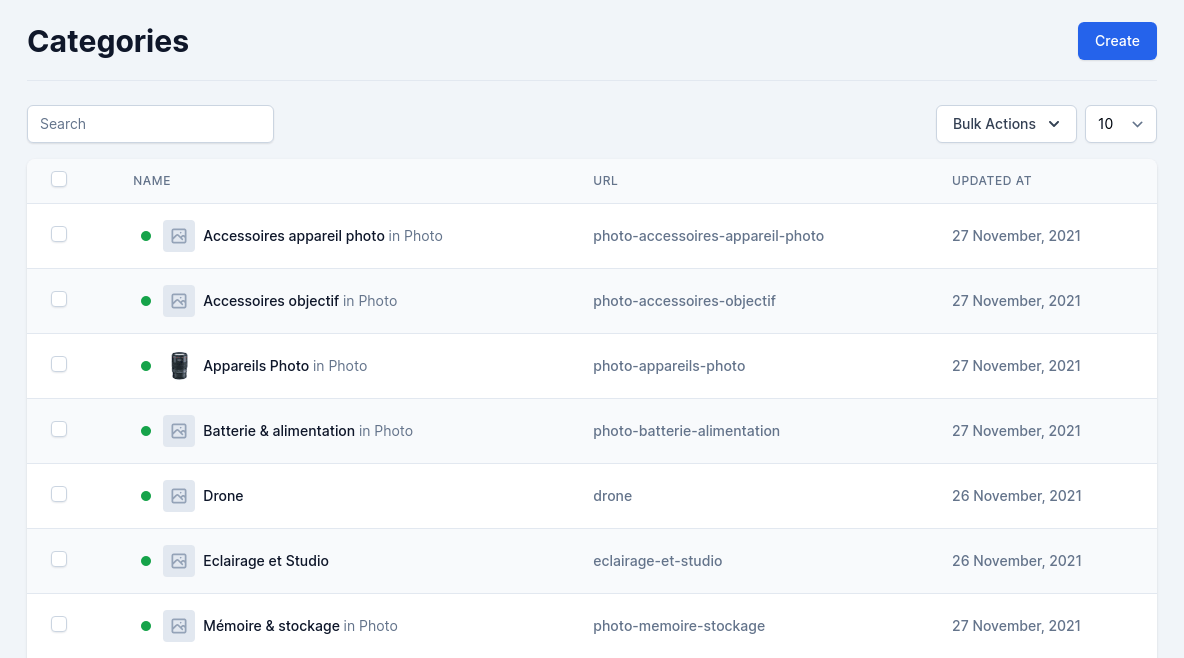
Categories are determinant of how people will navigate on your site and search for your products. You should focus on your category tree and how categories are organized even before you start creating product sheets.
The categories are accessible via the **Categories** Menu on the left sidebar. The display page is rendered by the Livewire component `Shopper\Framework\Http\Livewire\Categories\Browse` and for the display of the categories table is the component `Shopper\Framework\Http\Livewire\Tables\CategoriesTable`.
You can modify them in the component configuration file to use your own.
### Create category
Click on the "Create" button on the categories page, and a creation form appears.
### Fields
The model used is `Shopper\Framework\Models\Shop\Product\Category`.
| Name | Type | Required | Notes |
| ----------------- | -------- | -------- | ------------------------------------------------------ |
| `id` | autoinc | | auto |
| `name` | string | yes | |
| `slug` | string | yes | Unique, default value is generated using category name |
| `description` | longText | no | Nullable |
| `position` | string | no | Default `0` |
| `is_enabled` | boolean | no | Default `false` |
| `seo_title` | string | no | Nullable, for seo title max length is 60 |
| `seo_description` | string | no | Nullable, for seo description max length is 160 |
| `parent_id` | bigint | no | |
Models are customizable, and we recommend changing the **Category** model when you configure your store.
To change the model you need to look at the configuration file `config/shopper/system.php` at the key `models`.
Let's keep in mind the modification that was made in the previous section regarding [Brands](/brands).
```php theme={null}
return [
'models' => [
/*
* Eloquent model should be used to retrieve your brands. Of course,
* it is often just the "Brand" model but you may use whatever you like.
*
* The model you want to use as a Brand model needs to extends the
* `\Shopper\Framework\Models\Shop\Product\Brand` model.
*/
'brand' => \App\Models\Brand::class,
/*
* Eloquent model should be used to retrieve your categories. Of course,
* it is often just the "Category" model but you may use whatever you like.
*
* The model you want to use as a Category model needs to extends the
* `\Shopper\Framework\Models\Shop\Product\Category` model.
*/
'category' => \Shopper\Framework\Models\Shop\Product\Category::class,
]
];
```
1. Create your own model that you have to use
```bash theme={null}
php artisan make:model Category
```
Once the `app/Models/Category.php` model is created in our app folder, we will make it extend from the `Shopper\Framework\Models\Shop\Product\Category` model available in Shopper.
2. Extend our Category model from the Category Shopper Model
```php theme={null}
namespace App\Models;
use Shopper\Framework\Models\Shop\Product;
class Category extends Product\Category
{
}
```
3. Update `category` key for the model on the `system.php` config file to use our new model
```php theme={null}
return [
'models' => [
/*
* Eloquent model should be used to retrieve your brands. Of course,
* it is often just the "Brand" model but you may use whatever you like.
*
* The model you want to use as a Brand model needs to extends the
* `\Shopper\Framework\Models\Shop\Product\Brand` model.
*/
'brand' => \App\Models\Brand::class,
/*
* Eloquent model should be used to retrieve your categories. Of course,
* it is often just the "Category" model but you may use whatever you like.
*
* The model you want to use as a Category model needs to extends the
* `\Shopper\Framework\Models\Shop\Product\Category` model.
*/
'category' => \App\Models\Category::class,
]
];
```
### Components
Livewire components for managing categories are available in the component configuration file `config/shopper/components.php`.
```php theme={null}
use Shopper\Framework\Http\Livewire;
return [
'livewire' => [
'categories.browse' => Livewire\Categories\Browse::class,
'categories.create' => Livewire\Categories\Create::class,
'categories.edit' => Livewire\Categories\Edit::class,
'tables.categories-table' => Livewire\Tables\CategoriesTable::class,
];
];
```
## Manage Categories
Categories are determinant of how people will navigate on your site and search for your products. You should focus on your category tree and how categories are organized even before you start creating product sheets.
The categories are accessible via the **Categories** Menu on the left sidebar. The display page is rendered by the Livewire component `Shopper\Framework\Http\Livewire\Categories\Browse` and for the display of the categories table is the component `Shopper\Framework\Http\Livewire\Tables\CategoriesTable`.
You can modify them in the component configuration file to use your own.
### Create category
Click on the "Create" button on the categories page, and a creation form appears.
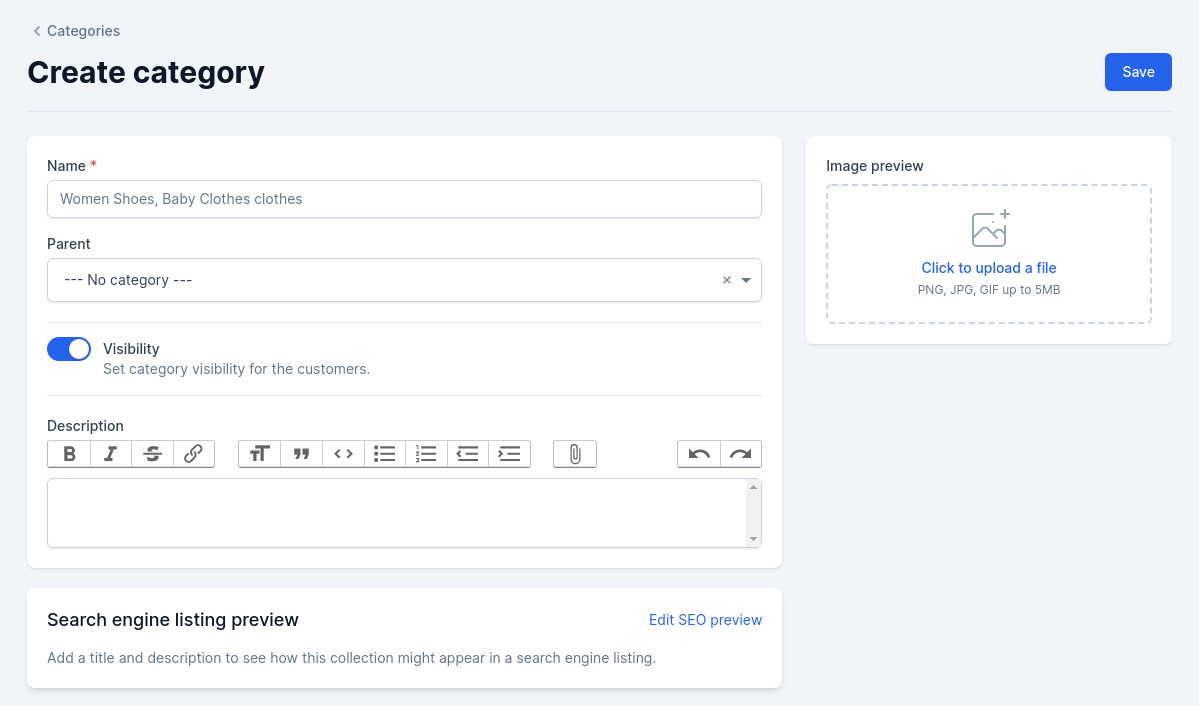 Save your changes in order to be taken back to the categories list. Required fields are marked with an **asterisk (\*)**
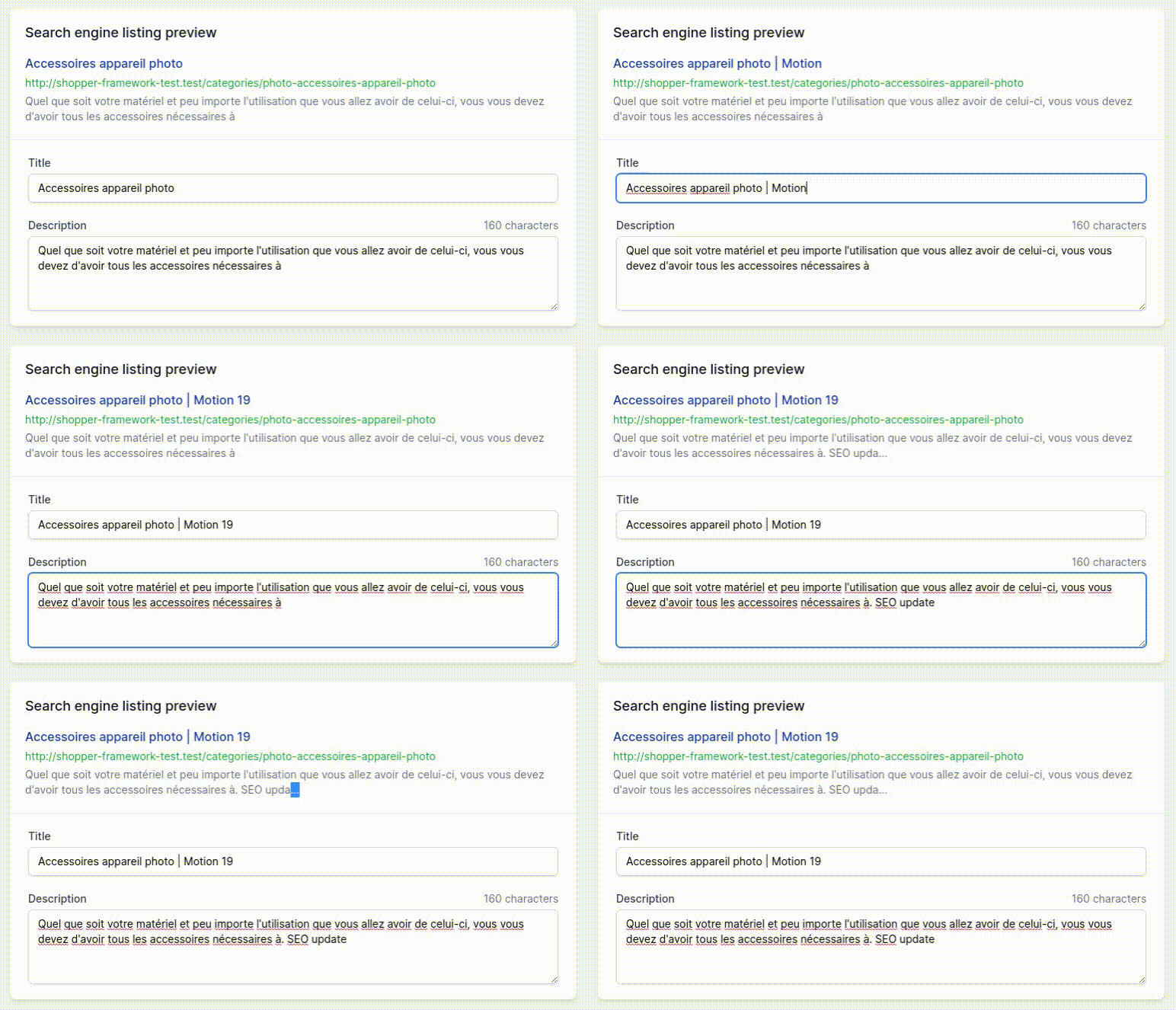
The SEO section allows you to define how your category information should be displayed in search engines. To modify the content you click on the button "Edit SEO preview". It uses the same blade component as the brands.
Save your changes in order to be taken back to the categories list. Required fields are marked with an **asterisk (\*)**
The SEO section allows you to define how your category information should be displayed in search engines. To modify the content you click on the button "Edit SEO preview". It uses the same blade component as the brands.
 Once you have finished configuring your category, save it, and you are ready to fill it with products.
If you use another interface (e.g. API) to save your categories, you can save directly using your Model
```php theme={null}
use App\Models\Category;
$category = Category::create([
'name' => $name = 'Clothes',
'slug' => $name,
'is_enabled' => true,
]);
```
The slug cannot be null, you have to fill in the value of the category name and according to that the slug will be generated.
In case a slug already exists, the slug will be automatically extended to prevent duplicates:
```php theme={null}
use App\Models\Category;
$category1 = Category::create(['name' => 'Category', 'slug' => 'Category']);
$category2 = Category::create(['name' => 'Category', 'slug' => 'Category']);
echo $category1->slug;
// category
echo $category2->slug;
// category-1
```
And if the category has a parent, the child's slug will be generated with the parent's directly
This generation is done when adding a category in Shopper. But you can change this behavior by extending the category create [Shopper\Framework\Http\Livewire\Categories\Create](https://github.com/shopperlabs/framework/blob/main/src/Http/Livewire/Categories/Create.php) Livewire component or by creating a new one.
```php theme={null}
use App\Models\Category;
$category = Category::create(['name' => 'Photo', 'slug' => 'photo']);
$categoryChild = Category::create([
'name' => 'Camera',
'slug' => $this->parent ? $this->parent->slug . '-' . 'Camera' : 'Camera',
'parent_id' => $caregory->id
]);
echo $category->slug;
// photo
echo $categoryChild->slug;
// photo-camera
```
#### Create Category with parent
```php theme={null}
use App\Models\Category;
$parent = Category::create([
'name' => $name = 'Clothes',
'slug' => $name,
'is_enabled' => true,
]);
$child = Category::create([
'name' => 'Jeans',
'slug' => 'jeans',
'parent_id' => $parent->id,
'is_enabled' => true,
]);
```
On Shopper, to specify the parent category you just have to choose via the select field
Once you have finished configuring your category, save it, and you are ready to fill it with products.
If you use another interface (e.g. API) to save your categories, you can save directly using your Model
```php theme={null}
use App\Models\Category;
$category = Category::create([
'name' => $name = 'Clothes',
'slug' => $name,
'is_enabled' => true,
]);
```
The slug cannot be null, you have to fill in the value of the category name and according to that the slug will be generated.
In case a slug already exists, the slug will be automatically extended to prevent duplicates:
```php theme={null}
use App\Models\Category;
$category1 = Category::create(['name' => 'Category', 'slug' => 'Category']);
$category2 = Category::create(['name' => 'Category', 'slug' => 'Category']);
echo $category1->slug;
// category
echo $category2->slug;
// category-1
```
And if the category has a parent, the child's slug will be generated with the parent's directly
This generation is done when adding a category in Shopper. But you can change this behavior by extending the category create [Shopper\Framework\Http\Livewire\Categories\Create](https://github.com/shopperlabs/framework/blob/main/src/Http/Livewire/Categories/Create.php) Livewire component or by creating a new one.
```php theme={null}
use App\Models\Category;
$category = Category::create(['name' => 'Photo', 'slug' => 'photo']);
$categoryChild = Category::create([
'name' => 'Camera',
'slug' => $this->parent ? $this->parent->slug . '-' . 'Camera' : 'Camera',
'parent_id' => $caregory->id
]);
echo $category->slug;
// photo
echo $categoryChild->slug;
// photo-camera
```
#### Create Category with parent
```php theme={null}
use App\Models\Category;
$parent = Category::create([
'name' => $name = 'Clothes',
'slug' => $name,
'is_enabled' => true,
]);
$child = Category::create([
'name' => 'Jeans',
'slug' => 'jeans',
'parent_id' => $parent->id,
'is_enabled' => true,
]);
```
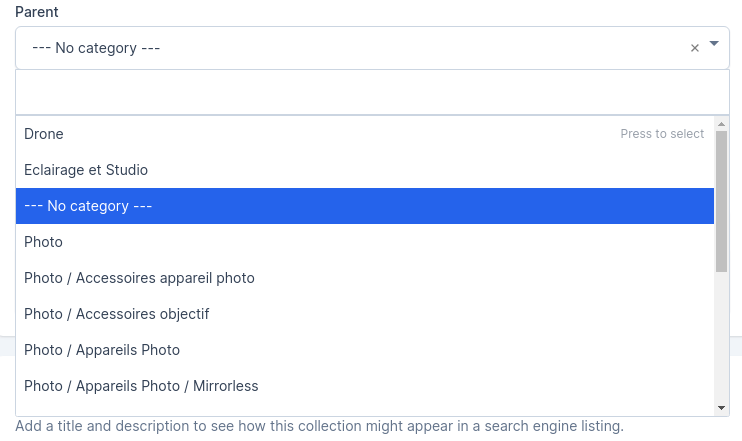
On Shopper, to specify the parent category you just have to choose via the select field
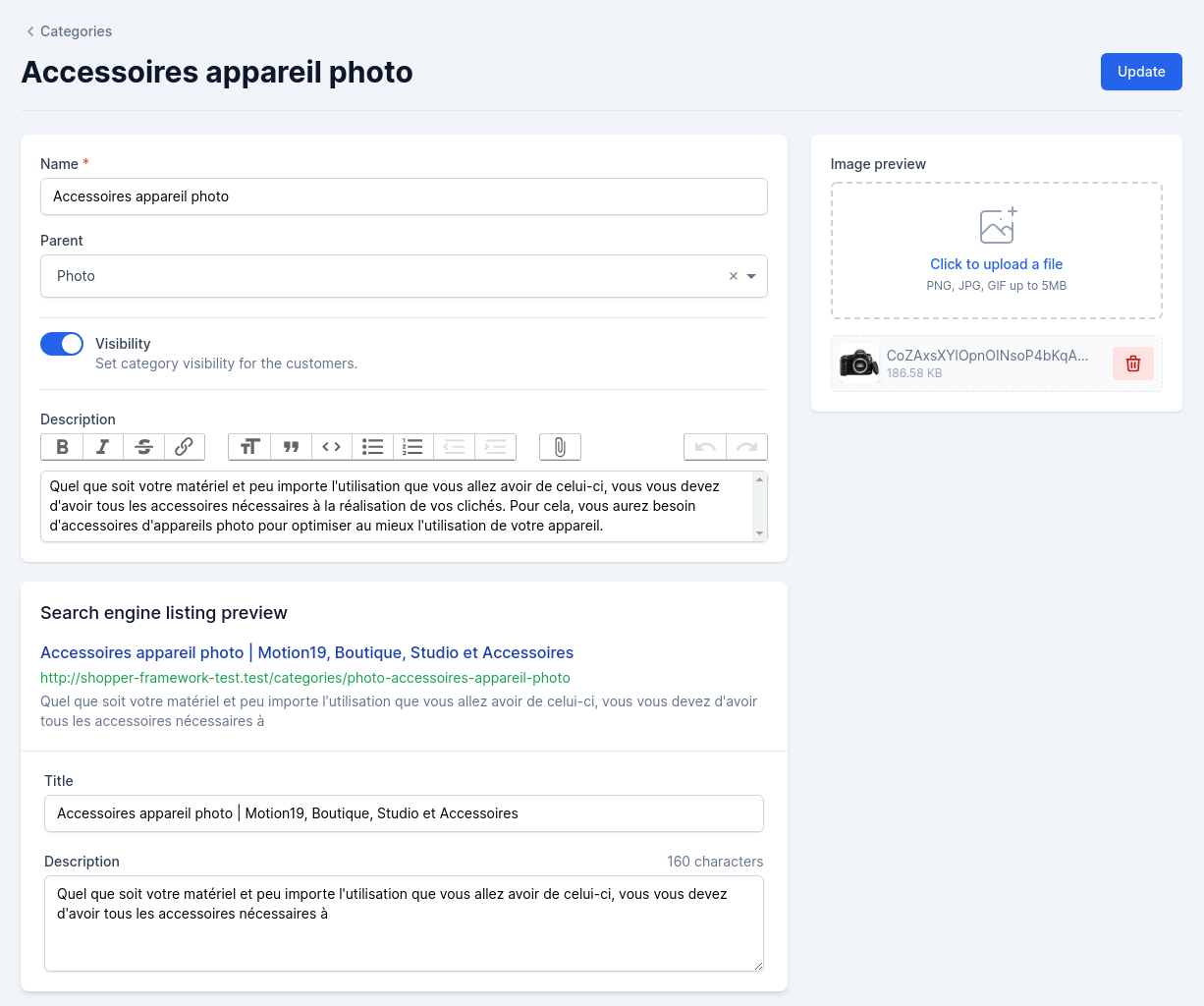
 ### Update category
The "Modify" button allows you to modify the category.
It is important to know that if you update the category name, the slug will automatically be updated as well.
### Update category
The "Modify" button allows you to modify the category.
It is important to know that if you update the category name, the slug will automatically be updated as well.
 ## Retrieve Data
With Shopper Framework you are the master of your front-end. After extending the model you can make all the necessary queries to retrieve your data.
We just recommend that you always use the `enabled` scope to ensure that only active categories are visible
```php theme={null}
use App\Models\Category;
$categories = Category::enabled()->get(),
```
To find a category with his children or parent, etc. The following functions are available.
* `ancestors()`: The model's recursive parents.
* `ancestorsAndSelf()`: The model's recursive parents and itself.
* `bloodline()`: The model's ancestors, descendants and itself.
* `children()`: The model's direct children.
* `childrenAndSelf()`: The model's direct children and itself.
* `descendants()`: The model's recursive children.
* `descendantsAndSelf()`: The model's recursive children and itself.
* `parent()`: The model's direct parent.
* `parentAndSelf()`: The model's direct parent and itself.
* `rootAncestor()`: The model's topmost parent.
* `siblings()`: The parent's other children.
* `siblingsAndSelf()`: All the parent's children.
```php theme={null}
$ancestors = Category::find($id)->ancestors;
$categories = Category::with('descendants')->get();
$categories = Category::whereHas('siblings', function ($query) {
$query->where('name', '=', 'Photo');
})->get();
$total = Category::find($id)->descendants()->count();
Category::find($id)->descendants()->update(['is_enabled' => false]);
Category::find($id)->siblings()->delete();
```
The complete documentation is available in the readme of [Laravel Adjacency List](https://github.com/staudenmeir/laravel-adjacency-list)
## Retrieve Data
With Shopper Framework you are the master of your front-end. After extending the model you can make all the necessary queries to retrieve your data.
We just recommend that you always use the `enabled` scope to ensure that only active categories are visible
```php theme={null}
use App\Models\Category;
$categories = Category::enabled()->get(),
```
To find a category with his children or parent, etc. The following functions are available.
* `ancestors()`: The model's recursive parents.
* `ancestorsAndSelf()`: The model's recursive parents and itself.
* `bloodline()`: The model's ancestors, descendants and itself.
* `children()`: The model's direct children.
* `childrenAndSelf()`: The model's direct children and itself.
* `descendants()`: The model's recursive children.
* `descendantsAndSelf()`: The model's recursive children and itself.
* `parent()`: The model's direct parent.
* `parentAndSelf()`: The model's direct parent and itself.
* `rootAncestor()`: The model's topmost parent.
* `siblings()`: The parent's other children.
* `siblingsAndSelf()`: All the parent's children.
```php theme={null}
$ancestors = Category::find($id)->ancestors;
$categories = Category::with('descendants')->get();
$categories = Category::whereHas('siblings', function ($query) {
$query->where('name', '=', 'Photo');
})->get();
$total = Category::find($id)->descendants()->count();
Category::find($id)->descendants()->update(['is_enabled' => false]);
Category::find($id)->siblings()->delete();
```
The complete documentation is available in the readme of [Laravel Adjacency List](https://github.com/staudenmeir/laravel-adjacency-list)